Just imagine: you launched a push campaign targeting your Android users. The dashboard says “sent.” But the openings are half what you expected — and you can’t tell if the problem is bad creative or broken delivery.
On Android, the answer is often neither. Notification channels, priority settings, and aggressive OEM battery policies can silently kill your messages before users ever see them. The dashboard won’t flag it. Your analytics won’t explain it. The messages just disappear.
This is a diagnostic playbook: where the Android delivery funnel actually breaks, and what you can do about it — without weeks of dev investigation.
Where do your push notifications actually get lost?
Most mobile app teams track 2 numbers: sent and opened. But on Android, there are 4 stages — and the biggest losses happen in the middle, where nobody’s looking.
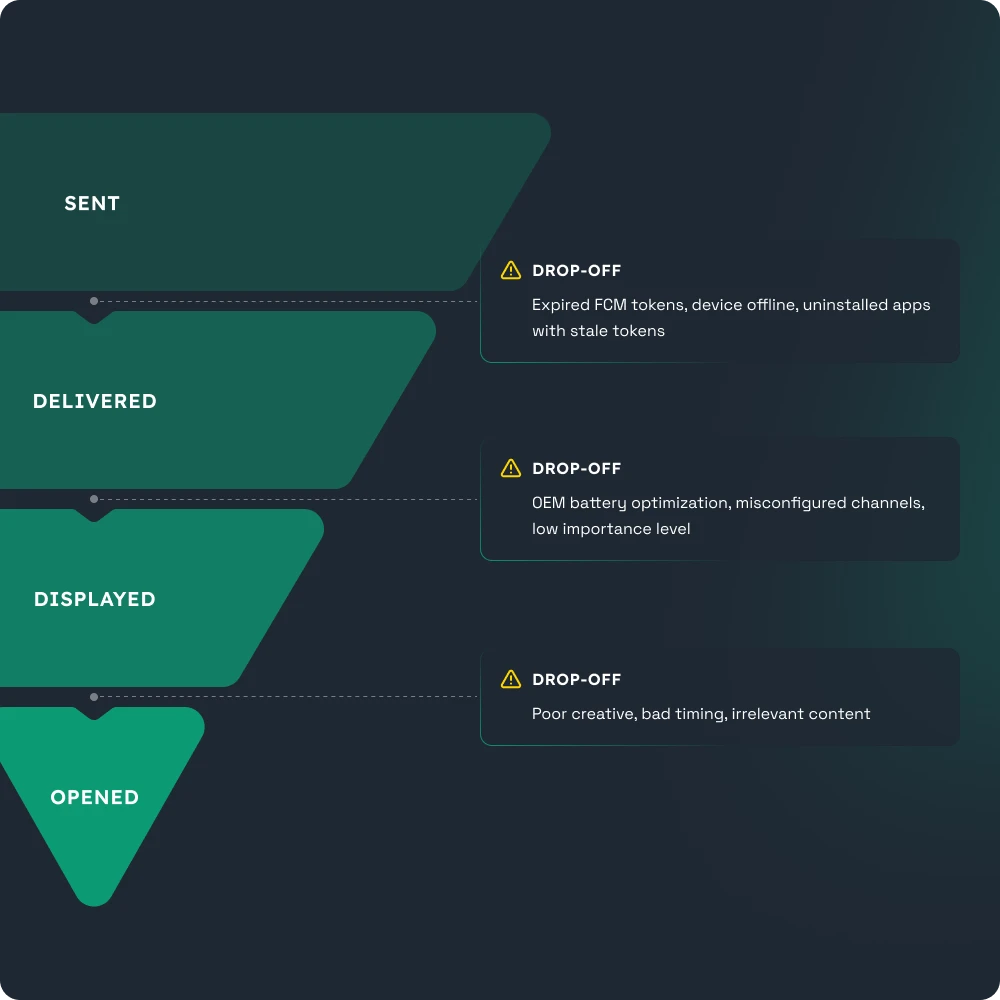
Each transition has its own failure mode:
Sent → Delivered. The message left your server but never reached the device. Common causes: expired FCM tokens, device offline for extended periods, uninstalled app with stale tokens still in your database.
Delivered → Displayed. The message reached the device but was never shown to the user. This is where Android-specific problems live: OEM battery optimization kills the notification, the notification channel is muted or disabled, priority settings cause silent delivery.
Displayed → Opened. The user saw the notification but didn’t tap. This is where creative, timing, and relevance actually matter — but only after you’ve confirmed the first 2 stages are working.
The key insight: if your delivery-to-displayed ratio is low, no amount of A/B testing on copy will help. You’re optimizing a message nobody sees. Here’s how to find and fix the real problem in 3 steps.
The top 3 silent killers of Android push delivery
Notification channels: 1 default channel ≠ strategy
Since Android 8.0, every notification must be assigned to a channel. Users can control each channel independently — mute it, change its behavior, or disable it entirely.
The problem: when all messages — promotions, transactional alerts, reminders — go through 1 default channel, a single annoyed user mutes everything. They wanted fewer promos; instead, they lost order confirmations, payment receipts, and security alerts too.
What to do: Structure channels by use case. At minimum, separate transactional messages (order status, payment confirmations) from promotional ones (offers, re-engagement). Each channel gets its own importance level.
Diagnostic signal: if drop-off rates are identical across all message types — promotional and transactional — your channel structure is likely the problem. Users are muting the 1 channel that carries everything.
Priority & importance: why your message lands silently
There are 2 layers that control how a notification behaves, and confusing them is one of the most common mistakes.
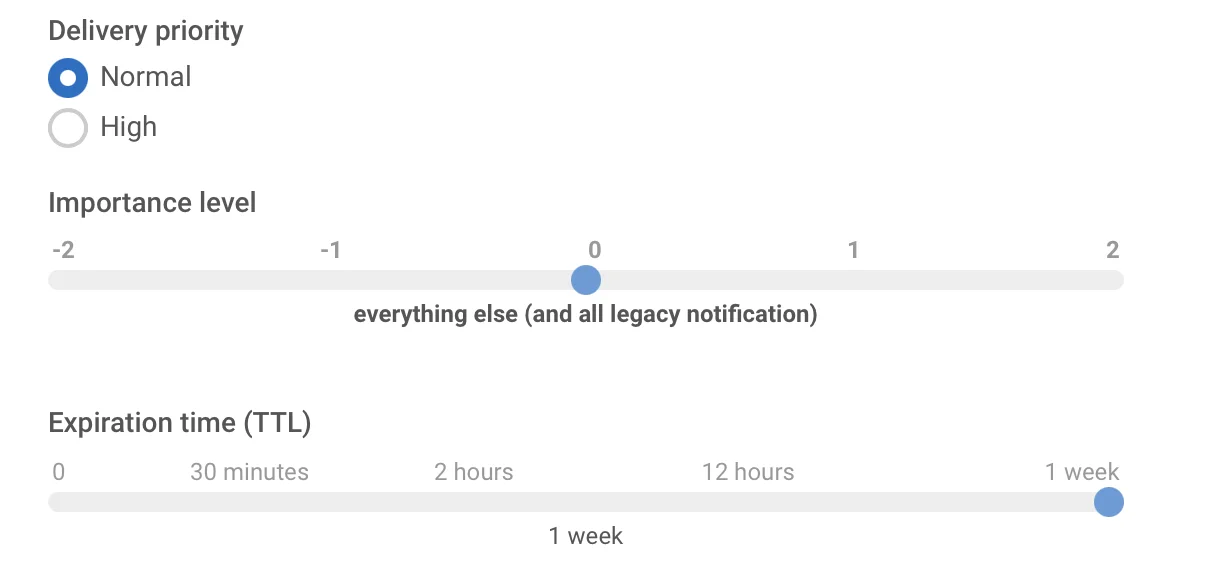
FCM Priority determines how urgently the system delivers the message to the device. HIGH priority wakes the device immediately; NORMAL may be batched and delayed.
Channel importance determines how the notification appears to the user once it’s on the device. HIGH importance triggers a heads-up banner and sound. DEFAULT shows in the notification shade silently.
The trap: HIGH FCM priority + DEFAULT channel importance = the message reaches the device immediately, then sits invisibly in the notification tray. Analytics say “delivered.” The user never noticed.
OEM battery policies
Stock Android is only part of the story. Samsung, Xiaomi, Huawei, Oppo, and Vivo each apply their own aggressive battery optimization on top of Android’s defaults. These policies can prevent your app from receiving push notifications entirely — even when the FCM token is valid and delivery “succeeds.”
Here’s how it breaks down by manufacturer:
- Xiaomi (MIUI): Autostart is disabled by default. After a device reboot, your app can’t receive push notifications until the user manually opens it — unless they’ve granted autostart permission.
- Huawei (EMUI/HarmonyOS): Aggressive app killing terminates background processes. Pushes stop arriving after a period of inactivity, even if the app was recently used.
- Samsung (One UI): “Sleeping apps” and “Deep sleeping apps” lists delay or block notifications for apps the user hasn’t opened recently.
- Oppo/Vivo (ColorOS/Funtouch): Background activity restrictions silently suppress notifications. The app appears to work normally when open, but background delivery fails.
The common thread: on all these OEMs, the user must explicitly allow your app to run in the background. Without that permission, delivery “succeeds” on paper, but the notification never shows.
Diagnostic signal: if delivery or open rates vary dramatically by device manufacturer within the same campaign, OEM restrictions are almost certainly the cause.
Find where it breaks & fix it
You understand what can go wrong. Here’s how to find your specific problem and solve it.
1. Set up your diagnostic instruments
Segment by device. Create Android-specific segments by OS version and device manufacturer. This is your single most important diagnostic tool. It lets you see whether delivery problems are universal or isolated to a specific OEM.
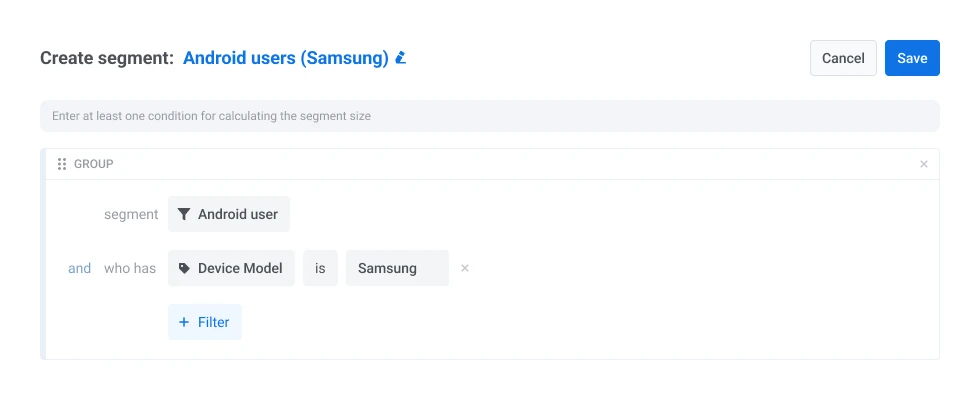
Track the full funnel. Ensure your SDK is set up to report not just “sent” but “delivered” and “opened” as distinct events. Without this, you’re blind to the middle of the funnel.
Structure notification channels by use case. At minimum, split transactional (order status, security alerts) and promotional (offers, re-engagement). Each channel should have its own importance level.
Dev asks (one-time setup):
- Pass device manufacturer, OS version, and model as user attributes for segmentation
- Verify delivery tracking is properly configured in the SDK
- Define notification channels in code with appropriate importance levels
2. Run a diagnostic journey
Send the same campaign to your Android segments (split by manufacturer) and your iOS audience. Compare journey drop-offs and opens step-by-step.
For this purpose, we recommend using a marketer-friendly Pushwoosh Customer Journey Builder (you can sign up for free and test it):
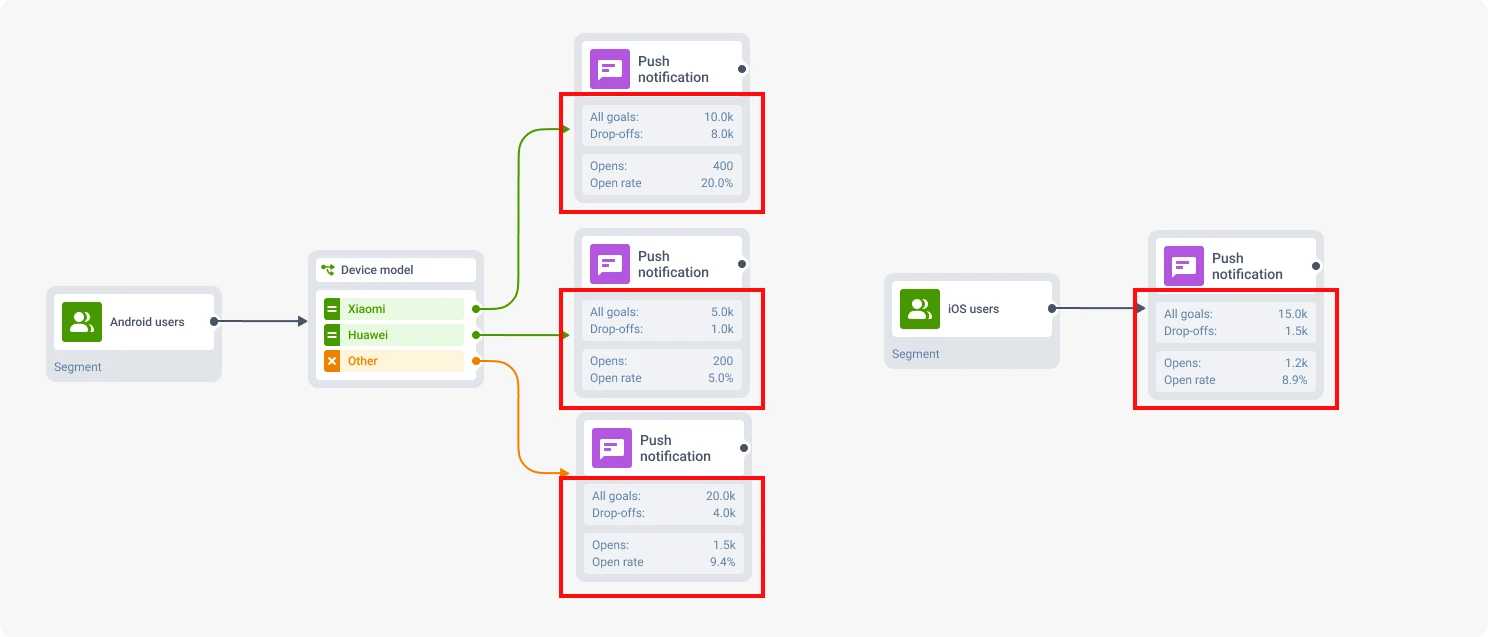
- ⚠️ Android segments drop at the delivery step, iOS holds steady → the problem is infrastructure: OEM restrictions, token issues, or channel misconfiguration.
- ⚠️ Both platforms drop equally at the open step → the problem is your message: creative, timing, or relevance.
- ⚠️ One manufacturer drops disproportionately → you’ve found an OEM-specific issue.
- ⚠️ Delivery is fine, but opens are low across all devices → check your priority/importance settings. You may be sending HIGH-priority messages on a DEFAULT-importance channel, which means they arrive quickly but appear silently.
3. Prevent future losses
Match priority to importance. Time-sensitive messages (flash sales, security alerts) → HIGH priority, HIGH importance. Non-urgent content (digests, tips) → NORMAL/DEFAULT.
Don’t set everything to HIGH — that’s a shortcut to users muting your channels entirely.
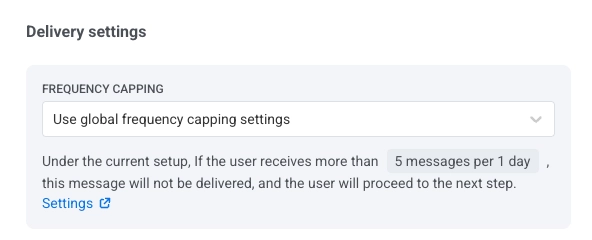
Apply frequency caps and silence hours. Over-messaging is the fastest path to a muted channel. Set per-channel frequency limits and respect local time zones with quiet hours. This doesn’t fix delivery — it protects it.
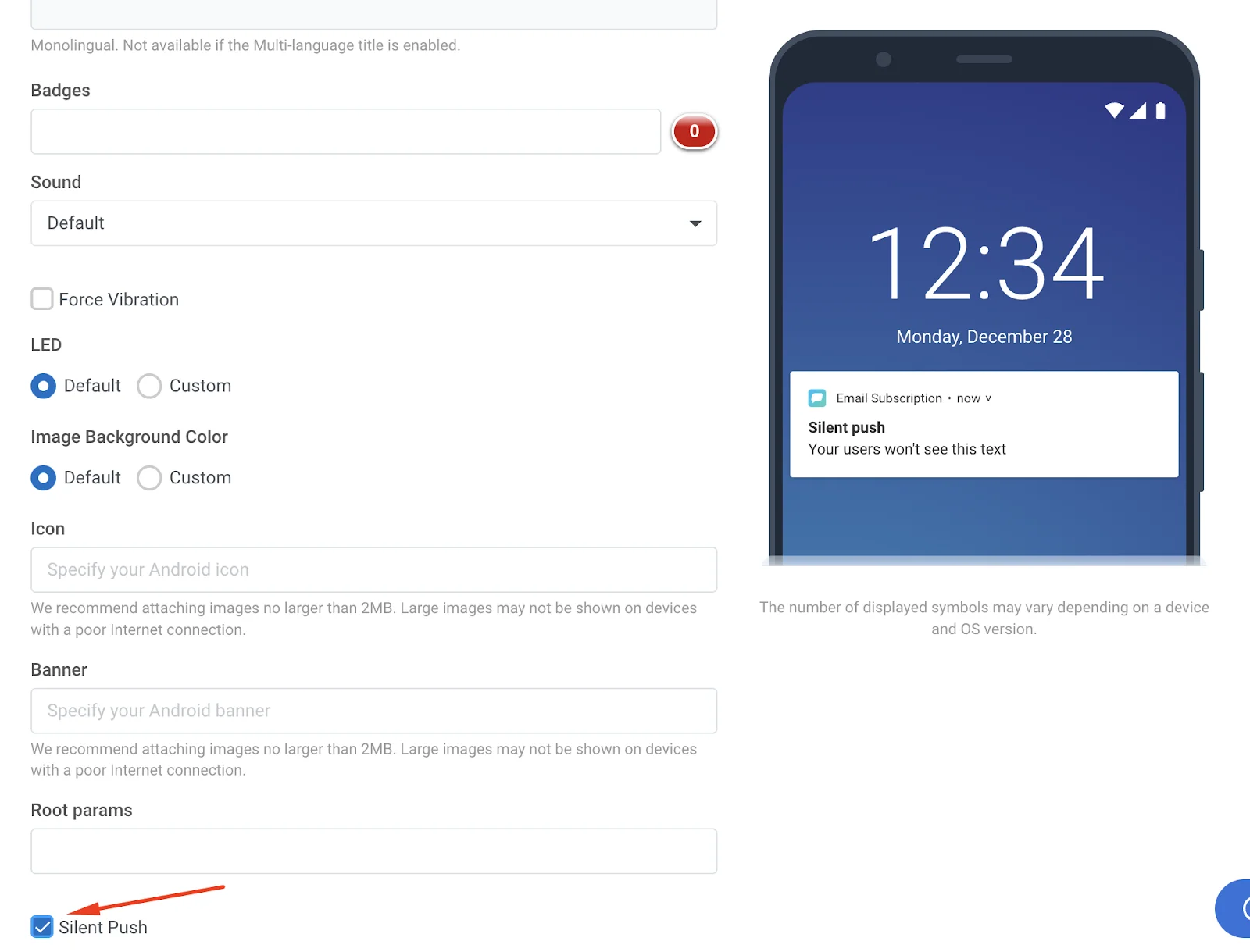
Use silent push wisely. Silent push notifications let you update app content and sync data in the background without user-visible alerts. This is a powerful tool for keeping your app fresh — but it also has its own delivery constraints on battery-optimized OEMs.
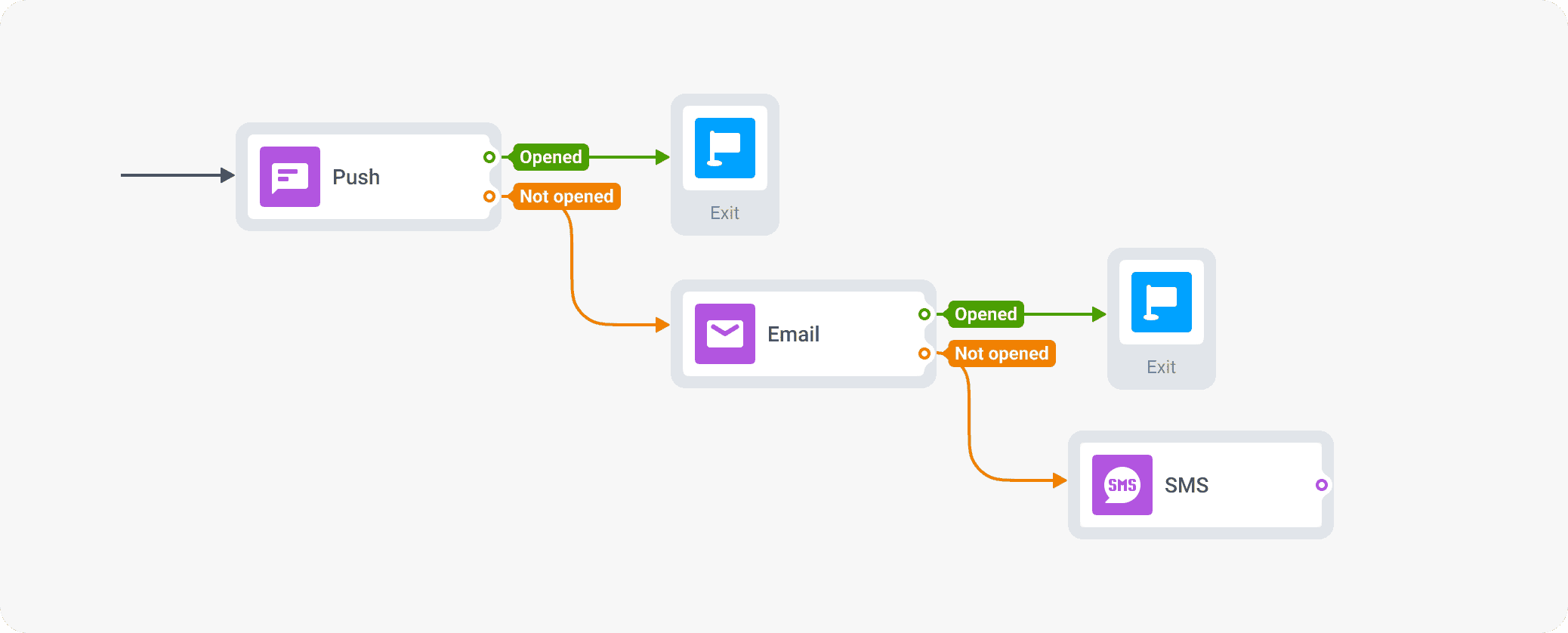
Build a fallback journey. This is your safety net. If a push notification isn’t opened within N hours, trigger a follow-up through a different channel — in-app message, email, or SMS. This covers you for OEM delivery failures, muted channels, and low-engagement segments.
Fix your Android push delivery with Pushwoosh
The goal is a repeatable cycle: segment → measure → identify the failure point → fix the right layer. Not creative when the problem is delivery. Not delivery when the problem is creative.
Ready to start? Create your first segment in Pushwoosh to test where your funnel actually breaks.