Wallet pass API से आपका backend हर customer के लिए अलग pass बना सकता है, उसके अपने name, balance, barcode और locations के साथ, और जब भी आपका data बदले, उसे update कर सकता है। आप template एक बार design करते हैं, हर user की personal values भेजते हैं, और बदले में Apple Wallet का install link या Google Wallet का save link मिलता है। भारत में Android का share 95%+ है, इसलिए ज़्यादातर Indian apps के लिए Google Wallet API वाला flow पहले बनाना समझदारी है।
हर team को इसकी ज़रूरत नहीं होती। Examples Pushwoosh Wallet passes API पर हैं, जहां हर pass एक User ID से जुड़ा है, और वही User ID आपके push, email और journeys भी चलाता है।
API कब builder से बेहतर है
Pass design करने और छोटे या one-off sends के लिए builder सही tool है। जब passes आपके अपने systems के data पर निर्भर हों, तब API काम संभालता है।
| Task | Builder | API | Journey step |
|---|---|---|---|
| Template design करें | हां | हां | नहीं |
| 1 customer को pass issue करें | हां | हां | हां |
| हज़ारों customers को pass issue करें, हर एक की अपनी values के साथ | नहीं | हां | हां |
| POS या booking system से real time में update करें | नहीं | हां | नहीं |
| हर customer के लिए सबसे नज़दीकी 10 stores चुनें | नहीं | हां | नहीं |

Code लिखने से पहले journey वाला column देखें। अगर trigger कोई ऐसा customer action है जिसे Pushwoosh पहले से track करता है, तो Customer Journey का Issue Wallet Pass step अक्सर custom code की ज़रूरत खत्म कर देता है।
Templates और personal values
Pattern दोनों platforms पर एक जैसा है। Template में layout, branding और fields का structure होता है। Issue के समय हर user की values उसे भरती हैं।
Personal values वो हैं जो एक customer से दूसरे में बदलती हैं: name, member number, points, tier, barcode value, expiry, नज़दीकी store। E-commerce app में यह loyalty tier हो सकता है, FinTech app में cashback balance, और EdTech app में course या batch का नाम। बाकी सब template से आता है, इसलिए design change आपके integration को छुए बिना हर नए pass पर लागू होता है।
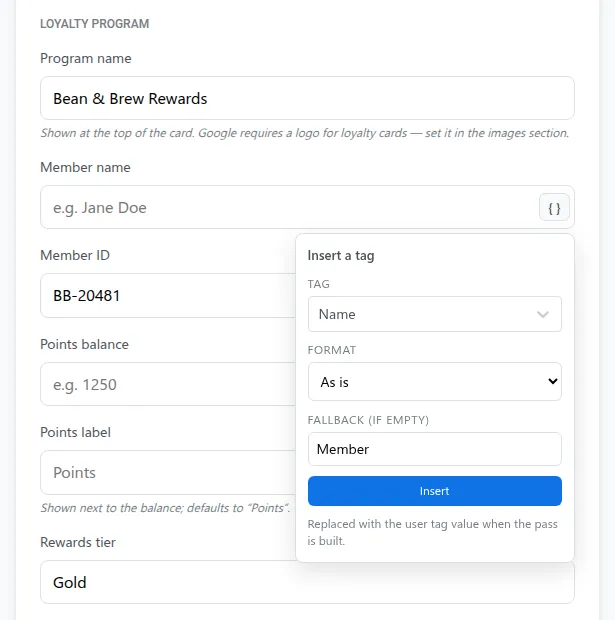
Journey में Issue Wallet Pass step Apple और Google pass campaigns (apple_campaign_id, google_campaign_id) और भरने के लिए personal_values लेता है। 1 step एक ही User ID को दोनों versions issue कर सकता है।
Apple Wallet flow
Apple pass builder जो भी करता है, वह सब Apple Wallet PassKit API में भी है: passes create, update, list, download और delete करना।
एक typical integration में 4 steps होते हैं।
-
Validate करें
कुछ भी create करने से पहले pass data को Apple की requirements पर validate करें। गलत field यहां पकड़ना customer के wallet में पकड़ने से सस्ता है।
-
Create करें
User ID के लिए उसकी personal values के साथ pass create करें। Pushwoosh pass generate करता है और उसे आपके Pass Type ID certificate से sign करता है।
-
Share करें
Install link email, SMS, push या QR से share करें।
-
Update करें
Data बदलने पर pass update करें। Pushwoosh registered devices को notify करता है, और iOS नया version background में fetch कर लेता है।
आपको हर application के लिए एक Pass Type ID certificate (.p12) और Apple Developer account ($99 सालाना) चाहिए। Setup iOS Wallet pass configuration docs में है।
Google Wallet flow
Google Wallet API Google passes के लिए वही life cycle cover करता है। Android-first audience वाले apps के लिए यही flow ज़्यादातर customers तक पहुंचता है।
-
Create करें
User ID के लिए उसकी personal values के साथ pass object create करें।
-
Save link लें
Save link लें, यानी pay.google.com/gp/v/save/ से शुरू होने वाला URL, और उसे share करें।
-
Update करें
Pass update करें। Google change को हर उस device पर sync करता है जहां pass save है।
-
State बदलें
ज़रूरत हो तो state बदलें: invalidate, reactivate या delete।
आपको Google Pay & Wallet Console से एक Issuer ID चाहिए, जिसमें Pushwoosh service account आपके issuer में invited हो। यह हर application के लिए एक बार set होता है। Setup Google Wallet configuration docs में है।
Scale पर update करना
API की असली कीमत updates में दिखती है। Points ledger या booking system value बदलते ही pass update कर सकता है, ताकि customer के wallet का card आपके source of truth से match करे। Big Billion Days या Diwali sale जैसे peak दिनों में, जब हर मिनट orders आते हैं, यही real-time sync balance को सही रखता है।
बड़े update runs को safe रखने के 3 rules:
- Current pass से शुरू करें। Apple का update पूरा pass object लेता है, इसलिए pass fetch करें और सिर्फ़ बदली हुई values बदलें। Google का update object को patch करता है।
- Alerts field-by-field तय करें। Apple पर सिर्फ़ change message वाले fields lock-screen alert दिखाते हैं। Google पर
notifyOnUpdateGoogle से उसका अपना alert मांगता है, जो सिर्फ़ loyalty, event ticket और flight passes पर fire होता है, हर pass पर 24 घंटे में ज़्यादा से ज़्यादा 3।notifyMessageकिसी भी pass type पर आपका अपना Android notification text भेजता है। - Alerts pass के बारे में ही रखें। Apple और Google pass से जुड़ी notifications allow करते हैं, promotions नहीं।
Code samples
दोनों APIs base URL https://apple-passkit.svc-nue.pushwoosh.com और Authorization: Token <api-token> header में आपका Pushwoosh API access token इस्तेमाल करते हैं। नीचे के request bodies API reference के examples हैं।
Apple Wallet pass create करें: POST /api/pass/create। Response में pass का serialNumber आता है।
{ "applicationCode": "XXXXX-XXXXX", "userId": "user-123", "pass": { "description": "Acme loyalty card", "logoText": "Acme", "backgroundColor": "rgb(60, 65, 76)", "foregroundColor": "rgb(255, 255, 255)", "labelColor": "rgb(255, 255, 255)", "storeCard": { "primaryFields": [ { "key": "balance", "label": "BALANCE", "value": "1200 pts" } ], "secondaryFields": [ { "key": "member", "label": "MEMBER", "value": "Jane Doe" } ] }, "barcodes": [ { "format": "PKBarcodeFormatQR", "message": "1234567890", "messageEncoding": "iso-8859-1" } ] }, "images": [ { "imageType": "icon", "data": "<base64>", "contentType": "image/png" }, { "imageType": "logo", "data": "<base64>", "contentType": "image/png" } ]}Google Wallet pass create करें: POST /api/google/pass/create। Response में serialNumber और एक saveLink आता है।
{ "applicationCode": "XXXXX-XXXXX", "userId": "user-123", "pass": { "hexBackgroundColor": "#3c414c", "logoUrl": "https://cdn.acme.com/logo.png", "loyalty": { "programName": "Acme Rewards", "accountName": "Jane Doe", "accountId": "1234567890", "pointsLabel": "Points", "pointsBalance": "1200", "rewardsTier": "Gold" }, "barcode": { "format": "QR_CODE", "value": "1234567890" } }}Update के लिए नया content serial number के साथ भेजें: Apple के लिए POST /api/pass/update/{serialNumber}, Google के लिए POST /api/google/pass/update/{serialNumber}।
Builder, API या journey: एक quick rule
Design और test के लिए builder इस्तेमाल करें। जब trigger Pushwoosh में पहले से मौजूद customer event हो, जैसे sign-up या पहली purchase, तो journey step इस्तेमाल करें। जब trigger या data आपके backend में हो, तब API इस्तेमाल करें।
ज़्यादातर teams आखिर में तीनों इस्तेमाल करती हैं, और यह ठीक है: design के लिए builder, life cycle moments के लिए journeys, real-time balances और status के लिए API। गलती तब होती है जब इनमें से 1 से बाकियों का काम करवाया जाए।
Pushwoosh के साथ हर pass को scale पर personalize करें
Pushwoosh native Apple और Google Wallet passes के लिए visual builder, journey step और API देता है, बीच में किसी अलग pass vendor के बिना। हर pass आपके push, in-app, email और SMS के साथ एक ही User ID share करता है, इसलिए data का 1 set हर channel चलाता है।
Scale पर personalization ज़्यादा templates का सवाल नहीं है। यह 1 source of truth है, जिसे हर wallet का हर card दिखाता है।