Wallet pass distribute करने का मतलब है उसका install link भेजना, pass खुद नहीं। Customer email, SMS, push, in-app message या QR code में Add to Google Wallet या Add to Apple Wallet पर tap करता है, और pass save हो जाता है। उसके बाद ही आप उसे update कर सकते हैं।
तो असली सवाल यह है कि link कहां और कब offer करें। Pushwoosh में pass और उसे पहुंचाने वाले हर channel का एक ही user profile होता है, इसलिए distribution बस Customer Journey का एक और step है।
Distribution ही program की सफलता तय करता है
Wallet pass किसी के phone में ज़बरदस्ती नहीं डाला जा सकता। Apple और Google दोनों चाहते हैं कि customer उसे खुद add करे। इसलिए link offer करने का moment पूरे program का सबसे बड़ा फैसला है।
नीचे की हर बात 2 facts पर टिकी है। Apple और Google अलग links इस्तेमाल करते हैं: Apple Wallet के लिए install link, Google Wallet के लिए save link। और customer को phone पर होना चाहिए, इसलिए laptop पर खुले email के लिए fallback चाहिए। भारत में Android का share 95%+ है, इसलिए Google Wallet button को कभी skip न करें।
| Channel | सबसे अच्छा moment | किस तक पहुंचता है | क्या measure करें |
|---|---|---|---|
| Sign-up या purchase के तुरंत बाद | जिसके पास भी email है | Wallet buttons पर clicks | |
| SMS | Billing counter पर, booking के बाद | Phone number और consent वाले customers | Link clicks |
| Push | जब pass काम का बने (ticket ready, card issue हुआ) | Push on वाले app users | Opens और button clicks |
| In-app | Account या order screen पर | Active app users | Button taps |
| QR | Counter, receipt, gate, front desk | जो भी आपके सामने खड़ा है | Scans |
Email: sign-ups और orders का default channel
Email इसलिए काम करता है क्योंकि order confirmation, ticket और welcome message पहले से उसी में आते हैं। Wallet buttons को ऊपर रखें, ठीक उस चीज़ के बगल में जिसका pass है।
Mixed audience के लिए दोनों buttons दिखाएं, या landing page पर device detect करके सही button दिखाएं। Pushwoosh हर platform के लिए अलग link देता है, इसलिए यह logic 1 universal link में नहीं, आपके email या page में रहता है।
फिर desktop fallback जोड़ें। 1 line और 1 QR (“अपना card add करने के लिए phone से scan करें”) हर उस customer को बचा लेता है जिसने email laptop पर खोला। यह इस article का सबसे सस्ता fix है, और सबसे ज़्यादा भुलाया जाने वाला भी।
SMS: बिना app के reach
SMS उन customers तक पहुंचता है जिनके पास न app है, न email record में। इसलिए यह billing counter पर या phone booking के बाद काम आता है। Message छोटा रखें और link सबसे पहले।
Rules का ध्यान रखें। US में business texting के लिए carrier registration (10DLC) और explicit consent चाहिए, और बाकी markets के अपने नियम हैं, जैसे भारत में commercial SMS के लिए DLT registration। SMS उन लोगों के लिए रखें जिनके लिए कोई सस्ता channel नहीं है।
Push और in-app: जिनके पास पहले से आपका app है
App users आपकी सबसे आसान audience हैं। जिस moment pass काम का बने, जैसे “आपका ticket ready है”, उस वक्त का push हर बार generic “हमारा card add करें” से बेहतर perform करता है।
In-app एक permanent जगह के रूप में सबसे अच्छा काम करता है: account, order या membership screen पर Wallet button। जिन customers ने एक बार skip किया, वे ज़रूरत पड़ने पर उसे ढूंढ लेंगे।
Offline QR: counter, gate, receipt
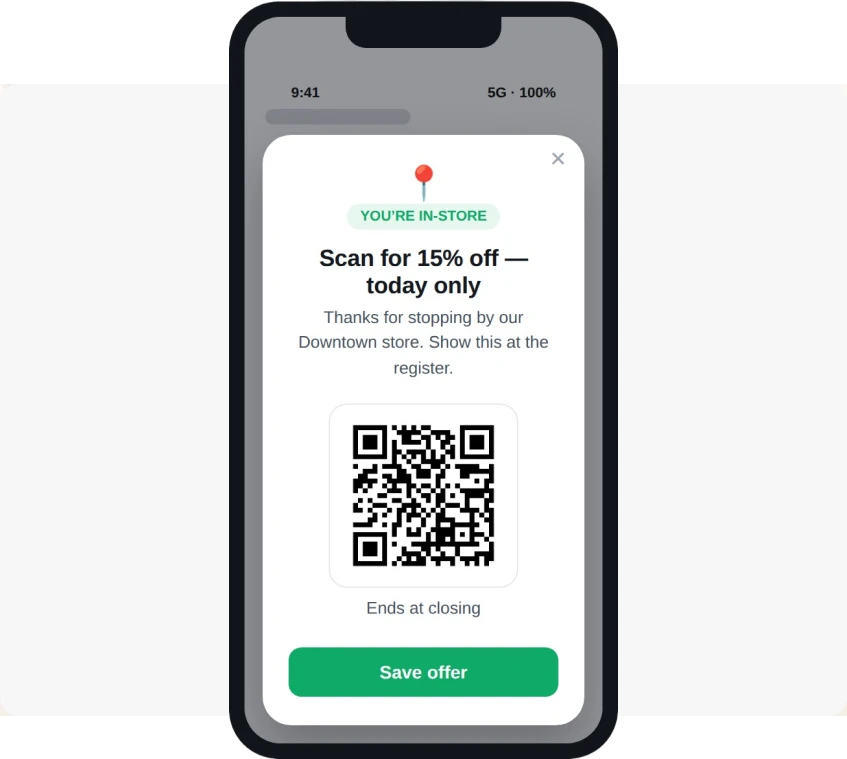
QR वहां print करें जहां customer पहले से खड़ा है: counter, receipt, table tent, hotel front desk। Staff की एक line, जैसे “Scan करें और अपना card Wallet में पाएं”, किसी भी poster से ज़्यादा असर करती है।
हर platform के लिए 1 QR रखें, या QR को एक छोटे page पर भेजें जो device के हिसाब से सही button दिखाए।
Journey के अंदर send को automate करें
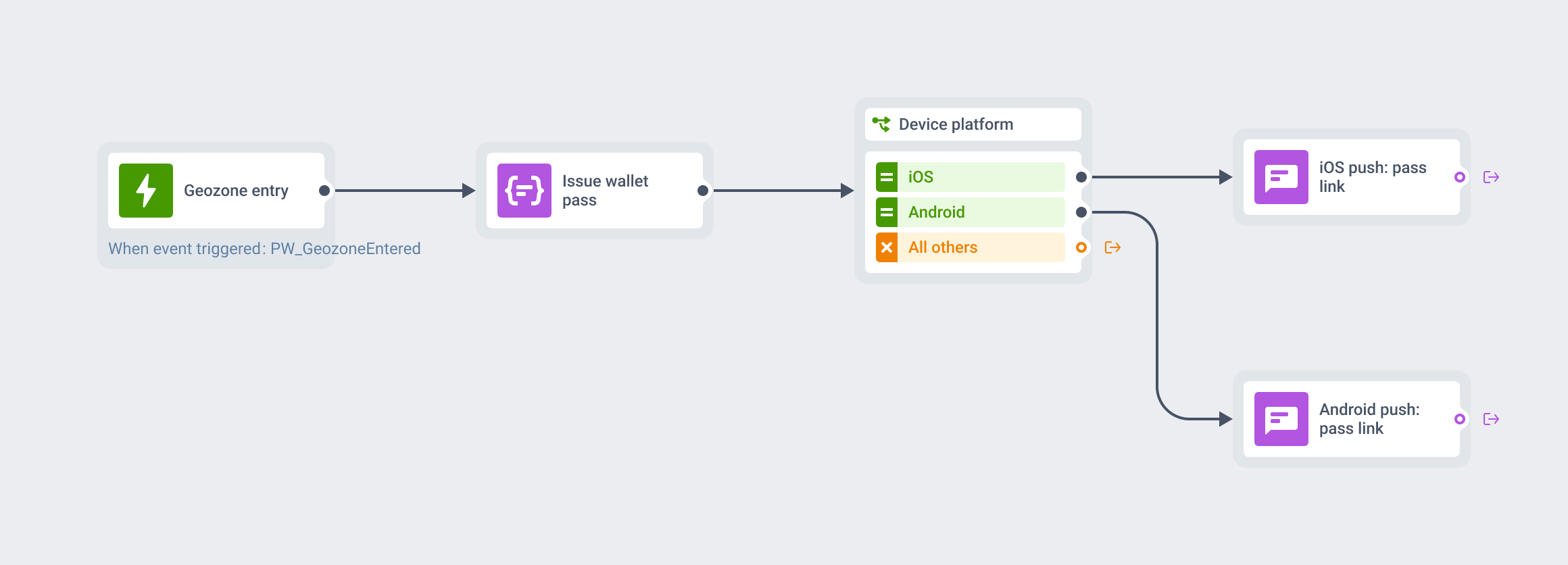
Pilot के लिए manual sends ठीक हैं। Scale पर, Customer Journey में Issue Wallet Pass step से pass issue करें और उसके तुरंत बाद push या email में link भेजें।

एक typical flow: sign-up event step को trigger करता है, pass User ID पर issue होता है, और दोनों Wallet buttons वाला email जाता है। कुछ दिन बाद एक push link दोहरा सकता है। Diwali या Big Billion Days जैसे sale season में coupon pass बांटने के लिए भी यही flow चलता है। यह step Wallet Pass Campaign से pass issue करता है, जहां आप pass एक बार design करते हैं।
Distribution को कैसे measure करें
वही measure करें जो channels report करते हैं: email में button clicks, SMS में link clicks, और scans अगर आपका QR किसी tracked page पर जाता है। Channels की तुलना click करने वाले recipients के share से करें।
“Install rate” से सावधान रहें। Click pass add करने का intent दिखाता है। यह confirmed save नहीं है। Clicks को clicks की तरह report करें, ताकि बाद में कोई number वापस न लेना पड़े।
Teams लोगों को कहां खो देती हैं
ज़्यादातर drop-off 3 जगह होता है। Link pass के काम का बनने से पहले आ जाता है, तो कोई ध्यान नहीं देता। Email में सिर्फ Apple button होता है, तो Android customers अटक जाते हैं, और भारत में ये ज़्यादातर हैं। या QR counter की जगह कमरे के दूसरे कोने के poster पर लगा होता है।
इनमें से किसी के लिए नए tools नहीं चाहिए। बस किसी को एक बार real phone लेकर customer path पर चलना है।
Pushwoosh के साथ pass adoption बढ़ाएं
Pushwoosh journey के अंदर Apple Wallet और Google Wallet passes issue करता है और अगले step में push या email से links भेजता है। SMS या print के लिए, pass से install link या QR copy करें। हर pass एक User ID से जुड़ा है, इसलिए आपको पता रहता है कि link किसे मिला और बाकियों को उनके best channel पर याद दिला सकते हैं।
Pass adoption 1 बड़े launch email से नहीं आता। यह हर उस moment पर card offer करने से आता है जब customer उसे इस्तेमाल कर सकता है।