You distribute a wallet pass by sending its install link, not the pass itself. The customer taps Add to Apple Wallet or Add to Google Wallet in an email, an SMS, a push, an in-app message or a QR code, and the pass is saved. Only after that can you update it.
So the real question is where and when to offer that link. In Pushwoosh, the pass and every channel that delivers it share 1 user profile, so distribution is just another step in a journey.
Why distribution decides the program
A wallet pass can’t be pushed onto a phone. Apple and Google require the customer to add it. That makes the moment you offer the link the biggest decision in the whole program.
2 facts shape everything below. Apple and Google use separate links: an install link for Apple Wallet, a save link for Google Wallet. And the customer has to be on a phone, so an email opened on a laptop needs a fallback.
| Channel | Best moment | Who it reaches | What to measure |
|---|---|---|---|
| Right after sign-up or purchase | Anyone with an email | Clicks on the Wallet buttons | |
| SMS | At the till, after a booking | Customers with a phone number and consent | Link clicks |
| Push | When the pass becomes useful (ticket ready, card issued) | App users with push on | Opens and button clicks |
| In-app | On the account or order screen | Active app users | Button taps |
| QR | Counter, receipt, gate, front desk | Anyone standing in front of you | Scans |
Email: the default for sign-ups and orders
Email works because it already carries the order confirmation, the ticket and the welcome message. Put the Wallet buttons near the top, right next to the thing the pass stands for.
For mixed audiences, show both buttons, or detect the device on your landing page and show the matching one. Pushwoosh gives you a separate link per platform, so that logic lives in your email or page rather than in 1 universal link.
Then add a desktop fallback. 1 line and a QR (“Scan with your phone to add your card”) rescues everyone who opened the email on a laptop. It’s the cheapest fix in this article and the one most often forgotten.
SMS: reach without an app
SMS reaches customers with no app and no email on file. That makes it useful at the till or after a phone booking. Keep the message short and put the link first.
Mind the rules. In the US, business texting needs carrier registration (10DLC) and explicit consent, and other markets have their own requirements. Use SMS for people who have no cheaper channel.
Push and in-app: for people who already have your app
App users are the easiest audience you have. A push at the moment the pass becomes useful, like “Your ticket is ready”, beats a generic “Add our card” every time.
In-app works best as a permanent spot: a Wallet button on the account, order or membership screen. Customers who skipped it once will find it when they need it.
Offline QR: the counter, the gate, the receipt
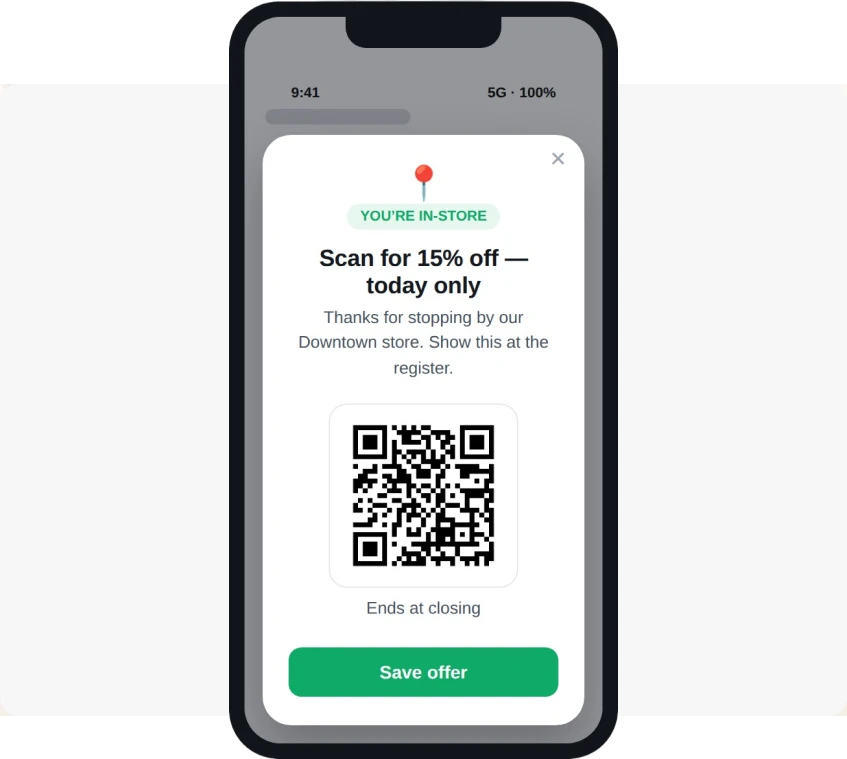
Print the QR where the customer is already standing: the counter, the receipt, the table tent, the hotel front desk. A staff line like “Scan to get your card in Wallet” does more than any poster.
Use 1 QR per platform, or point the QR to a short page that shows the right button for the device.
Automate the send inside a journey
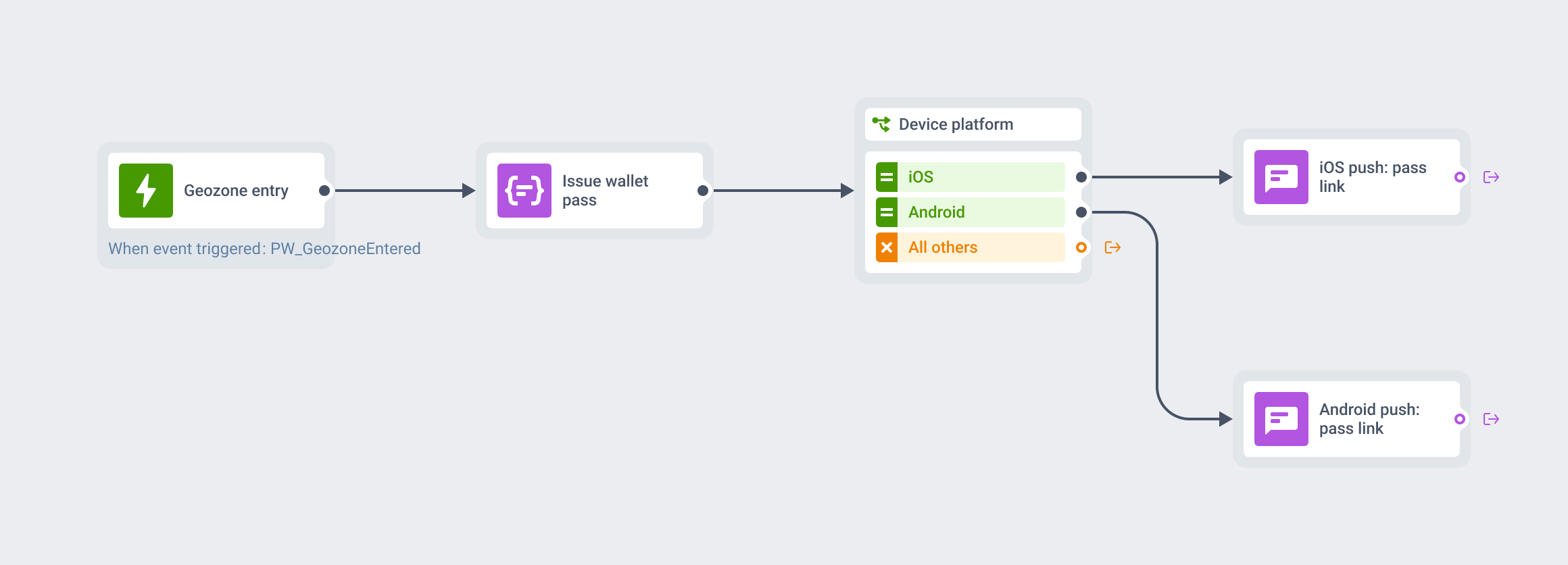
Manual sends are fine for a pilot. At scale, issue the pass with the Issue Wallet Pass step in Customer Journey and send the link in a push or email right after it.

A typical flow: a sign-up event triggers the step, the pass is issued to the User ID, and an email goes out with both Wallet buttons. A push a few days later can repeat the link. The step issues passes from a Wallet Pass Campaign, where you design the pass once.
How to measure distribution
Measure what the channels report: button clicks in email, link clicks in SMS, scans if your QR points to a tracked page. Compare channels by the share of recipients who click.
Be careful with “install rate”. A click shows intent to add the pass. It isn’t a confirmed save. Report clicks as clicks, and you won’t have to walk back a number later.
Where teams lose people
Most drop-off happens in 3 places. The link arrives before the pass is useful, so nobody bothers. The email shows only the Apple button, so Android customers stall. Or the QR sits on a poster across the room instead of on the counter.
None of these need new tools. They need someone to walk the customer path once with a real phone.
Increase pass adoption with Pushwoosh
Pushwoosh issues Apple and Google Wallet passes inside a journey and sends the links by push or email in the next step. For SMS or print, copy the install link or QR from the pass. Each pass is tied to a User ID, so you know who got the link and can remind the rest on their best channel.
Pass adoption doesn’t come from 1 big launch email. It comes from offering the card at every moment the customer could use it.