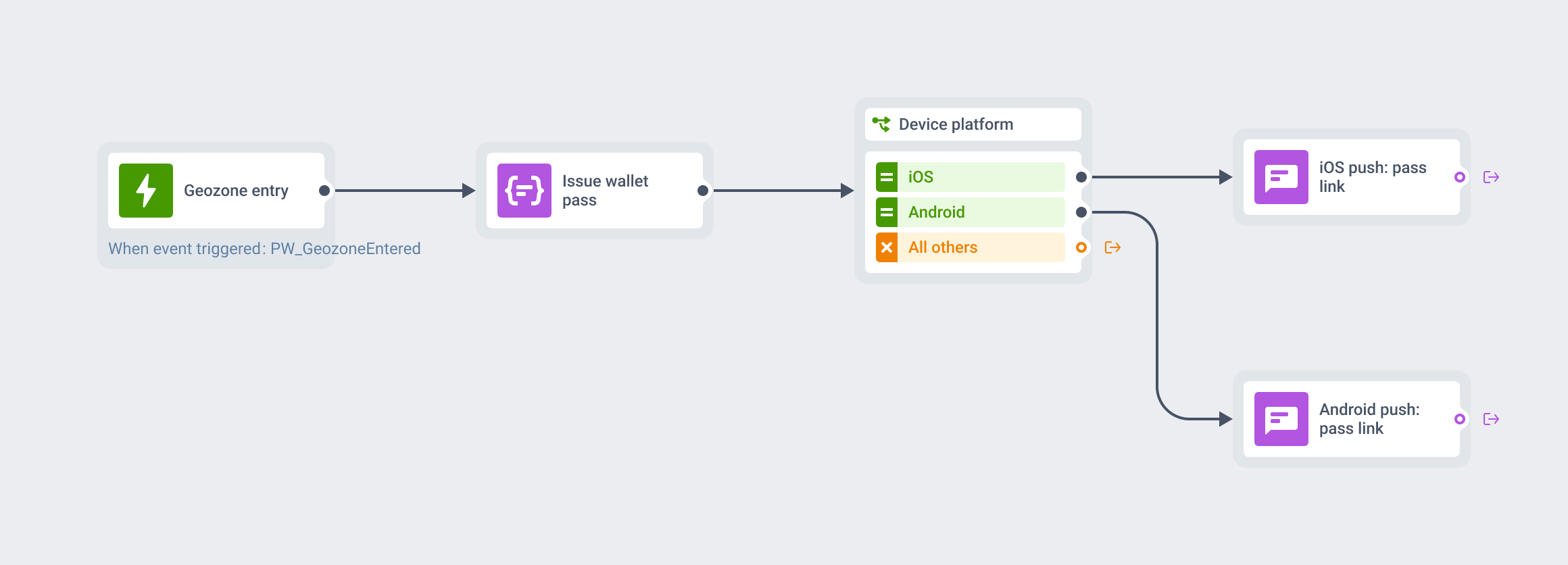
To create a Google Wallet pass, you need an issuer account in the Google Pay & Wallet Console and a tool that builds the pass and returns an Add to Google Wallet link. In Pushwoosh, you connect the issuer once with its Issuer ID, no JSON key needed. After that, a marketer can design and update passes without code.
The screenshots come from the Google Wallet pass builder in Pushwoosh, which issues each pass on the same User ID as your push, email and journeys.
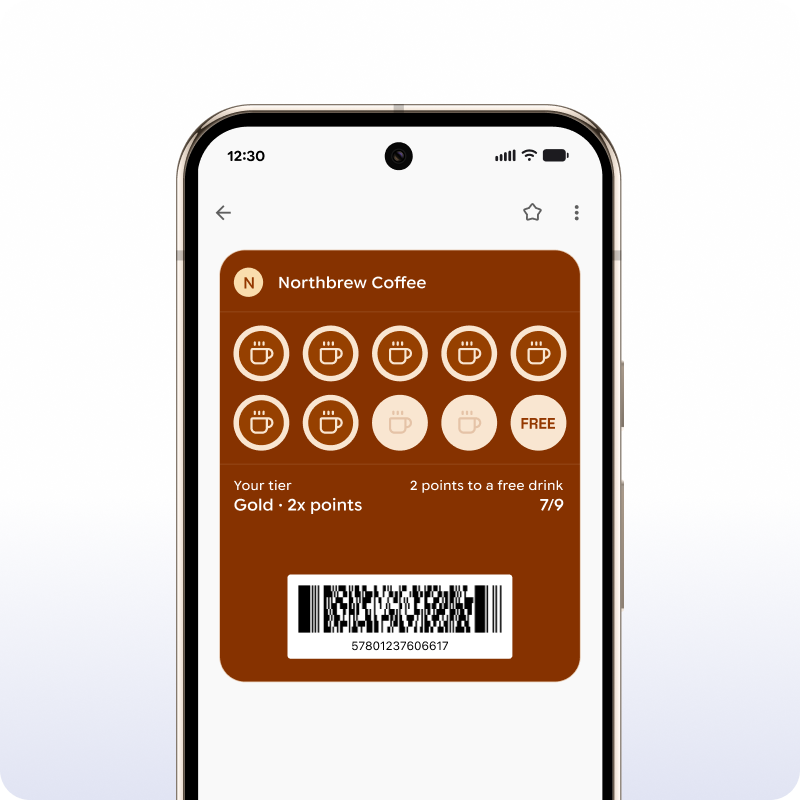
What you need before you start
Google Wallet passes come from an issuer account, not from an app. You set it up once per application.
-
An issuer account
In the Google Pay & Wallet Console, finish the Google Wallet API onboarding. You get a numeric Issuer ID.
-
Access for your pass tool
In the console, open Users and invite the tool's service account with the Developer access level. For Pushwoosh it's
wallet-issuer@pushwoosh-wallet.iam.gserviceaccount.com. Skip this and no tool can create or update passes for you. -
A shared user
At least 1 person on the issuer's Users list must also be a user of your Pushwoosh account, with the same email.
-
Production access
New issuers start in demo mode. Request production access in the console before launch.
Then, in Pushwoosh, go to Settings → Configure platforms, open the Google Wallet setup under Android, enter the Issuer ID and click Apply. If you already issue passes with your own service account, you can upload its JSON key there instead. The builder unlocks for that application. The full steps are in the Google Wallet configuration docs.
1 tip from the setup: request production access early. It’s the step that waits on Google, not on you.
Pick 1 of 7 pass types
Google Wallet has 7 pass types. Choose with care, because the type is locked when you create the pass. A loyalty card can’t turn into an offer later.
| Pass type | Typical use | Google’s update alert |
|---|---|---|
| Generic | Memberships, reservations, anything that fits no other type | No |
| Offer | Coupons and promotions | No |
| Loyalty | Points, stamps, tiers | Yes |
| Event ticket | Concerts, sports, conferences | Yes |
| Gift card | Stored balance | No |
| Flight | Boarding passes | Yes |
| Transit | Rail, bus and ferry tickets | No |
The last column matters more than it looks. Google sends its own alert about changed fields only on loyalty, event ticket and flight passes. The other 4 redraw quietly, unless you attach a custom notification to the update through the API or a pass campaign.
Build the pass in a visual builder
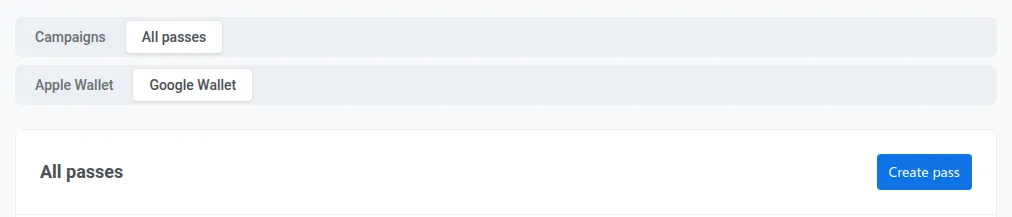
In the Control Panel, go to Campaigns → Wallet Passes, open the All passes tab, select Google Wallet and click Create pass.
-
Pass type
Pick 1 of the 7 under Pass type.
-
Branding
Add the logo, hero image and colors. The logo is required on loyalty and transit passes.
-
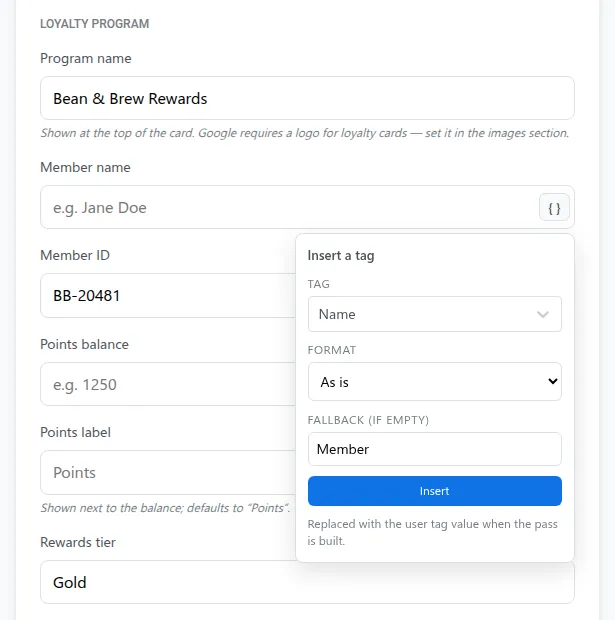
Fields
Fill in the text. You can insert user tags, like a name or a points balance. Pushwoosh fills them in when it creates the pass and refreshes them on every update.
-
Barcode
Choose QR, PDF417, Aztec, Code128 or EAN-13. Match whatever your scanners read.
-
Locations
Add up to 10 locations if the pass relates to your stores or venues. Google sets the radius.
-
Who can save
Set who's allowed to add the pass to Google Wallet. You can't change it after the pass is created.
Every pass belongs to 1 User ID. That’s what lets you update it later and target its holder in segments. Every field is described in the Google Wallet pass builder docs.
Get the save link and add the button
When the pass looks right, click Generate. Pushwoosh creates the pass object in Google Wallet and hands you a save link. It’s a normal URL starting with pay.google.com/gp/v/save/. Open it and the customer is asked to save the pass.
Put the link behind the official Add to Google Wallet button in your email, SMS, in-app message or web page, or turn it into a QR code for print. Google is strict about how that button looks, so use the official asset.
Update the pass after it’s saved
A saved pass isn’t a static file. Edit it in the builder or through the Google Wallet API, and Google syncs the change to every device where the customer saved it.
You can also manage its state. Invalidate a pass and it moves to the customer’s Expired passes. Activate it if you need it back. Delete it and it’s invalidated in Google and removed from Pushwoosh.
Limits to know before launch
Notifications are for the pass only. Google allows notifications about the pass. Using it to push promotions breaks the guidelines. Google also caps notifications at 3 per pass in 24 hours, and on event tickets and flights its update alert only fires when the start time is less than 3 hours away.
You can’t push a pass onto a phone. The customer saves it first, from a link, a QR, an email or an SMS. Only then can updates reach them.
Country availability. Google Wallet passes don’t work in every country. Check your markets before you plan the launch.
Apple Wallet needs its own pass. Apple and Google use different pass formats (how the 2 wallets compare), so build an Apple Wallet version of the same pass for iPhone customers.
Common mistakes
Picking the wrong type is the expensive one. Teams pick Generic because it’s flexible, then find out Google never sends its own update alert for it. If alerts matter, start from loyalty, event ticket or flight.
The second is launching while the issuer is still in demo mode. Production access waits on Google, not on your team.
The third is a barcode your tills can’t read. Scan a real pass with a real scanner before you print a single QR code.
Launch Google Wallet passes faster with Pushwoosh
Pushwoosh connects to your Google Wallet issuer once. From then on, your team designs, issues and updates passes in a visual builder or through the API, and every pass sits on the same customer profile as your push, in-app, email and SMS.
A Google Wallet launch isn’t really about the pass file. It’s about having a card you can keep current for every customer who saves it.