A wallet pass API lets your backend create a pass for each customer, with their own name, balance, barcode and locations, then update it whenever your data changes. You design a template once, send personal values per user, and get back an install link for Apple Wallet or a save link for Google Wallet.
Not every team needs it. The examples use the Pushwoosh Wallet passes API, where every pass is tied to a User ID that also drives your push, email and journeys.
When the API beats the builder
The builder is the right tool for designing a pass and for small or one-off sends. The API takes over when passes depend on data that lives in your own systems.
| Task | Builder | API | Journey step |
|---|---|---|---|
| Design the template | Yes | Yes | No |
| Issue a pass to 1 customer | Yes | Yes | Yes |
| Issue passes to thousands, each with own values | No | Yes | Yes |
| Update from a POS or booking system in real time | No | Yes | No |
| Pick the nearest 10 stores per customer | No | Yes | No |
Look at the journey column before you write any code. If the trigger is a customer action Pushwoosh already tracks, the Issue Wallet Pass step in Customer Journey often makes custom code unnecessary.
Templates and personal values
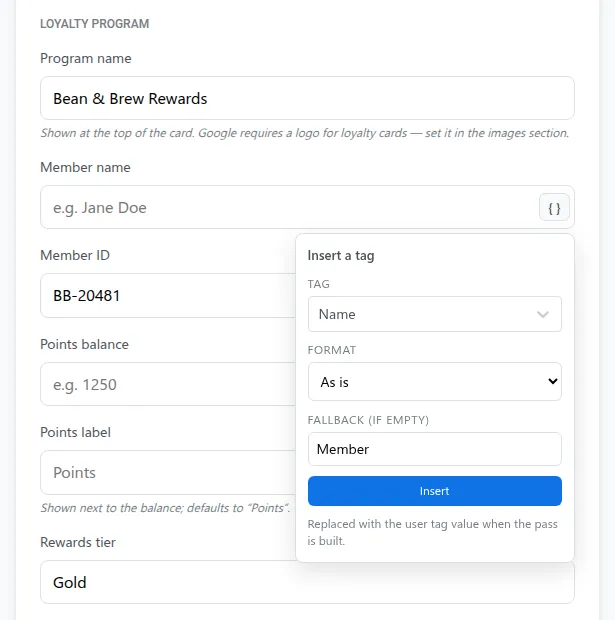
The pattern is the same on both platforms. A template holds the layout, the branding and the field structure. Per-user values fill it at issue time.
Personal values are what changes from 1 customer to the next: name, member number, points, tier, barcode value, expiry, nearest store. Everything else comes from the template, so a design change applies to every new pass without touching your integration.

In a journey, the Issue Wallet Pass step takes the Apple and Google pass campaigns (apple_campaign_id, google_campaign_id) and the personal_values to fill. 1 step can issue both versions to the same User ID.
The Apple Wallet flow
Everything the Apple pass builder does is also available in the Apple Wallet PassKit API: create, update, list, download and delete passes.
A typical integration has 4 steps.
-
Validate
Validate the pass data against Apple's requirements before creating anything. It's cheaper to catch a bad field here than in a customer's wallet.
-
Create
Create the pass for a User ID with its personal values. Pushwoosh generates the pass and signs it with your Pass Type ID certificate.
-
Share
Share the install link by email, SMS, push or QR.
-
Update
Update the pass when your data changes. Pushwoosh notifies registered devices, and iOS fetches the new version in the background.
You need a Pass Type ID certificate (.p12) per application and an Apple Developer account ($99 a year). Setup is in the iOS Wallet pass configuration docs.
The Google Wallet flow
The Google Wallet API covers the same life cycle for Google passes.
-
Create
Create the pass object for a User ID with its personal values.
-
Get the save link
Get the save link, a URL starting with pay.google.com/gp/v/save/, and share it.
-
Update
Update the pass. Google syncs the change to every device where it's saved.
-
Change the state
Change the state when needed: invalidate, reactivate or delete.
You need an Issuer ID from the Google Pay & Wallet Console, with the Pushwoosh service account invited to your issuer, set up once per application. Setup is in the Google Wallet configuration docs.
Updating at scale
Updates are where the API earns its keep. A points ledger or booking system can update a pass the moment a value changes, so the card in the customer’s wallet matches your source of truth.
3 rules keep big update runs safe:
- Start from the current pass. Apple’s update takes the full pass object, so fetch the pass and change only the values that moved. Google’s update patches the object.
- Decide on alerts field by field. On Apple, only fields with a change message show a lock-screen alert. On Google,
notifyOnUpdateasks Google for its own alert, which fires only on loyalty, event ticket and flight passes, at most 3 per pass in 24 hours.notifyMessagesends your own Android notification text on any pass type. - Keep alerts about the pass. Apple and Google allow notifications about the pass, not promotions.
Code samples
Both APIs use the base URL https://apple-passkit.svc-nue.pushwoosh.com and your Pushwoosh API access token in an Authorization: Token <api-token> header. The request bodies below are the examples from the API reference.
Create an Apple Wallet pass: POST /api/pass/create. The response returns the pass serialNumber.
{ "applicationCode": "XXXXX-XXXXX", "userId": "user-123", "pass": { "description": "Acme loyalty card", "logoText": "Acme", "backgroundColor": "rgb(60, 65, 76)", "foregroundColor": "rgb(255, 255, 255)", "labelColor": "rgb(255, 255, 255)", "storeCard": { "primaryFields": [ { "key": "balance", "label": "BALANCE", "value": "1200 pts" } ], "secondaryFields": [ { "key": "member", "label": "MEMBER", "value": "Jane Doe" } ] }, "barcodes": [ { "format": "PKBarcodeFormatQR", "message": "1234567890", "messageEncoding": "iso-8859-1" } ] }, "images": [ { "imageType": "icon", "data": "<base64>", "contentType": "image/png" }, { "imageType": "logo", "data": "<base64>", "contentType": "image/png" } ]}Create a Google Wallet pass: POST /api/google/pass/create. The response returns the serialNumber and a saveLink.
{ "applicationCode": "XXXXX-XXXXX", "userId": "user-123", "pass": { "hexBackgroundColor": "#3c414c", "logoUrl": "https://cdn.acme.com/logo.png", "loyalty": { "programName": "Acme Rewards", "accountName": "Jane Doe", "accountId": "1234567890", "pointsLabel": "Points", "pointsBalance": "1200", "rewardsTier": "Gold" }, "barcode": { "format": "QR_CODE", "value": "1234567890" } }}To update, send the new content with the serial number: POST /api/pass/update/{serialNumber} for Apple, POST /api/google/pass/update/{serialNumber} for Google.
Builder, API or journey: a quick rule
Use the builder to design and test. Use the journey step when the trigger is a customer event already in Pushwoosh, like a sign-up or a first purchase. Use the API when the trigger or the data lives in your backend.
Most teams end up using all 3, and that’s fine: the builder for design, journeys for life cycle moments, the API for real-time balances and status. The mistake is forcing 1 of them to do the others’ jobs.
Personalize every pass at scale with Pushwoosh
Pushwoosh gives you a visual builder, a journey step and an API for native Apple and Google Wallet passes, with no separate pass vendor in between. Each pass shares a User ID with your push, in-app, email and SMS, so 1 set of data drives every channel.
Personalizing at scale isn’t a question of more templates. It’s 1 source of truth that every card in every wallet reflects.