You update a wallet pass by editing it in your pass tool or through an API. The platform then refreshes the card on every device that saved it, with no reinstall. On Apple, the customer sees a lock-screen alert only for fields with a change message. On Google, its own alert comes only on loyalty, event ticket and flight passes.
This is the practical side of updates. For the mechanics underneath, read how wallet pass updates work. The examples use Pushwoosh Wallet passes, where every pass is tied to a User ID and can be updated from the builder, a campaign or the API.
What you can change
Almost everything. On Apple Wallet passes in Pushwoosh you can edit the pass name and description, field values and labels, change messages, colors, the barcode message, expiration and status, locations and beacons. Images stay locked. On Google passes you can also swap the logo and hero image, the barcode, links and the app link.
1 thing stays fixed: the pass style or type. A store card can’t become a coupon, and a Google loyalty pass can’t become an offer. If the format has to change, issue a new pass.
| Change | Example | What the customer sees |
|---|---|---|
| Field value | Points from 120 to 180 | The card redraws, plus an alert if a change message is set |
| Date or time | Event moved to 8 pm | The card redraws, plus an alert if a change message is set |
| Gate, seat, platform | Gate B12 to B20 | The card redraws, plus an alert if a change message is set |
| Colors (images on Google) | Seasonal design | The card redraws, no alert |
| Locations | New store opened | Lock-screen relevance changes, no alert |
| Expiration or void | Membership ended | The card grays out or moves to expired |
1 pass or every pass at once
Every pass in Pushwoosh belongs to 1 User ID. That gives you 2 ways to update.
1 pass at a time is the everyday case: a purchase changes 1 customer’s balance, so that customer’s card changes. You’ll almost always automate this through the API or tag sync rather than click through it.
The bulk case is the whole program: new terms or a seasonal design for every holder. In Pushwoosh it runs through a Wallet Pass Campaign. Fields marked shared update on every pass issued from the campaign, personal fields keep each customer’s own values, and the campaign shows how many passes an edit affects before you save.
On Google Wallet passes, fields can hold user tags. Pushwoosh fills the tag values in when it creates the pass and refreshes them on every update, so the card shows whatever the profile says now. In a campaign, tag sync does this on both platforms without an edit: when the tag behind a field changes, the pass gets the new value at the next check, every 60 minutes by default.
Change messages: who gets interrupted
Not every update should interrupt someone. You decide which ones do.
On Apple, you attach a change message to a field, for example “Your gate is now %@”. When that field changes, iOS shows the message on the lock screen. Fields without one update in silence.
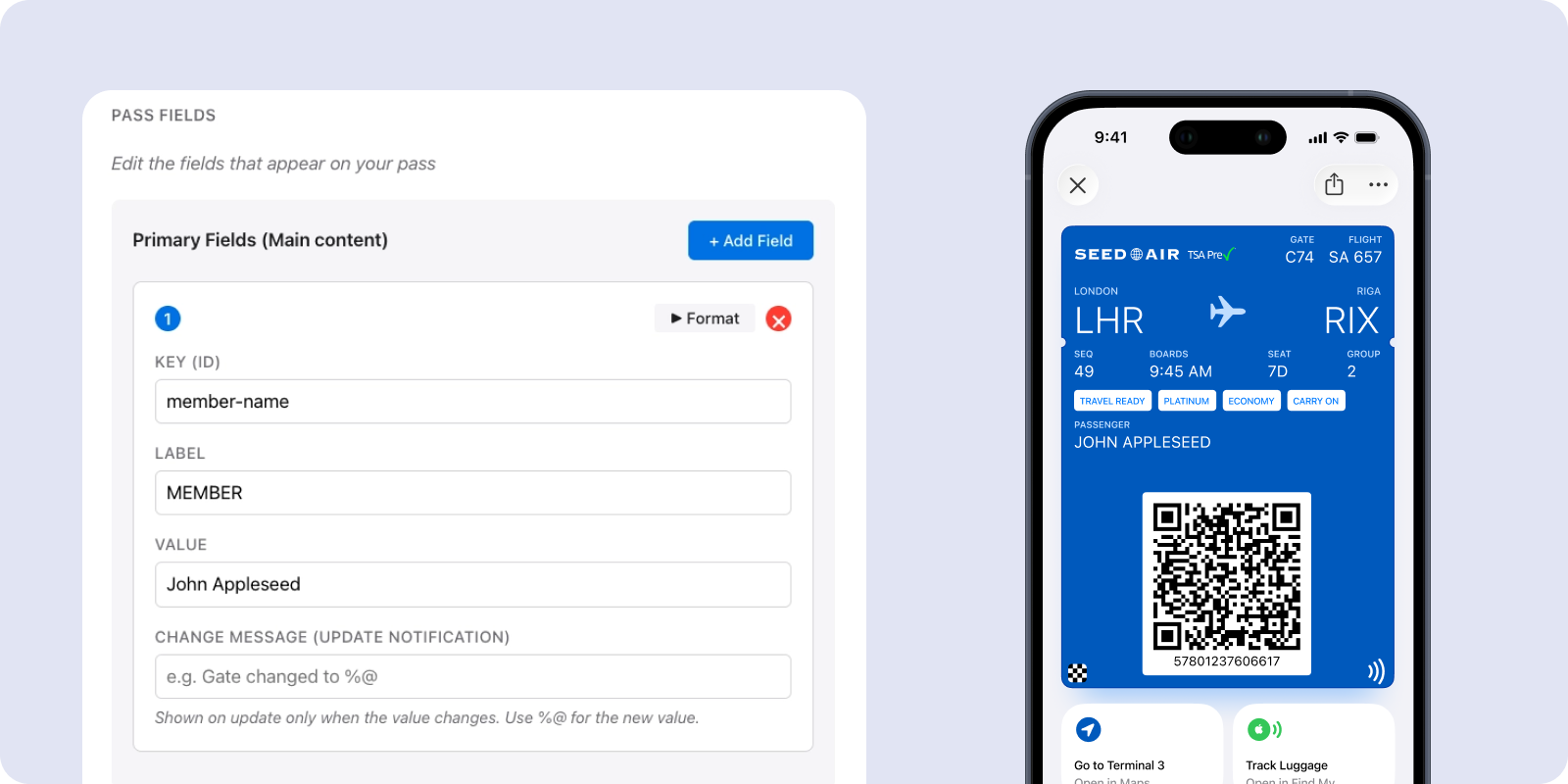
On Google, the type decides whether Google sends its own alert about changed fields: only loyalty, event ticket and flight passes get one, and Google writes the text. On event tickets and flights it fires only when the start time is less than 3 hours away. For any type, you can instead attach a custom notification to the update through the API or a campaign. Google allows no more than 3 notifications per pass in 24 hours, and past that the pass updates silently.
Our rule of thumb: alert on changes the customer has to act on, like a new gate, a moved time or points about to expire. A redesign or a new store location never needs one.
Change messages aren’t a marketing channel
It’s tempting to push a sale through a field change. Don’t. Apple and Google only allow notifications related to the pass, such as a balance, a status or a schedule, and breaking that rule is the fastest way to get your card deleted.
For promotions, reach the same customers by app push, email or SMS: every pass sits on a User ID, so its holder is already in your audience. When holders need to hear about the pass itself, like a reward that’s ready, the options are in the docs on messaging pass holders.
Updating through the API
When the change comes from your own systems, like a POS, a booking engine or a points ledger, use the API instead of the builder. The flow is the same on both platforms: identify the pass, send the new values, let the platform sync.
Methods and parameters are in the Apple Wallet PassKit API and Google Wallet API references.
Expire, void and restore
Passes have a life cycle, and ending it cleanly matters as much as starting it. A stale card in someone’s wallet is worse than no card.
On Apple, set an expiration date and the pass grays out after it. You can also mark a pass voided, for example once a coupon is redeemed. On Google, invalidating a pass moves it to the customer’s Expired passes, and you can activate it again later. Deleting a Google pass invalidates it in Google and removes its record in Pushwoosh.
When an update doesn’t arrive
4 causes cover most cases.
The Apple certificate expired. Apple passes are signed with your Pass Type ID certificate, and once it expires, passes can’t be signed or updated. Put the renewal date in a calendar the day you upload it.
The customer removed the pass. Updates only reach devices where it’s still saved.
The update arrived, but no alert. On Apple, check that the field has a change message. On Google, check the pass type, the Notify about changed fields checkbox and the daily limit.
The customer never added the pass. An issued pass that was never saved gets no updates. Send the install link again.
Keep every pass current with Pushwoosh
Pushwoosh updates native Apple and Google Wallet passes from the builder, a campaign or the API, with each pass tied to the same User ID as your push, email and SMS. Change 1 balance or the whole program, and choose which changes earn an alert.
Keeping customers informed has little to do with sending more. It’s about the card in their wallet always being right.