2026 में iOS पुश नोटिफिकेशन पहले से कहीं ज़्यादा डायनामिक और डेटा-ड्रिवन हो चुके हैं। iOS 26 के साथ Apple ने Apple Intelligence से चलने वाली smarter priority notifications, broadcast capabilities वाली enhanced Live Activities, और users को messages कब और कैसे दिखें — इस पर ज़्यादा refined controls introduce किए हैं।
ये guide उन marketers और app teams के लिए है जो Apple Push Notification Service (APNs) के काम करने का तरीका समझना चाहते हैं — iOS push notification setup और types से लेकर opt-in strategy, design specs और benchmarks तक। और इसी के साथ आप देखेंगे कि Pushwoosh इस technical layer को high-converting campaigns में कैसे बदलने में मदद करता है।
iOS vs Android push notifications: मुख्य अंतर
दोनों platforms शक्तिशाली push capabilities देते हैं, लेकिन delivery systems, permission models, media support और engagement benchmarks में अंतर है। इन differences को समझकर teams हर platform के लिए creative और timing को बेहतर tune कर सकती हैं।
| पैरामीटर | iOS | Android |
|---|---|---|
| Delivery system | Apple Push Notification Service (APNs) | Firebase Cloud Messaging (FCM) |
| Opt-in model | हर version पर explicit opt-in ज़रूरी | Android 13+ से explicit consent ज़रूरी; इससे पहले automatic |
| औसत opt-in rate | ~56% (Pushwoosh 2025 study) | ~75% (Pushwoosh 2025 study) |
| औसत CTR | 1.71% | 2.75% |
| Rich media limits | Images NSE के ज़रिए 10 MB तक; videos 50 MB तक | Images 10 MB तक, videos 50 MB तक |
| Action buttons | अधिकतम 4 | अधिकतम 3 |
| Live updates | Live Activities (iOS 16+), Broadcast push (iOS 26) | Live Updates API (Android 16) |
| Cross-platform reach | iOS, iPadOS, watchOS, macOS, visionOS | Android smartphones, tablets, ChromeOS |
Key insight: Volume और opt-in rates में Android आगे है, लेकिन iOS users एक बार opt-in करने के बाद ज़्यादा customer lifetime value (CLV) और हर message पर ज़्यादा engagement देते हैं। iOS पर Android के 3 के मुक़ाबले 4 action buttons तक मिलते हैं — इस सुविधा का पूरा फ़ायदा उठाएँ।
iOS पुश नोटिफिकेशन क्या हैं?
iOS पुश नोटिफिकेशन real-time छोटे messages हैं जो सीधे users के Apple devices — iPhone, iPad, Apple Watch, Mac या Apple Vision Pro — पर भेजे जाते हैं, चाहे app खुला हो, background में चल रहा हो, या पूरी तरह बंद हो। ये Apple Push Notification Service (APNs) के ज़रिए deliver होते हैं — Apple का secure cloud gateway जो iOS, iPadOS, watchOS, macOS और visionOS को serve करता है।
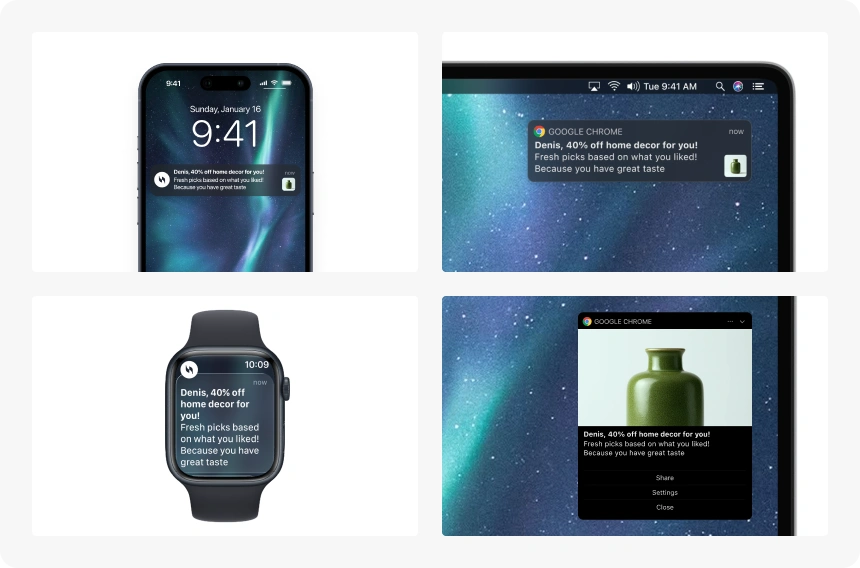
iOS notifications permission-based हैं: app से messages आने से पहले users को explicitly opt-in करना पड़ता है। इसी वजह से पहली ही interaction से quality, timing और perceived value बेहद ज़रूरी हो जाती है।
सही तरीक़े से इस्तेमाल करने पर iPhone पर push notifications engagement बढ़ाती हैं, inactive users को वापस लाती हैं, purchases को बढ़ावा देती हैं और user lifecycle भर retention मज़बूत करती हैं।
Apple Push Notification Service (APNs) कैसे काम करता है
APNs आपके app server और users के Apple devices के बीच का provider server infrastructure है। पूरा delivery flow ऐसे काम करता है:
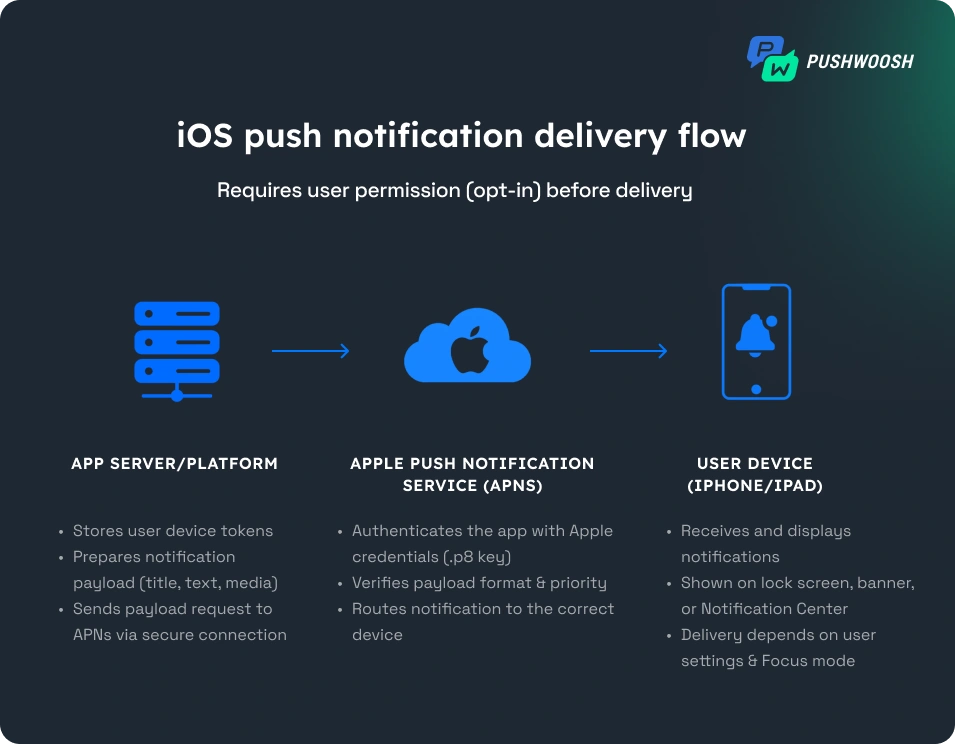
- User permission देता है — app एक opt-in prompt दिखाता है। User की मंज़ूरी के बिना APNs उस app के लिए कोई notification route नहीं करेगा।
- Device token generate होता है — permission मिलने पर APNs उस app-device pair के लिए एक unique device token issue करता है। ये token secure delivery address का काम करता है और users के app reinstall करने या device बदलने पर renew होना चाहिए।
- Provider server tokens store करता है — आपका provider server (या engagement platform के तौर पर Pushwoosh) device tokens save करता है और notification payload बनाता है: 4 KB तक का JSON object जिसमें title, body, media flag और delivery parameters होते हैं।
- Payload HTTP/2 के ज़रिए APNs को भेजा जाता है — आपका provider server APNs के साथ token-based authentication (.p8 key, current standard) या legacy certificate-based method (.p12) से authenticate होता है। APNs payload validate करके delivery के लिए queue में डालता है।
- APNs device तक deliver करता है — notification target iPhone, iPad या Apple Watch तक पहुँचती है। User की iOS notification settings और Focus mode state के हिसाब से ये lock screen पर, Notification Center में, या banner के रूप में दिखती है।
iOS notifications के types
iOS आठ अलग-अलग notification types support करता है, हर एक का delivery behavior, visibility और marketing use case अलग है।
Remote (push) notifications
Remote notifications आपके provider server से APNs के ज़रिए user के device तक जाती हैं। ये वही standard push है जिसके साथ marketers काम करते हैं — promotional alerts, order updates, re-engagement messages। इनके लिए explicit user opt-in ज़रूरी है और ये lock screen और Notification Center पर दिखती हैं।
Local notifications
Local notifications app ख़ुद schedule और deliver करती है, बिना किसी server या APNs के। ये reminders, alarms या calendar events के लिए use होती हैं जिनके लिए real-time server data ज़रूरी नहीं। इन्हें network connection की भी ज़रूरत नहीं होती।
Silent (background) notifications
Silent push notifications में payload में content-available flag होता है और ये user को कोई visible alert दिखाए बिना background में app को data deliver करती हैं। App content refresh करने, data pre-fetch करने या in-app state updates trigger करने में काम आती हैं। ये कम priority पर deliver होती हैं और OS battery बचाने के लिए इन्हें defer कर सकता है।
Time-Sensitive notifications
Time-Sensitive एक dedicated iOS category है जो Focus mode और Scheduled Summary को break कर सकती है — लेकिन तभी जब content सचमुच time-critical हो: ride arrival, medication reminder, delivery at door। इस category को use करने के लिए आपके app को Time Sensitive Notifications entitlement declare करनी होगी। Users iOS notification settings में हर app के लिए Time-Sensitive access को revoke कर सकते हैं।
Critical alerts
Critical alerts Do Not Disturb और Focus mode दोनों को पूरी तरह bypass कर देते हैं और device mute होने पर भी sound play करते हैं। इनके लिए Apple की special entitlement चाहिए और ये healthcare (medication alerts, medical device notifications) और safety applications (severe weather, emergency services) तक ही सीमित हैं। Apple entitlement requests को case-by-case review करता है।
Communication notifications
iOS 15 में introduce हुई Communication notifications असली लोगों से आने वाले messages — chat, calls, या collaboration — के लिए dedicated format हैं। ये notification list के सबसे ऊपर दिखती हैं और Messages या FaceTime जैसी apps में Shared with You entry के तौर पर promote हो सकती हैं। Apps को Communication Notifications entitlement declare करनी होगी और payload में person object देना होगा।
Provisional notifications
Provisional notifications apps को explicit permission पूछे बिना ही Notification Center में notifications deliver करने देती हैं। Messages quietly आती हैं — कोई sound नहीं, कोई lock screen नहीं — और पहली provisional notification देखने के बाद user को इन्हें रखने या बंद करने का prompt मिलता है। ये एक low-friction तरीक़ा है जिससे full opt-in माँगने से पहले notifications की value दिखाई जा सके।
Live Activities
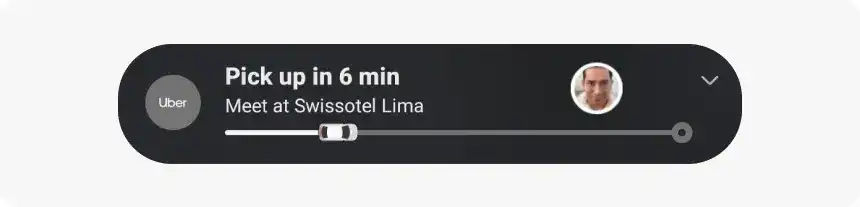
Live Activities persistent, real-time notification surfaces हैं जो iPhone lock screen और Dynamic Island (iPhone 14 Pro और उसके बाद) पर दिखती हैं। ये content-state key वाले push payloads से update होती हैं और remote trigger की जा सकती हैं। आम use cases में delivery tracking, sports scores, flight status और ride progress शामिल हैं। Setup और use cases के लिए नीचे dedicated Live Activities section देखें।
iOS पुश नोटिफिकेशन setup
iPhone या iPad पर push notifications भेजने से पहले आपको अपने app का APNs connection configure करना होगा और runtime पर user permission request करनी होगी।
Setup checklist
- Apple Developer Console में अपने app को register करें। App ID generate करें और iOS project के लिए Push Notifications capability enable करें।
- Apple Developer Console के Keys section में APNs authentication key (.p8 file) बनाएँ। ये key token-based authentication से आपके provider server को APNs पर authenticate करती है।
- Xcode में Signing & Capabilities के तहत अपने target पर Push Notifications capability जोड़ें। Silent (background) notifications use करने वाले हैं तो Background Modes भी add करें।
- Runtime पर
UNUserNotificationCenter.requestAuthorizationसे notification permission request करें। इसे first launch पर नहीं, बल्कि किसी meaningful user action के बाद trigger करें। UIApplication.registerForRemoteNotifications()से remote notifications के लिए register करें। APNs token retrieve करने के लिएapplication(_:didRegisterForRemoteNotificationsWithDeviceToken:)implement करें।- Device token को अपने provider server या engagement platform (Pushwoosh) पर भेजें। Tokens rotate हो सकते हैं — records up-to-date रखने के लिए
onTokenRefreshhandling implement करें। - Rich media notifications के लिए Xcode project में Notification Service Extension add करें। NSE notification को display से पहले intercept करती है और media attachment download करती है। NSE के बिना आपकी pushes में images और videos नहीं दिखेंगे।
- Developer portal के Apple Push Notification Console से या अपनी engagement platform की test send feature से delivery test करें।
iOS 26 notifications में क्या नया है
iOS 26 September 2025 में release हुआ था और iPhone और iPad पर push notifications के deliver और display होने के तरीक़े में कई बड़े बदलाव लाया है। अगर आपकी documentation या campaigns में अब भी iOS 18 का ज़िक्र है, तो उन्हें update करें — audience version staleness notice करती है।
Priority notifications (Apple Intelligence)
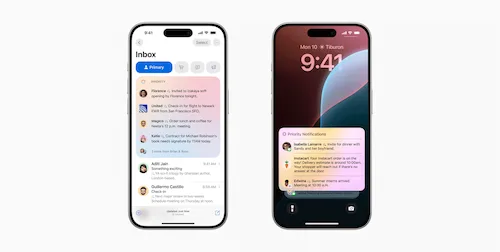
Apple Intelligence अब incoming notifications को inferred importance के हिसाब से rank करता है और सबसे relevant ones को stack के top पर surface करता है। Real-time user context से जुड़े messages — आ रही delivery, शुरू हो रही meeting, ज़रूरी direct reply — automatically promote होते हैं। Generic marketing blasts demote होते हैं या Notification Summary में group हो जाते हैं।
Marketer implication: Relevance signals अब सिर्फ़ open rates के लिए नहीं — ये directly तय करते हैं कि notification देखी भी जाएगी या नहीं। Behavior-triggered, personalized messages scheduled blasts से बढ़ते margin से आगे रहेंगे।
Discussion में join करें 👇🏻
Smart notification summaries
Users low-priority apps के लिए morning और evening summary deliveries configure कर सकते हैं। Summary में रखी गई notifications lock screen interrupt नहीं देंगी। Time-Sensitive और Critical notifications इस behavior को bypass करती हैं।
अगर आपका app मुख्य रूप से promotional content भेजता है, तो iOS 26 पर आपकी audience का बड़ा हिस्सा इसे instant alert की बजाय batched summary का part बनकर पाएगा। Frequency capping और value-focused copy अब पहले से ज़्यादा ज़रूरी हो गए हैं।
Broadcast push notifications
iOS 26 APNs के ज़रिए Broadcast push notifications introduce करता है — एक नया delivery mode जो apps को individual device token lists maintain किए बिना सभी subscribers को एक साथ content push करने देता है। Live sports, breaking news और real-time event apps के लिए ये ख़ास उपयोगी है, जहाँ एक ही message lakhs-millions users तक एक साथ जाता है।
Expanded Live Activities
Live Activities अब broadcast APNs payloads से update होती हैं, जिससे high-volume real-time updates के लिए server load कम होता है। अधिकांश use cases के लिए update frequency 5–15 seconds ही रहती है।
Communication notifications update
iOS 26 Communication notifications APIs को expand करता है, जिससे ज़्यादा app categories priority conversation thread में messages surface कर सकती हैं। Collaborative या social features बनाने वाली apps को इस entitlement को adopt करने पर विचार करना चाहिए।
iOS Live Activities
Live Activities iOS apps के लिए उपलब्ध सबसे high-engagement surfaces में से एक हैं। ये iPhone lock screen और Dynamic Island (iPhone 14 Pro और बाद के models) पर persistent, real-time content दिखाती हैं — और user को app खोलने की ज़रूरत नहीं पड़ती।
Live Activities कैसे काम करती हैं
Live Activities को app ActivityKit framework के ज़रिए start करता है और content-state key वाले push payloads से update किया जाता है। हर update current state display को replace करता है। Activities या तो तब ख़त्म होती हैं जब app explicitly इन्हें end करे या start time पर set की गई maximum duration के बाद।
Updates push के ज़रिए (आपके server से APNs के द्वारा) या locally (app के अंदर से) deliver हो सकते हैं। Push update priority lock screen के refresh होने की speed तय करती है: high-priority updates seconds में दिखते हैं; background-priority updates defer हो सकते हैं।
Live Activity use cases
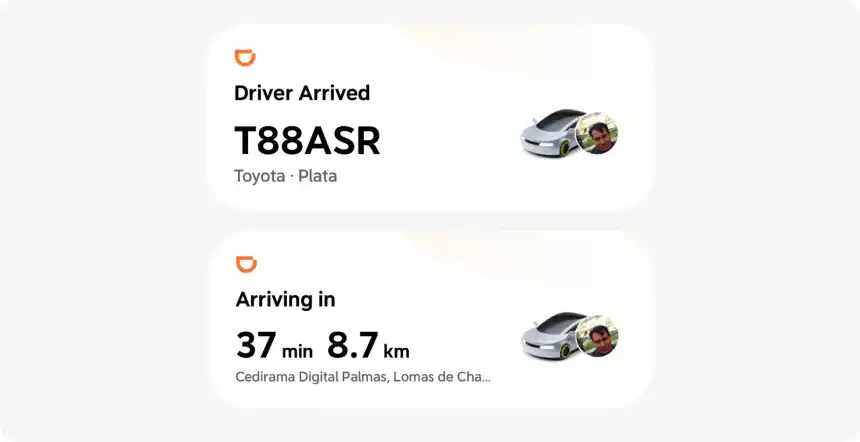
- Delivery tracking: “आपका order 3 stops दूर है” — delivery तक हर मिनट update।
- Ride sharing: Driver name, car, ETA countdown — app खोलने की ज़रूरत नहीं।
- Sports scores: Live score, period, shot clock — iOS 26 में सभी subscribers को एक साथ broadcast।
- Flight status: Gate, boarding time, delay alerts — Dynamic Island में surface।
- Food delivery timer: Order placed से delivered तक countdown — key milestones पर push notification fallback के साथ।
Requirements
- iPhone: iOS 16.1+। Dynamic Island: iPhone 14 Pro और बाद।
- iPad: iPadOS 17+।
- Max activity duration: 8 hours; app एक बार extend कर सकता है।
- Payload size: content-state updates APNs payload limit 4 KB के अंदर ही रहें।
iOS 16.4+ पर web push notifications (Safari & PWAs)
iOS 16.4 से Apple iPhone home screen पर add की गई Progressive Web Apps (PWAs) के लिए web push notifications support करता है। ये एक significant gap-filler है: पहली बार web-based products बिना native app install कराए iPhone users को push notifications भेज सकते हैं।
कैसे काम करता है
iOS पर web push वही W3C Push API और Safari service worker model use करता है जो desktop web push में होता है। User को PWA को home screen पर add करना होगा, फिर standard browser prompt के ज़रिए notification permission देनी होगी। Notifications Apple के push infrastructure से deliver होती हैं, FCM से नहीं।
Requirements और limitations
- iOS/iPadOS 16.4 या नया ज़रूरी। Web push in-app browsers (WKWebView) में available नहीं है।
- App को PWA के रूप में home screen पर add किया जाना ज़रूरी है। Safari browser tabs में visit की गई sites के लिए notifications काम नहीं करतीं।
- HTTPS ज़रूरी है — service workers और push subscriptions secure origin माँगते हैं।
- iOS पर background sync नहीं — Android Chrome पर काम करने वाले कुछ PWA background features अभी iOS Safari पर support नहीं हैं।
Marketing opportunity
iOS पर web push अभी under-used है — और इसी वजह से ये easy win है। Significant web presence वाली apps — e-commerce, media, fintech — उन iPhone users तक पहुँच सकती हैं जिन्होंने native app install नहीं किया है, उन्हें PWA को home screen पर add करने के लिए prompt करके। Pushwoosh iOS 16.4+ PWAs समेत सभी major platforms पर web push support करता है।
iOS पुश नोटिफिकेशन design essentials
| Element | Specification |
|---|---|
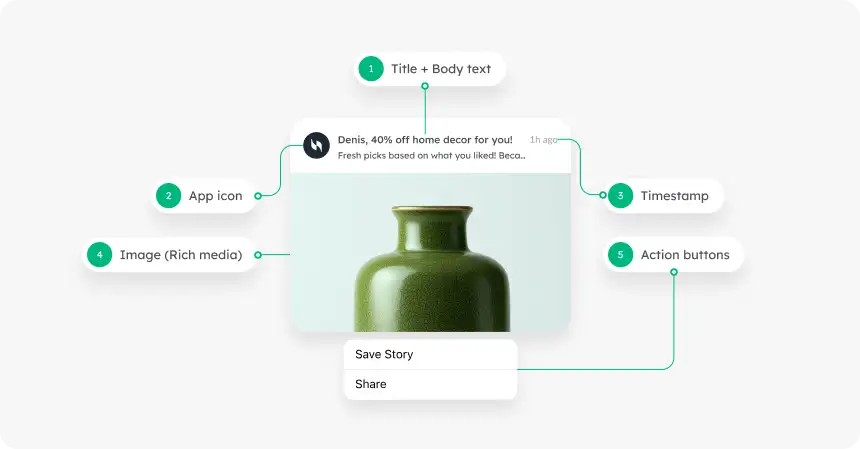
| Title | 25–50 characters; key information पहले रखें |
| Body text | 150 characters तक; lock screen पर पहले 40 सबसे ज़्यादा visible |
| Rich image | JPEG या PNG; Notification Service Extension के ज़रिए 10 MB तक |
| GIF / video | NSE के ज़रिए 50 MB तक |
| Custom sound | App में bundled होना ज़रूरी; अधिकतम 30 seconds |
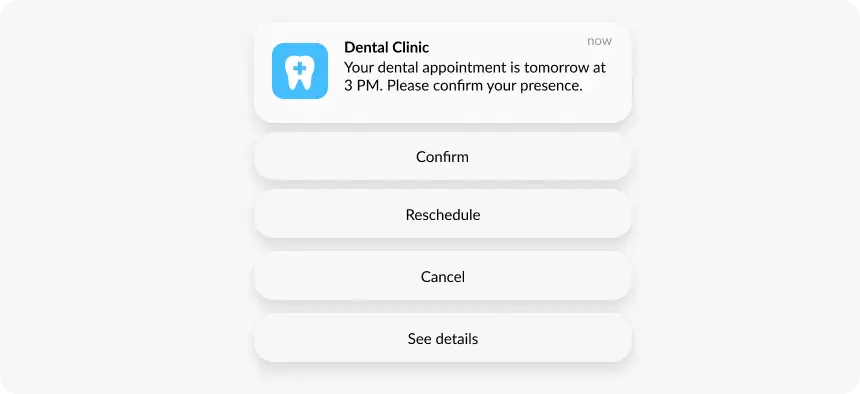
| Action buttons | अधिकतम 4 (Android के 3 से एक ज़्यादा); हर एक 1–2 words |
| App icon | System-managed; override नहीं किया जा सकता |
| Payload size | कुल 4 KB (title + body + metadata) |
iOS push notification का character limit
iOS push notification का character limit title के लिए 25–50 characters और body के लिए 150 characters तक है, लेकिन lock screen पर reliably सिर्फ़ body के पहले ~40 characters ही दिखते हैं। असली hard limit character count नहीं, payload है: अगर किसी notification का total payload 4 KB से ज़्यादा हो, तो APNs उसे reject कर देता है।
Apple कभी भी किसी fixed number पर text को truncate नहीं करता। iOS available space के हिसाब से text को fit करता है, और यह space screen size, Accessibility की text-size settings, notification stacked है या expanded, और वो lock screen, banner या Notification Center में दिख रहा है — इन सबके साथ बदलता रहता है।
वजह सीधी है: कोई एक ऐसी safe length नहीं है जिसके against आप validate कर सकें। जो title iPhone 16 Pro Max पर fit होता है, वही iPhone SE पर cut हो जाता है, और जो body expanded state में अच्छी तरह पढ़ी जाती है, वो collapsed stack में अपना दूसरा आधा हिस्सा खो देती है।
यही वजह है कि counting से ज़्यादा front-loading काम करती है। offer, product name या number को पहले कुछ words में रखें, और उसके बाद जो भी आए उसे ऐसा context मानें जिसे कुछ users कभी नहीं पढ़ेंगे।
Key takeaway: body copy 40 characters के हिसाब से लिखें, 150 के नहीं। अगर message 40वें character पर cut होने के बाद भी sense बनाता है, तो वो हर iPhone और हर notification state में काम करेगा।
iOS पुश नोटिफिकेशन benchmarks (2025 data)
प्रमुख industries में 600+ apps के Pushwoosh data के आधार पर। All-industries average: opt-in 56.36%, CTR 1.71%।
| Industry | Opt-in rate | CTR |
|---|---|---|
| E-commerce & retail | 52.78% | 3.05% |
| Fintech | 69.64% | 2.09% |
| Action games | 44.17% | 0.46% |
| Hypercasual games | 23.01% | 0.82% |
| Media & entertainment | 59.93% | 0.83% |
| News | 51.84% | 1.55% |
| All-industries average | 56.36% | 1.71% |
iOS पुश नोटिफिकेशन best practices
Pre-permission screen से जल्दी opt-ins लें
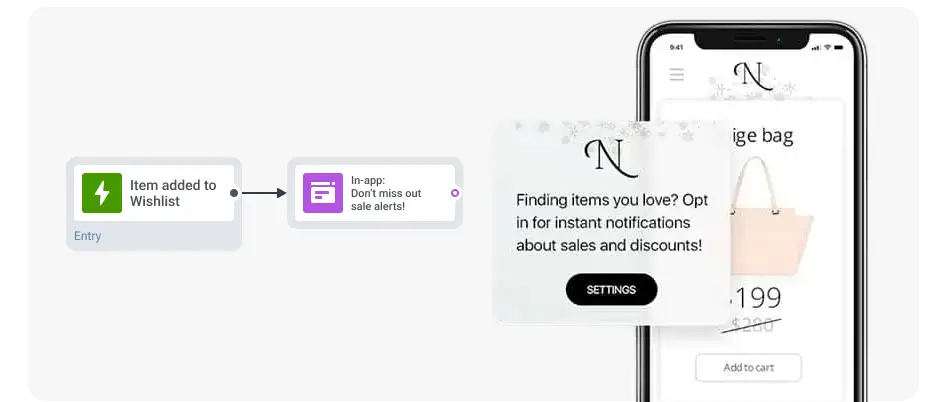
औसत iOS opt-in rate 56% है। एक well-designed pre-permission flow से ये काफ़ी ऊपर ले जाया जा सकता है। Apple के native prompt से पहले एक custom in-app screen दिखाएँ जो explain करे कि user को कैसी notifications मिलेंगी और क्यों valuable होंगी। फिर system prompt को meaningful user action के बाद trigger करें — purchase complete, onboarding finish, पहला article read।
Focus mode का सम्मान करें
Focus mode (iOS 15 में introduce हुआ) users को filter करने देता है कि work, sleep, या personal time में कौन सी apps उन्हें interrupt कर सकती हैं। केवल Time-Sensitive और Critical notifications active Focus filter को bypass करती हैं। Focus mode वाले user को regular promotional pushes भेजने का नतीजा silent delivery या suppression होगा। उसके हिसाब से notification categories design करें — और full permission न देने वाले users को value दिखाने के लिए provisional notifications पर विचार करें।
हर message को personalize करें
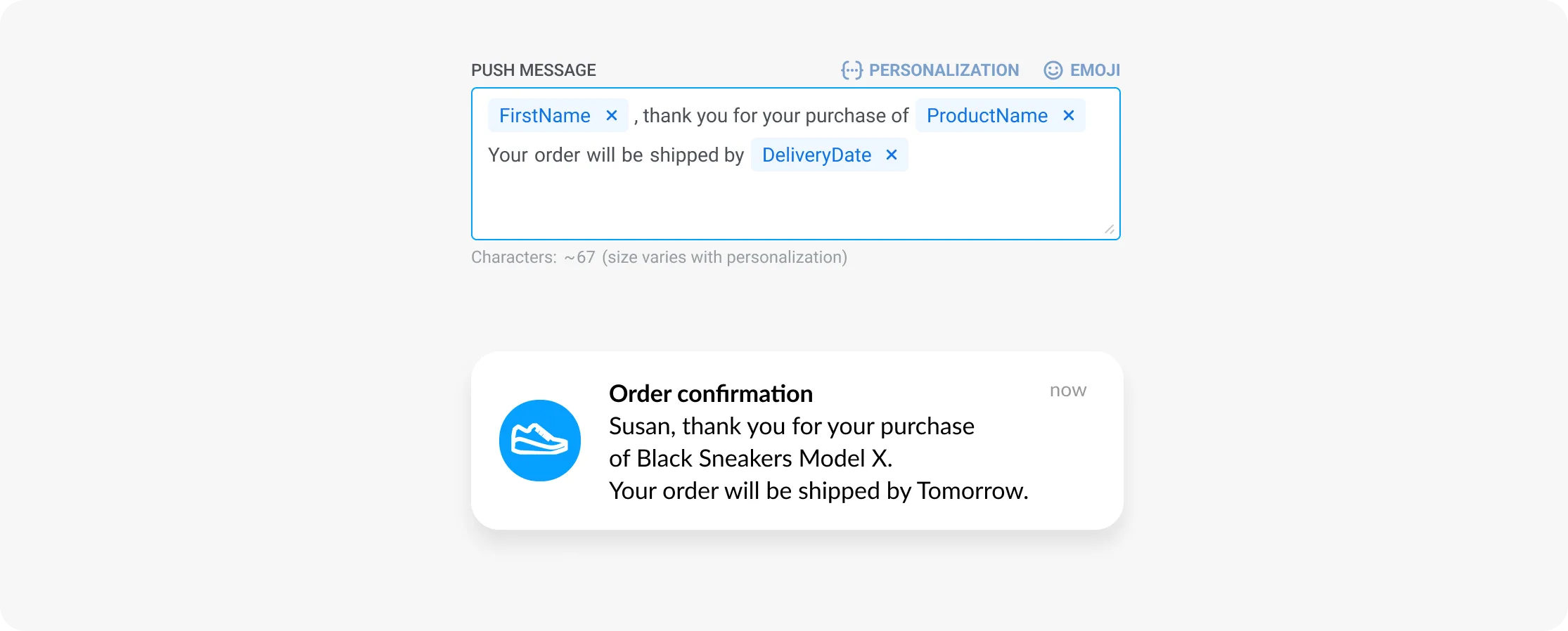
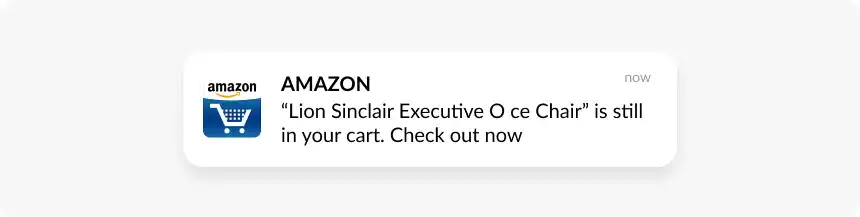
Dynamic content से notifications को user name, product, location या recent in-app action के साथ tailor करें। iOS users अपनी lock screen पर क्या allow करते हैं इसमें selective हैं — generic broadcasts opt-out तेज़ कर देती हैं। Behavior-triggered messages (“Added to cart”, “Subscription expiring in 3 days”) consistently scheduled blasts से बेहतर perform करते हैं।
Time-Sensitive का strategic use
Time-Sensitive notifications Focus mode और Notification Summary को cut कर देती हैं — लेकिन इस entitlement का overuse users को इसे revoke करने की आदत डालता है। Time-Sensitive को genuinely urgent content के लिए ही reserve करें: order आ रहा है अभी, boarding gate change, payment declined। Time-Sensitive flag के साथ भेजे गए promotional messages spam लगेंगे और permission revocation पर ले जाएँगे।
Automation से send timing optimize करें
User time zones का respect करें। नाइट hours के लिए silence period set करें। Pushwoosh के Best Time to Send feature से हर message को individual user के peak activity window में deliver करें — ये data-driven approach engagement history analyze करता है और fixed-time sends के मुक़ाबले CTR 50% तक बढ़ा सकता है।
Notification Service Extension से rich media add करें
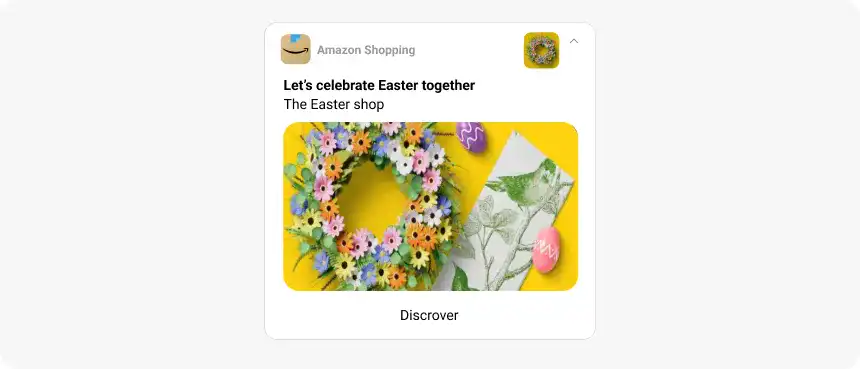
Image वाली notifications text-only messages से ज़्यादा CTR देती हैं। Rich media enable करने के लिए Xcode में Notification Service Extension implement करें और payload में mutable-content flag include करें। 10 MB तक की images और 50 MB तक के videos supported हैं — इस headroom को high-quality visuals के लिए use करें, low-res thumbnails के लिए नहीं।
A/B tests लगातार run करें
Title copy, body text, emojis, CTA buttons, send time और rich media test करें। Opt-in rate, opt-out rate, CTR और downstream conversions track करें। छोटी optimizations बड़े performance differences में compound होती हैं — iOS पर, जहाँ opt-in rates कम हैं, 10% CTR improvement total campaign reach पर बड़ा impact डालता है।

iPhone पर पुश नोटिफिकेशन कैसे on करें
Users iOS settings में हर app के लिए notifications control करते हैं। इन्हें enable, disable और fine-tune कैसे करें — ये अपने testing के लिए भी काम का है और पूछने वाले users को guide करने के लिए भी।
iPhone पर पुश नोटिफिकेशन कैसे enable करें (iOS notification settings)
- iPhone पर Settings app खोलें।
- Notifications पर tap करें।
- Scroll करें और जिस app को manage करना है उस पर tap करें।
- Allow Notifications को ON करें।
- Choose करें कि notifications कैसे receive करनी हैं: Lock Screen, Notification Center, और/या Banners।
- Optional: Sounds और Badges पर tap करके per-app alert behavior customize करें।
iPhone पर पुश नोटिफिकेशन कैसे off करें
- Settings > Notifications खोलें।
- जिस app को silence करना है उस पर tap करें।
- उस app की सभी notifications disable करने के लिए Allow Notifications को OFF करें।
- या: Allow Notifications को ON रखें, बस Lock Screen uncheck कर दें ताकि screen off होने पर notifications न दिखें।
iPhone पर push notifications कहाँ मिलती हैं? पुरानी और miss हुई notifications कैसे ढूँढें
जो notification user ने tap नहीं की, वो गायब नहीं होती। iOS हर undismissed notification को Notification Center में रखता है, और देखने के लिए तीन जगहें हैं:
- Lock Screen — यहाँ recent notifications दिखती हैं। पुरानी notifications देखने के लिए Lock Screen के बीच से ऊपर की तरफ़ swipe करें।
- Notification Center — किसी भी unlocked screen से, top-center से नीचे की तरफ़ swipe करें। Top-right corner से swipe करने पर उसकी जगह Control Center खुल जाता है — यही सबसे common वजह है जिससे users को लगता है कि उनकी notifications गायब हो गईं।
- App icon badges — red badge बताता है कि app के अंदर क्या wait कर रहा है, भले ही notification खुद Notification Center से हट चुकी हो।
Notifications तब तक Notification Center में रहती हैं जब तक user उन्हें clear न करे या app उन्हें remove न कर दे। iOS कोई recoverable notification history नहीं रखता: एक बार swipe करके हटाई गई notification हमेशा के लिए चली जाती है, और कोई Settings screen उसे वापस नहीं ला सकती।
Marketers के लिए इसका मतलब: delivered होना, seen होने जैसा नहीं है। Users अक्सर पूरा notification stack बिना एक भी पढ़े clear कर देते हैं, इसलिए front-loaded copy और smart notification summaries send volume से ज़्यादा मायने रखते हैं।
Focus mode में notifications कैसे manage करें
अगर आप Focus के दौरान सिर्फ़ specific apps की notifications चाहते हैं: Settings > Focus > एक Focus चुनें (जैसे Work) > People and Apps > Apps > वे apps add करें जिन्हें आप allow करना चाहते हैं। उस Focus session के दौरान बाक़ी सभी apps silence हो जाएँगी।
2026 में top iOS पुश नोटिफिकेशन services
सही platform चुनने से deliverability, campaign sophistication और total cost of ownership सब प्रभावित होता है। iOS push के लिए जो dimensions सबसे मायने रखते हैं, उन पर leading options ऐसे compare होते हैं।
| Platform | APNs + HMS | Live Activities | No-code journeys | AI optimization | Pricing |
|---|---|---|---|---|---|
| Pushwoosh | Yes (दोनों) | Yes | Yes (visual) | Yes (ManyMoney AI) | $49/महीना से |
| OneSignal | Yes | Yes | Limited | Basic | Free tier + paid |
| Airship | Yes | Yes | Yes | Yes | Enterprise |
| Braze | Yes | Yes | Yes | Yes | Enterprise |
| MagicBell | Yes | No | No | No | Usage-based |
Pushwoosh इस list की इकलौती platform है जो APNs + HMS delivery, Live Activities support, no-code journey orchestration और autonomous AI optimization (ManyMoney AI) को एक mid-market solution में combine करती है। Pushwoosh vs OneSignal या Pushwoosh vs Braze compare करें।
Pushwoosh — सबसे बेहतर Apple push notification service
iOS push performance improve करना ज़्यादा messages भेजने के बारे में नहीं है। ये precision के बारे में है — सही message, सही user, सही moment — और technical reliability के बारे में, ताकि messages actually APNs से पहुँचें।
- Full APNs compliance: latest APNs protocols और iOS 26 changes के साथ हमेशा up to date।
- एक platform से omnichannel: iOS push, Android push, web push, in-app messages, email, SMS, WhatsApp।
- No-code Customer Journey Builder: engineering support के बिना behavior-triggered automated flows build करें।
- Live Activities support: Pushwoosh campaigns से push के ज़रिए Live Activities भेजें और update करें।
- Best time to send: हर user के लिए timing optimization, 50% तक higher CTR।
- ManyMoney AI: autonomous AI जो ready-to-buy users ढूँढता है, revenue leaks identify करता है और campaigns को 24/7 optimize करता है।