Your push dashboard reports green with deliverability at 99%, no errors. But engagement has been drifting down, with nothing on your end to explain it. Welcome to Apple message filtering 👋🏻🤡 It’s the layer that sits between your “sent” and your user’s lock screen, and that nobody on your team has a dashboard for.
In this guide, you’ll understand how to audit your existing messaging campaigns and get hacks to restore visibility, so your iOS users actually see what you send.
🍏🛠️ Apple message filtering updates in 2024–2026
Between October 2024 and September 2025, Apple shipped 4 releases that changed how notifications reach users on iOS. Each targeted a different channel, but the logic underneath is the same.
- iOS 18.1 (October 2024): Apple Intelligence rolls out, starting the notification-summary era.
- iOS 18.2 (December 2024): Mail app automatically sorts incoming email into four categories — Primary, Transactions, Updates, and Promotions. Mass sends land in Promotions.
- iOS 18.4 (April 2025): Priority Notifications launches. Apple Intelligence ranks incoming push notifications by predicted importance and surfaces the important ones in a dedicated section of the lock screen. Off by default, available on iPhone 16, 15 Pro, and 15 Pro Max.
- iOS 26 (September 2025): Messages app gets two new filters — a Spam filter (on by default) that routes detected spam to a separate folder, and Screen Unknown Senders (off by default) that hides SMS from unsaved numbers behind a filter view without triggering notifications. Categories for Transactions and Promotions also become available for SMS.
The pattern across all the Apple updates in 2024–2026: messages from senders that a user actively interacts with get through. Mass sends without a behavioral relationship get filtered, summarized, or hidden behind a tab.
None of this shows up as a delivery failure. APNs reports, email bounce rates, and SMS delivery receipts all still mark the message as delivered. The user just doesn’t see it the way you think they do.
How Apple Intelligence decides what to prioritize
For push notifications specifically, Apple has not published the full ranking algorithm. Based on Apple’s public guidance and how the feature behaves in practice, 3 signals appear to drive the decision:
- Content signals. Time-sensitivity cues (delivery updates, verification codes, appointment reminders), and whether the message references a specific action the user initiated.
- Behavioral history. How recently and how often the user opens the app, whether they’ve interacted with past notifications from this app, and whether the sender is someone they message or email frequently.
- Notification type. Transactional and response-to-user-action notifications are treated as higher-value than broadcast promotional content.
What this means in practice: 2 identical apps sending the same promo at the same time can see very different outcomes. An app that a user transacts with twice a week gets a lot of trust. While an app that a user hasn’t opened in 30 days gets almost none.
What gets through, what gets filtered
A rough map of how notifications are treated once OS-level filtering kicks in:
| Likely to get priority | Likely to be filtered or deprioritized |
|---|---|
| Order or delivery updates tied to a user action | Promotional blasts sent to a broad segment |
| Appointment reminders, verification codes | Fixed-schedule sends ("every Wednesday 11am") |
| Replies to user-initiated requests | Generic re-engagement ("We miss you!") |
| Live Activity updates users have subscribed to | Mass content without a behavioral trigger |
| Senders the user recently engaged with | Content that looks identical across the whole segment |
The 3-question audit & hacks for better visibility on iOS
Choose the campaign you want to diagnose. Walk through these three audit questions and find the hack that fixes message visibility on iOS.
1. What triggers this campaign: time or user action?
If it’s a fixed schedule, this question is already a “no.” Broadcast timing is exactly what OS-level filtering deprioritizes.
If there is a trigger, make sure it is a behavioral one rather than a segment filter. A segment filter says “users who did X at some point.” A trigger says “send this exactly when X happens.”
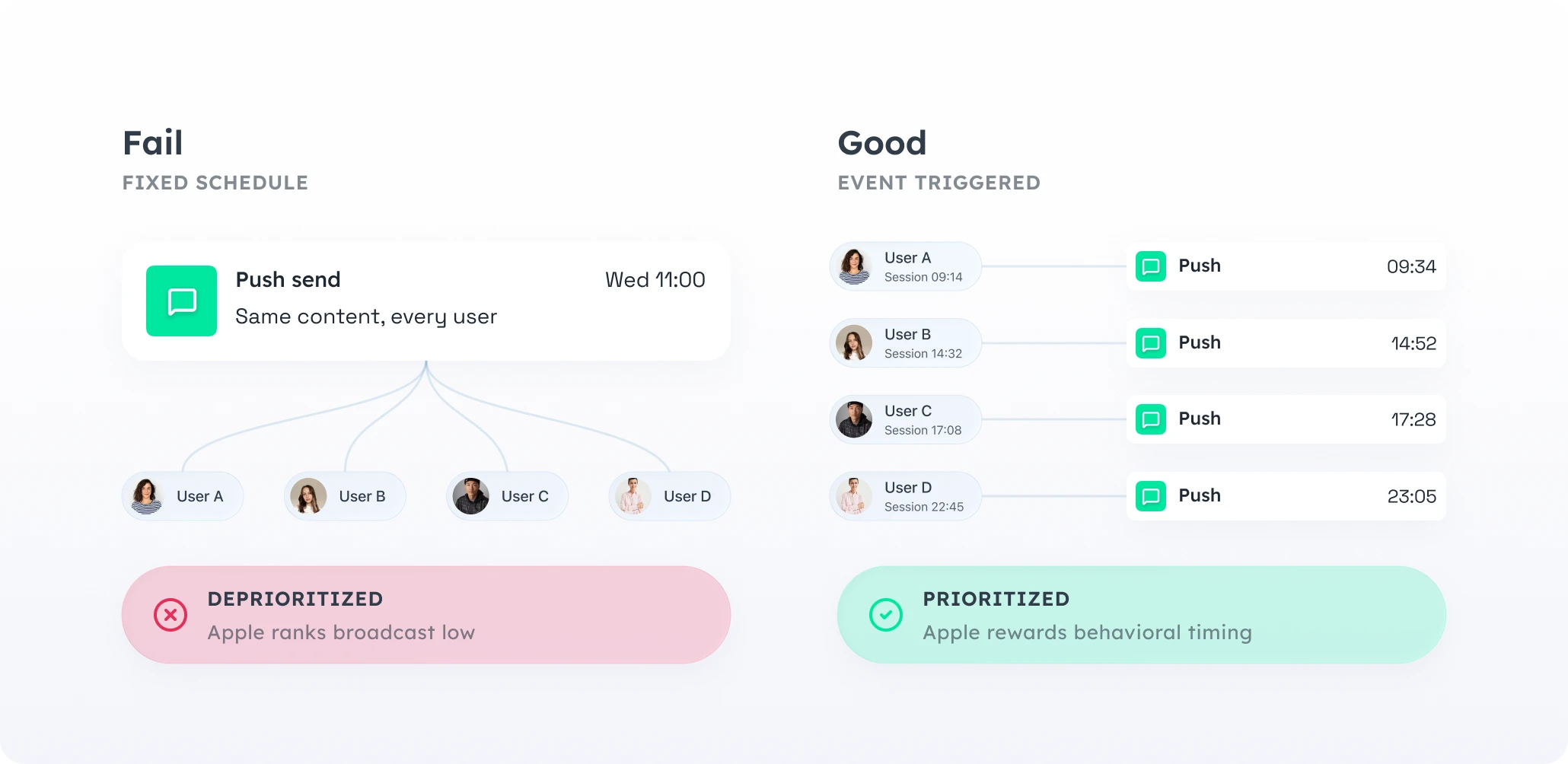
The difference matters because Apple’s ranking rewards proximity between user action and notification. A send that follows a user’s own behavior reads as relevant. A scheduled blast reads as broadcast.
Two hacks apply here.
🛠️ Hack #1: Replace the time trigger with an event trigger
Change “Wednesday 11am promo” to send N minutes after a behavioral event that signals relevance: session_end, product_viewed_twice, added_to_cart_no_purchase. The content stays largely the same. The delivery moment is what changes, and that’s what Apple’s ranking rewards.
🛠️ Hack #2: Use Best time to send for schedules you can’t move
Weekly digests, content drops, and streak reminders genuinely need to be time-based. For these, Best time to send puts the fixed slot on each user’s past engagement pattern. Same campaign, per-user window.
2. Is there personalization beyond the first name?
Hi {first_name} is not personalization, but a merge tag. Real personalization means the content itself (the offer, the product, the next step) differs based on what this user actually did.
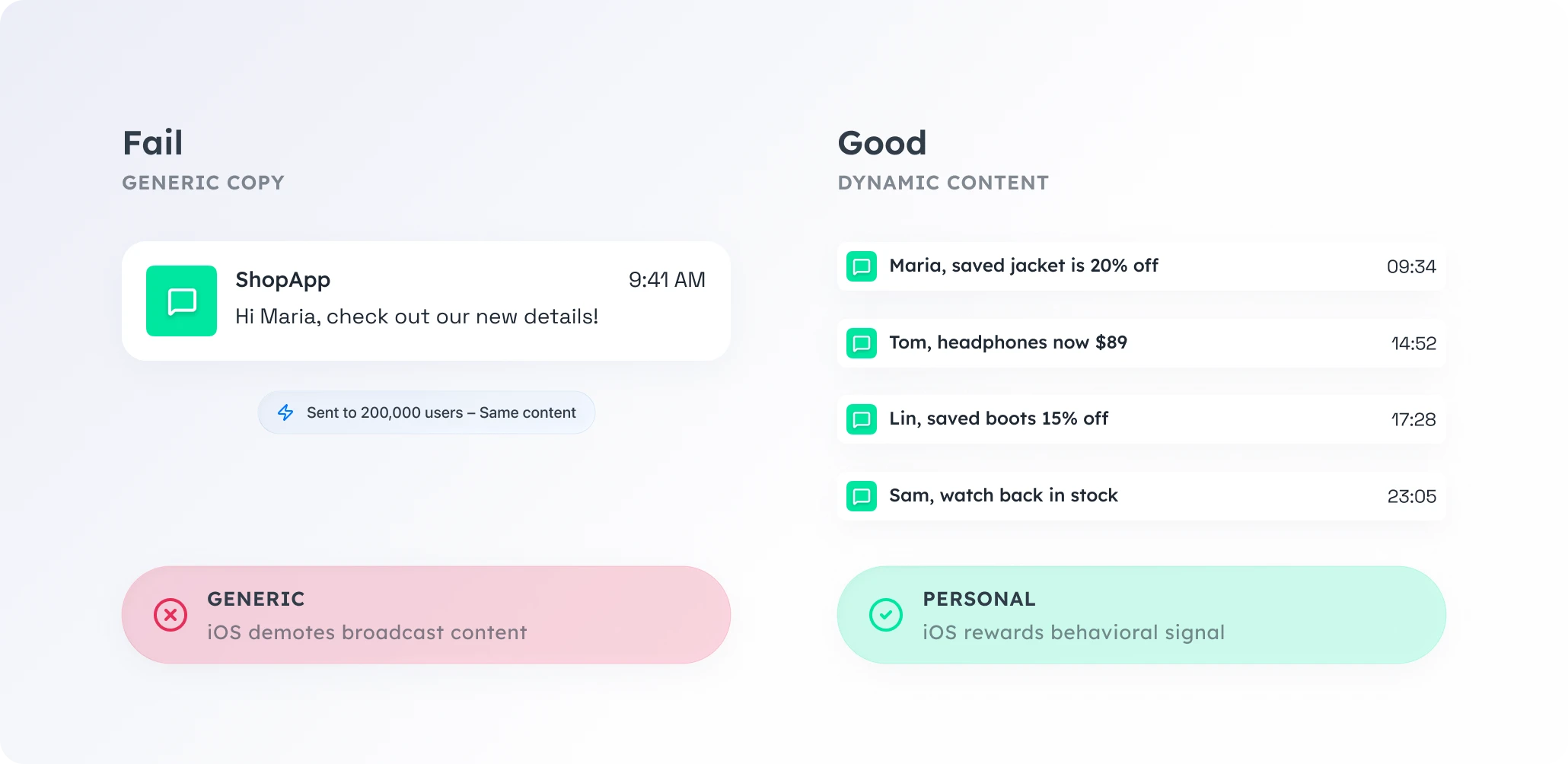
The second version carries a behavioral signal; the first doesn’t. It’s also the kind of content Apple’s email categorization tends to leave in Primary rather than route to Promotions.
🛠️ Hack: Swap static copy for Dynamic content
Dynamic content renders the content itself (the offer, the product, the location, the price, the currency) per user from a single campaign.
- Static: “Our sale is live. Up to 50% off.”
- Dynamic: “
{product_last_viewed}is{discount}% off in{user_city}, through{deadline_local}.”
3. Is there a specific next action?
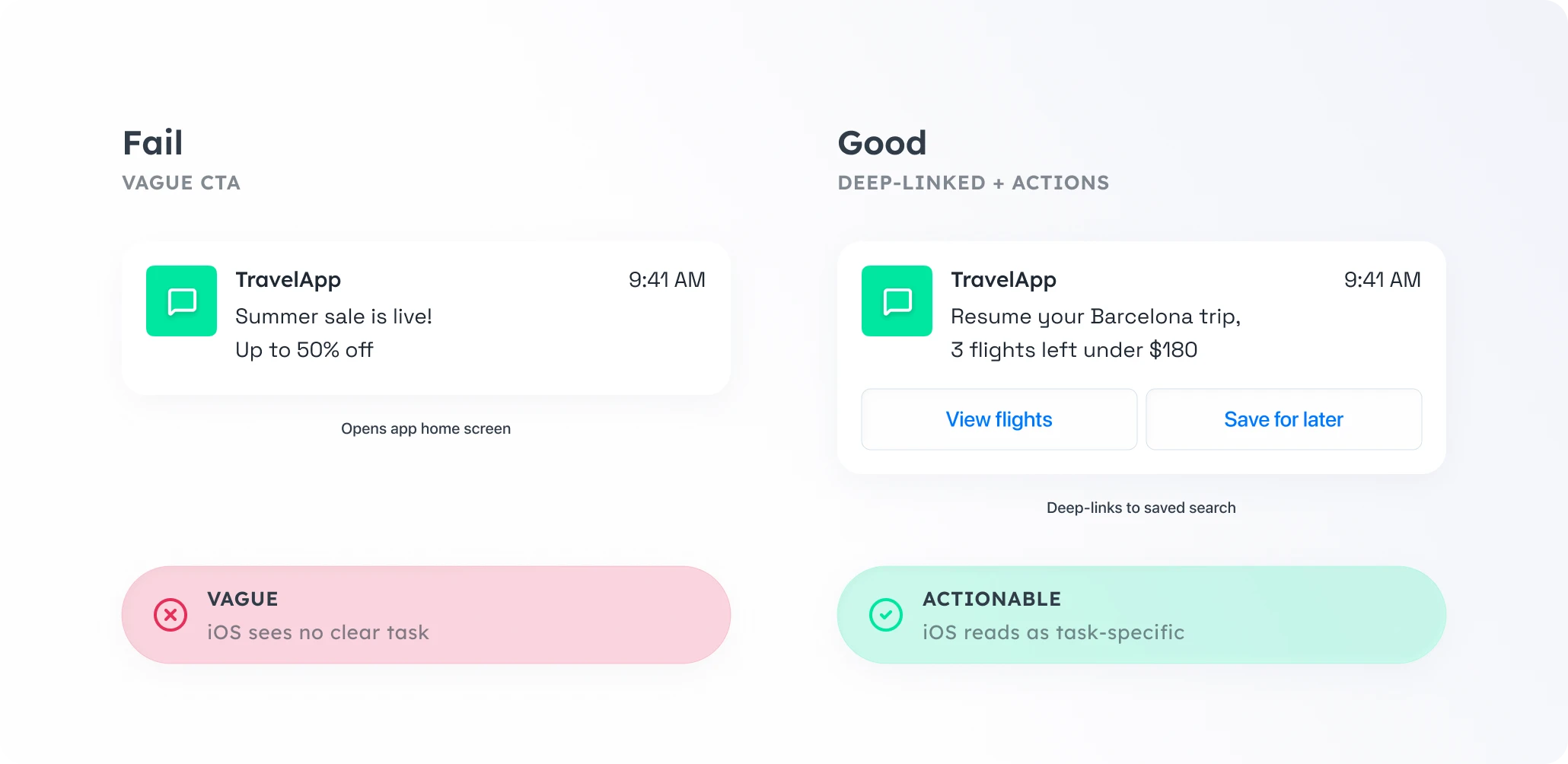
Every message should end with one thing the user can do with one tap. If the CTA is “explore” or “see more” or there is no CTA at all, the message is doing public-address work, not lifecycle work.
🛠️ Hack: Deep-link the CTA and add action buttons
Two changes close the gap between notification and action.
Deep-link the CTA. Instead of opening the home screen, the push notification opens the exact view the user needs: the product, the saved search, the order tracking page, the specific article. iOS reads deep-linked notifications as task-specific, which aligns with what Priority Notifications rewards.
Add action buttons. iOS supports up to four actionable buttons inside a single push: “Reorder,” “Track,” “Renew,” “Remind me later.” The user completes the action without opening the app, which counts as engagement and improves the sender’s signal for future ranking.
Extra hack: Replace push with Live Activity
Some notifications don’t even need to be push notifications. If the user wants to track an ongoing state (a delivery in progress, a game round, a ride, a match score), a Live Activity shows that state persistently on the lock screen without interrupting or filtering.
Build high-visibility campaigns for iOS with Pushwoosh
iOS-level message filtering rewards campaigns built around user behavior, not fixed schedules. Pushwoosh gives you the building blocks for that rebuild:
- Trigger-based entry — automatically send push notifications, emails, and SMS on behavioral events like
session_end,purchase_initiated, or any custom event from your mobile app. - Best time to send — for campaigns that genuinely need a schedule, Pushwoosh delivers each message at the individual user’s peak engagement window.
- Dynamic content with Liquid templates — render offer, product, location, and deadline per user from a single campaign.
- Deep links and action buttons — up to four one-tap actions in every push, deep-linked to the exact destination.
- Live Activities — show ongoing state on the lock screen without sending a push at all.
- Journey statistics — measure event-triggered vs fixed-schedule sends by CTR and goal-completion rate, so you know which rebuilds paid back.