Native SDKs for iOS and Android
Small, modular SDKs that bring push, in-app messages, inbox and Live Activities into your native app. Add only the modules you use and reach Android devices with or without Google Play Services.
iOS: Swift Package Manager
https://github.com/Pushwoosh/Pushwoosh-XCFrameworkAndroid: build.gradle
implementation 'com.pushwoosh:pushwoosh-firebase:6.+'// optional, for Huawei devicesimplementation 'com.pushwoosh:pushwoosh-huawei:6.+'The job it closes
Every campaign your marketing team builds ends up in the same place: a few lines of code inside your app. If that code is heavy, every user downloads a bigger app. If it only talks to Google’s push service, Android devices without Google Play Services never get your messages. So the SDK has two jobs: ship only the code your app uses, and reach Android devices with or without Google.
What it does
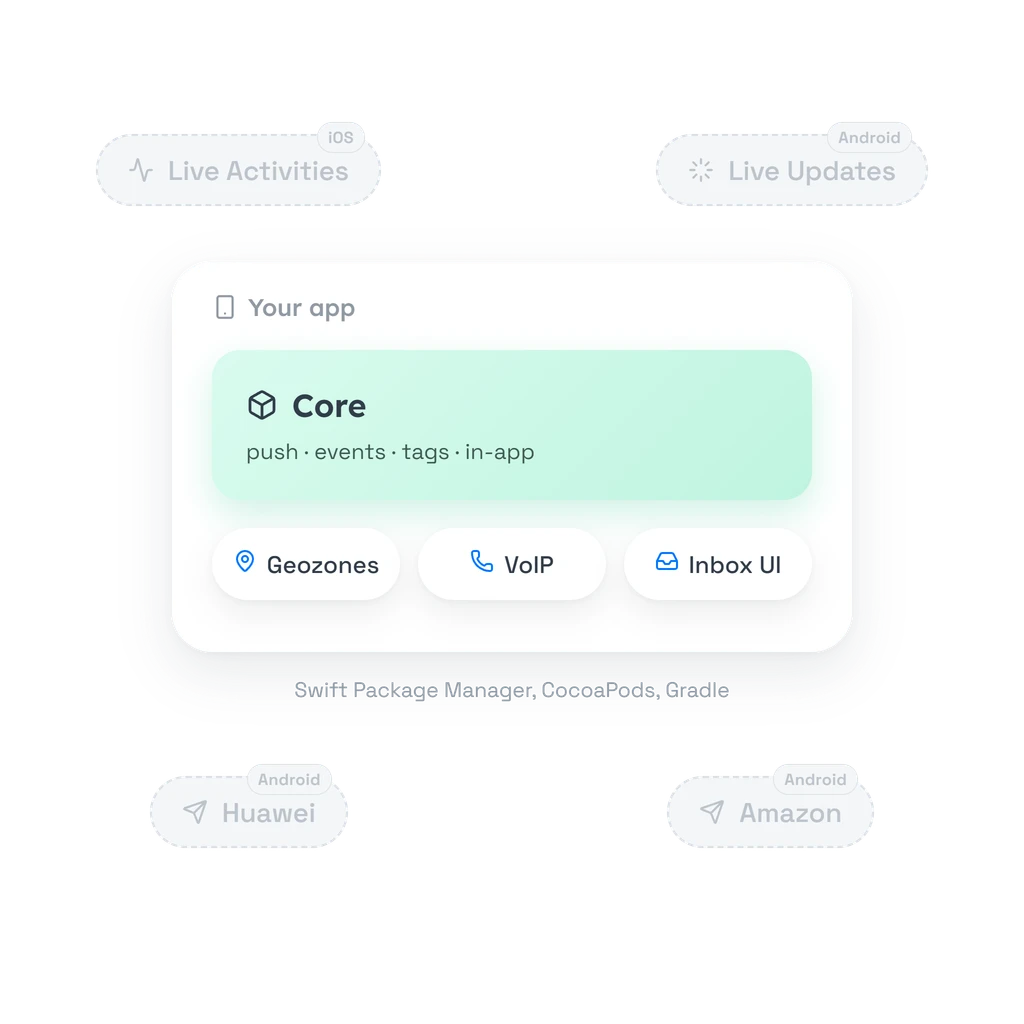
The iOS SDK is a small required core plus optional modules, so your app ships only the code it calls. Swift Package Manager and CocoaPods pull in exactly the modules you import.
On Android, one API covers three push services: Firebase Cloud Messaging, Huawei Push Kit and Amazon Device Messaging. Your app uses the same code for all three. Both SDKs are open source on GitHub.
VoIP push is a separate Pushwoosh module on iOS and Android, so incoming-call notifications work without a third-party library.
| Module | What it adds | Platform |
|---|---|---|
| Core | Push, events, tags, in-app messages | iOS, Android |
| Geozones | Location-based messages | iOS, Android |
| VoIP | VoIP push for incoming-call notifications | iOS, Android |
| Inbox UI | Ready-made message inbox screen | iOS, Android |
| Live Activities | Live Activities and Dynamic Island | iOS |
| Live Updates | Progress-style notifications | Android 16+ |
| Huawei, Amazon | Push without Google Play Services | Android |
Why it matters for mobile push
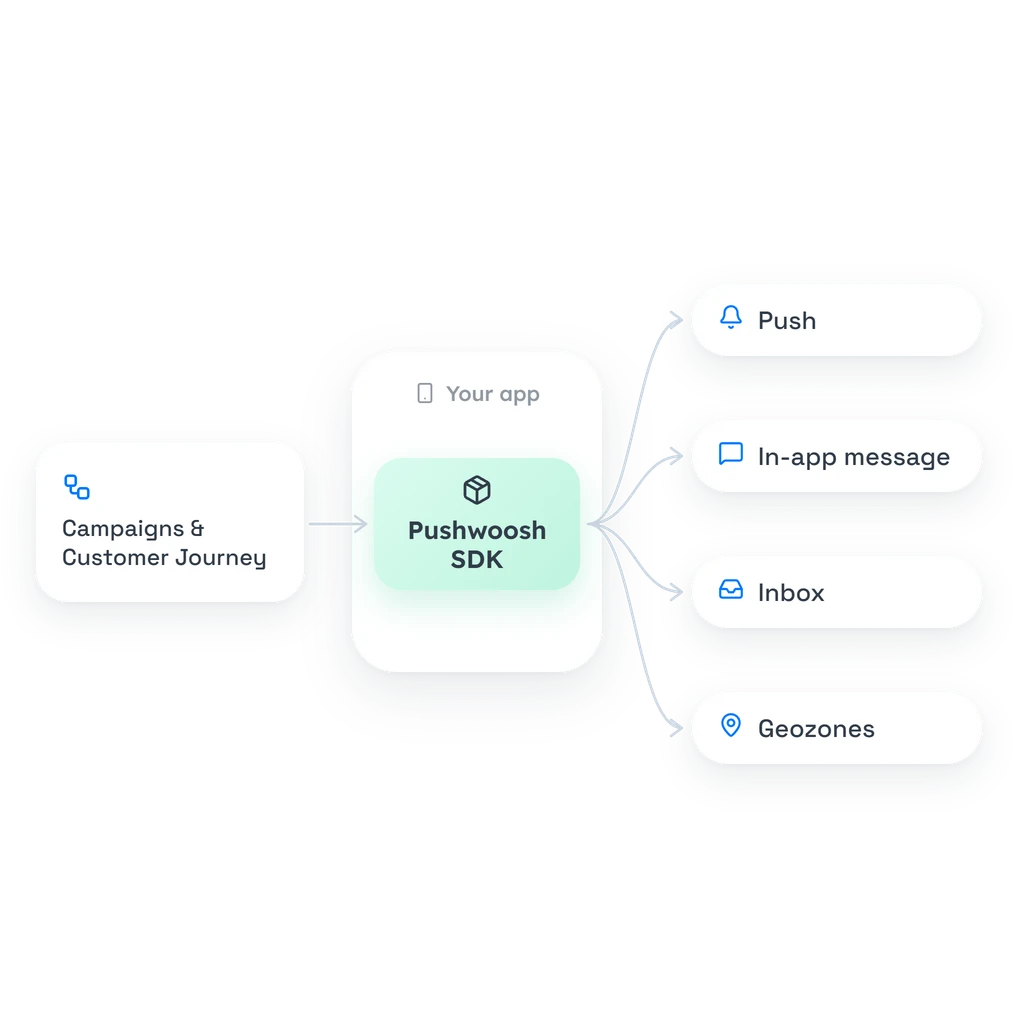
Every native channel on the platform runs through the SDK: mobile push, in-app messages, message inbox, geozones and Live Activities. If that code fails on the device, the campaign fails with it.
Because that layer is modular, you can add a channel later without reworking the app. Start with mobile push and add modules as your Customer Journeys grow.
How it works
-
Add the SDK
Install it with Swift Package Manager, CocoaPods or Gradle and pick the modules you need.
-
Connect push credentials
APNs for iOS. For Android, add FCM, Huawei or Amazon credentials.
-
Register and test
Register the device and send a test push from the Control Panel.
Integration is developer work: you need access to the app project and the push credentials for each store. If you build with an AI coding assistant, the docs include an AI-assisted setup for iOS and for Android.
How it works with the rest
Teams that also ship Flutter or React Native apps use the Pushwoosh cross-platform plugins with the same Control Panel project. AI-assisted setup gives your coding assistant the current SDK reference. On Android, the Huawei and Amazon modules reach app stores beyond Google Play.
Mobile push notifications
The campaigns and Customer Journeys these SDKs deliver. Learn more
Alt-store push
Reach Huawei AppGallery and Amazon Appstore users. Learn more
VoIP push
Incoming-call notifications built on the VoIP module. Learn more
One SDK layer for every native message you send
Explore related products
Mobile push notifications by Pushwoosh — every-device reach, rich content, precise targeting, cross-channel Journeys and 99% uptime. Turn notifications into loyal, paying users.
Reach every Android device, Google Play or not. Pushwoosh delivers your push to Huawei, HarmonyOS, and Amazon Fire devices across FCM, HMS, and ADM — managed from one place, with fallback to email, SMS, and WhatsApp.
Make an iPhone ring with a real incoming call, even when your app is fully closed. The Pushwoosh iOS SDK registers the PushKit VoIP token and reports every call to CallKit for you.
iOS Live Activities put an order, a ride or a match on the iPhone lock screen as one live card, started and updated by push. Pushwoosh runs it from the same campaign and Journey as any other message.
Live Updates put an order, a ride or a delivery on the Android 16 lock screen as one card that refreshes itself. Pushwoosh starts, updates and ends it from the server, from the same campaign and Journey as any other push.
In-app messaging by Pushwoosh — onboard, upsell, announce and collect feedback right when app users are paying attention. No-code editor, native SDK layouts, per-element analytics. Free to start.