Make every push worth the tap with rich media
Pushwoosh adds an image, an animated GIF or, on iOS, a video to the notification itself. Users see what the message is about before they open it, and you send it from the same campaign and Customer Journey as any other push.
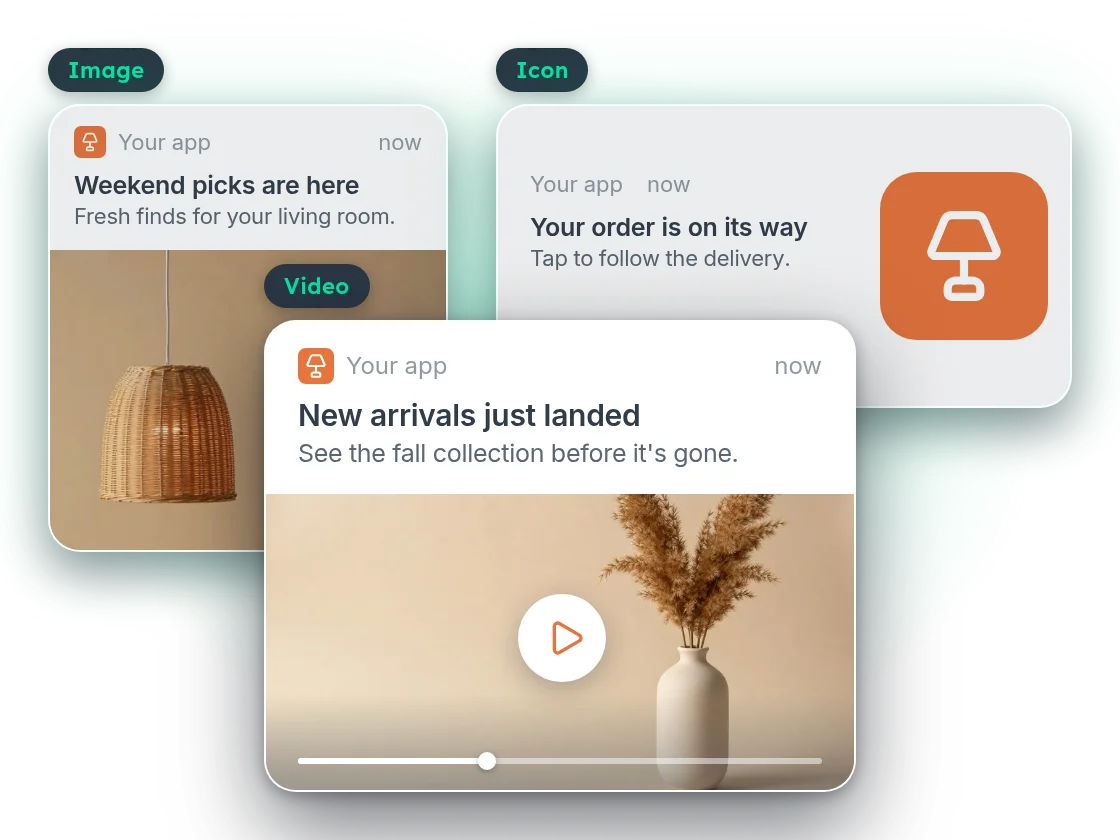
Show what the message is about before anyone opens it
A text push gets one line to earn the tap, and most people decide right there on the lock screen. A product photo, a news picture or a piece of game art shows what’s inside at a glance. The people who open it are the ones who wanted it.
Big picture (Android)
A full-width image in the expanded notification. Android renders it itself.
Animated GIF (Android, iOS)
Motion on the lock screen for a flash sale or a new drop. Android plays it too, from the same preset as iOS.
Image and video on iPhone (iOS 10+)
A static or animated image, or a video sent through the API. It opens when the user presses the notification.
Web image (Chrome, Edge)
A large image in the browser notification.
Custom icon (Android)
Your own notification icon next to the text.
Filled for you
Fill from link takes the title, text and image from the page the push leads to.
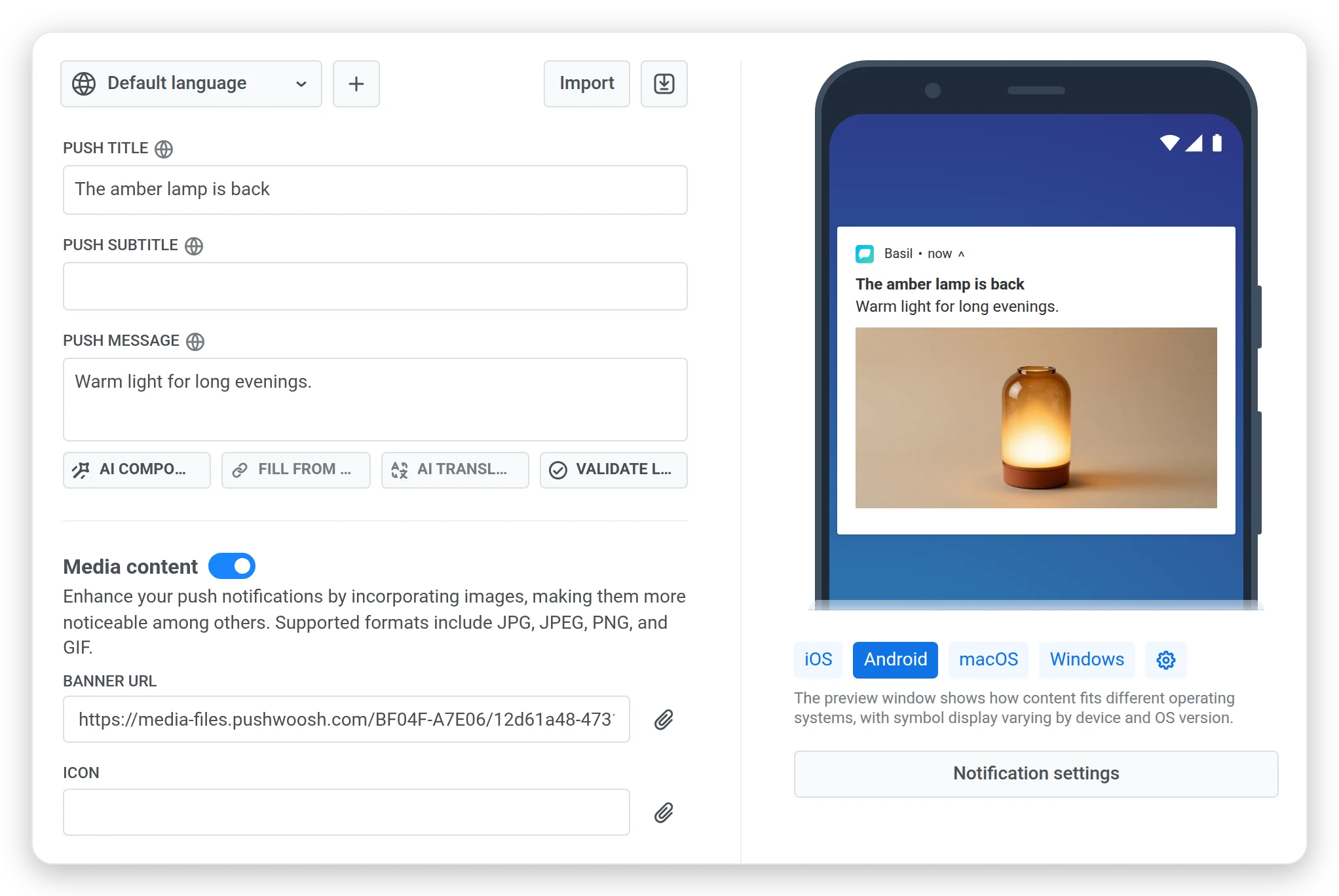
One field in the push preset
Turn on Media content in a push preset and paste a link into Banner URL, or open Media storage and pick an image from your library. The preset takes JPG, JPEG, PNG and GIF. Android and web browsers show the picture natively. On iOS, a one-time Notification Service Extension adds it, and Pushwoosh gives you the extension code.
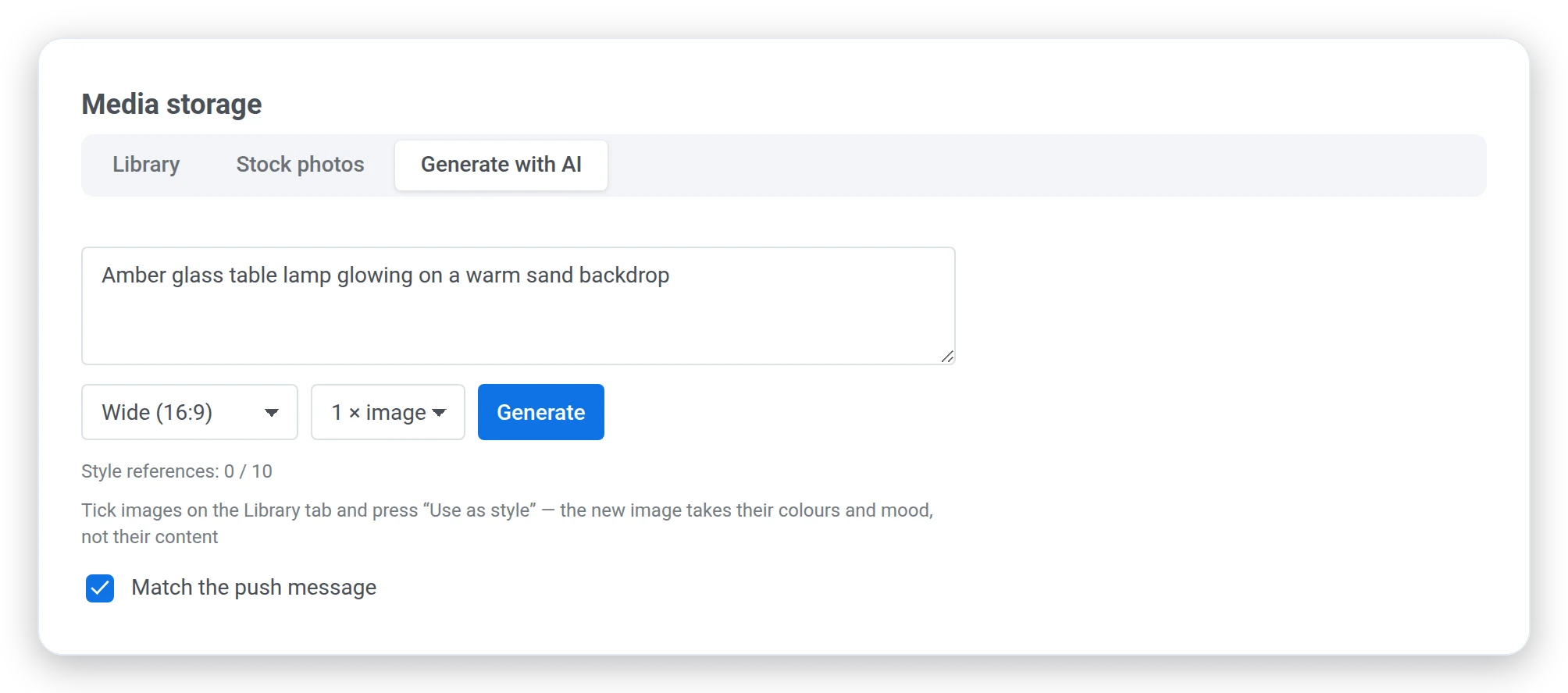
Generate a picture for the push
In Media storage, Generate with AI draws an image for the push. Tick Match the push message and it works from your title and text.
When to use it
Mobile games
Put the new character, level or season art in the push and bring lapsed players back.
Creator and subscription apps
Show the new template, filter or content drop instead of describing it.
E-commerce and marketplaces
Add the product photo to a price drop or cart reminder, so people see the exact item they left.
Media and news
Send the story with its photo. On the lock screen, the picture does the work of the headline.
Flash sales
A short GIF makes a limited-time offer feel like one.
Add pictures to the journeys you already run
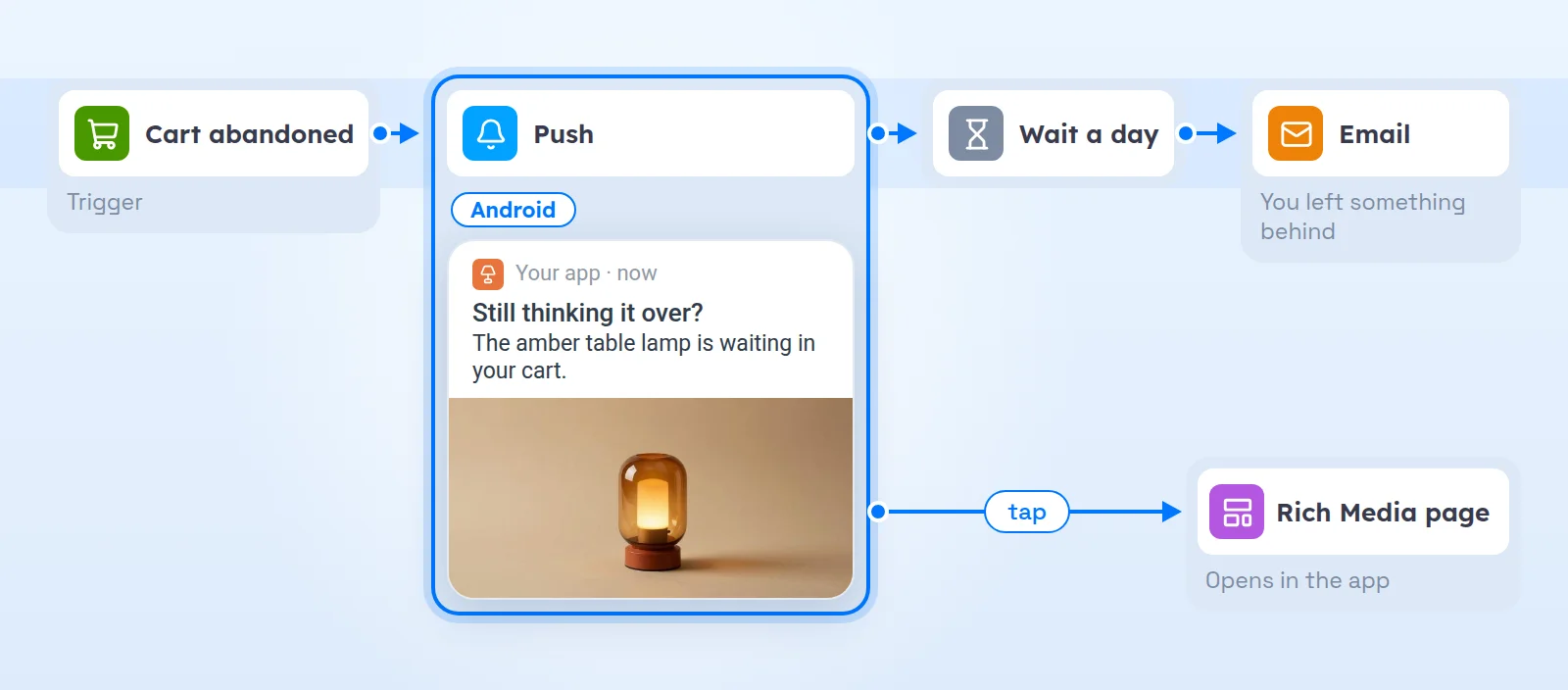
Media is one field of the push preset, so it goes wherever the push goes: the segment, the deep link, the custom data and the Customer Journey step. Take a cart abandonment journey. The first push shows the item the user left, with the photo filled in from your product catalog at send time. If the user hasn’t come back by the next day, an email follows. And if the offer needs more than one picture or a form, the tap opens a Rich Media page in the app.
- Mobile push: the channel rich media rides on
- Cart abandonment recovery: the journey where a product photo does the most work
- iOS image carousel: several images in one push when one isn’t enough
Set up in three steps
-
Compose (no code)
Turn on Media content in the push preset, add a Banner URL or pick an image from Media storage, and check the preview. A 2:1 image avoids cropping on Android. Video on iOS goes through the Messages API.
-
Add the iOS extension once (code)
Add a Notification Service Extension with the code from the Pushwoosh SDK. Without it, iPhones show the text only. iOS also falls back to text on a slow network or with a large file, so keep files small and host them on a CDN. Android and web need nothing.
-
Send (no code)
Use the preset in a one-time campaign or a Customer Journey step, for the audience you already message.
Security & hosting
Pushwoosh runs on its own hardware in the US and Germany, under GDPR and BDSG.





Give your next push a picture worth tapping
Explore related products
Mobile push notifications by Pushwoosh — every-device reach, rich content, precise targeting, cross-channel Journeys and 99% uptime. Turn notifications into loyal, paying users.
Put several images in one iOS push and let users swipe through them in the expanded notification. Pushwoosh ships the notification content extension, and the carousel sends from the same campaign and Journey as any other push.
Add labelled action buttons to the push you already send, so users accept, claim, approve or track in one tap. Build the iOS button sets no-code in the Pushwoosh Control Panel and send them from the same campaign and Journey.
Transform abandoned carts into revenue with cart recovery automation. Send timely reminders, personalized offers, and incentives that drive conversions.
Web push notifications by Pushwoosh — browser-delivered pushes that reach visitors after they leave your site. Any browser, desktop and mobile, plus iOS via PWA. Free to start.
E-commerce in-app messages that convert. Engage shoppers at key moments, reduce cart abandonment, and increase average order value with smart messaging.