Let users act right from the notification
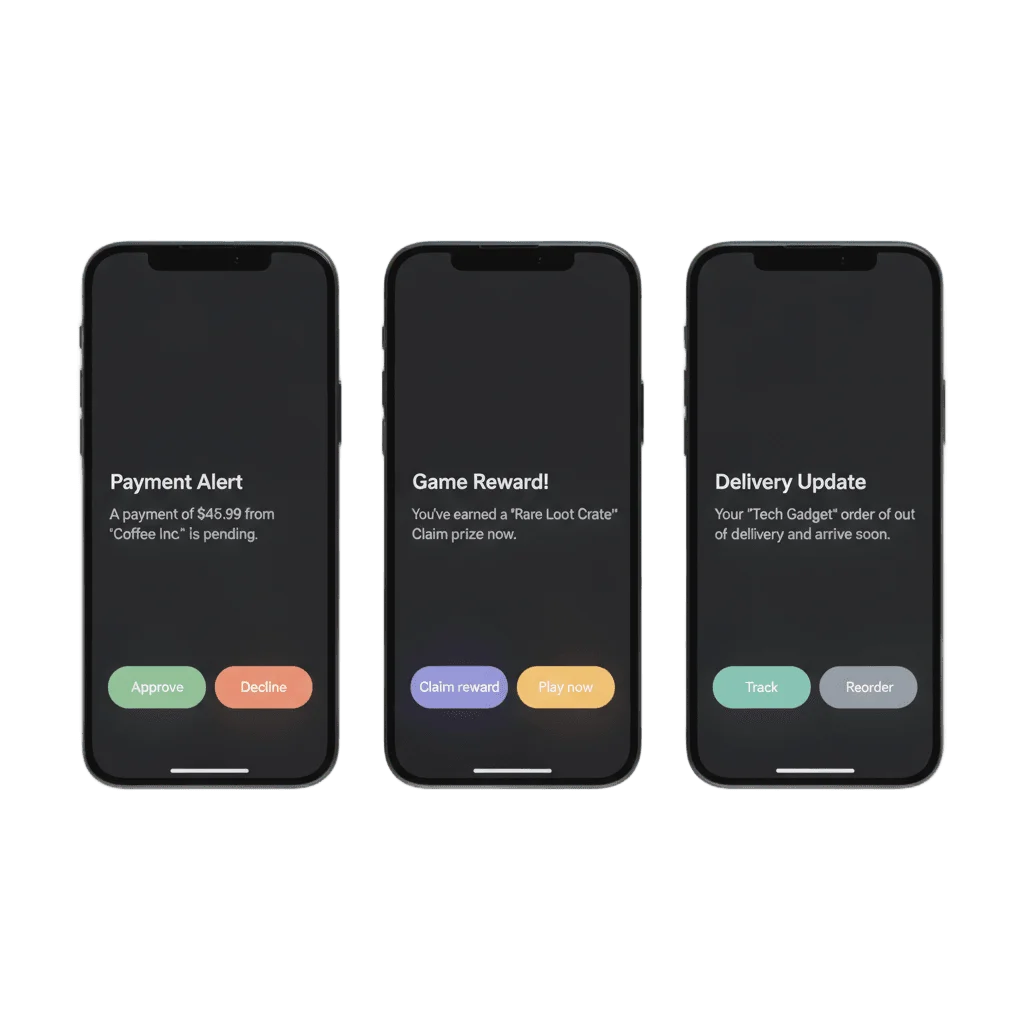
Action buttons put labelled choices on the notification itself, so users approve, claim or track in one tap. You build the iOS sets no-code in the Pushwoosh Control Panel, and they send from the same Journey as any other push.
Trusted by 80,000+ companies to scale their engagement
The format, in full
A plain push gives the user exactly one thing to do: tap it or ignore it. An interactive push adds labelled choices to the notification itself, so accept or decline, claim, track, confirm and remind later all resolve in a single tap from the lock screen.
Built in the Control Panel (iOS)
Configure → Edit Actions: name a category, add one or two buttons, save. Changing a label takes no release.
Buttons on the notification (iOS)
iOS draws the buttons from the category attached to the push, under the message the user pulled down.
Destructive or standard (iOS)
Mark a button destructive for red, standard for blue, so Decline never reads like Approve.
Opens the app, or acts in place (iOS)
Per button: bring the app to the foreground, or resolve the action without leaving the lock screen.
Three buttons in a row (Android)
Android renders up to three native actions side by side, each with its own label and on-tap behaviour.
CTA buttons (web push)
Browser notifications carry custom buttons that route to their own URL or deep link.
Where buttons sit between a plain push and a full screen
| When the message ends in | Send | Where the choice appears |
|---|---|---|
| Nothing but a read | A plain push | The banner |
| A small choice, one to three options | An interactive push | The expanded notification on iOS, the tray on Android |
| One picture worth showing | A rich media push | The expanded notification |
| Several items to compare | An image carousel push | The expanded notification, after the pull down |
| A form, a list or a layout | An in-app message or a Rich Media page | A full screen in the app, opened on tap |
The job it does, inside a journey
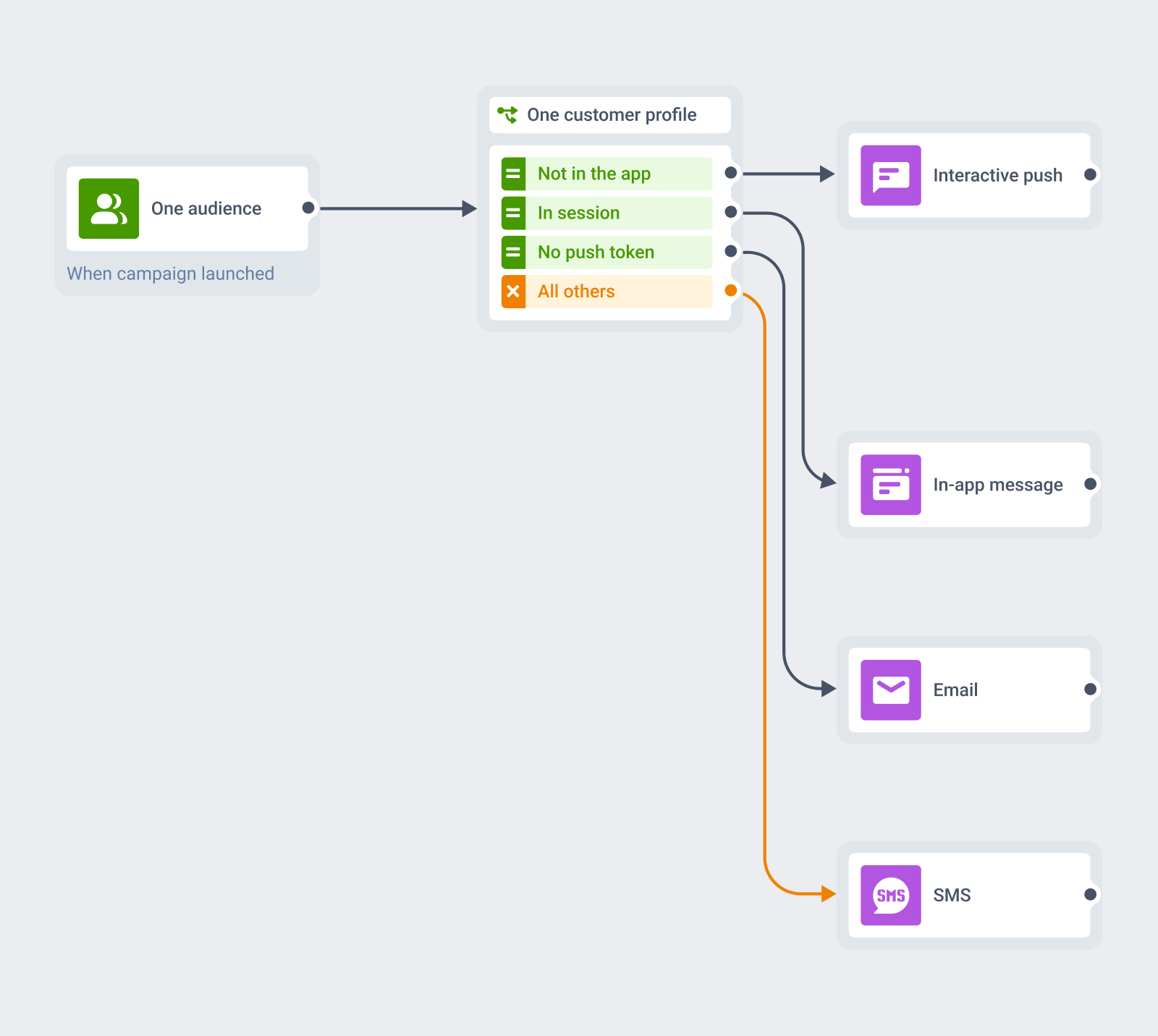
One Journey, many formats
Buttons are an attribute of a message you are already sending, not a separate integration.
The audience, the trigger, the segment and the customer profile all stay where they are. What changes is what the user can do when the message lands, and you set that in the same Customer Journey that already runs your push, in-app, email and SMS.
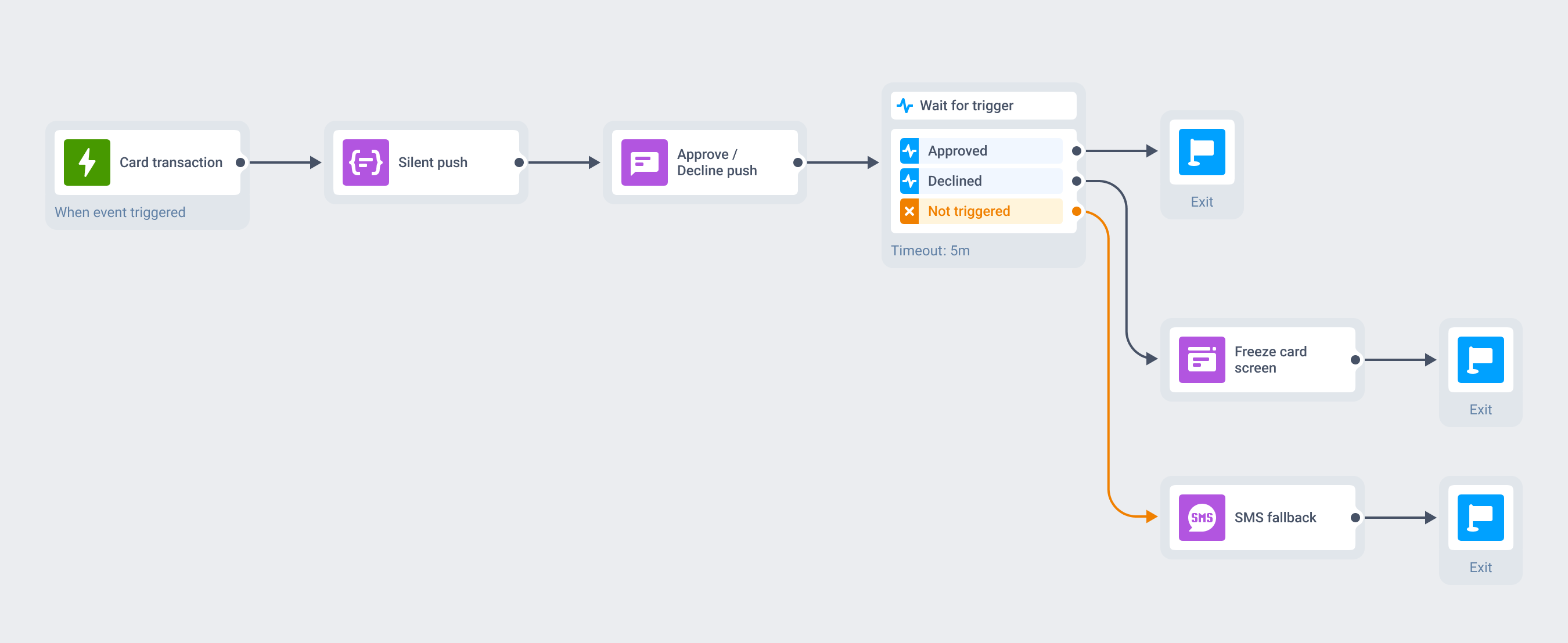
A payment held, resolved in one tap
A card transaction fires an event. A silent push warms the transaction detail in the background, invisible to the user, and the interactive push arrives with two buttons: Approve, and Decline in destructive red.
Approve clears the payment without the app ever opening. Decline opens the card-freeze screen instead. If neither button is tapped within five minutes, the same Journey falls back to SMS carrying the same choice.
What to use it for
Buttons earn their place wherever a message naturally ends in a small decision. For a pure announcement, a plain push already does the job.
| Moment | What the buttons say | What the user does |
|---|---|---|
| E-commerce · cart abandonment | Complete purchase · View cart | Pays from the lock screen, or opens the cart to change the order first |
| Fintech · transaction approval | Approve · Decline | Clears a payment or freezes the card without opening the app |
| Mobile games · a reward drop | Claim reward · Play now | Collects the reward and lands in the event that needs players |
| Subscription apps · renewal | Renew · Remind me later | Extends the plan in a tap, or defers it without churning |
| Food delivery · order status | Track · Reorder | Follows the courier, or repeats the last order from the update |
| Healthcare · appointment reminder | Confirm · Reschedule | Confirms attendance, which is what cuts the no-show |
| Events · tickets on sale | Get tickets · Remind me | Books a seat, or asks for a nudge closer to the date |
| Any vertical · routine reminders | Mark done · Remind later | Clears the reminder without a round trip through the app |
Platform & technical coverage
Action buttons run on iOS, Android and the web, but the authoring path and the visibility differ per platform. The last column says where the button is the push itself, and where it needs a handler in your app.
| Capability | iOS | Android | Web | Delivered by |
|---|---|---|---|---|
| Labelled action buttons on the notification | iOS 10+, one or two | Android, up to three | Chrome | The push itself |
| A button that opens the app or dismisses | iOS 10+ | Android | Chrome | The push itself, no app code |
| A button that deep-links or acts in place | iOS 10+ | Android | Chrome | A one-time handler in your app, reading the action identifier |
| Reusable button sets built without a release | Yes, Control Panel categories | SDK and custom data | – | Pushwoosh Control Panel, attached at compose time |
| Buttons set from the API | ios_category in /createMessage | Custom data in /createMessage | Custom data | The Messages API |
| Buttons visible without expanding the notification | – | Yes, in the tray | Yes | The OS notification shade |
| A choice that needs a form, a list or a layout | Yes | Yes | – | An in-app message or a Rich Media page, opened on tap |
ios_category in /createMessageSecurity & hosting
Pushwoosh runs on its own hardware in the US and Germany, under GDPR and BDSG.





How it works
Building the buttons is no-code on iOS. Deciding what each one does, beyond opening the app, is a one-time engineering step, and it is the same step at every vendor because it is Apple’s and Android’s model.
-
Build the button set (no-code)
In Configure → Edit Actions, create a category, add one or two buttons, give each a label, mark it destructive or standard, and choose whether it launches the app. Pushwoosh saves it with an ID and hands the catalog to the device on registration.
-
Wire the handler once (developer)
A button that only opens the app or dismisses needs no code. To deep-link, mark something done or act in place, the app reads the action identifier once, through
didReceiveNotificationResponseon iOS or the notification intent on Android. Android button sets are configured on this side too. -
Orchestrate it (no-code)
Pick the category while composing, or set
ios_categorythrough the Messages API. Send it to the same segment, from the same Customer Journey as the rest of your messaging.
Limits worth knowing
Explore related products
Mobile push notifications by Pushwoosh — every-device reach, rich content, precise targeting, cross-channel Journeys and 99% uptime. Turn notifications into loyal, paying users.
Put several images in one iOS push and let users swipe through them in the expanded notification. Pushwoosh ships the notification content extension, and the carousel sends from the same campaign and Journey as any other push.
In-app messaging by Pushwoosh — onboard, upsell, announce and collect feedback right when app users are paying attention. No-code editor, native SDK layouts, per-element analytics. Free to start.
Transform abandoned carts into revenue with cart recovery automation. Send timely reminders, personalized offers, and incentives that drive conversions.
Message Inbox adds an in-app notification center to your app and website. Silent delivery reaches every user, including the ones who declined push, and saved messages stay available on their own time.
Offload your app and web messaging to Pushwoosh API. We manage push, email, SMS, and data streams — you build successful products without limits.