If your business relies on appointments—whether it’s a medical center, a beauty salon, a wellness center, or another service-oriented industry—you’re likely aware of the financial impact of missed appointments. No-shows can cause significant money leaks.
Appointment reminder emails can help to reduce these missed appointments and save you money. But how to get the most out of such emails? In this article, we’ll guide you through the process of crafting an effective appointment reminder email, share best practices, and even provide an ultimate appointment reminder template to get you started!
Why businesses need email appointment reminders
Appointment reminder emails play a big part in keeping your revenue steady. Here is how they contribute.
Reduce no-shows
Timely email reminders help to minimize the number of missed appointments caused by forgotten schedules. This ensures that your calendar remains full, while your money flow remains consistent.
Optimize scheduling
If clients want to reschedule or cancel their appointments, reminder emails ensure that this happens with enough notice, rather than at the last minute. This creates available slots that can be offered to other clients, making your schedule run smoothly without any downtime.
But that’s not all. Appointment reminder emails can actually elevate the way clients feel about your business.
Improve customer experience
Customers appreciate it when businesses take the initiative to help them manage their appointments. By handling organizational details and sending reminders, you save your clients time and effort, boosting their satisfaction with your service.
Winning formula for an effective appointment reminder email
To maximize the effectiveness of your email reminders, don’t forget to integrate these must-have elements:
✅ Personalization
Incorporate a client’s name and specific appointment details. Specify the date, time, and purpose of the appointment to ensure clarity and relevance. This helps clients easily recall their upcoming visit.
✅ Timing
Determine the best times to send appointment reminders based on your business type and client preferences. When booking a visit, prompt clients to indicate when they’d prefer to get their reminder. After all, personalization isn’t just about the email itself—it’s about tailoring a complete customer experience 😉 !
1 week prior
Provides an early reminder, giving clients time to prepare or make adjustments in advance.
24 hours prior
Offers a full day’s notice, allowing customers to adjust their schedules or address any conflicts.
1 hour prior
Acts as a last-minute prompt to ensure the appointment is fresh in the client’s mind and to address any immediate concerns.
✅ CTA
Make sure your CTAs are clear and cover all possible actions a client might want to take regarding their appointment. Offer these choices through buttons or links.
Confirm attendance
Allow clients to confirm their appointment with a single click.
Reschedule appointment
Provide an option for clients to select a new time if their plans change.
Cancel appointment
Give clients a clear and simple way to cancel their visit.
Contact us
Offer a direct link or a phone number so clients can reach customer support or the location of their visit if they have any questions or issues.
✅ Additional information
You can make your reminder more valuable by adding details your customers will truly appreciate:
Directions
Include clear instructions on how to get to your location, with a map or landmarks if possible.
Parking information
Provide details about where clients can park, including any relevant parking fees or restrictions.
Preparation guidelines
If applicable, especially for medical visits, include information on how clients should prepare for their appointments. This might involve specific instructions on what to bring, any required fasting, or other relevant pre-visit steps.
By including such details, you help ensure that clients are well-prepared and can easily navigate their visit, making their experience smooth and stress-free.
Appointment reminder email template that works
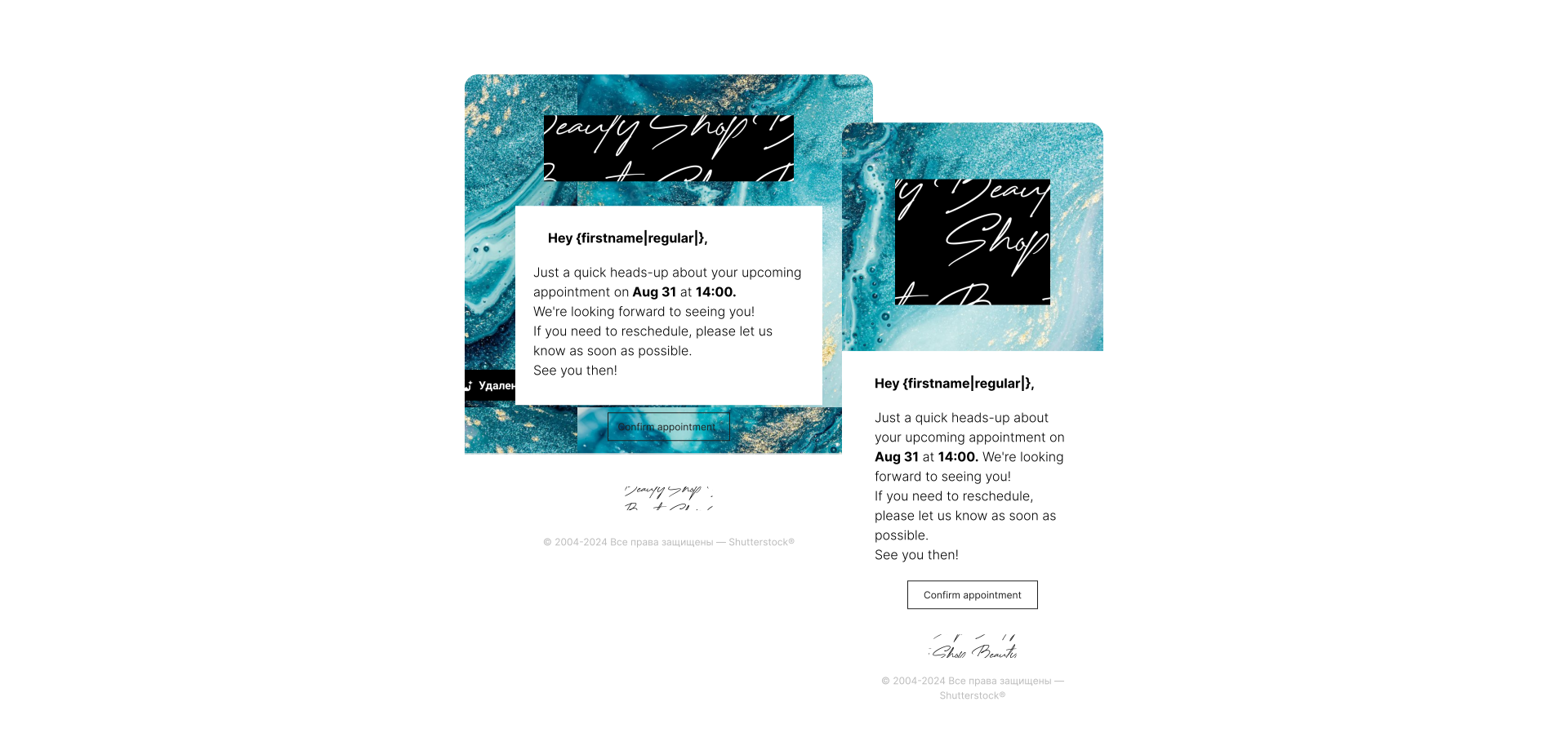
To demonstrate the winning structure in action, let’s take a look at a template that can serve as inspiration for crafting your own appointment reminder emails:
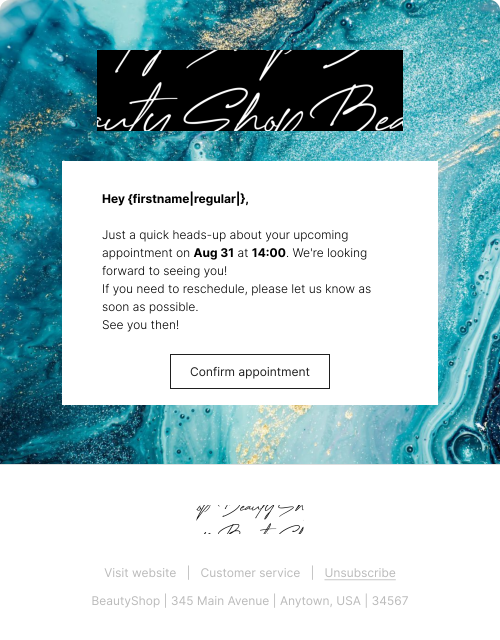
What makes this template effective:
- Personalization by adding the client’s name;
- Date and time highlighted in bold;
- Noticeable button for instant confirmation;
- Prompt to reschedule if a client needs it.
The template is waiting for you in Pushwoosh! You can start using it right away and launch your reminder campaigns in no time.
👉**To use the template:** Log in or
Sign up for Pushwoosh, go
to **Content** >
**Email Content** >
press ‘Create email content’ > press ‘Choose a template.’ Several email
templates will then appear, ready to use as is or customize. The one above is
called ‘Appointment
reminder.‘
Best practices for appointment reminder emails
Automate your email reminders
It’s clear that manually sending reminder emails can lead to an overwhelming workload for your staff and plenty of errors along the way. A more efficient solution is to automate the process. When a client books an appointment on your website, app, or by phone, an automation tool can take over, delivering reminders at the right time with accurate details about clients and their visits.
In Pushwoosh, email appointment reminders are automated through Pushwoosh Customer Journey Builder–a visual campaign mapping tool with built-in segmentation, timing and analytics features.
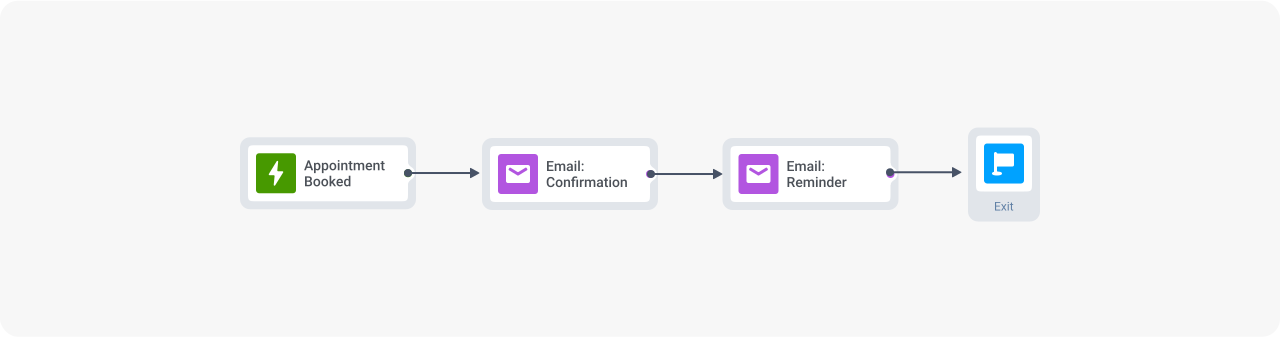
Pushwoosh integrates with your website, app, or third-party appointment scheduling system, receiving events related to appointment bookings. Each event contains information about the date and time of the visit. You create an event-triggered flow in Customer Journey Builder, and it will automatically start the user journey whenever a new appointment is booked:
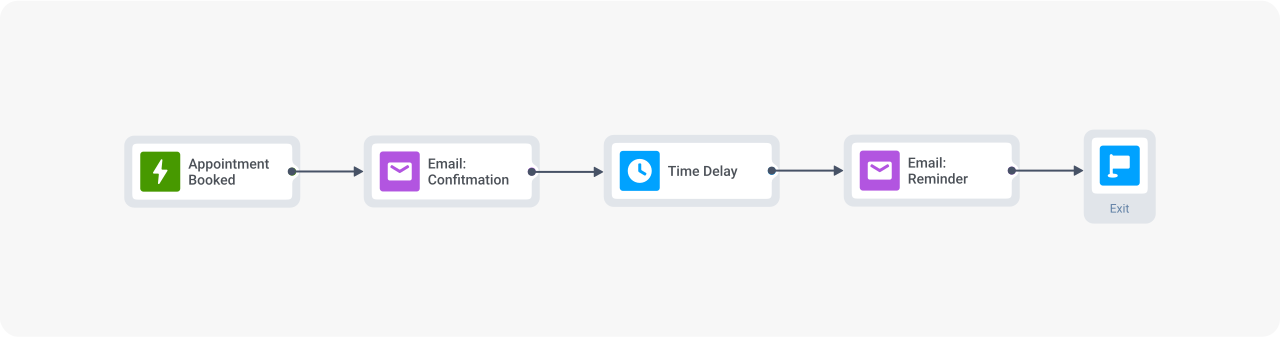
To automate email delivery, use the Dynamic Time Delay feature. This element automatically adjusts according to the appointment date and time information in the event data:

So, if a campaign is set up to automatically send email reminders one day before the visit, each user will receive their reminder one day before their specific appointment date, thanks to the journey using their individual information:
Optimize your email reminders for mobile devices
It’s a good idea to ensure your appointment reminder emails are mobile-friendly. If your business is mobile-first, it’s even essential. Choose an email marketing tool that adapts your emails for different screen sizes and lets you preview how they’ll look across various devices.
Pushwoosh’s user-friendly drag-and-drop email builder does exactly that. You can design your email layout, and the builder will adapt it for both desktop and mobile versions.
Plus, the tool provides all the key features that you need for crafting perfect emails:
- Customizable CTA buttons;
- Dynamic user tags;
- Access to free stock or AI-generated images.
You can also use Pushwoosh HTML email builder for greater flexibility and creative freedom when designing your emails. This allows you to fully customize the design and functionality to meet your specific needs if the standard templates aren’t enough.
Create a smart reminder system via cross-channel flows
Emails + SMS
Appointment reminder text messages can be particularly effective for clients who prefer quick communication and may not check their emails frequently.
With Pushwoosh, you can seamlessly integrate different channels into a single messaging flow. Pushwoosh Customer Journey Builder displays your entire campaign on the canvas in one view, allowing you to analyze the performance of each channel.
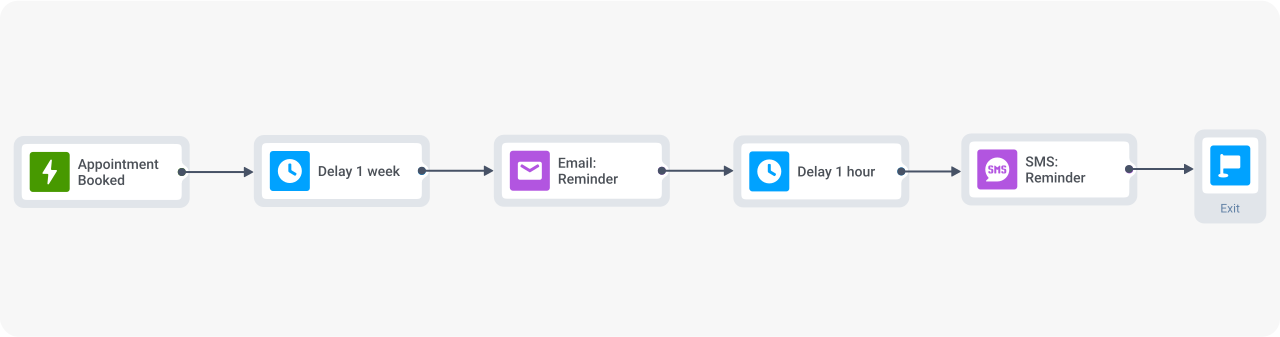
You might want to try a messaging flow where the reminder is sent via email one week before the appointment and as a text message one hour before:
Emails + push notifications
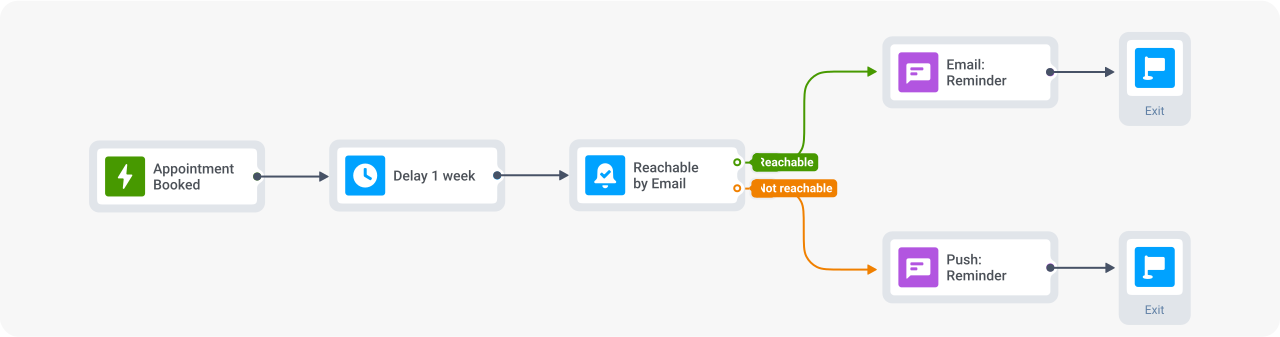
If you have a mobile app, integrating emails with push notifications is a perfect combo for your reminder strategy. Just make sure to run a reachability check so that push notifications are only sent to users who are not subscribed to emails.
Deep linking can simplify things—send users directly to the page where they can easily manage or update their appointments.
In Pushwoosh, the reachability check and deep linking features are available out of the box. You can easily configure reachability checks and connect with users through the channels they’re available on, creating a seamless user-centric experience.
Plus, with our deep linking capabilities, you can direct users straight to the specific screen to confirm, reschedule or cancel their appointment.
Ensure data safety
When selecting an email automation tool, make sure it meets data security regulations, as you’ll be handling personal information (in case of medical services–sensitive personal information).
At Pushwoosh, we prioritize the safety of user data and ensure full compliance with regulations. We only collect the data necessary to personalize the user experience and never gather excessive information.
🌟 Further reading: How to send emails and stay GDPR compliant with Pushwoosh
Rely on Pushwoosh for appointment reminder emails and avoid revenue loss
To make your appointment reminder emails truly effective in boosting show-up rates and preventing money leaks, it’s essential to get every step right.
First, you need tointegrate your website or app with an email tool that gathers appointment data and automates reminder emails.
Second, your emails should have an attractive design and be responsive on both desktop and mobile screens.
Third, you need to automate the delivery of your reminders to ensure they reach clients at the right individual time.
Ultimately, you can incorporate other communication channels to provide a more comprehensive reminder experience.
Pushwoosh makes this entire process smooth and straightforward while letting you focus on what you do best. Enjoy a streamlined schedule, consistent revenue, and stronger client relationships with Pushwoosh’s solutions.