Vol.1 opened October with Inbox as a channel, journey versions, and Live Activities. This batch brings a new push format for iOS, control groups that run in cycles, and an AI assistant that won’t send anything until a person approves it.
Here’s what shipped 👇
Tell a story inside an iOS push 📲
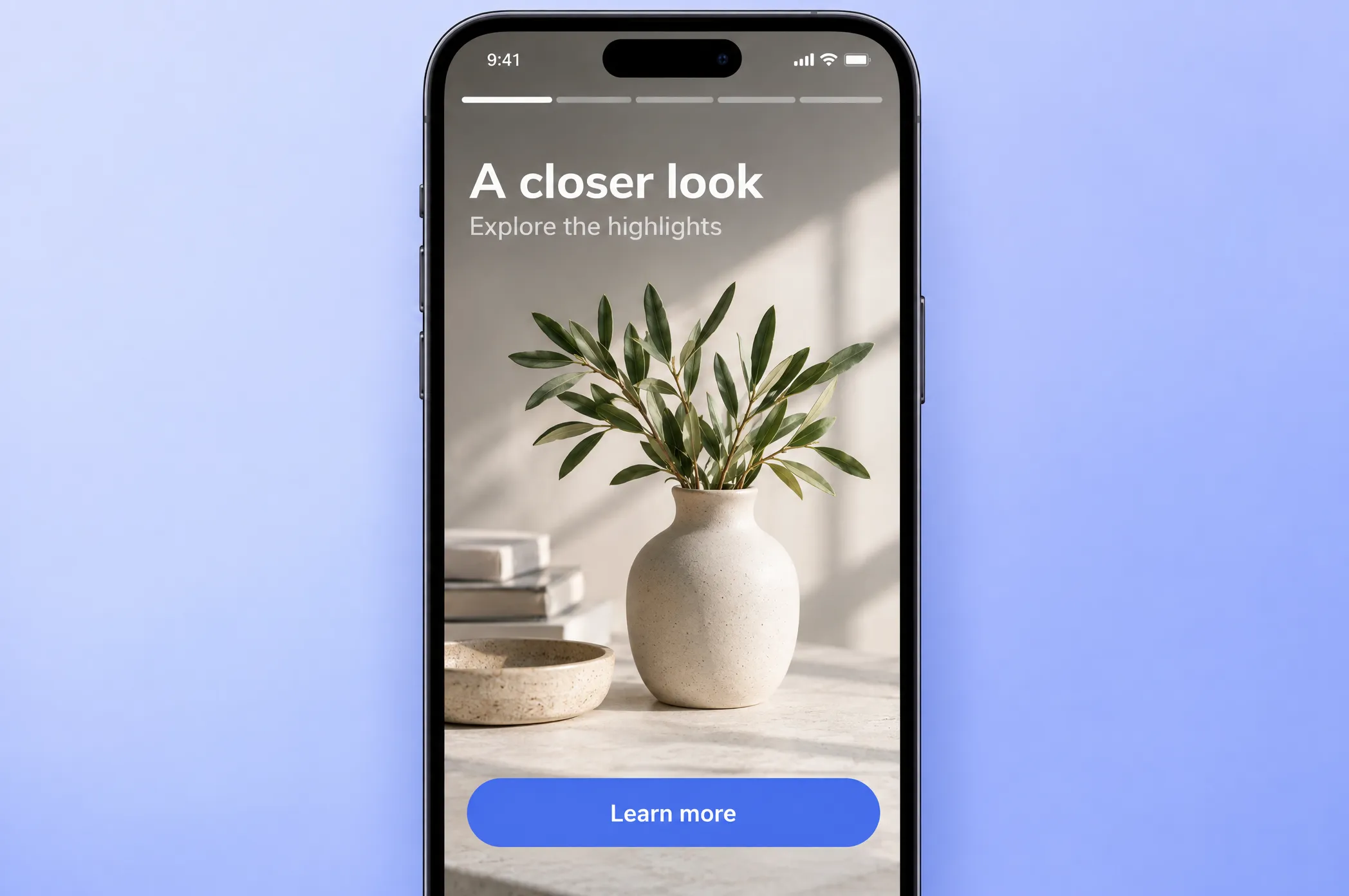
What changed: Push stories used to be something you could only preview in the editor. Now Push stories is a content type in Content → Push Presets → Create content and in the one-time push form.
When a user expands the notification, it opens as full-screen stories, Instagram-style. Each story can have up to 10 pages, and on each one you set:
- A full-bleed image from a URL or from Media storage.
- How long the page stays on screen, from 1 to 30 seconds.
- A title and subtitle over the bottom of the image.
- A button with a link or an app deep link.
The editor shows a live preview as you build. When you pick stories content for a one-time send, the platform list narrows to iOS on its own.

Here’s where it fits: a weekly “new in” push for a fashion app. Five pages, five looks, and each button opens its own product card in the app.
Run control groups in cycles 🔄
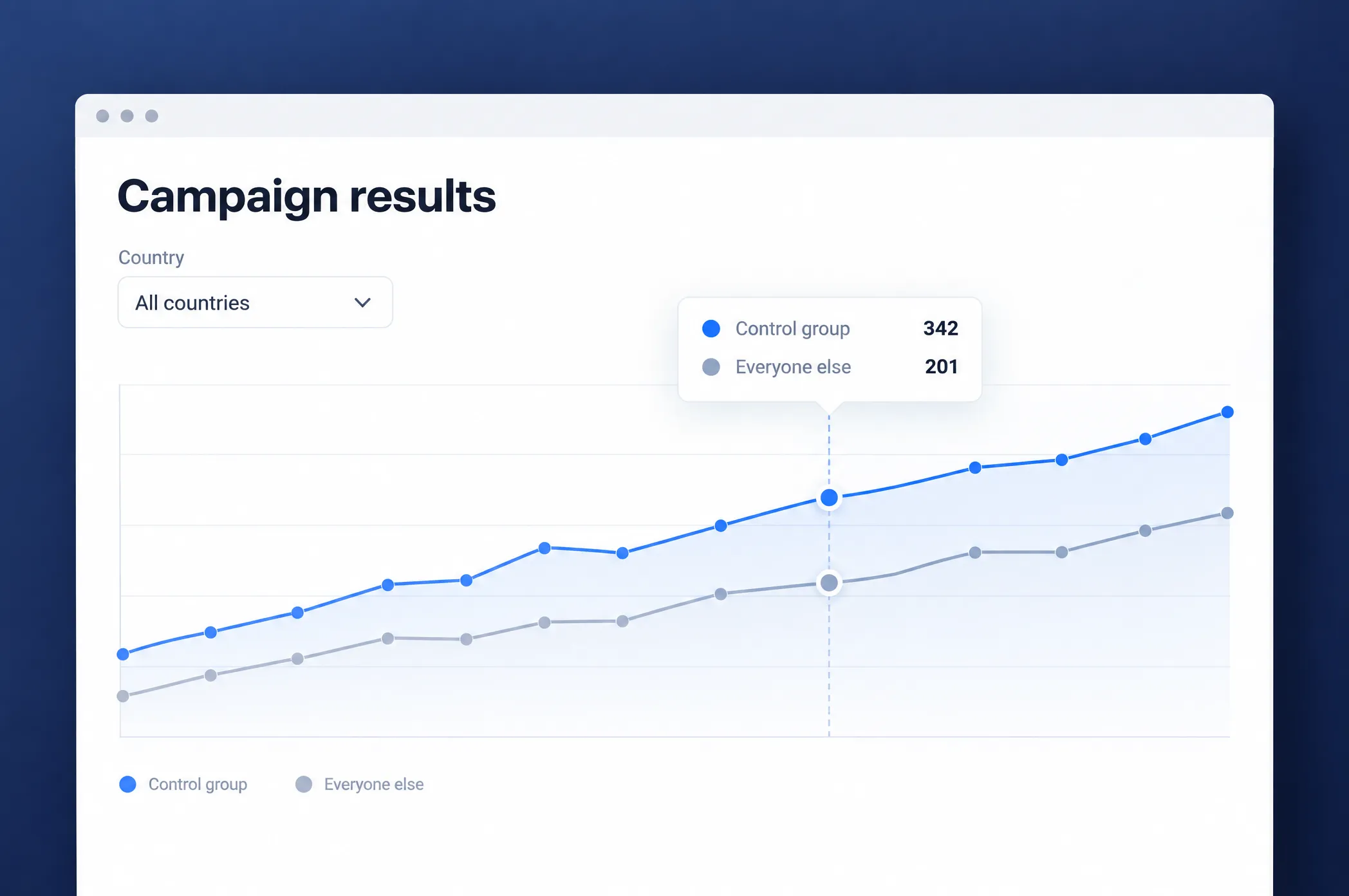
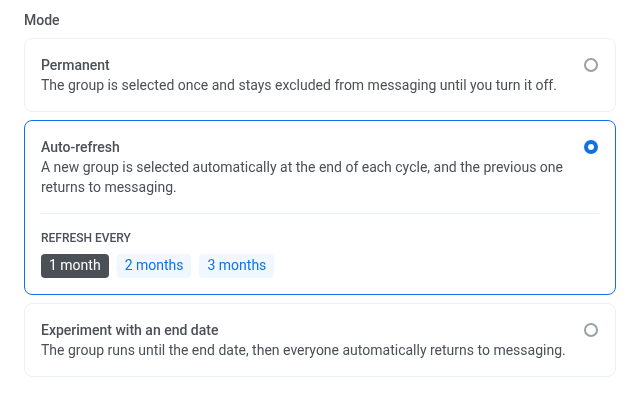
What changed: A control group used to be one fixed set of users, held out from your whole base for good. Now it has 3 modes:
- Permanent: the same users stay out until you turn the group off.
- Auto-refresh: a new set of users is picked every 1, 2, or 3 months, and the previous set goes back to receiving messages.
- Experiment with an end date: the group runs between two dates, then everyone returns to messaging.
Stats are kept per cycle. The current cycle shows on the group’s page, and earlier cycles sit under Previous in the date selector, so you can compare one period with another.
You can also scope a group by tag. Pick a string or boolean tag, like market or signup cohort, and only users with the matching value are held out. It works together with the country scope we added in vol.1.
Why it matters: The same people no longer sit outside your marketing forever, and you can measure uplift in one market or one cohort without touching the rest of your base.
The AI assistant asks before it acts 🤖
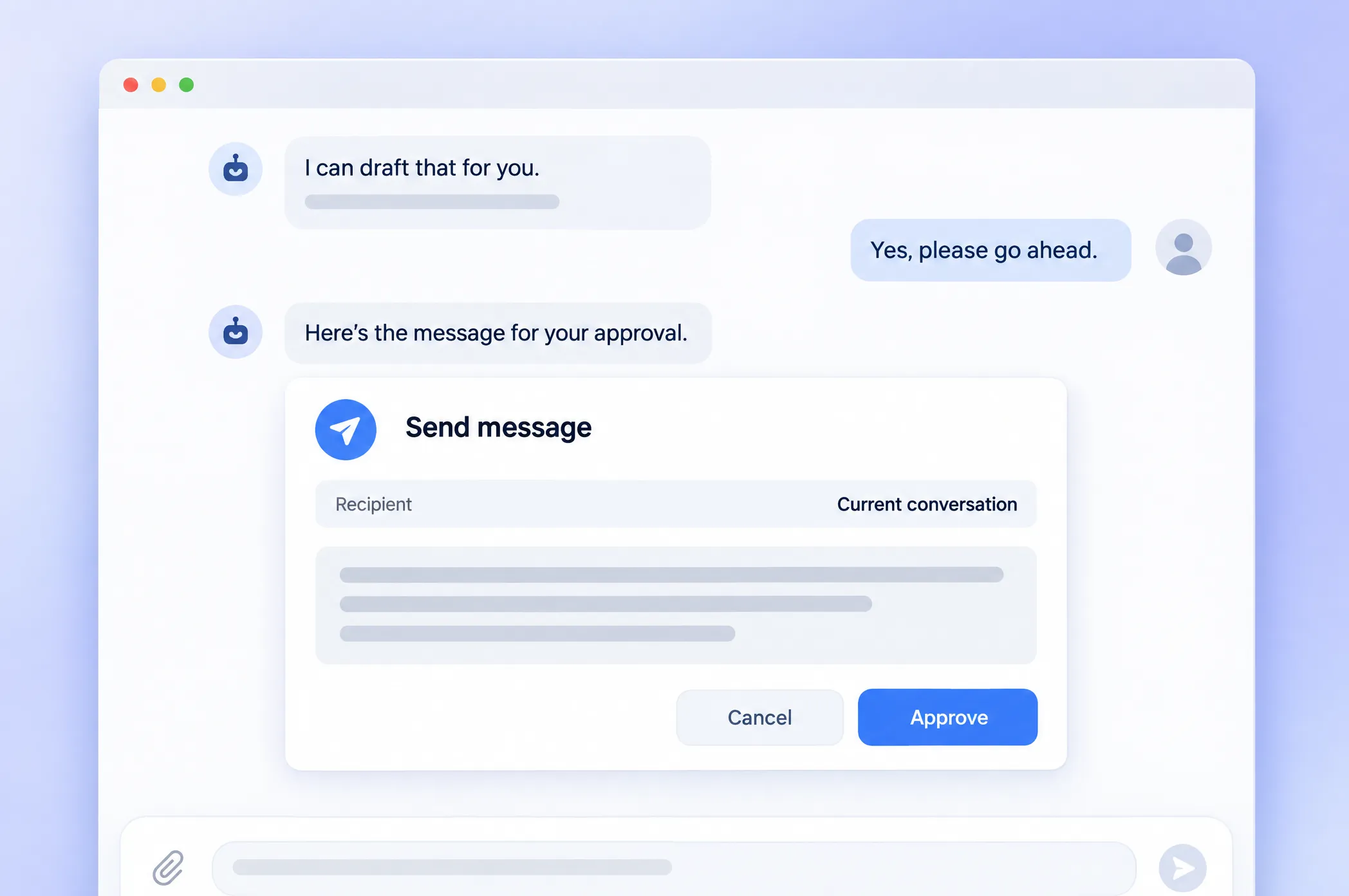
What changed: With Full Automation turned on, the AI assistant can make changes in your account, up to sending messages. Now anything that can’t be taken back goes through a decision card in the chat first. The card shows:
- What the assistant wants to do and why.
- A warning if the action can’t be undone.
- For sends and journey starts, how many users it will reach.
Nothing happens until someone clicks Approve.
Run Android Live Updates from the journey canvas ⏱️
What changed: In vol.1, we brought iOS Live Activities to the journey canvas. Now Android gets the same: you start, update, and end an Android Live Update right from your journey, the way you already do on iOS.
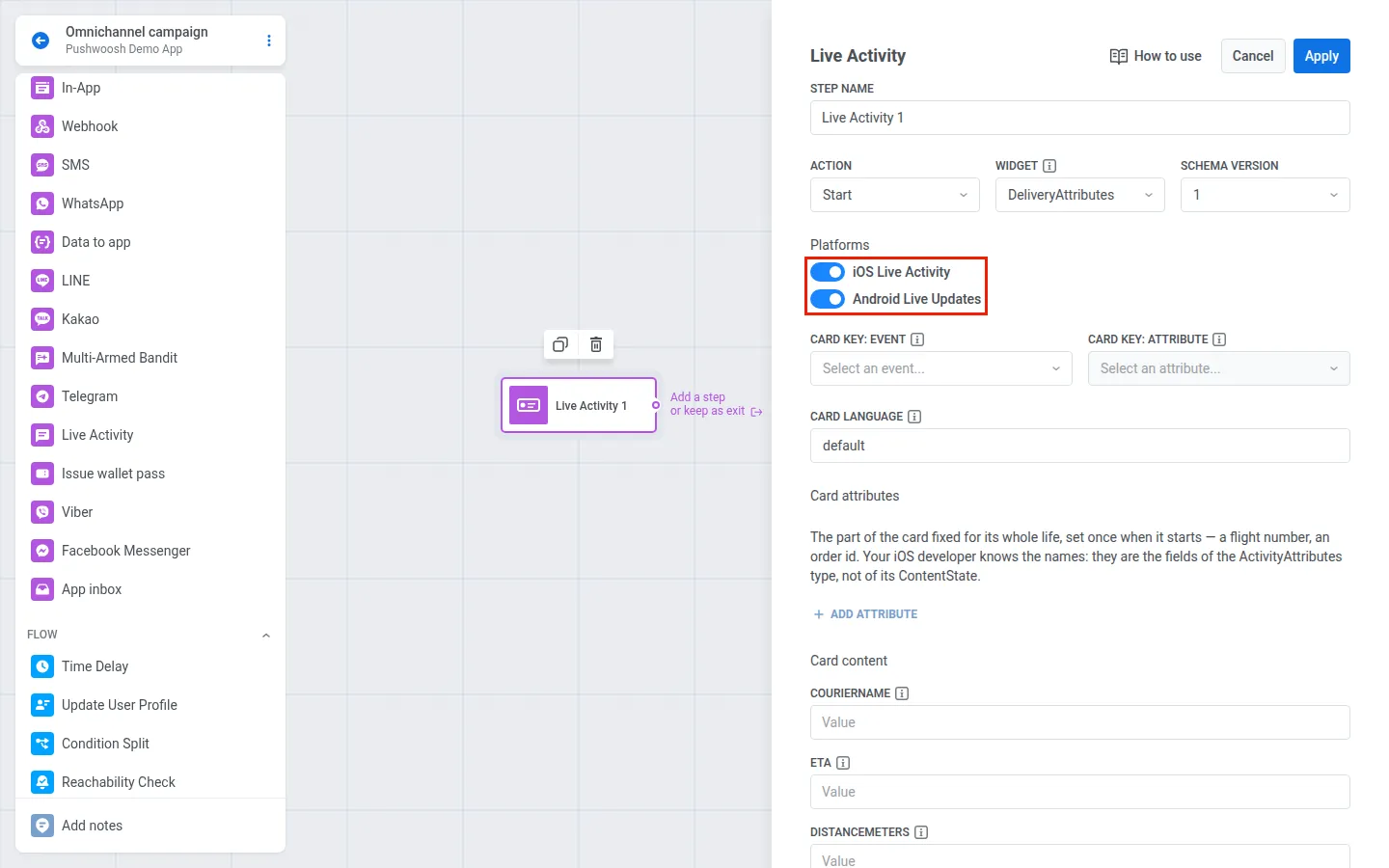
It all happens in one element. Open your campaign on the canvas, add a Live Activity point, and under Platforms choose where the card goes: iOS, Android, or both.
Work in your language on every screen 🌍
What changed: You could switch the Control Panel to another language before, but English text hard-coded in 24 sections kept showing up. All of it has moved to translation files, so the language you pick now applies everywhere. The new Project overview is translated into all 13 interface languages as well.
Switch the language in My Account → Account settings → Interface language.
Set up the web subscription widget without code 🔔
What changed: The subscription prompt, the popup, and the bell used to be 3 separate widgets, and each one was edited in your site’s code. Now it’s one widget you set up in Settings → Configure platforms → Web.
In the Subscription widget card, you configure the prompt, when to show it, the bell, texts, and colors. A live preview switches between 3 states: the ask for new visitors, the explanation for visitors who blocked notifications, and the closed prompt with the bell.
See why your email domain won’t verify 📬
What changed: A domain that wouldn’t verify used to give you a status and nothing else. Now each DNS record gets its own check and a note with the exact problem: the record is missing, the value is wrong, the domain is added twice, a TXT record sits where a CNAME should be, or there’s more than one SPF record.
If verification timed out after you fixed the records, Restart verification runs it again.
Your account also gets a warning when bounces spike, a day before sending would be paused.
Channels, content, and interface ✍️
- AI writes intros for the news block. The email news block used to pull a headline and a link. Now AI writes an intro for each article in the tone and editorial rules you set on the block. Set the text limit to 0 to drop the description. Learn more →
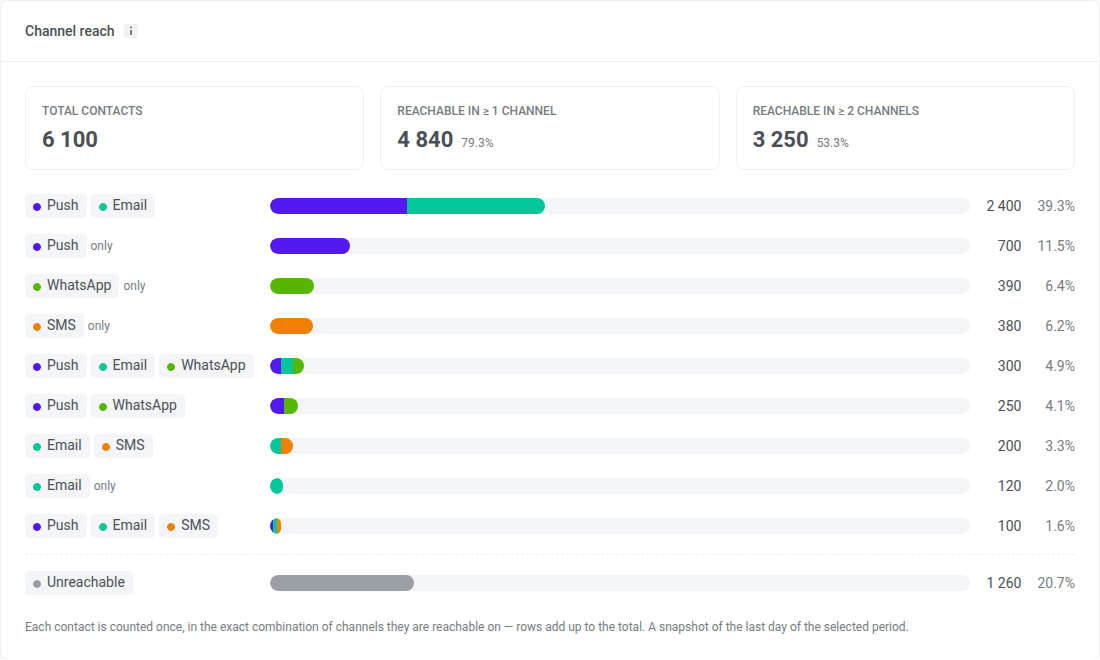
- Channel reach in Project overview. A new card shows how many contacts you can reach on at least one channel, on two or more, and on each exact combination of channels. Frequency capping on the Push tab can be filtered by platform, and Ask AI Assistant opens a chat right on the page. Learn more →
- Inbox previews match the real thing. Previews in presets, one-time sends, journeys, and stats are now built with the same code as the SDK widget, with a platform switch. Learn more →
Clearer sends, imports, and exports ⚙️
- One-time messages have names. Name a push, SMS, WhatsApp, Inbox, or messenger send in the confirmation window. The name becomes the row title in Message History, works in search, and goes to the export as a separate column. Scheduled messages can be renamed from their row or from the header of their stats. Learn more →
- Time zone sends handle missed slots. When a message goes out by local time and some time zones have already passed, you choose what happens: skip them or send the next day. If every slot is missed, the message completes. Available in the API for now. Learn more →
- CSV imports show the result. Instead of a bare count of processed rows, the report shows how many rows matched, how many devices and users were updated, and why rows were skipped. A rejected file comes with the reason. Learn more →
- Holdout exports. Download holdout users straight from the Holdout split panel, and export holdout data for messages and journeys. Learn more →
- Platform filter in event exports. Filter by platform when you export devices by event and in event statistics. Learn more →
- SSO settings. Choose RequestedAuthnContext in your SAML configuration.
Try the updates yourself
Every feature above is live in your account.
For the full list of what shipped, check the release notes.