Website popups that know who is on the page
Build a website popup or an inline block in a visual editor, then show it to the visitors it was made for: a segment you pick, or the people a Customer Journey brought back to your site.
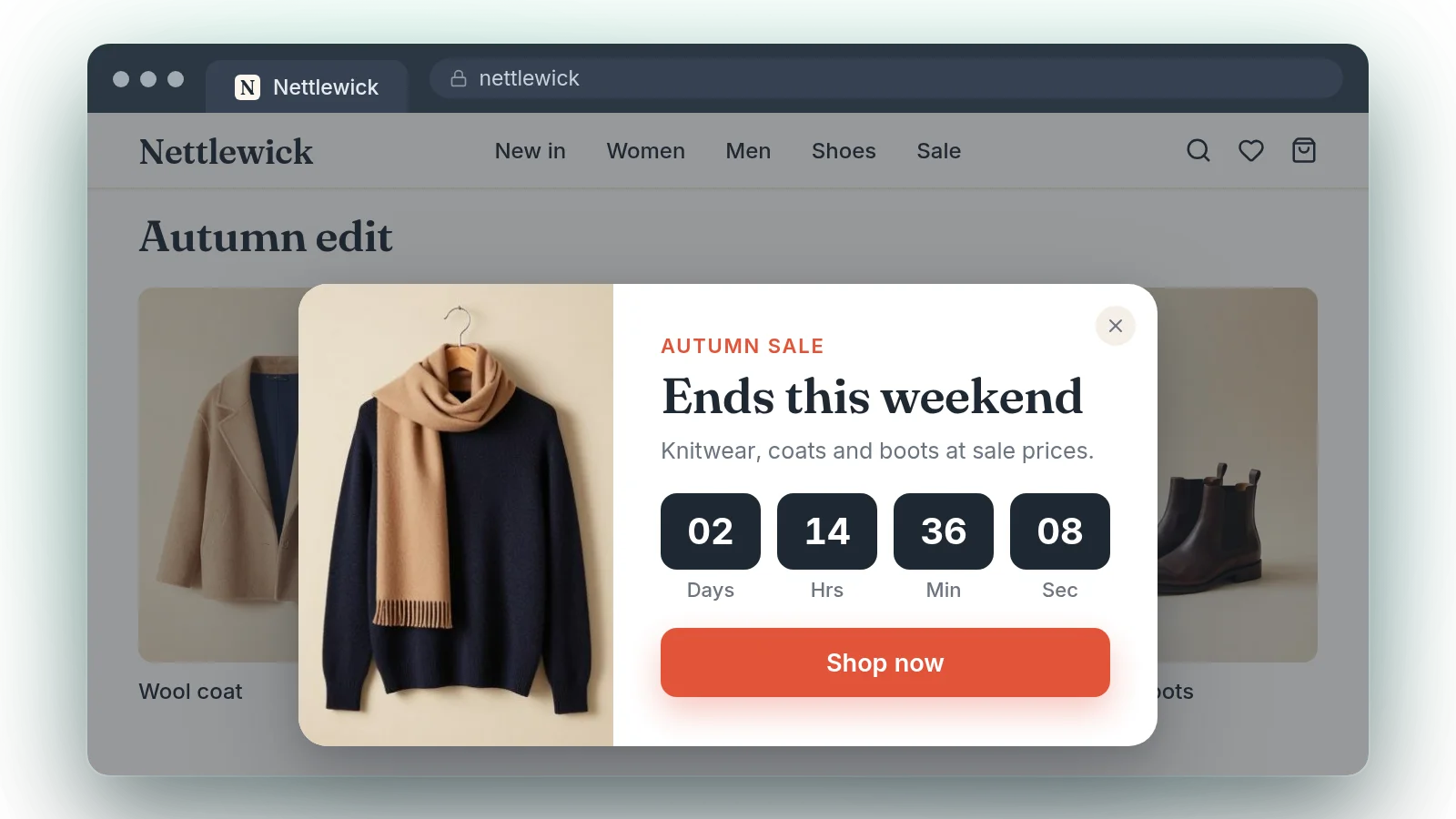
A popup builder that sits inside your engagement platform
A popup that asks a stranger for an email before the page has even loaded gets closed in a second. A good one shows up when the visitor is still deciding and offers something they came for, like a sale that ends tonight or the product they looked at yesterday. Whatever they answer becomes tags and events that your segments and journeys use right away.
You build the content once in a visual editor and choose how it appears. A Popup sits over the page, and an Inline block goes inside a page element you pick with a CSS selector. Web content holds the offer or the question. A Web form collects an email address and answers into the visitor’s profile.
| Block | What it does |
|---|---|
| Countdown | Counts down to a deadline in a chosen timezone. When time runs out, it shows zeros, hides the popup or opens another page |
| Topic picker | Up to 12 options. The visitor's choice is saved to a tag |
| Rating | NPS from 0 to 10, stars or thumbs. The score is sent as an event |
| Products | Product recommendations for this visitor: recently viewed, bestsellers, also bought or their abandoned cart. A journey fills them in when it shows the popup |
| Email input, Tag input, Consent, Submit | Web form blocks that collect an email address and answers into the visitor's profile |
| Text, Button, Icon, image, video | The basics for any message |
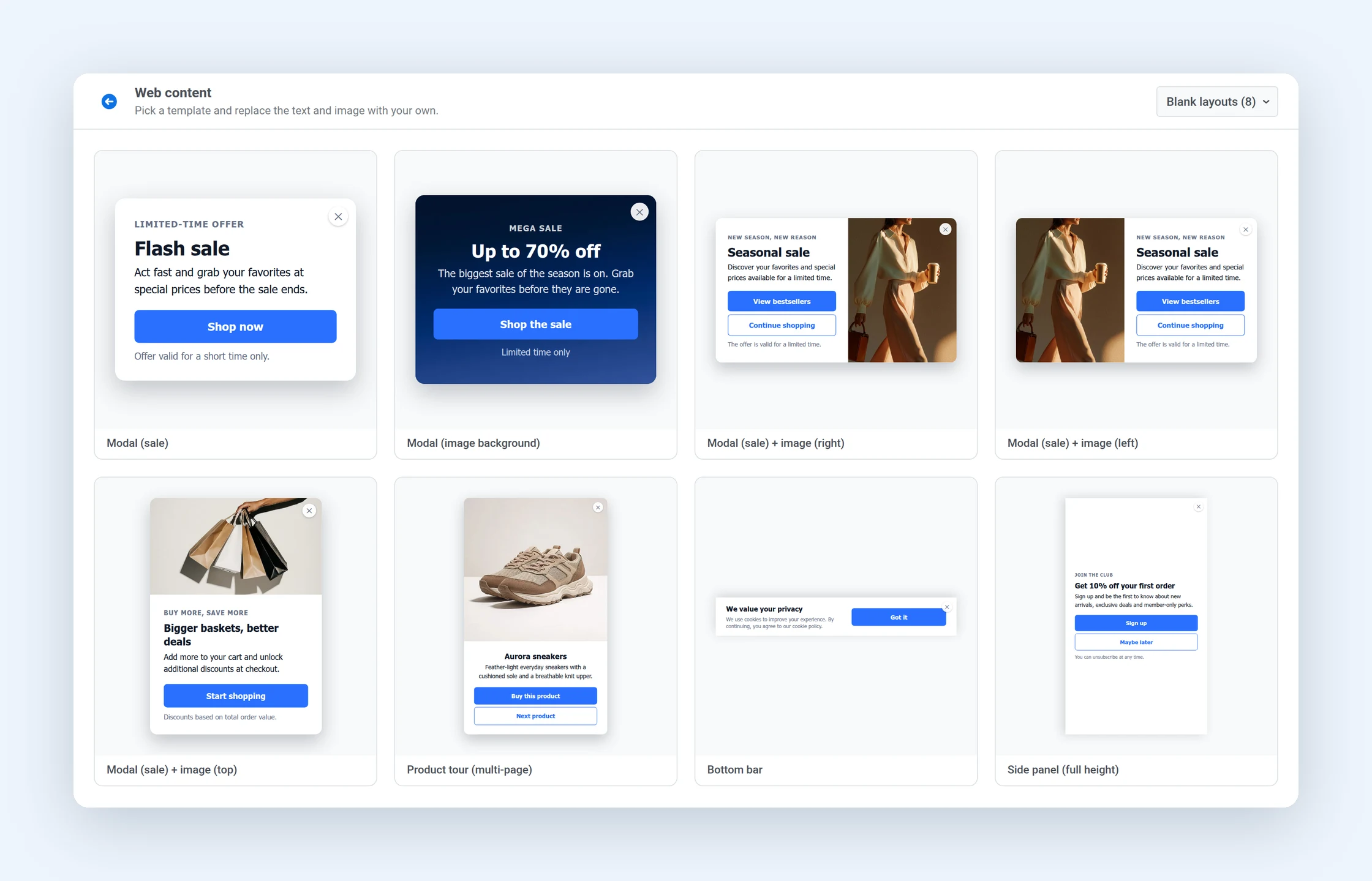
Start from a template
Pick a sale modal, a product tour, a bottom bar or a side panel and replace the text and image with your own. Each template already has the blocks for its job.
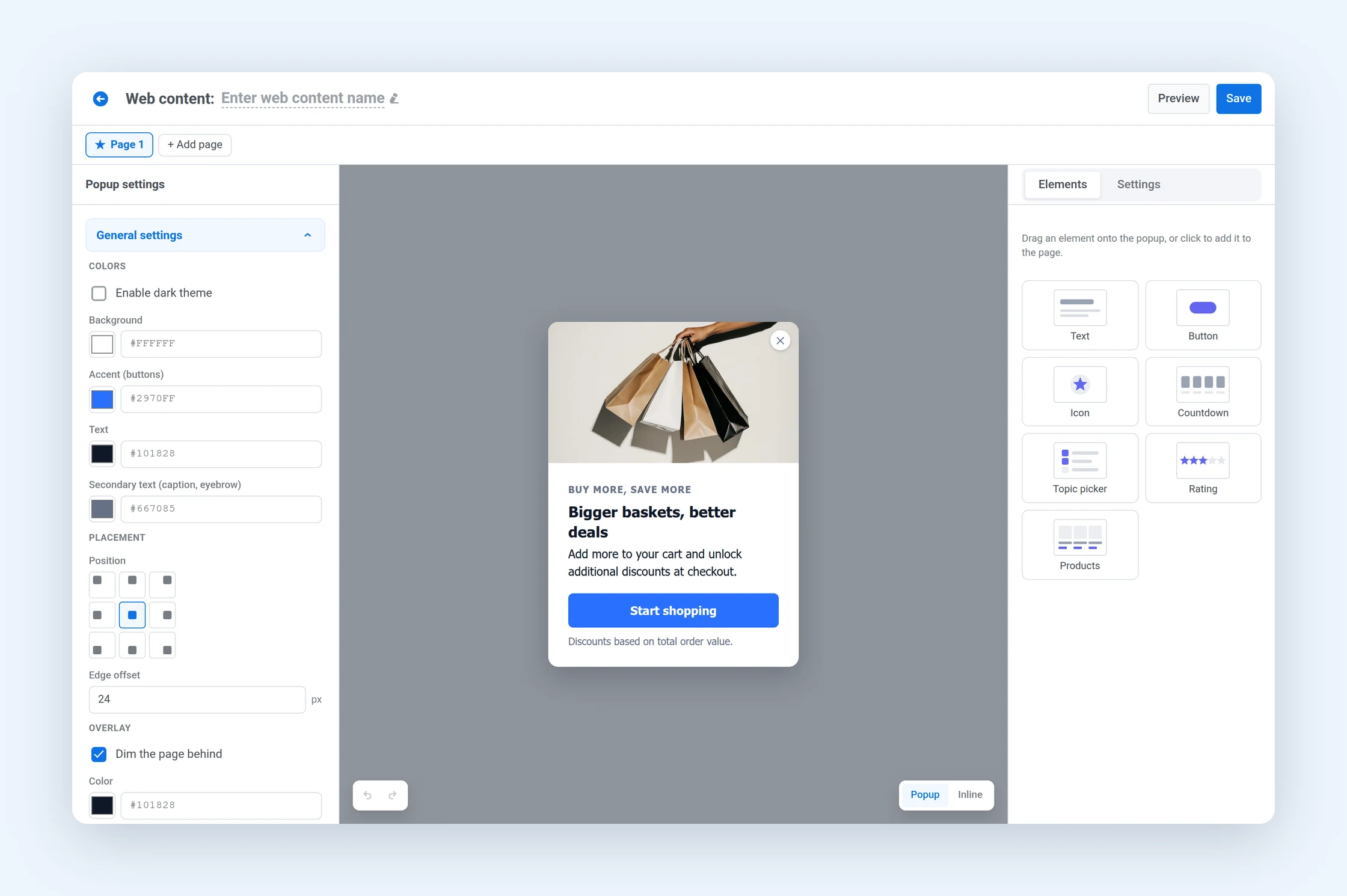
Shape it to fit your site
Drag blocks onto the popup, set its colors and place it anywhere on a 3×3 grid. Add a second set of colors for visitors whose device uses a dark scheme, or generate it with Auto from light.
When to use it
Grow your email list
Show an email popup once per visitor, on their first visit. The form subscribes the address to email, and extra fields such as a first name or a city go straight into the visitor's tags.
Run a sale with a deadline
Put a countdown on the home page until the sale ends. When the timer hits zero, the popup can hide itself or send visitors to the next offer.
Catch visitors on the way out
Show an exit intent popup when a visitor is about to leave: the cursor heads for the tab bar on a computer, or they press Back on a phone.
Bring back an abandoned cart
A journey notices the abandoned cart and shows those products in a popup the next time the shopper opens your site.
Ask for a rating
Ask for an NPS score or a star rating after a visitor finishes a key step. The score arrives as an event that a journey can act on.
Keep your offer in front of people after they click
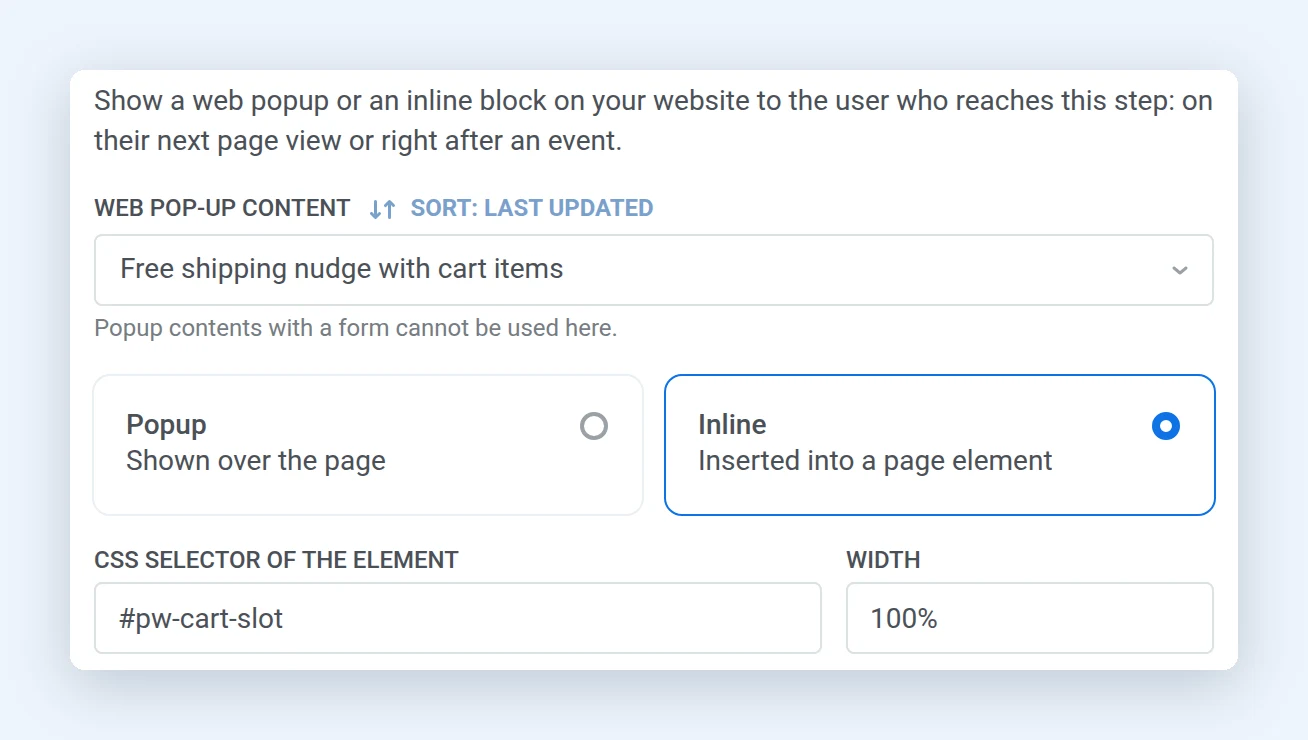
Most journeys stop at the click. The email did its job, the visitor lands on your site, and the site greets them like a stranger. Add a Web Placement step to a Customer Journey, and the users who reached it see a popup or an inline block on their next page view or right after an event. The offer from the email is on the page when they arrive, and it waits there for up to 7 days.
Set up in three steps
-
Connect the Web SDK
Add the Pushwoosh Web SDK to your site. If you already send web push, it is already there.
-
Build the content
Open Content → Web content, start from a template or a blank canvas and add blocks.
-
Show it
Create a web campaign with a segment, pages, device and trigger: on page load, on scroll, when the visitor is about to leave, or from your own code. Or add a Web Placement step to a journey. Web campaign statistics show visits, impressions, interactions and form submits.
One visitor, every channel
A first-time visitor picks the topics they care about in a website popup. A subscription prompt asks for web push permission on the same visit. The next week, a journey sends a push about the topic they picked, and when they come back, a Web Placement shows the matching offer. If they use your app too, an in-app message picks up the same story there.
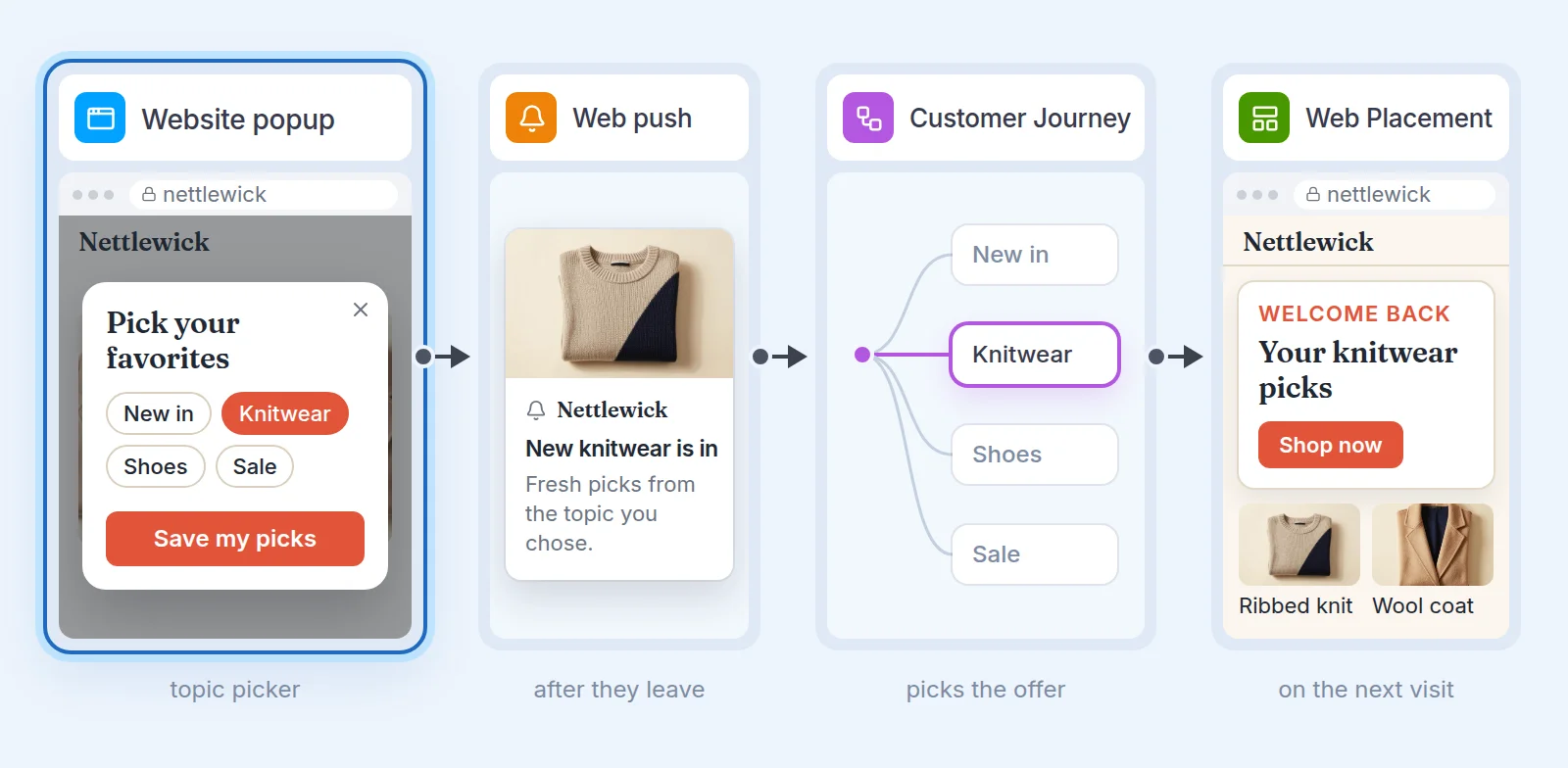
- Customer Journey: runs the flow that decides who sees which popup
- Web push notifications: reaches the visitor after they leave your site
- Subscription prompts: asks for push permission on the same visit
- In-app messaging: the same kind of message inside your mobile app
Put the right offer on the page for every visitor
Explore related products
Map out and streamline your campaigns with one visual tool. Communicate, engage, retain, convert, segment, and experiment using Pushwoosh Customer Journey Builder.
Web push notifications by Pushwoosh — browser-delivered pushes that reach visitors after they leave your site. Any browser, desktop and mobile, plus iOS via PWA. Free to start.
A branded ask that runs before the native browser or OS permission dialog. Default web widgets, a popup you can show more than once, and a mobile pre-permission pattern built from in-app messages.
In-app messaging by Pushwoosh — onboard, upsell, announce and collect feedback right when app users are paying attention. No-code editor, native SDK layouts, per-element analytics. Free to start.
Optimize every touchpoint of the customer journey for e-commerce. Map shopping paths, personalize experiences, and maximize lifetime value.
Build a digital loyalty card Apple Wallet and Google Wallet customers add in one tap. Points, punch, or tiered, on a free plan with no per-card fee.