Summer is a busy season for cruise ship captains, seaside retailers, and Pushwoosh Team. For our customers to fully enjoy their annual leaves, we have released a number of product updates. New automation features will keep your marketing communications reaching the right users at the right time even while you personally are in the out-of-the-office mode.
Discover Pushwoosh’s hottest product updates starting with the most recent and the most urgent one:
Webhooks in Customer Journey: Better Service Integrations
Custom Data: Simple and Error-Free Builder
New CTR Formula: Illustrative and Accurate
Customer Journey Updates:
– Repeated Entries by Segments
– React to Your Push Being Opened
– Set Tags Right from the Journey
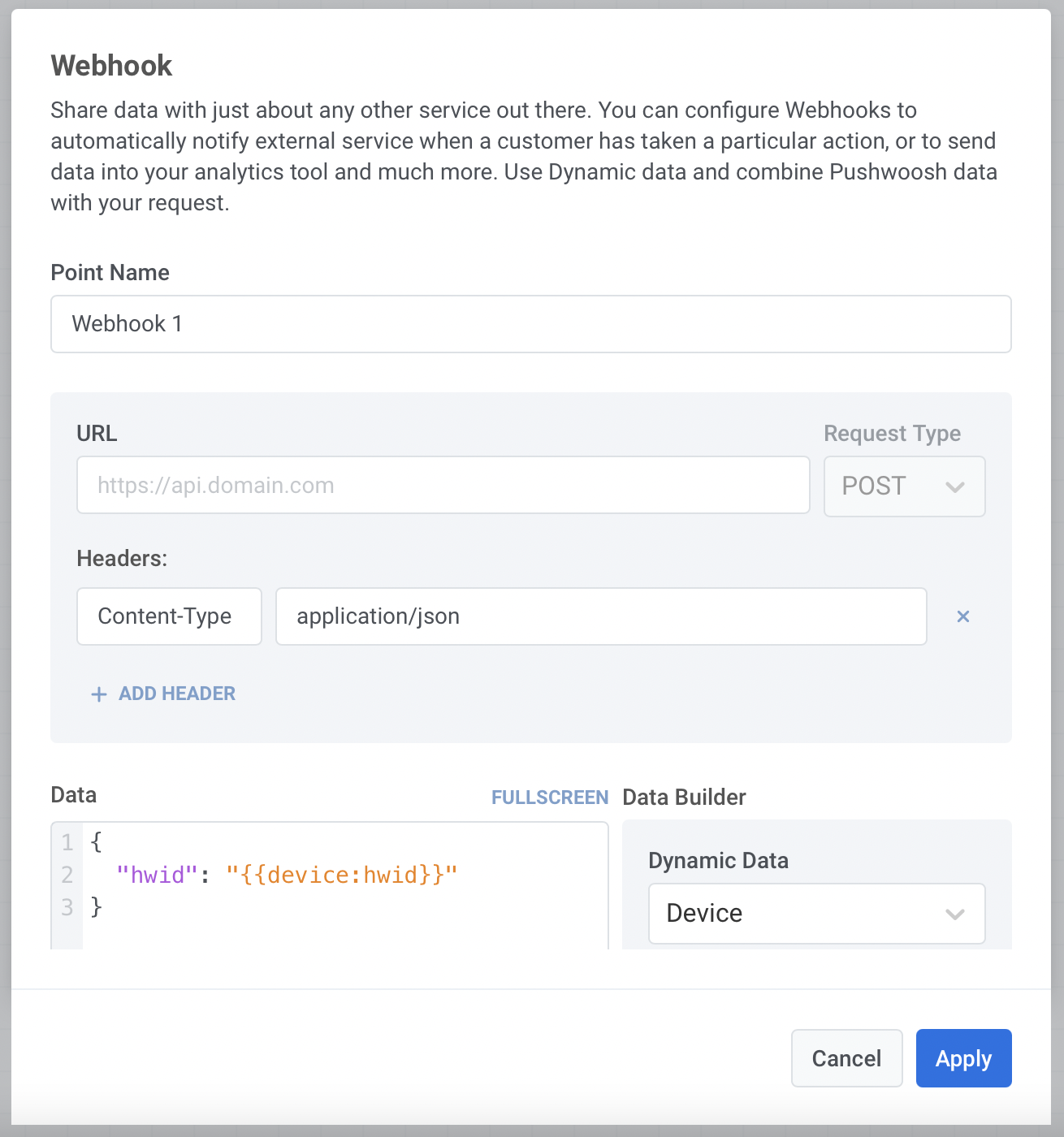
- Webhooks in Customer Journey: Better Service Integrations
Webhooks for Customer Journey let you send data about users and events from Customer Journey to any third-party service you use for analytics, automation, sending emails, SMS, and a lot more.
As an example, you might need the journey travelers’ data to send them emails at a certain journey stage to ensure your communications hit the target. You can now send a Webhook to your email provider and set it to trigger emails.
Using Webhooks, you can team up Pushwoosh Customer Journey Builder with almost any service you leverage for your business.
- Custom Data: Simple and Error-Free Builder
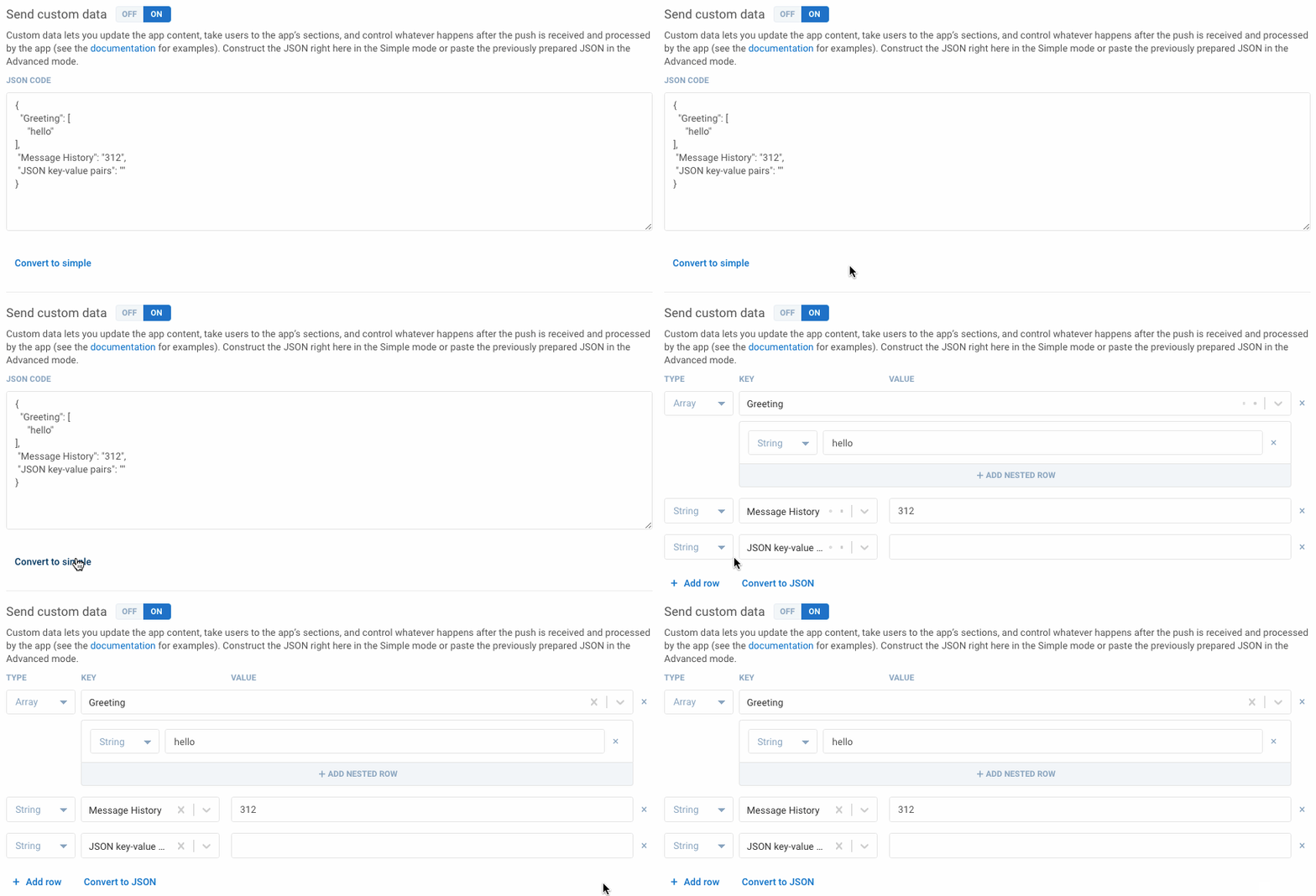
With a newly introduced Custom Data Builder, any member of your team can manage Custom Data, regardless of their technical skills.
1️⃣ Get your team developers to preset all the possible Custom Data parameters as Data Keys.
2️⃣ Let a marketing manager, content writer, or editor use the simple builder to compose push notifications with a custom-data payload. No complicated JSON formatting, no error risks, or time-consuming settings!
- New CTR Formula: Illustrative and Accurate
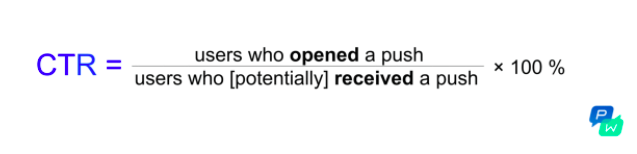
Previously, Pushwoosh calculated push notifications’ click-through rate as a ratio between the number of users who opened a push and the number of those who were sent a push. Unfortunately, this approach didn’t show the actual picture of your messaging efficiency – in 98% of cases, the number of pushes received was lower than the number of pushes sent, which made the CTR underestimated.
Now, the click-through rate is derived from the number of pushes sent to the users who can actually receive them. The new CTR formula divides the number of pushes opened by the number of pushes sent to users who have enabled push notifications or, at least, have not actively disabled them. So the CTR is higher – and more accurate too.
- Customer Journey: Repeated Entries by Segments
Every day, week, and month, new users join your existing segments. They may reach a new level in your game, gain a new status in your e-commerce app, or stop using your application. Naturally, you want to react to these changes immediately to stay relevant.
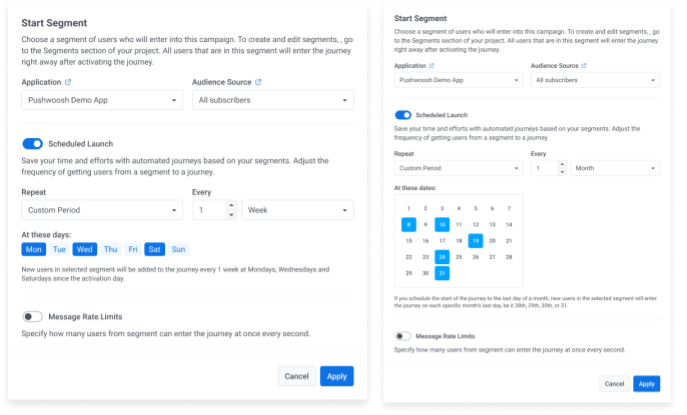
Now you can schedule a repeating Audience-based entry in Customer Journey.
This way, new users joining your segment will enter the same journey you’ve already activated. You won’t need to create a new flow with the same entry segment.
You can schedule your journey’s daily, weekly, and monthly launches or choose a custom period or even specific dates to let new users in.
- Customer Journey: React to Your Push Being Opened
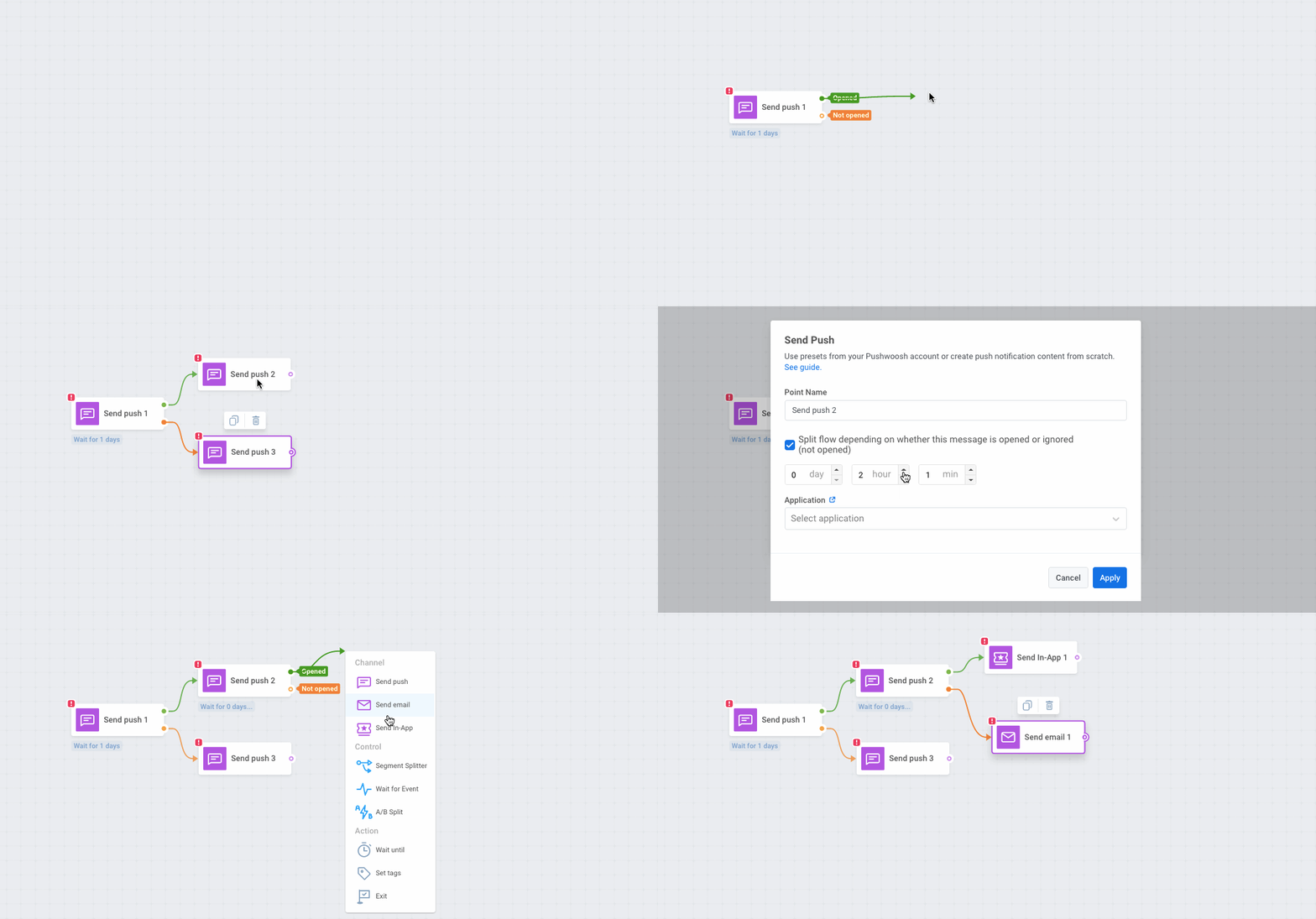
To keep your communications perfectly relevant and user-centered, use this new feature in Pushwoosh Customer Journey Builder.
1️⃣ Split your journey into two branches depending on whether a user has opened or ignored your push notification.
2️⃣ Set corresponding Tags to users who have opened your push and have not.
3️⃣ Adjust your following communications accordingly: for example, send an email to users who have not opened your push and an in-app to those who have clicked on your notification.
- Customer Journey: Set Tags Right from the Journey
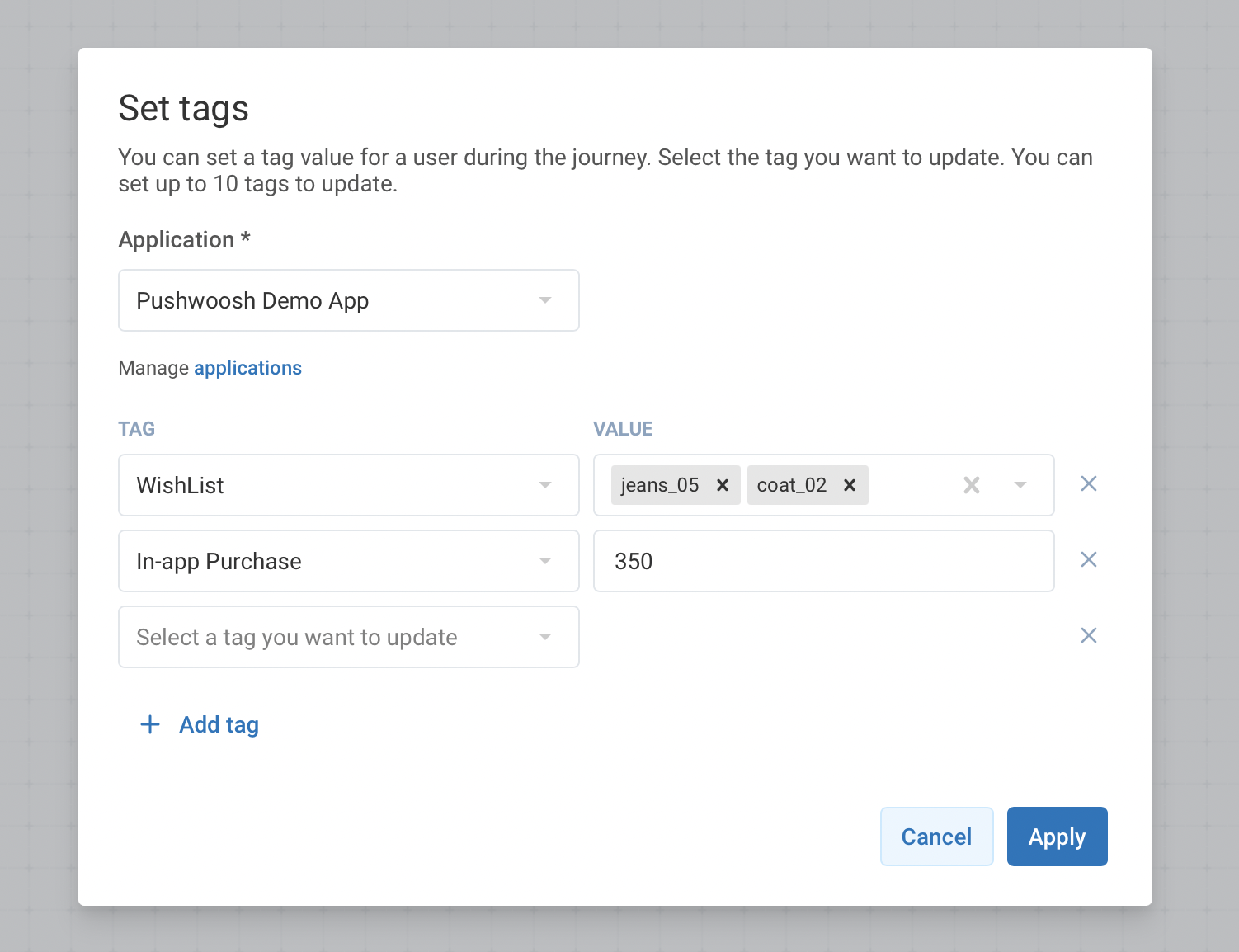
While users travel through the journey you’ve created for them, you might want to keep track of the milestones they pass, get to know more about them, or communicate the right message based on their path. That’s where setting Tags from the Customer Journey events come in handy:
1️⃣ Place the Set Tags element wherever you’d like — provided there is at least one event before that journey point.
2️⃣ Update your existing Tags in a couple of clicks and no code at all.
For example, you can set the In-App Purchase tag — when a user buys something in your app, you will add them to the relevant segment to send them a personalized offer later.
- Convenient Segmentation: Import CSV Segments
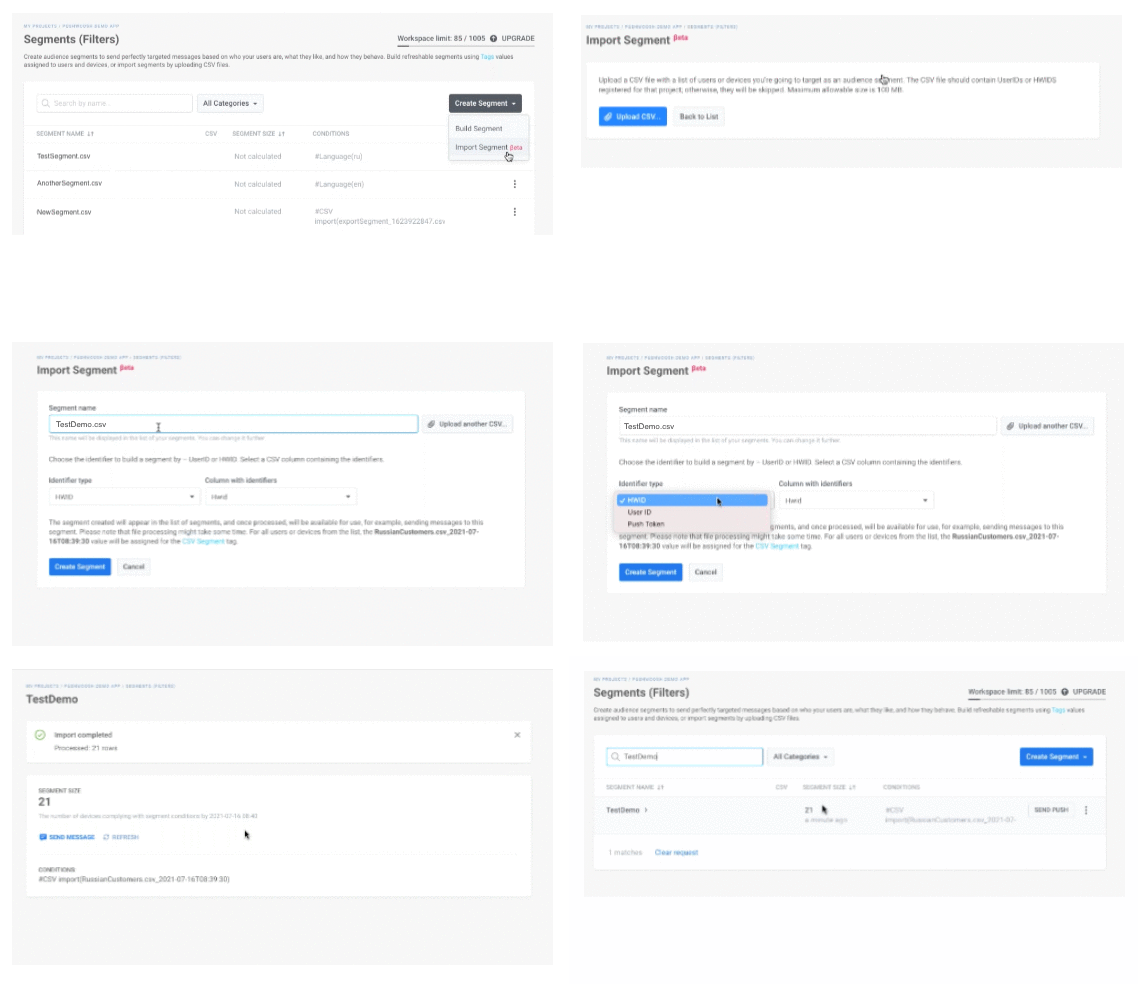
We’ve improved the process of sending pushes to a specific user segment existing in a CSV file. When you upload a CSV file with the list of subscribers to Pushwoosh, a corresponding segment is created automatically in your Segments (Filters) section. You can check the segment before sending messages which is much safer than it used to be with a ‘blind’ one-time CSV import.
The segments uploaded via CSV will be kept in your Segments list so that you can use them whenever you want for whatever type of messaging you prefer. Send one-time pushes, set scheduled messaging, or even launch Customer Journeys for those segments.
- User Explorer: Discover and Troubleshoot
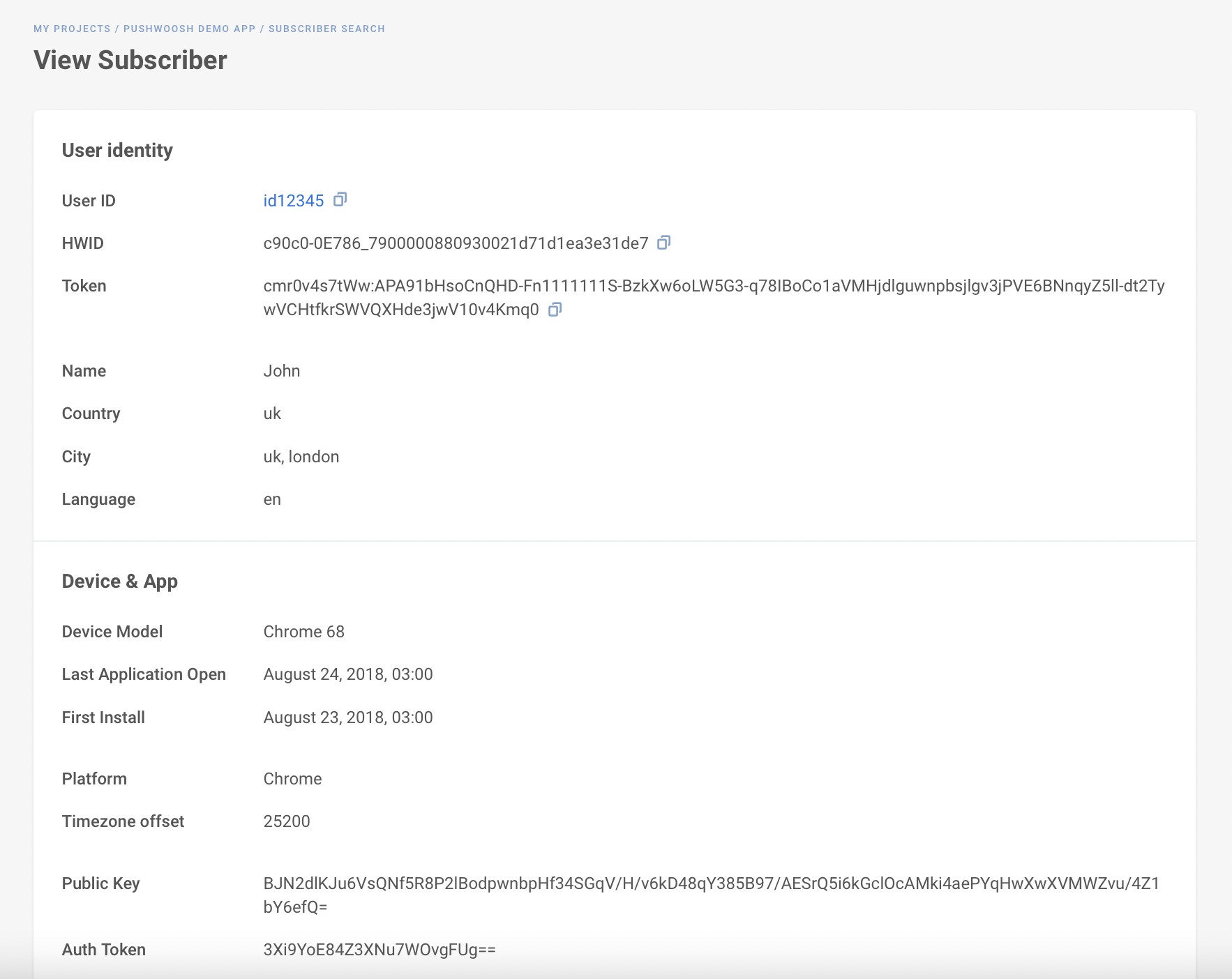
See how the Pushwoosh magic actually works. Get to know whether your integrations work properly and test Pushwoosh functionality with your own sandbox tool. Look at what a bunch of data you can operate to segment your audience and target your messaging.
Please let us know if you find these updates useful or if you need our help in trying them out.