
Earlier this month, vol.1 brought revenue tracking, control group analytics, and native in-app messages. Vol.2 keeps going: more ways to build in-app content, a faster way to set up your brand, and finer cuts of your analytics.
Here’s what changed 👇
In-app messages: 3 new formats and a real preview 📱
Native in-app messages landed in vol.1 with modal, fullscreen, and stories. This release adds 3 more display types:
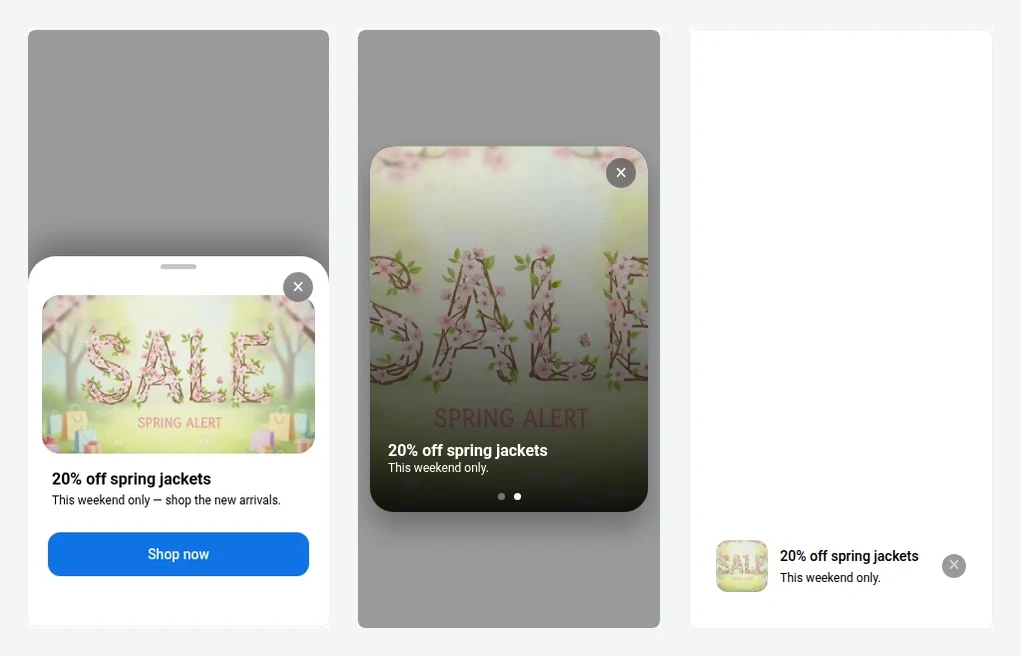
- Sheet — a bottom sheet that slides up and can be dragged down to dismiss.
- Carousel — full-screen cards users swipe through.
- Banner — a compact bar pinned to the top or bottom edge, for a nudge that doesn’t take over the screen.
2 smaller things in the same area:
- Interactive preview in the in-app editor — tap buttons, step through a multi-screen flow, and switch between phone and desktop, so you’re testing real behavior instead of a static mockup.
- Rebuilt In-apps list — Content → In-apps now has a tile/table toggle, a TYPE badge on each template, an Updated column, and a Create in-app button up top.
Brand book: build your brand from a website scan 🛠️
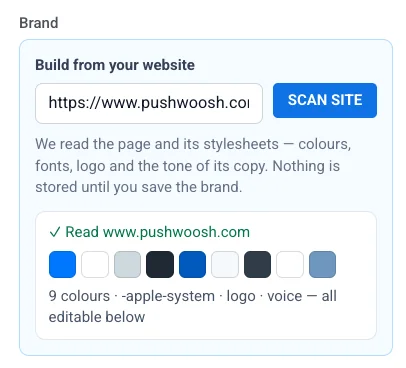
Setting up brand styling used to mean entering your colors, fonts, and logo by hand. Now Brand book can do the first pass for you: enter your domain, click Scan site, and Pushwoosh reads the page and its stylesheets to fill in your palette, fonts, logo, and a Brand voice description.
What it changes: a new project gets a usable brand kit in one scan instead of a manual setup, and you apply it to any email or in-app template in a click.
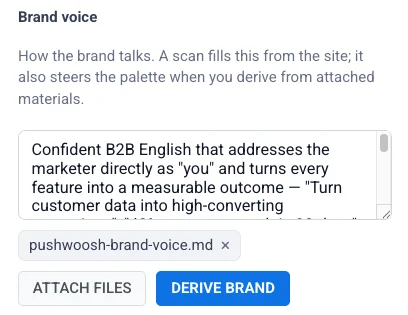
The Brand voice field is the other half. When Pushwoosh’s AI writes a fresh email or in-app from scratch, your saved brand voice steers the tone — so “on brand” isn’t only the colors. (It applies when the AI writes something new, not when it edits copy you’ve already generated.)
Web popups: a template gallery and cleaner setup 💬
There’s now a gallery of around 30 ready-made templates with a category filter, so you start from a layout instead of a blank canvas.
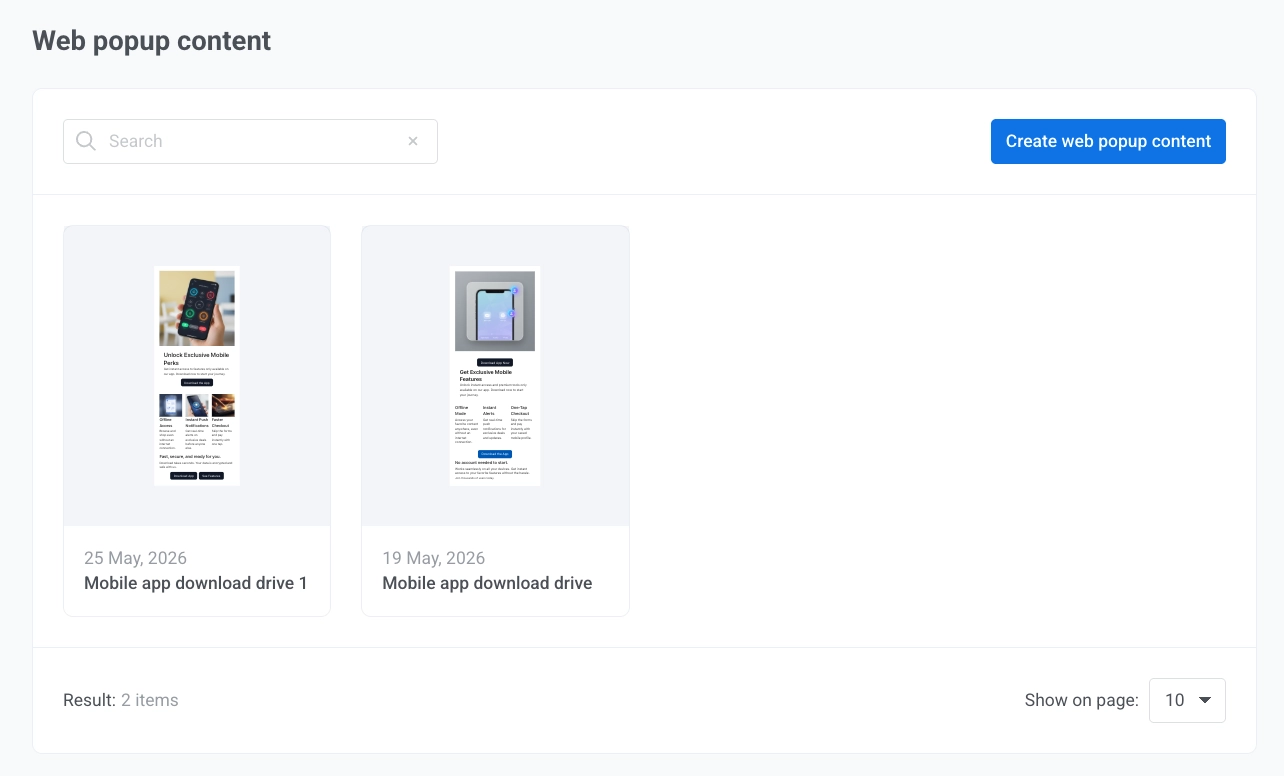
And the setup is tighter: a popup requires content before you can save it, and its subscription form is stored together with the popup instead of as a separate piece to wire up.
Measure by segment 📊
Dashboard charts can now be split by Segment: add up to 3 segment filters to a chart, turn on the Segment breakdown, and each one becomes its own line instead of blending into a single audience.
More control, day to day ⚙️
A batch of smaller updates that come up often:
- Condition Split compares 2 fields. In Customer Journey Builder, Condition Split can now compare one tag or attribute against another tag or attribute, not only against a fixed value, so you can branch on logic like “last active date is after last purchase date.” Learn more →
- WhatsApp 24-hour window counter. The chat now shows a live countdown on the 24-hour customer service window, and locks the composer once it closes, so you know when a free-form reply will still go through. Learn more →
- MMS attachments in SMS presets. SMS presets now support MMS: add a subject and attach files to the message. Learn more →
- Test an email to several addresses at once. Send a test email to multiple recipients in one go instead of one address at a time. Learn more →
- Register test devices from the app. Turn on Add test devices from the app, and for the next hour any device that opens your app registers itself as a test device — no manual ID entry. Learn more →
- Inbox tab in User Explorer. User Explorer now has an Inbox tab, so you can see the messages sitting in a specific user’s inbox. Learn more →
Try the updates yourself
Every feature above is live in your account.
For the full list, check our release notes.