Conversion tracking that shows which messages bring in revenue
Tell Pushwoosh once which events are conversions and where the money sits in them. Then see the revenue each campaign, journey and in-app brought in, without rewriting code for every source.
What conversion events do
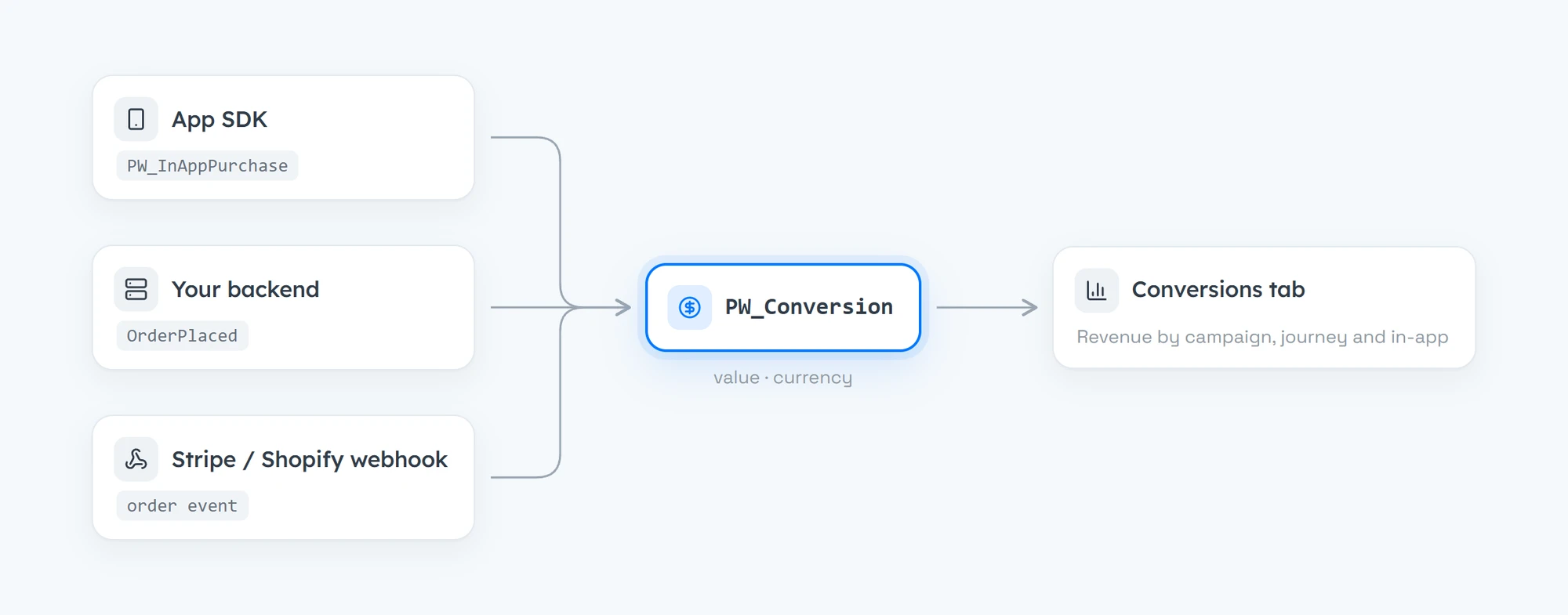
Revenue rarely arrives in one shape. The SDK sends PW_InAppPurchase, your backend sends its own OrderPlaced, and Stripe or Shopify send something else again. Each source is fine on its own, but together they make a simple question hard to answer: which message paid for itself?
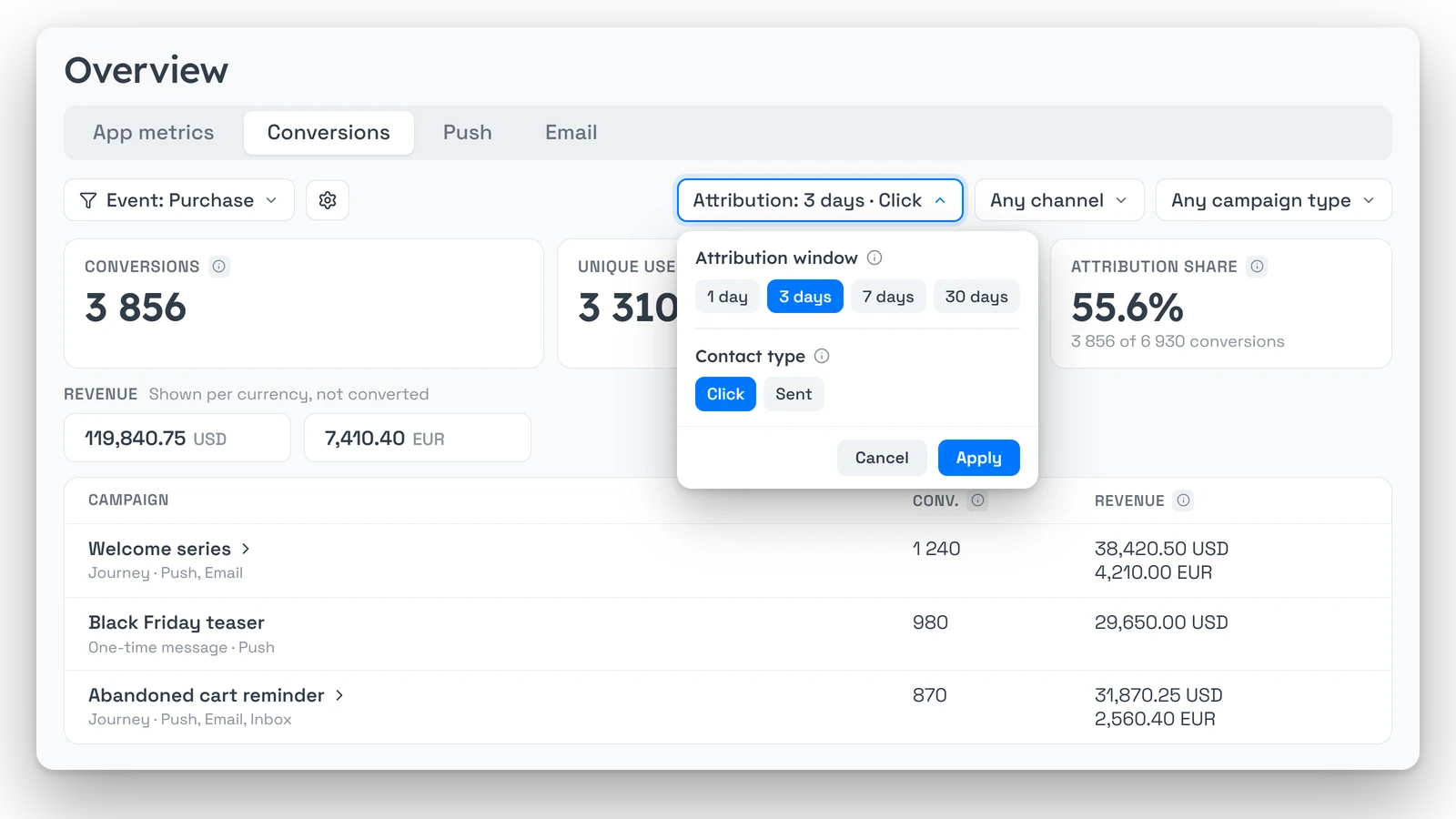
Conversion events answer it where you send from. Pick up to 100 app events that count as conversions, plus the built-in PW_Conversion, and decide for each one whether Pushwoosh only counts it or also reads its price and currency. The Conversions tab on Overview then shows conversions, unique users, attribution share and revenue per currency for every campaign, journey and in-app.
| Where the revenue comes from | What you do |
|---|---|
| An event you already send | Point to its price and currency attributes in the Control Panel. The code stays as it is |
| Your app or backend | Send PW_Conversion with value and currency through postEvent |
| Attributes on any event | Add __amount and __currency, and the event joins the list with revenue tracking on |
PW_Conversion with value and currency through postEvent__amount and __currency, and the event joins the list with revenue tracking on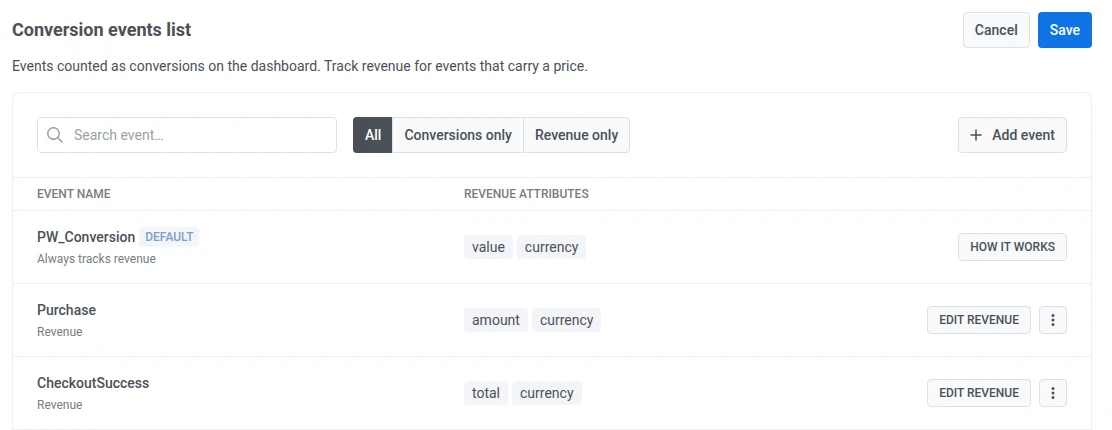
Every source ends up as one PW_Conversion
Revenue from code, from an event you already send or from a Stripe or Shopify webhook is stored in the same PW_Conversion format. You pick the attribution window and the contact type in the report itself, so you can compare a 1-day click view with a 7-day send view without changing any setting.
Revenue from events you already send
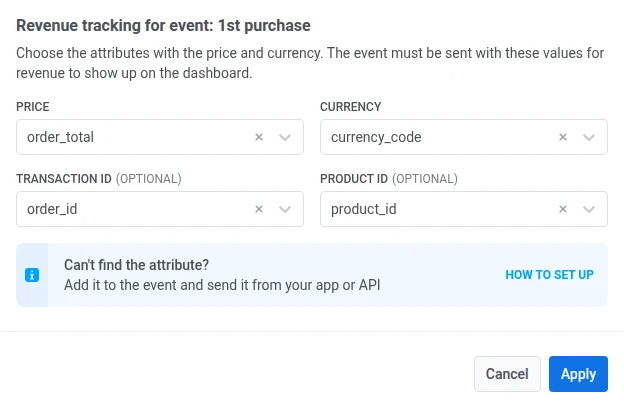
If a purchase event already carries a price, Track revenue maps its attributes in the Control Panel, and no developer has to touch the app. Events where Pushwoosh has already found a price and currency come first in the list, with the attributes filled in.
Conversion events cover reporting for the whole app. To stop messages or pick an A/B/n winner inside one journey, use Conversion goals.
Why it matters for analytics
Delivery and open rates tell you a message was seen, and stop there. To show what a message earned, analytics has to know which events are money and how much each one carried. Conversion events give Pushwoosh analytics that layer, so the report that shows a campaign’s reach also shows its revenue.
Set it up in 3 steps
The event has to reach Pushwoosh already. If the price is in it, you don’t need a developer; sending PW_Conversion from code does need one.
-
Choose the events
Open Audience → Events and pick the events that count as conversions. Events with a price and currency already found are listed first.
-
Turn on revenue where it applies
Choose Conversion only or Conversion with revenue for each event, or send PW_Conversion from your app or backend.
-
Read the Conversions tab
Open Overview → Conversions and pick an attribution window of 1, 3, 7 or 30 days and a contact type of Click or Sent.
One conversion, used across Pushwoosh
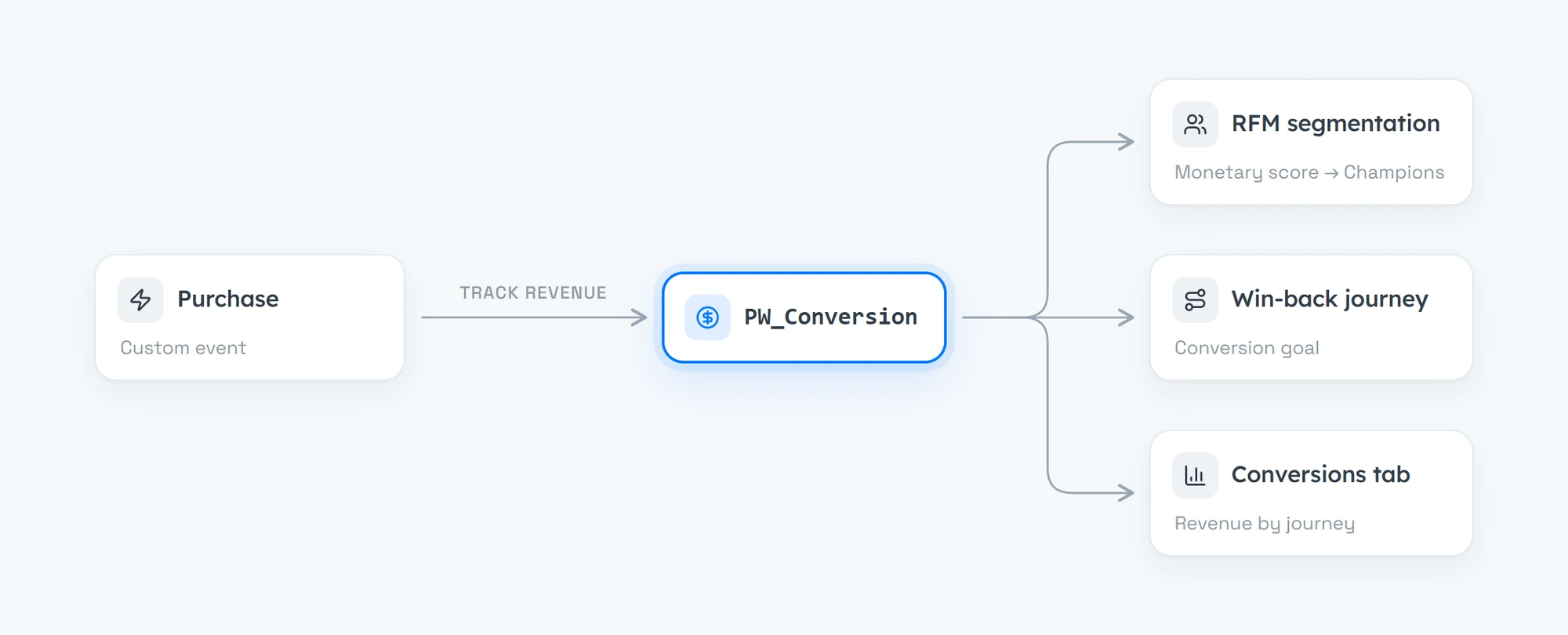
A purchase arrives as a custom event, and Track revenue turns it into a PW_Conversion. RFM segmentation adds it to that user’s monetary score, so the biggest spenders land in Champions. A win-back journey uses the same PW_Conversion as its conversion goal, and the Conversions tab shows how much that journey brought in. You set the event up once, and each of these reads it the same way.
- Analytics: reach, engagement and revenue in one set of reports
- Custom events: the purchase event that becomes a conversion
- RFM segmentation: user tiers built on the revenue conversions record
- Conversion goals: the point at which a single journey has done its job
See which messages bring in revenue
Pick your purchase event, and the Conversions tab shows the revenue behind every campaign.
Explore related products
Gain actionable insights across all messaging channels and increase your campaign ROI with Pushwoosh's comprehensive analytics.
Set the event that means a journey worked, count late conversions for up to 30 days after exit, and optionally end the sequence the moment a user converts.
See what happened to every push, email, SMS and App Inbox send in Pushwoosh. The full funnel, the reasons people dropped out, post-click events, and a segment from any step.
Log what a customer did as a typed, timestamped event, with up to 100 attributes and per-event retention, then use it to trigger journeys and segment on frequency and recency.
Score every user on recency, frequency, and monetary value, and get the 10 standard RFM segments as ready tags and audiences you can send to.
Project overview is the first page of every Pushwoosh project. See channel reach, push and email base health, deliverability and revenue by campaign, then turn any problem group into a segment in one click.