Vol.1 was mostly about email. This one moves to your website and your app. Popups can show products now, and journeys can reach people while they browse your site.
Here’s what shipped 👇
Show product picks in your web popups 🛍️
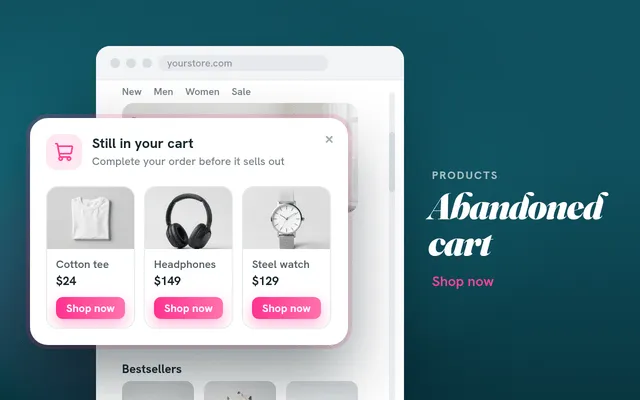
What changed: the web popup editor has a new Products block. It fills itself with Pushwoosh recommendations, including the items in the visitor’s cart. You set how many cards to show, the layout, and the button text, and pick a backup strategy for when the recommendations come back empty.
Why it matters: you stop building product cards by hand for every popup. Each visitor sees products picked for them, and the cart items they left behind.
Popups also got new moments to appear:
- On scroll. Show a popup when the visitor reaches 30%, 50%, or 70% of the page.
- On exit. Catch visitors who are about to leave. On desktop, the popup shows when the cursor heads for the tabs or the address bar. On phones, it shows when the visitor taps Back or quickly swipes to the top.
- After a subscription answer. When a visitor answers the push subscription request, the popup can switch to another of its pages. Subscribers can see a thank-you page, for example.
Collect contacts and answers inside your app 📝
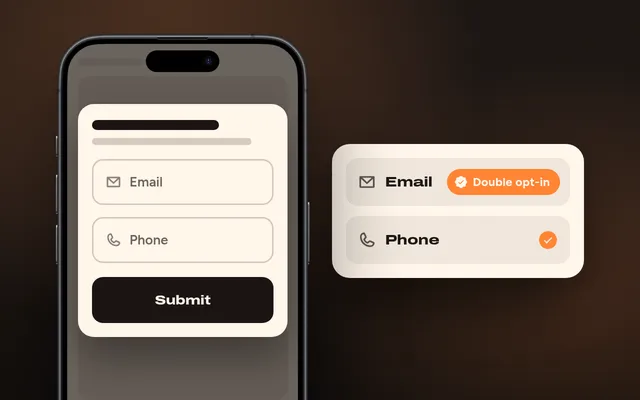
What changed: the in-app editor now has a form with email and phone fields. It subscribes the user’s device to email and SMS with the address and number they enter, with double opt-in for email. 2 more blocks let you ask questions: Rating (a 1–5 scale in numbers or stars, or thumbs up and down) and Multiple choice.
Why it matters: your email list now grows from the app as well as from the website. Every answer arrives as a PW_InAppAnswer event and can be saved to a tag, so you can build segments on it and start journeys from it.
Reach site visitors at the right journey step 🎯
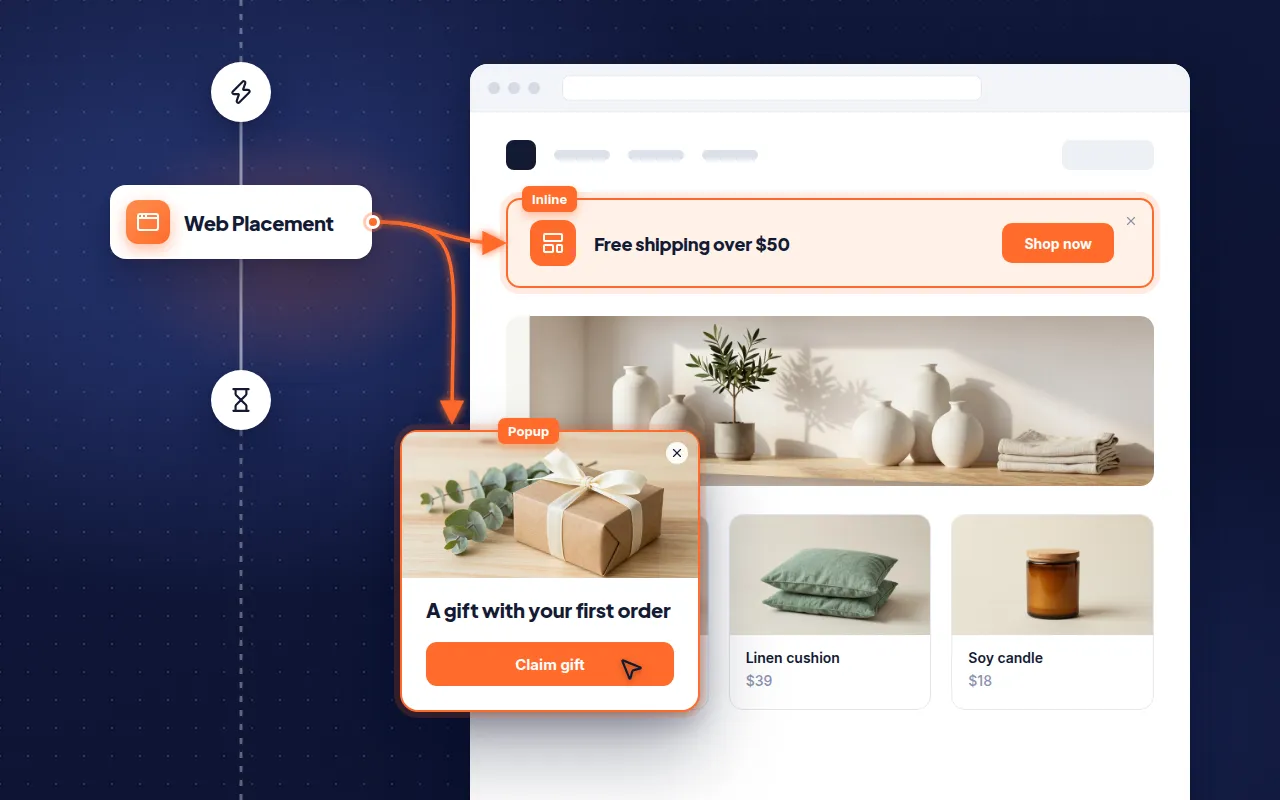
What changed: journeys could reach your website only through web push. The new Web placement element shows a popup or an inline block on your site to users who reach that step.
Why it matters: your site now works like any other journey channel. You see shows and interactions on the element itself. To follow up on clicks, add a Wait for Trigger step after it.
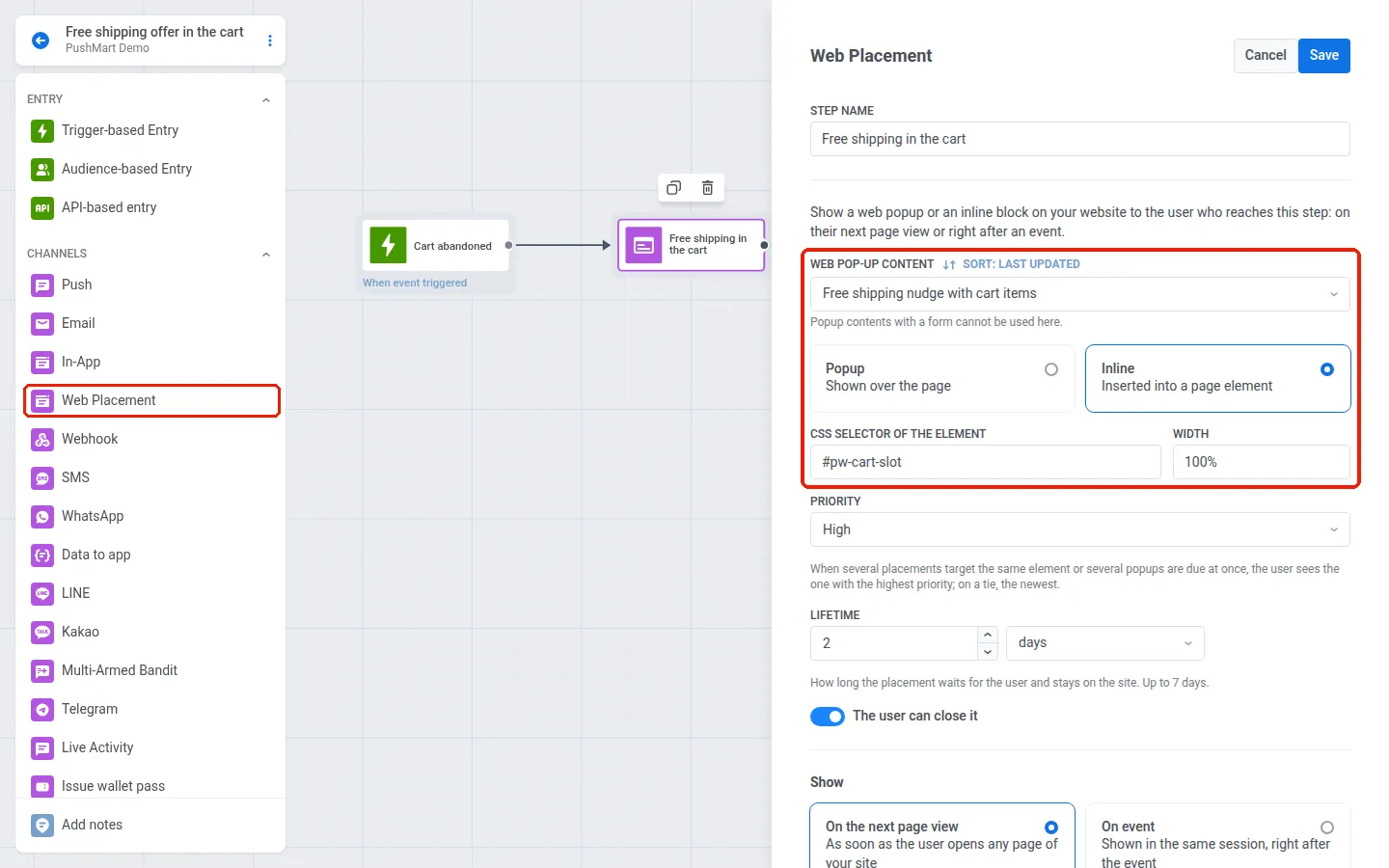
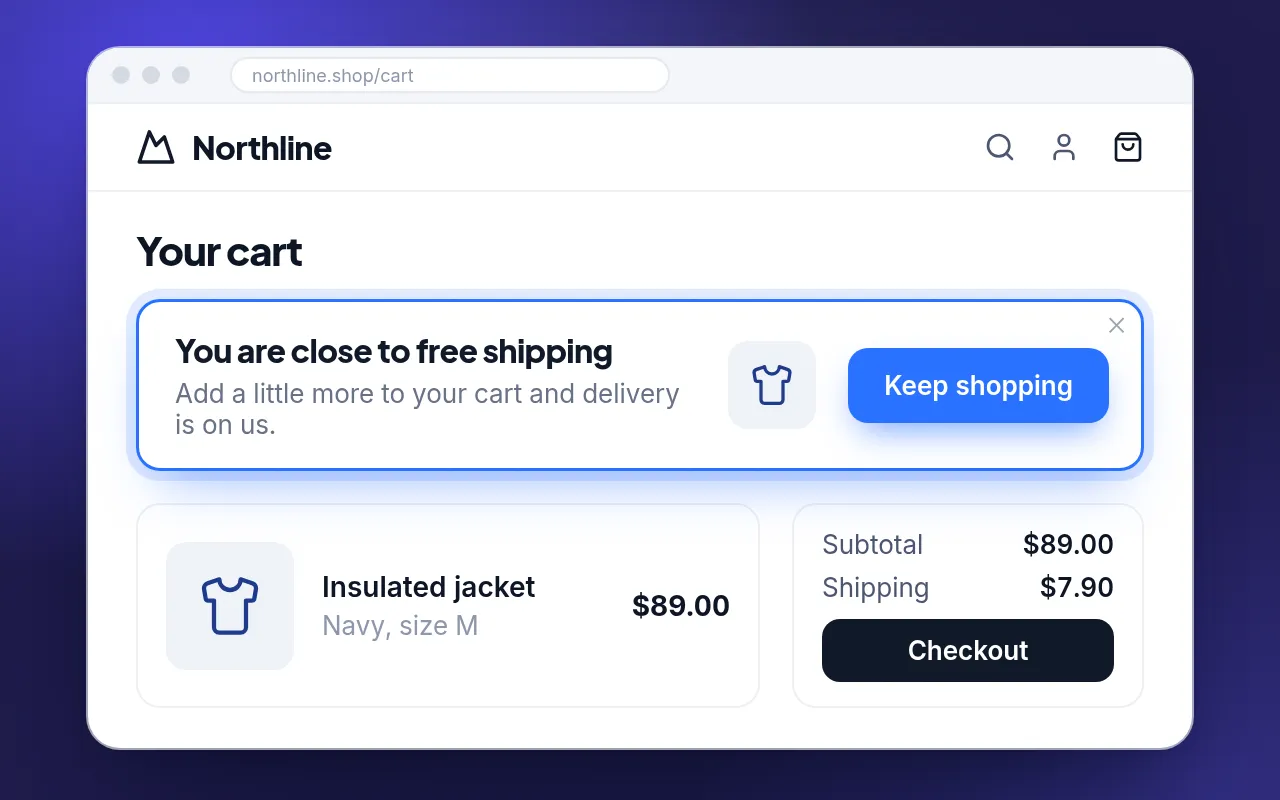
Here’s how it looks: a user adds a jacket to the cart. On the next page they open, a block next to the cart offers free shipping. Once they place the order, the block disappears.
Set silent hours once for every channel 🌙
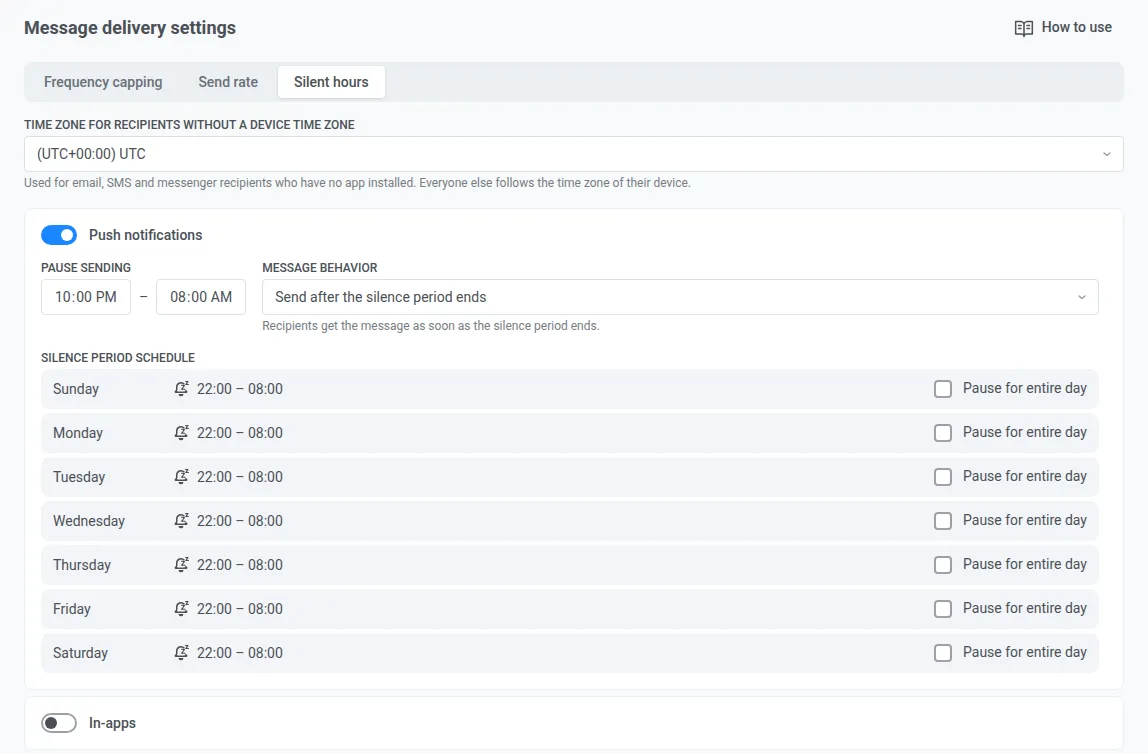
What changed: silent hours used to live only inside journeys. Now you set them in your project settings for each channel: push, in-app, email, SMS, WhatsApp, LINE, Kakao, and Telegram. Choose the time window, the days to pause completely, and what happens to a message that falls into the window: send it once the window ends, or don’t send it at all.
Journeys keep their own silence period in journey settings.
Here’s how it looks: you set 22:00–08:00 for push. A promo you launch late in the evening reaches each user at 8 AM in their time zone.
Launch game in-apps from a template 🎡
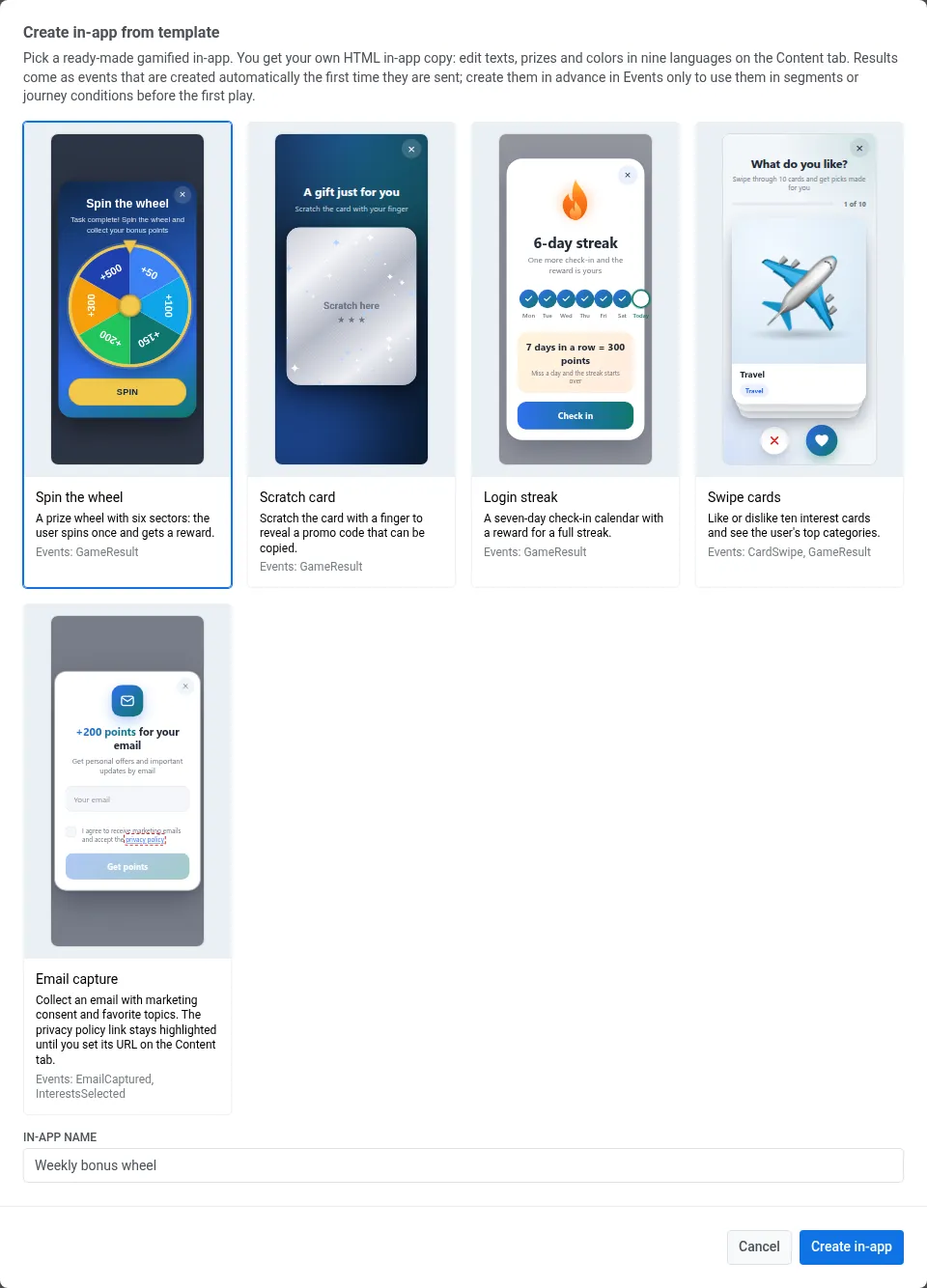
What changed: the in-app menu has a From template gallery with 5 ready HTML in-apps: spin the wheel, scratch card, login streak, swipe cards, and email capture. You edit texts and colors in 9 languages without touching the code, and users see the version in their device language.
See what else shipped
The smaller updates are below.
More from your channels 💬
- WhatsApp carousels go to Meta from the preset. Set the category to Marketing and submit a carousel for approval right from the preset, with its own media, text, and buttons on each card. Once approved, it reaches users outside the 24-hour window. Learn more →
- WhatsApp button clicks as events. Taps on quick reply buttons in template messages sent outside a journey arrive as PW_WhatsAppButtonClicked, so you can build segments and start journeys on them. Learn more →
- Tabs in App Inbox. Split the inbox into up to 3 tabs, like Offers and News, with names in each language. Pick the tab when you send a one-time message or set up the journey element. Learn more →
- A link for every carousel image. Each image in an inbox carousel can open its own link or deep link, so one message can lead to several products. Learn more →
Email and measurement 📊
- See who the sunset policy skips. Now you know how much the sunset policy from vol.1 cuts. Under the Ignore sunset policy switch, the email form tells you how many inactive contacts in the segment won’t get this email. You can also export inactive contacts as a CSV from the policy card. Learn more →
- Control group impact among reachable users. The effect used to include users no campaign could reach. New cycles now count only users reachable through at least one channel, and the report shows which method each cycle uses. Learn more →
- Resend to non-openers. Edit before resend opens a copy of the email with the audience set to those who didn’t open the original. Learn more →
- Tidier saved blocks. In the email editor, drag ready blocks across the canvas and between groups. Saved blocks can be replaced, renamed, and sorted. Learn more →
- A default email footer. Email channel settings have a footer card with your company name, address, and links to your privacy policy, terms, and contacts. Learn more →
Also shipped
- Modern navigation. Switch to the Modern view in your account menu: a narrow icon bar with a section panel and dropdown submenus. Learn more →
- External segments show how many IDs matched users in your project, for example “300 of 1,000”, and warn that unmatched IDs won’t get messages.
- Live Activity sends appear in the message list and the funnel, and errors have clear names instead of “Processing Error”.
Try the updates yourself
Every feature above is live in your account.
For the full list of what shipped, check the release notes.