Every marketer wants campaigns that run themselves. Yet somebody still has to build them: the segment, the preset, the journey. The good news: Pushwoosh MCP server now connects your Pushwoosh project to your AI client, like Claude, ChatGPT, or Cursor. It takes over the operational work and lets you focus on strategy and testing.
This post covers 5 ways to use the Pushwoosh MCP for marketing (& how to connect it in mins).
What the Pushwoosh MCP server is
MCP (Model Context Protocol) is an open standard that lets AI clients connect to outside tools and data. The Pushwoosh MCP server is that connection for your Pushwoosh account. Add it to Claude Desktop, Cursor, Windsurf, Cline, Continue, or ChatGPT Desktop, and the AI can read your project, build in it, and report back in plain language.
What an MCP server does for a marketing team
On its own, your AI client can only advise: it suggests a segment, and you go build it.
With the Pushwoosh MCP server connected, your assistant stops giving advice and starts doing the work. You describe the result in plain language, and the assistant turns it into real actions in your Pushwoosh project.
Here’s what you can ask for:
| Typical task | Ask it to |
|---|---|
| Find the right audience | Build a segment from a description, define target events, tune frequency capping and control groups |
| Prepare messages | Draft push, email, SMS, and LINE presets; build rich-media in-app messages; update translations |
| Run journeys | Create, pause, and clone journeys; pull funnel data for each step |
| Fix a delivery issue | Trace why a message didn’t arrive and explain how to fix it |
| Report on results | Build dashboards, compare a journey’s revenue with the control group, break campaigns down by app, country, or cohort |
| Connect your stack | Connect Stripe, Meta, Segment, Shopify, or a custom webhook and check the connection |
| Run a promo | Load promo code pools, attach them to journeys, see redemption stats |
| Set up a project | Create apps, add platforms, issue API tokens, manage teammate access |
| Get a quick answer | Answer questions about channels, journeys, and integrations based on the live Pushwoosh docs |
5 ways to use the Pushwoosh MCP server
Connect the MCP server, then copy any prompt below, adapt it to your app and events, and paste it into your AI client.
1. Audit what’s running
Start with something simple: check how your current campaigns are doing.
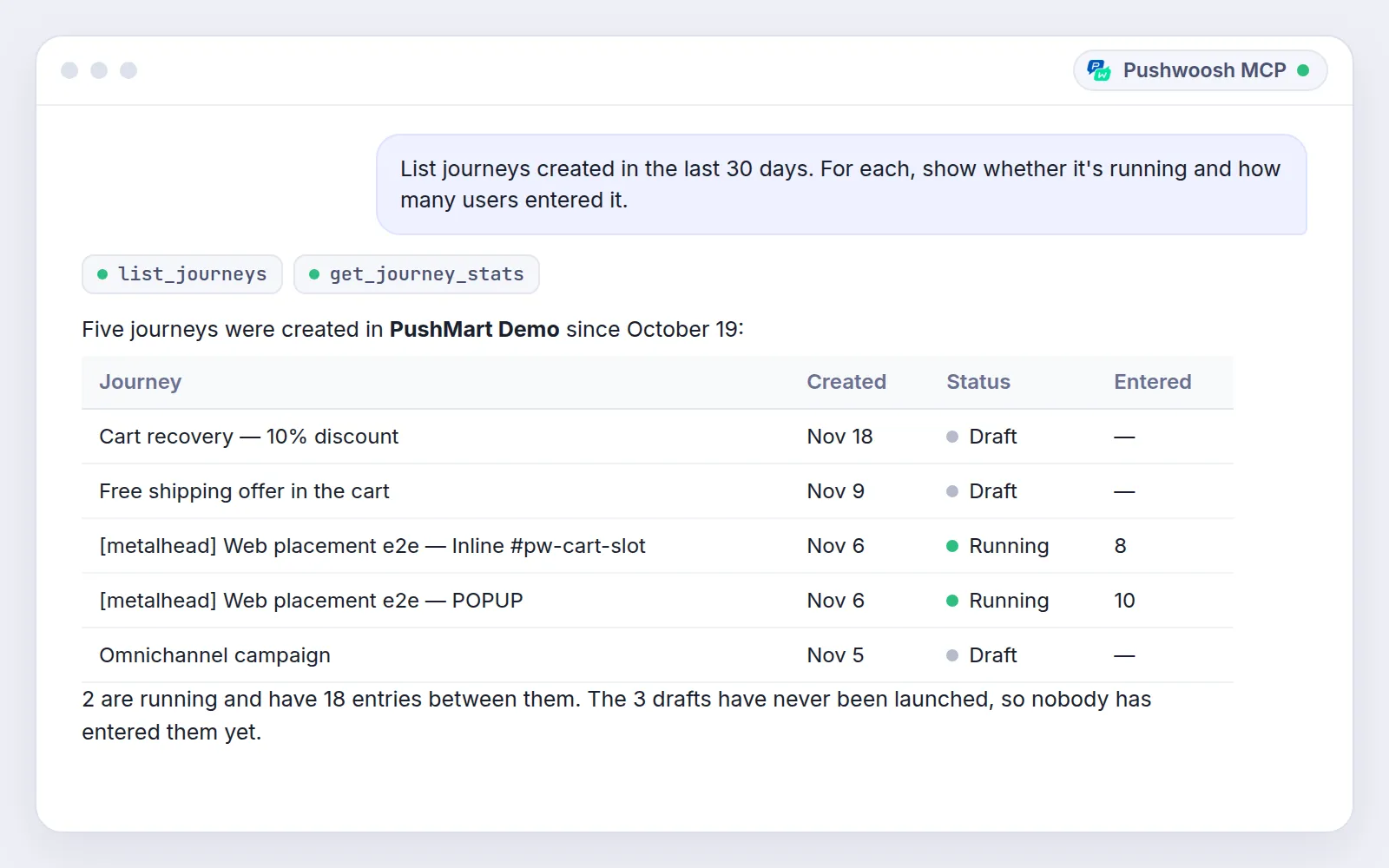
What’s happening with my campaigns? List journeys created in the last 30 days.For each, show whether it's running and how many users entered it.What the assistant does: pulls every recent journey with its status and entry count, and puts them in 1 table.
Result: you see what’s live, what’s still a draft, and what launched but nobody has entered, without opening each journey one by one.
💡 Prompt tip: ask about 1 app at a time. In a large project, a single table for everything gets hard to read.
2. Launch a campaign from 1 request
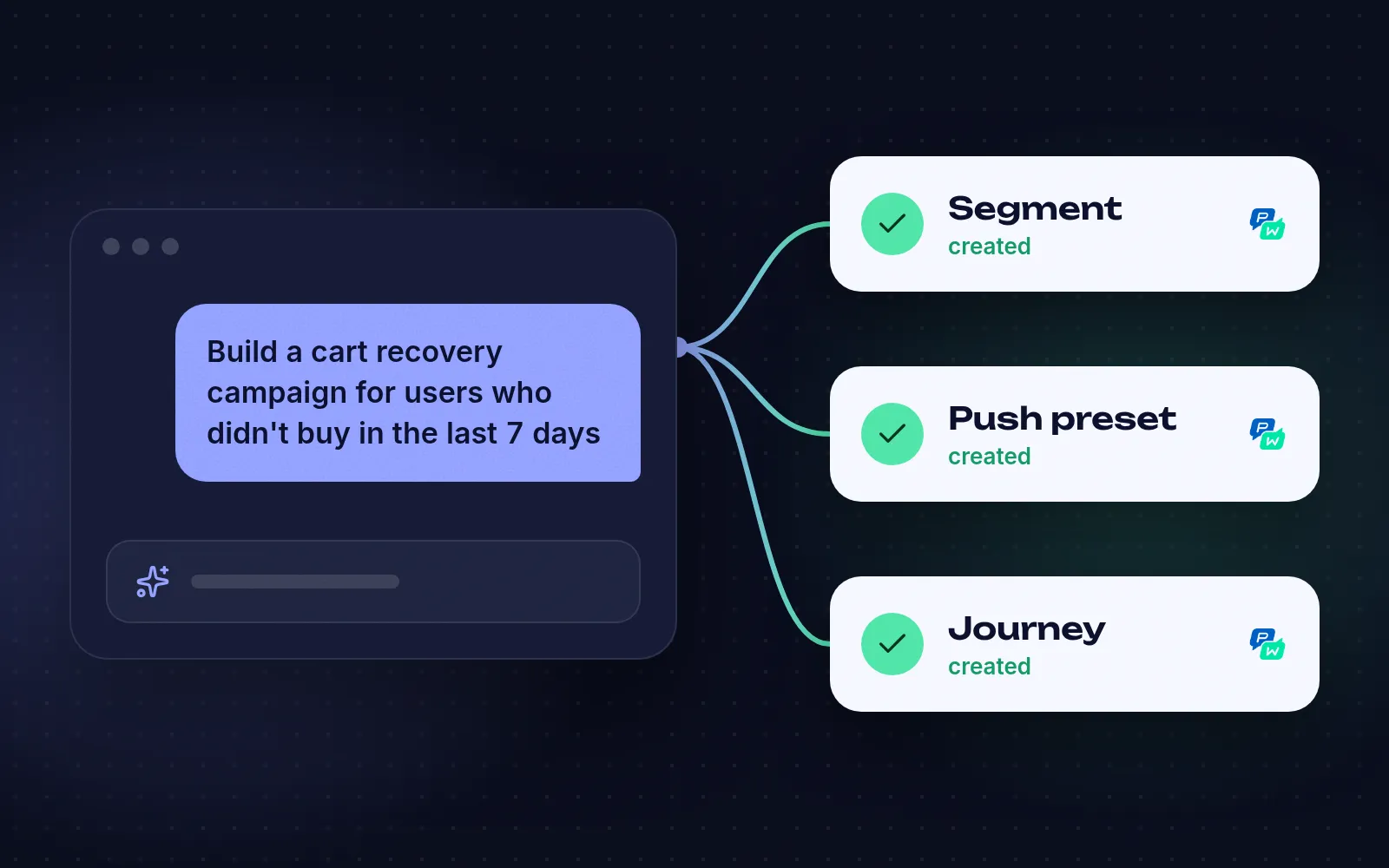
Create a segment of users who added to cart in the last 7 days without purchasing.Build a discount push preset for them, then a journey that sends it after 1 hourand stops when the user makes a purchase.List everything you created so I can review it.What the assistant does: builds the segment, the preset, and the journey in one go.
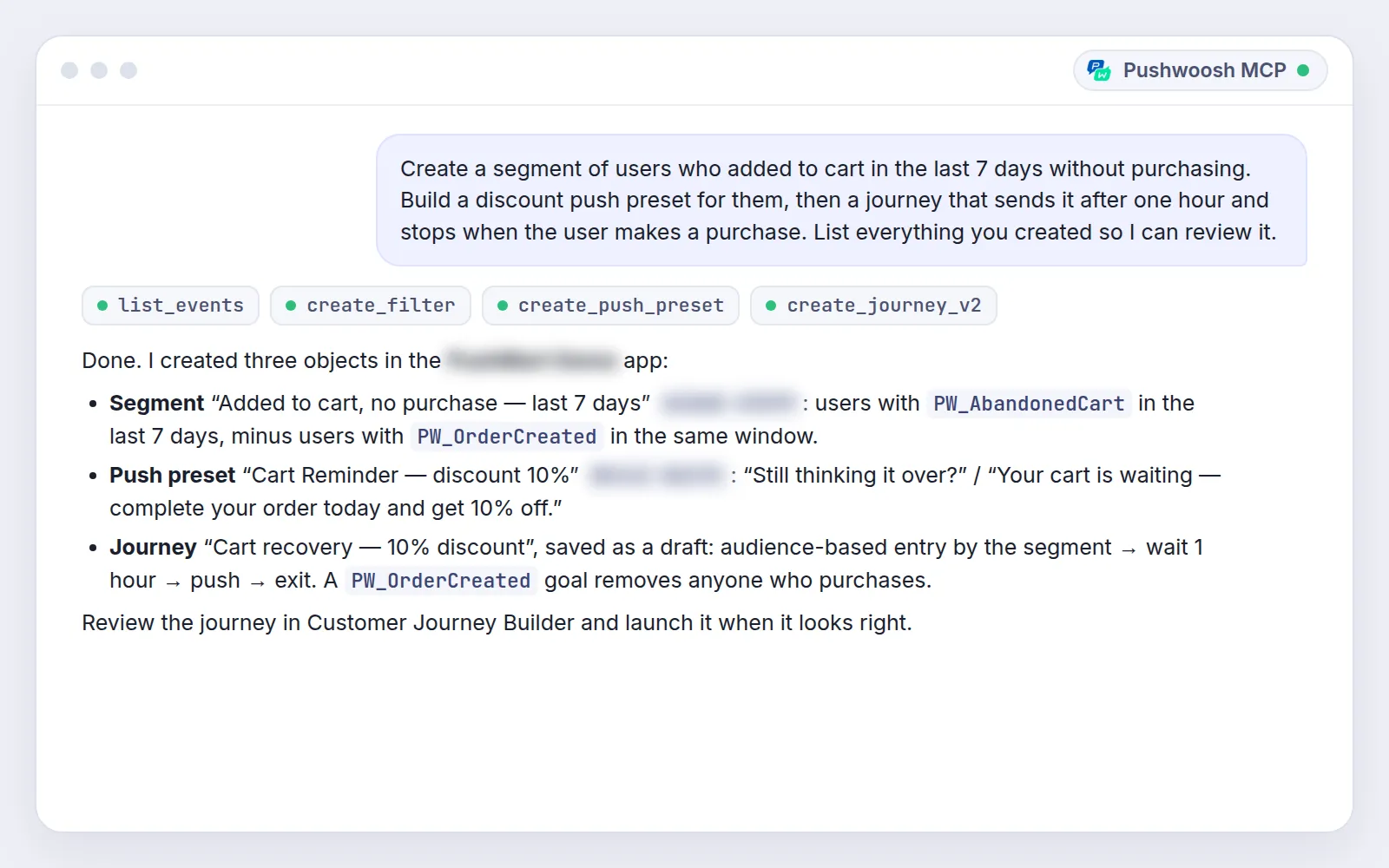
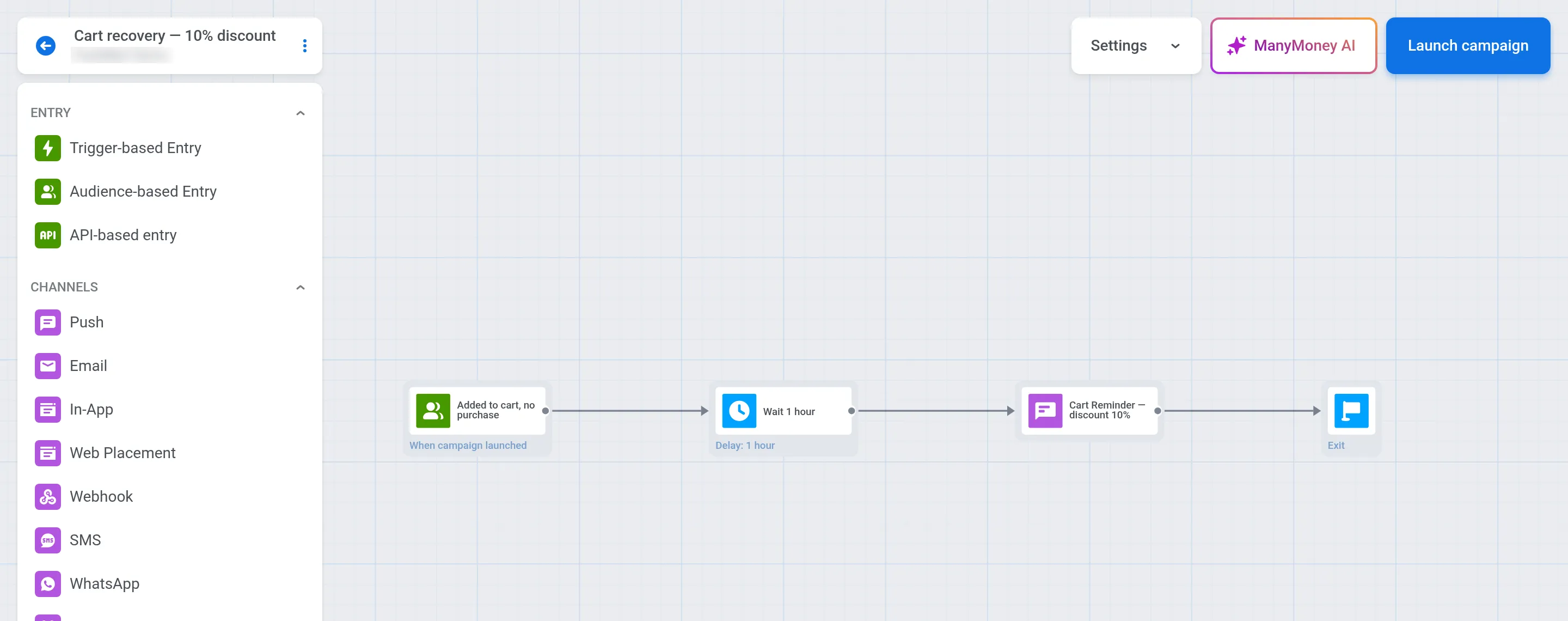
Result: a ready cart-recovery flow in minutes. You review it and publish it from the Control Panel when it looks right.
💡 Prompt tip: end with “list everything you created,” and you’ll have a checklist for review before launch.
The same pattern works for a Welcome flow, a Win-Back series, or cloning a winning journey for a new market.
3. Find out why a push didn’t arrive
Explain why message [message code] failed for device [device ID].What the assistant does: traces the delivery, checks the platform settings and the preset, and explains what went wrong and how to fix it.
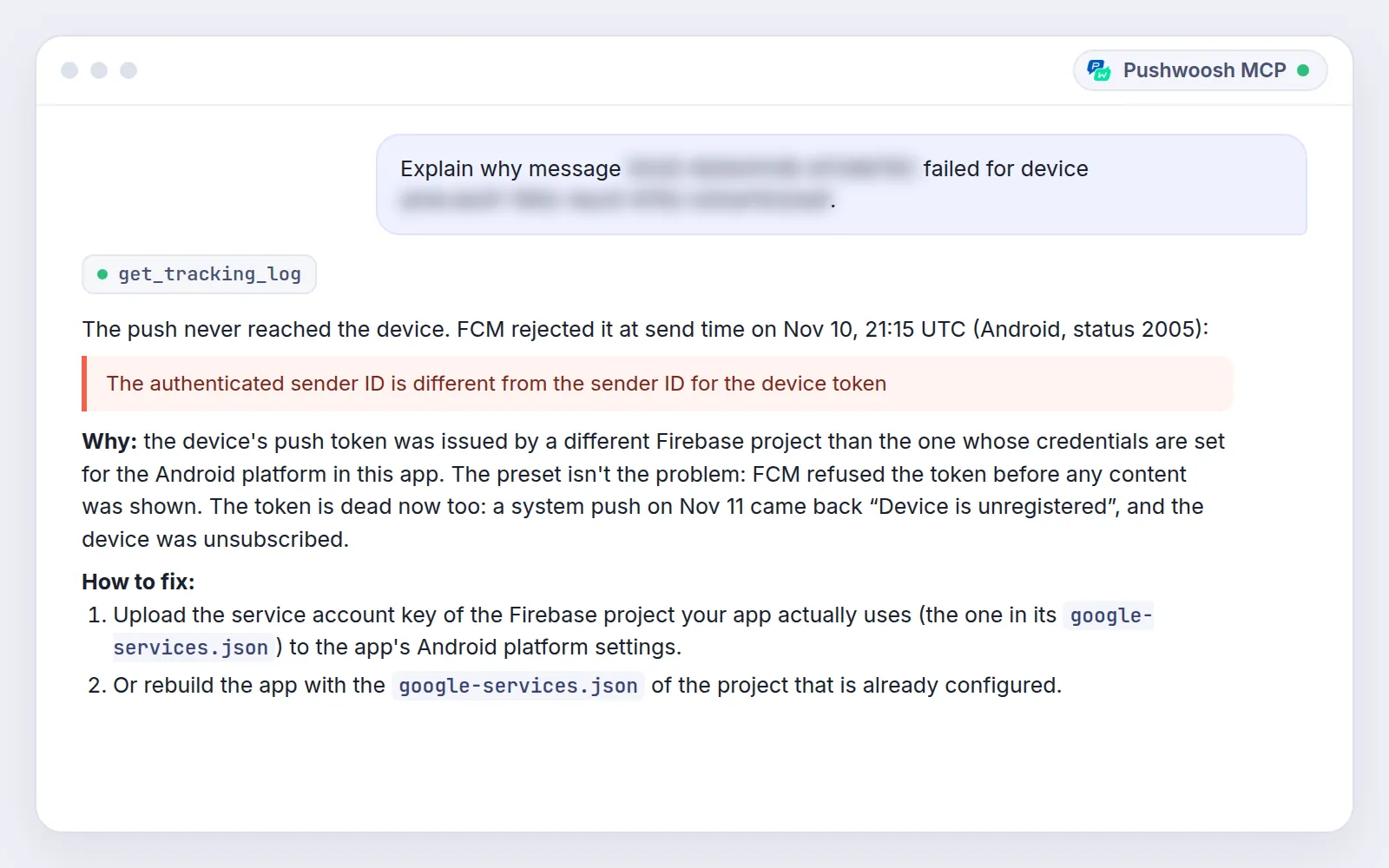
Result: a delivery issue diagnosed without a support ticket or a dig through logs.
💡 Prompt tip: include the message code and the device or user ID. Without them, the server first has to work out which message you mean.
4. Check a journey’s revenue against the control group
Compare revenue and conversion for users who completed the Welcome Flowwith the control group over the last 30 days, broken down by app.What the assistant does: pulls the numbers from your project and builds the comparison.
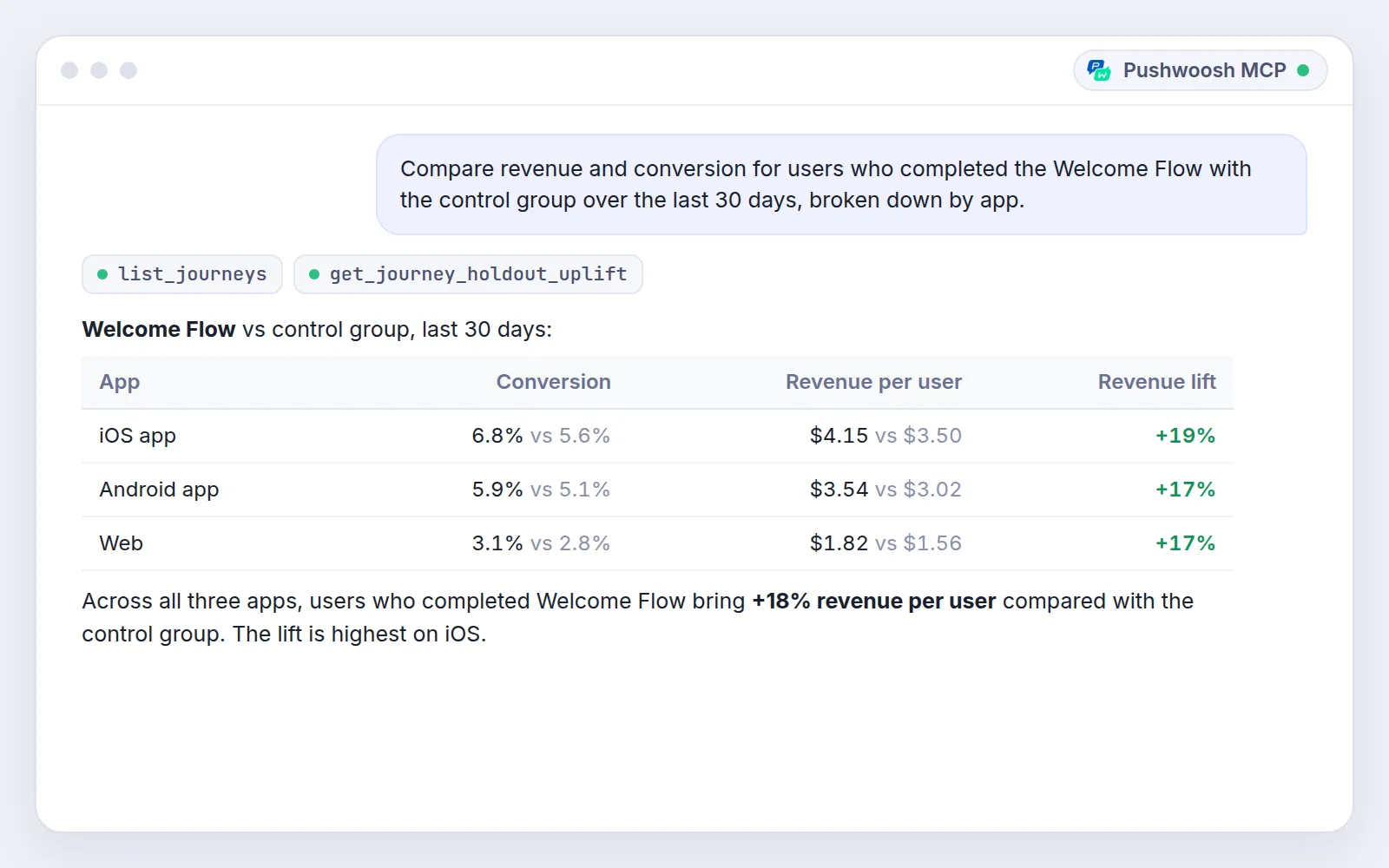
Result: a revenue-lift number you can paste into your weekly report. If your manager wants it by country, ask for that in the same chat.
💡 Prompt tip: name the exact journey and period. “Recently” means something different to you and to the AI.
5. Set up a new app or market from a brief
Create an app from this brief, add the platforms, set up sender details,and create the standard journeys. [paste the brief]What the assistant does: A new market or a new brand starts with the same setup every time. The server creates the app, adds platforms, fills in sender details, and builds standard journeys like Welcome and Abandoned Cart.
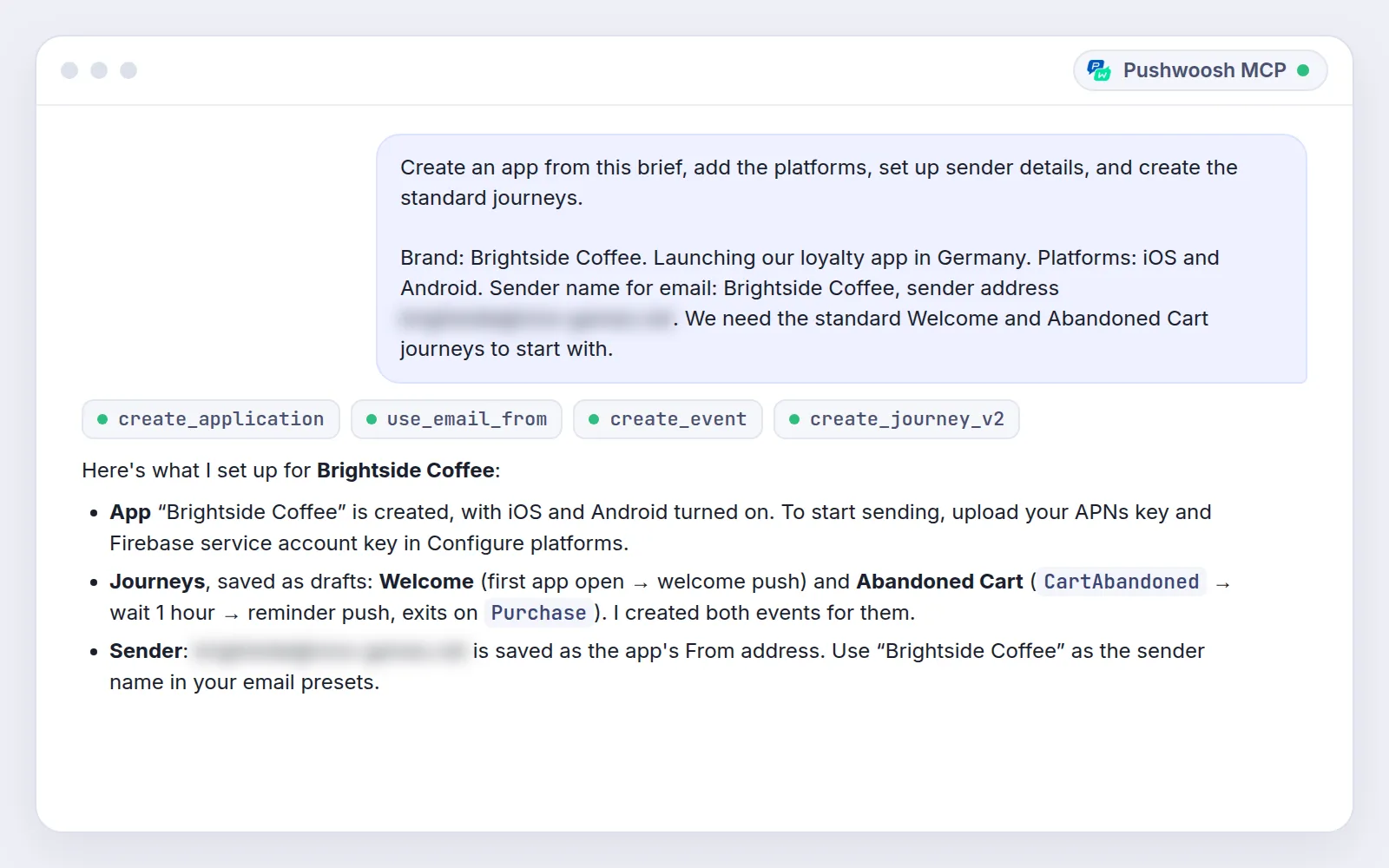
Result: a new market goes from brief to reviewable setup in 1 conversation instead of a day of clicking.
💡 Prompt tip: paste the brief right into the chat, and the server will take names, platforms, and sender details from it.
Connect the Pushwoosh MCP server in a few minutes 🔌
The server is hosted by Pushwoosh, so there’s nothing to install.
-
Check your access.
You need a Pushwoosh account with access to the apps you want the AI to work with.
-
Add the server to your AI client.
Use
https://manymoney.pushwoosh.com/mcpto build and analyze, andhttps://manymoney-messaging.pushwoosh.com/mcpto send. -
Sign in.
On the first request, a browser window opens for Pushwoosh sign-in (OAuth). For scripted setups, use an API token in the request header instead.
-
Try it.
Open a new chat and ask for something scoped to 1 app, for example: "List journeys created in the last 30 days."
👉 Full setup guide: ManyMoney AI MCP server documentation
Run your next campaign from your AI client with Pushwoosh
Pick one of the 5 prompts above, like a cart recovery journey or a pre-planning audit. Type it into your AI client, review what the server built, and launch.