We’re making email stronger, from a clean list to the inbox to subscribers who stay. This release covers all 3 steps. It also brings RCS messages and reports that arrive on schedule.
Here’s what shipped 👇
Start with a clean list 🧹
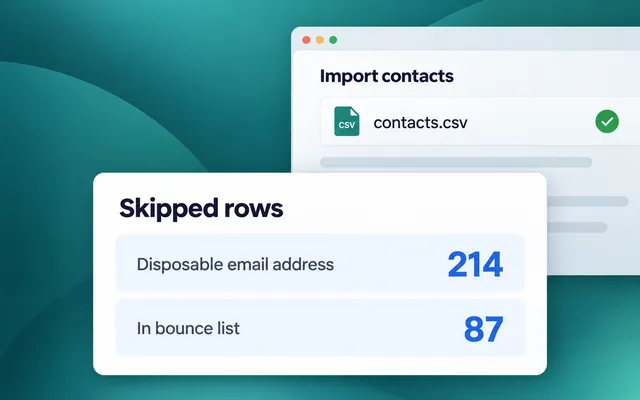
What changed: after a CSV import, disposable addresses and addresses that already bounced used to land in 1 Failed counter with no explanation. Now the import report gives each reason its own row and its own count.
Why it matters: you see what’s wrong with a list before the first send. Lots of disposable addresses point to a weak signup form. Lots of bounced ones mean the list is old and needs a cleanup before you mail it.
See how Gmail sees your domain 📬
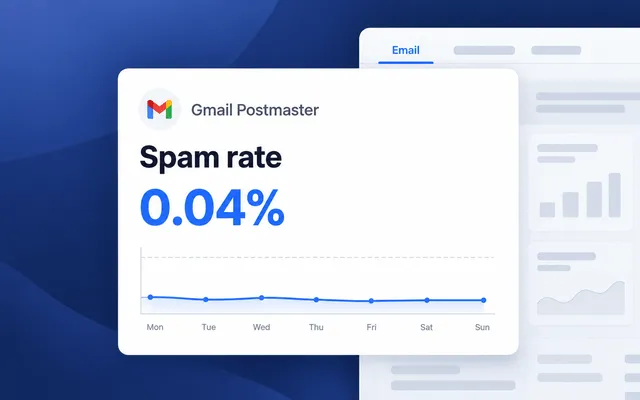
What changed: connect your sender domain to Gmail Postmaster with 1 TXT record, right in the domain card (Settings → Configure Platforms → Email).
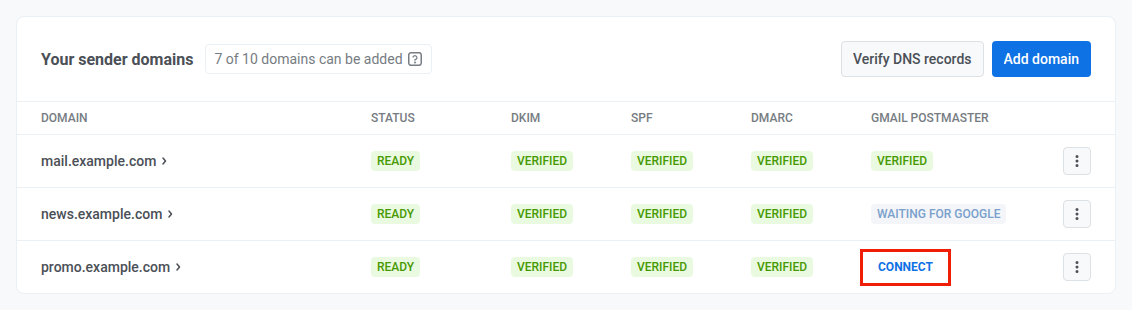
Once Google verifies it, the Email tab of Project overview shows Gmail’s own data for that domain. If no domain is connected yet, the same tab invites you to connect one.
How to read it:
- Spam rate from Gmail users, checked against Gmail’s thresholds. Under 0.1% is healthy. From 0.1%, the value turns orange with an At risk badge. At 0.3%, Gmail starts rejecting mail.
- Mail Gmail refused: the share of refused mail, the main reason, and what to do about it. If the reason is on Pushwoosh’s side, the badge says so, and there’s nothing for you to fix.
- Gmail sender requirements in the domain card: aligned From address, one-click unsubscribe, and honoring unsubscribes, each marked Compliant or Needs work.
Here’s how it looks: after a big holiday send, the spam rate climbs to 0.12% and turns orange. You see it in Pushwoosh and drop dormant subscribers from the next send before Gmail starts refusing your mail.
Keep subscribers who click Unsubscribe 💌
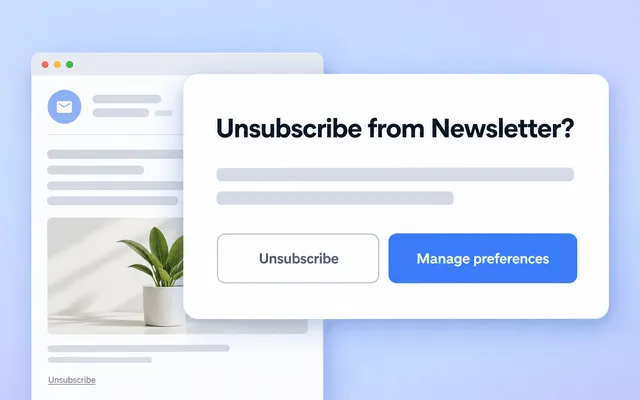
What changed: you now decide what happens after someone clicks Unsubscribe, step by step.
- Confirmation first. On every account, the Unsubscribe link now opens a confirmation page. Nothing changes until the user confirms, so a misclick or a mail scanner following links no longer costs you a subscriber. You can turn this step off in Unsubscribe flow.
- Your own pages. The preference center, confirmation, survey, and “unsubscribed” pages used to look the same for every brand. Now you edit each of them in a page builder in your brand style. Add language versions, a Resubscribe button, or a link to manage preferences. Changes go live as soon as you save.
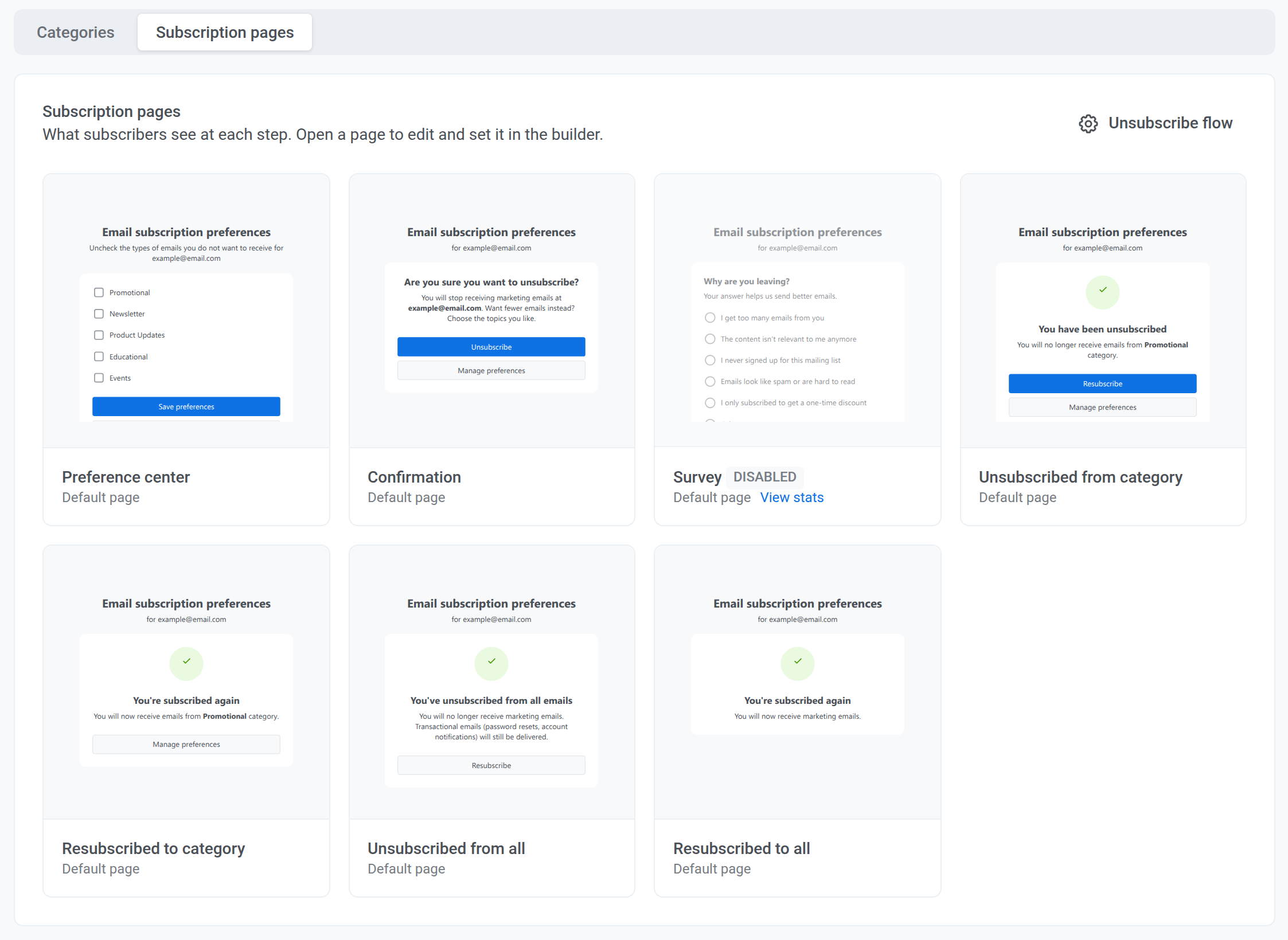
- A survey on the way out. Turn on the survey, and each answer lands in the Unsubscribe Reason tag. Users can pick an option, type their own, or skip.
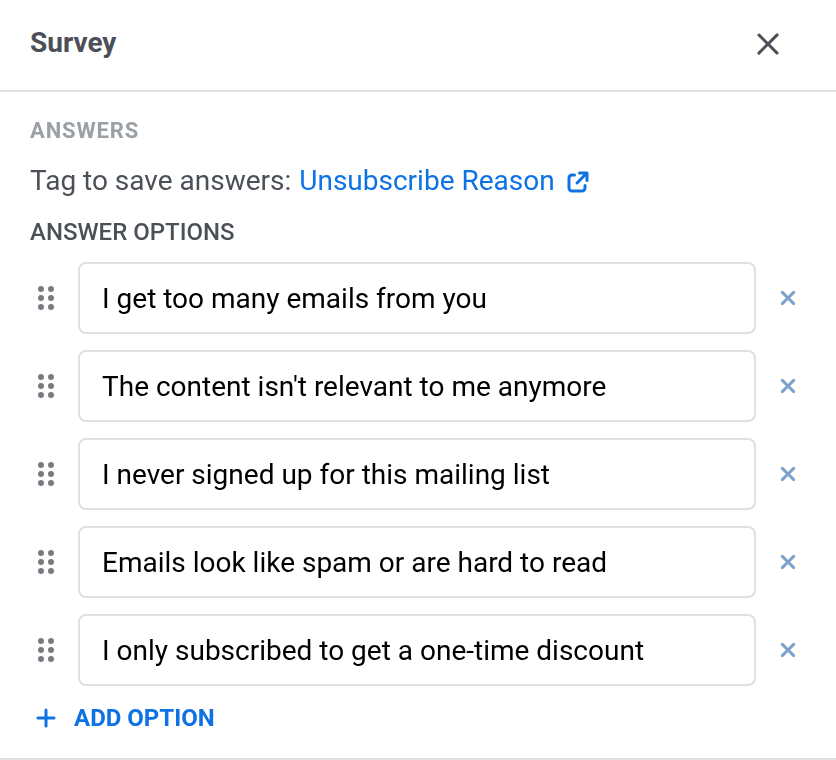
Here’s where it fits: users who answer “Too many emails” go into a segment that gets 1 weekly digest in the categories they kept, instead of daily promos.
See what else shipped beyond email
Send RCS messages with cards and buttons 💬
What changed: SMS presets could send text or MMS. Now, through your own Twilio account, they can send RCS. The message opens in the phone’s built-in messaging app as a chat from your brand, with your logo, cards, carousels, and buttons. Phones without RCS get a regular SMS instead.
How it works:
- In the preset: the new RCS section links a Twilio content template to each language. Quick reply buttons come from the template.
- In journeys: an SMS element with an RCS preset waits up to 24 hours for a tap and sends the user down the branch of the button they chose.
- In stats: deliveries split into RCS and SMS fallback, and you see the share of RCS messages that were read.
Here’s how it looks: a payment reminder comes with Pay now and Remind me tomorrow buttons. A tap on the first leads to checkout. The second waits a day and sends the reminder again.
What you need: your Twilio Account SID and Auth token connected in Pushwoosh, plus a Messaging Service with an RCS sender. Carriers approve RCS senders country by country, which takes 4–6 weeks or more according to Twilio, so start the registration early.
Get stats reports by email on a schedule 📊
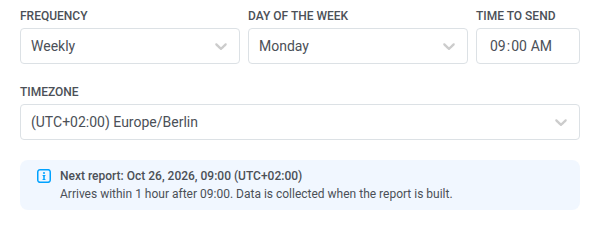
What changed: message stats from Project overview used to be exported by hand. Now the Auto-reports button next to Export statistics emails the CSV daily, weekly, or monthly, at the time and in the time zone you pick.
Choose the channels (push, email, or both), the source (one-time messages, journeys, or both), and the message type. Add up to 25 recipients, and they don’t need a Pushwoosh login. Pause a report when you don’t need it, or click Send now to get it right away.
Here’s how it looks: every Monday at 9:00, your manager and your agency get last week’s push and email stats in their inbox. Nobody on your team exports a thing.
Smarter journeys and stats ⚙️
- Bulk actions in the journey list. Drafts used to be deleted, and finished journeys archived, one at a time. Now select several cards and apply 1 action to all of them. Journeys whose status doesn’t fit are skipped, and the dialog shows which ones. Learn more →
- Honest goals in A/B/n splits. When branches merged further down the journey, a goal counted for every branch that led to it. Now it counts only for the branch the user actually went through, so each variant’s results stay clean. Learn more →
- In-apps on the Conversions tab. The Conversions tab listed one-time messages and journeys. Now in-apps sent outside journeys get their own rows with impressions and clicks.
Faster content and setup 🖼
- Lighter PNGs and easier crops. Turn on PNG compression for a project in Media storage settings, and each upload shows how much space it saved. Crops now use a frame you drag, both sides are editable, and a separate panel shows every version of an image with real previews. Learn more →
- Google Wallet without a JSON key. You used to create your own service account and upload its key. Now you only need your issuer ID and an invite for the Pushwoosh service account in your issuer (Settings → Configure → Android → Google Wallet). Learn more →
- Test App Inbox messages before you send. The inbox preset preview has a Test app inbox message button that sends the message to your test devices. The one-time inbox send form got a cleaner layout too: the audience step shows segment counts and conditions with Edit conditions. Learn more →
Also shipped:
- One-time messages filter by last modified date, and a hint under the calendar explains period limits. Learn more →
- The push preset click action is now called Deep link or URL, with a hint that a regular https link works too, like a YouTube video or a web page. Learn more →
- Copy the device filter from message properties in 1 click and use it to build a test segment.
- Hover over a project in the menu to see its full name.
- The Legal step shows in the new project wizard from the start, before you click Create.
- Web campaigns and Web content got cleaner lists, filters, and setup wizard. Learn more →
Try the updates yourself
Every feature above is live in your account.
For the full list of what shipped, check the release notes.