Change your app icon for every campaign with a push notification
Give your iOS app a Black Friday, holiday or new-season look right on your users' home screens. One push switches the icon, and you skip the App Store release for each campaign.
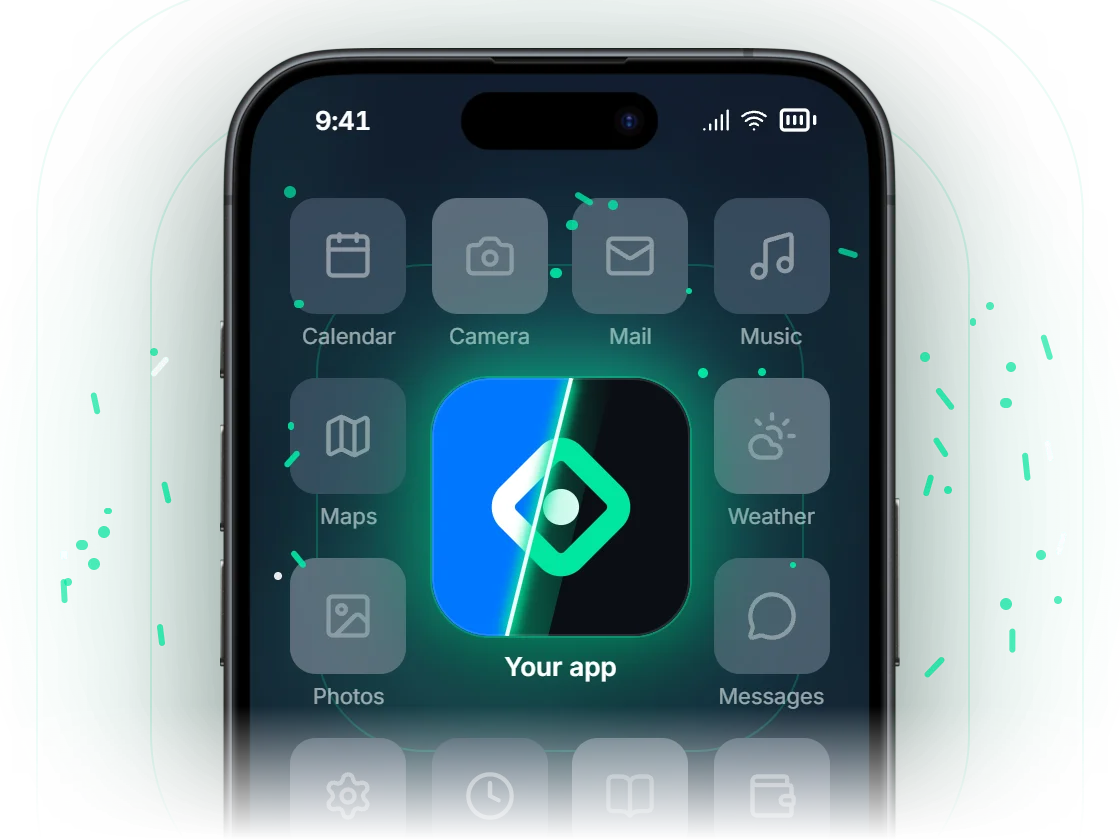
What it does
Your game opens a winter season, your store launches Black Friday, your show premieres on Friday. Inside the app everything changes, while the icon people see every time they pick up their phone stays the same as in March.
With a push, the icon joins the event too.
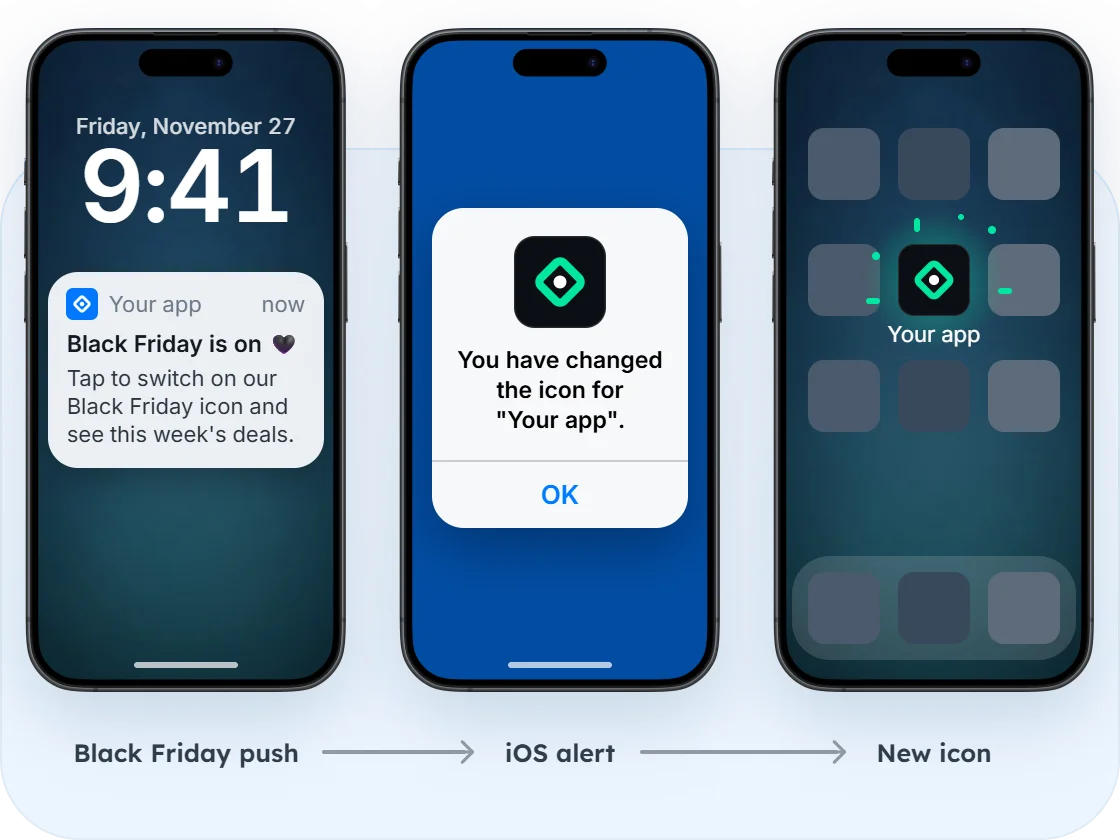
From a push to a new icon on the home screen
A push notification carries the name of an alternate icon in its custom data, for example {"i": "AppIcon-BlackFriday"}. When the user opens the push, your app switches to that icon and iOS shows its own alert about the change.
Your developers add every icon variant to the app build in advance. A push only picks which one to show.
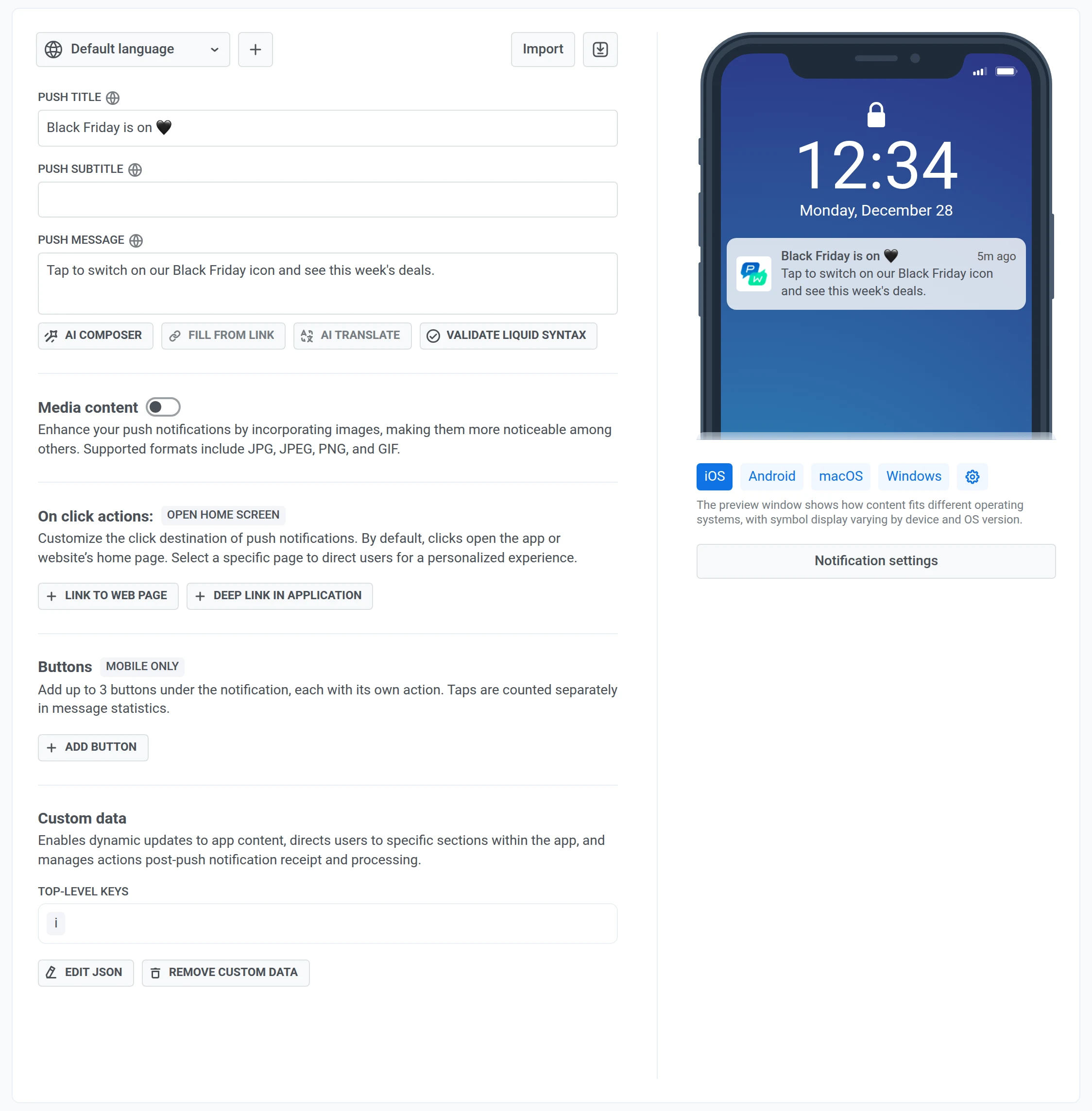
Set the icon name in Custom Data
Turn on Custom Data in a push preset in the Control Panel and enter the icon name, or pass the same JSON through the API. The icon follows your campaign calendar, so the app release cycle stays out of it.
Available on iOS.
Set it up in 3 steps
-
Add alternate icons to your app (developer)
Your developers register the default icon and every alternate icon in
Info.plist, then handle the push-open callback of the Pushwoosh iOS SDK. This takes one app release. -
Create a push with custom data
In a push preset, turn on Custom Data and enter the icon name. Or pass it in the API request.
-
Send it to your audience
Users on the app version that includes the icons see the change when they tap the push.
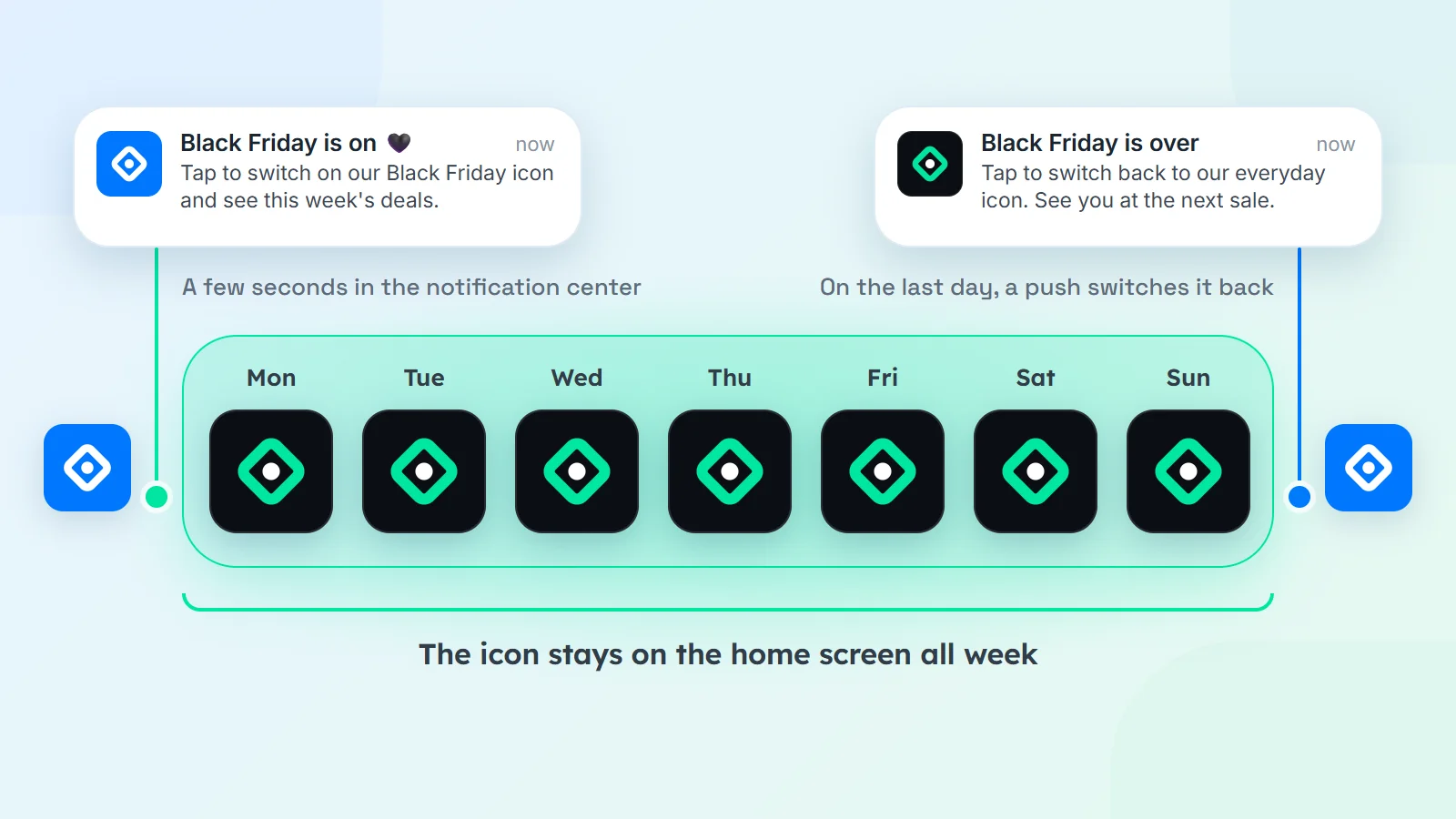
Your campaign stays on the home screen all week
A push about a seasonal sale sits in the notification center for a few seconds. The icon it switches stays on the home screen until the sale ends, and the user sees it every time they reach for the phone.
One mobile push keeps working for the whole week of the campaign.
Build it into a seasonal campaign
Plan the icon the way you plan the sale. A message preset keeps the icon name and the push copy, so next year’s Black Friday starts from a saved preset. A Customer Journey sends the push to the right segment on launch day and a second push with the default icon name when the sale ends, and your app switches back when it reads that name.
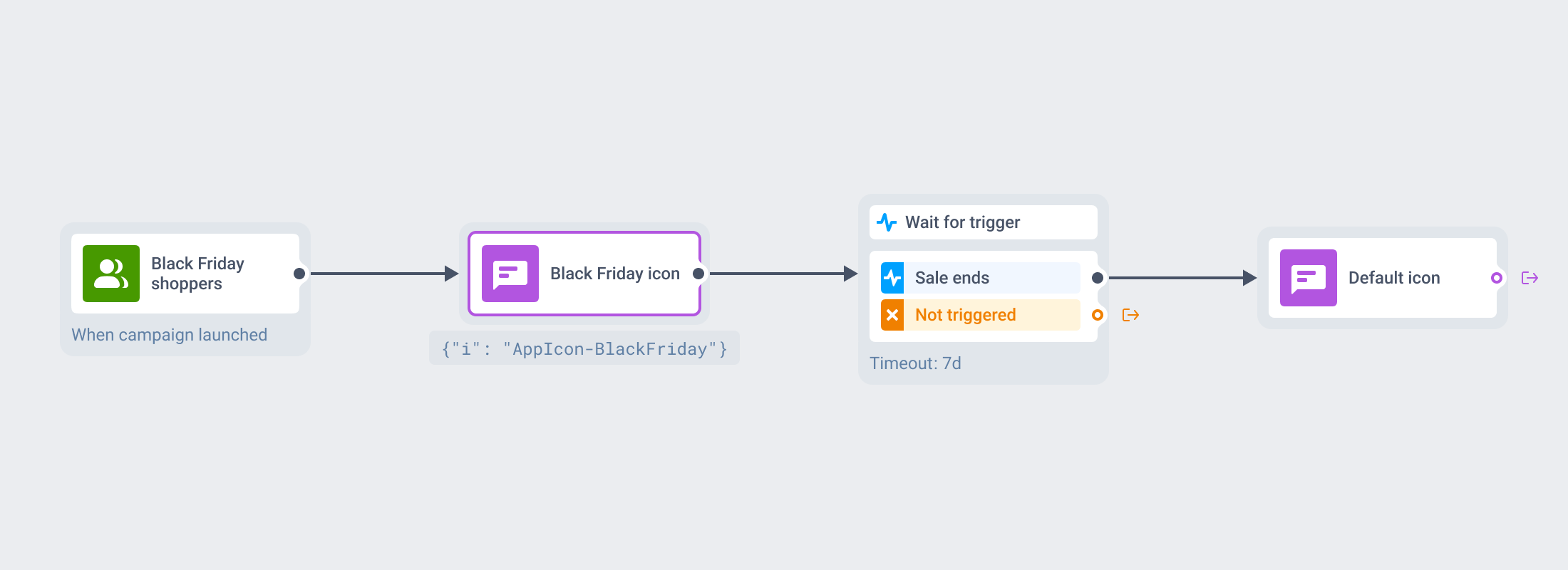
- Message presets store the Custom Data with the icon name, ready for the next campaign.
- Customer Journey sends the icon change and the switch back on the campaign schedule.
- Deep linking takes users who tap the same push straight to the sale page.
Let your icon join the campaign
Ship the icons once, then switch them from any push or journey.
Explore related products
Mobile push notifications by Pushwoosh — every-device reach, rich content, precise targeting, cross-channel Journeys and 99% uptime. Turn notifications into loyal, paying users.
Build a push, email or in-app message once, with every language version, and reuse it across campaigns, journeys and API sends on all 7 Pushwoosh channels.
Map out and streamline your campaigns with one visual tool. Communicate, engage, retain, convert, segment, and experiment using Pushwoosh Customer Journey Builder.
Deep links and custom data attach a URI and a JSON payload to a message preset, so every push, journey step and API send built from it opens the right screen with the data to act on it.
Put the unread count on your app icon and keep it honest. Set an exact number, bump it with +1, or clear it to 0 from the Pushwoosh Control Panel Badges field or the ios_badges API key, on the same campaign and Journey you already run.
Mobile push notification platform for gaming apps. Send personalized alerts, special offers, and event reminders to keep players coming back.