OneSignal is putting a hard ceiling on its Free plan: mobile push and in-app messaging stop being free above 1,000 monthly active users. The change already hit new accounts on September 1, 2026; existing accounts will hit the wall on October 1. If your app has more than a thousand active users a month, you now have three choices: stay and pay, cut your audience, or move.
What’s changing and when
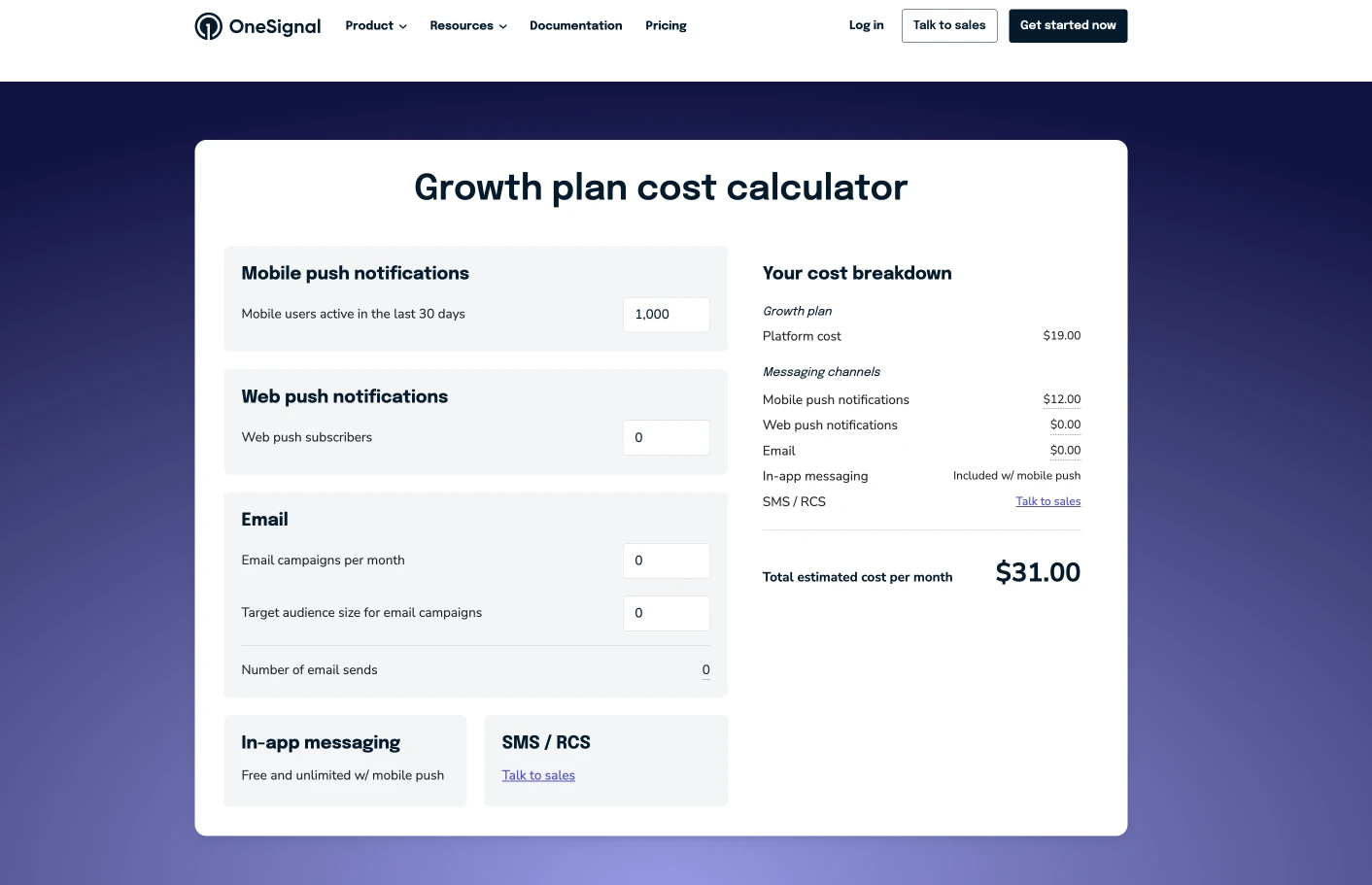
- The Free plan keeps working below 1,000 MAU. Above that, mobile push and in-app messaging move to a paid tier.
- The dates: the limit hit new accounts on September 1, 2026 and will hit existing accounts on October 1, 2026, per OneSignal’s billing FAQ.
- The threshold: fewer than 1,000 MAU for mobile push and in-app. Cross it and those channels stop sending until you upgrade.
- What’s untouched: web push, email and SMS continue to work within the same plan limits as before. The change is specific to mobile.
- Journeys are affected too: any journey step that sends a push or an in-app message simply skips mobile subscriptions.
- Deleting subscribers is not a way out. If you delete mobile subscriptions that were active in the last 30 days, your plan can only re-enable 30 days after the deletion, and only if you stay under the cap for that whole period.
How the migration works
If you decided to move, here is the part that changes how you plan it: we run the migration for you. Your side of the work is three items: an export file, your push credentials, and swapping the SDK in your next app release. Everything else (cleaning the data, mapping platforms, recreating tags, importing the audience, verifying deliverability) is on us.
The switch runs on two tracks at once. A one-time import moves your existing base, so your audience stays reachable from day one, before a single user updates the app. The SDK then takes over each device as its owner installs the new build. You need both, and neither blocks the other.
1. What we can and cannot migrate
You do not have to audit this yourself. Here is the full picture up front so nothing surprises you mid-migration.
| Channel | Migrated? | How |
|---|---|---|
| iOS push (APNs) | Yes | We import your existing device tokens. They keep working, because a token belongs to your app and your APNs key, not to OneSignal. |
| Android push (FCM) | Yes | Same: tokens belong to your Firebase project. |
| Huawei push (HMS) | Yes | Same, using your HMS credentials. |
| Email and SMS subscribers | Yes, with channel setup | Addresses and phone numbers are imported. Sending also needs the channel configured on our side: a verified sending domain with DKIM for email, a sender or provider for SMS. We set that up with you before the first send. |
| Web push | No, re-subscription instead | Browser subscriptions are cryptographically bound to OneSignal's keys and cannot be transferred by any provider. Your subscribers come back silently: see the web push section. |
| Message history, delivery stats, journeys | No | Historical data stays in OneSignal. Export any reports you want to keep before you close the account. |
| Segment definitions | Rebuilt, not imported | OneSignal's API returns segment names and counts but not their filters, so there is nothing to import. We recreate them in Pushwoosh. |
How long it takes
The SDK swap and a clean test send are a day’s work for one developer. The import runs in parallel on our side, and it is what keeps your reach intact from the first day: imported devices are deliverable before anyone updates the app. Your app’s own audience then moves onto the Pushwoosh SDK at the pace your users install the new build, which is a matter of weeks and never reaches every last device. That is exactly why the import exists.
The order matters:
- Export your audience. Export the CSV yourself and send it to us — the safer default. Prefer to skip that step? Send us your OneSignal app_id and an App API key instead and we pull it for you. Details below.
- Send us your push credentials. The same keys OneSignal already sends with. We upload them before the import, so every imported device is deliverable.
- Swap the SDK. Remove the OneSignal SDK, add the Pushwoosh SDK, initialize it with your Pushwoosh application code and device API token. Platform steps are in Versions A to C.
- Verify delivery. Register a test device and send yourself a push before you touch production traffic.
- Confirm your segments. Send us your segment filters (screenshots are fine); we recreate them over the imported tags.
- Switch sending over. Once test delivery is clean and the import is confirmed, point your campaigns at Pushwoosh and stop sending from OneSignal.
2. Export your audience
Option A (recommended): you do it. In OneSignal, go to Audience > Subscriptions and export the CSV, or call the export endpoint:
curl -X POST 'https://api.onesignal.com/players/csv_export?app_id=YOUR_APP_ID' \ -H 'Authorization: Key YOUR_APP_API_KEY' \ -H 'Content-Type: application/json' \ -d '{"extra_fields":["external_user_id","timezone_id","notification_types"]}'The response returns csv_file_url, a gzip-compressed CSV that stays downloadable for three days. Sharing the file (or the download link) directly with us keeps your OneSignal API key on your side, which is the safer path.
Option B (optional): we do it for you. If you’d rather not run the export yourself, send us your OneSignal app_id and an App API key and we pull it for you. We use the key once, only to run this export, and delete it immediately after — it is never stored.
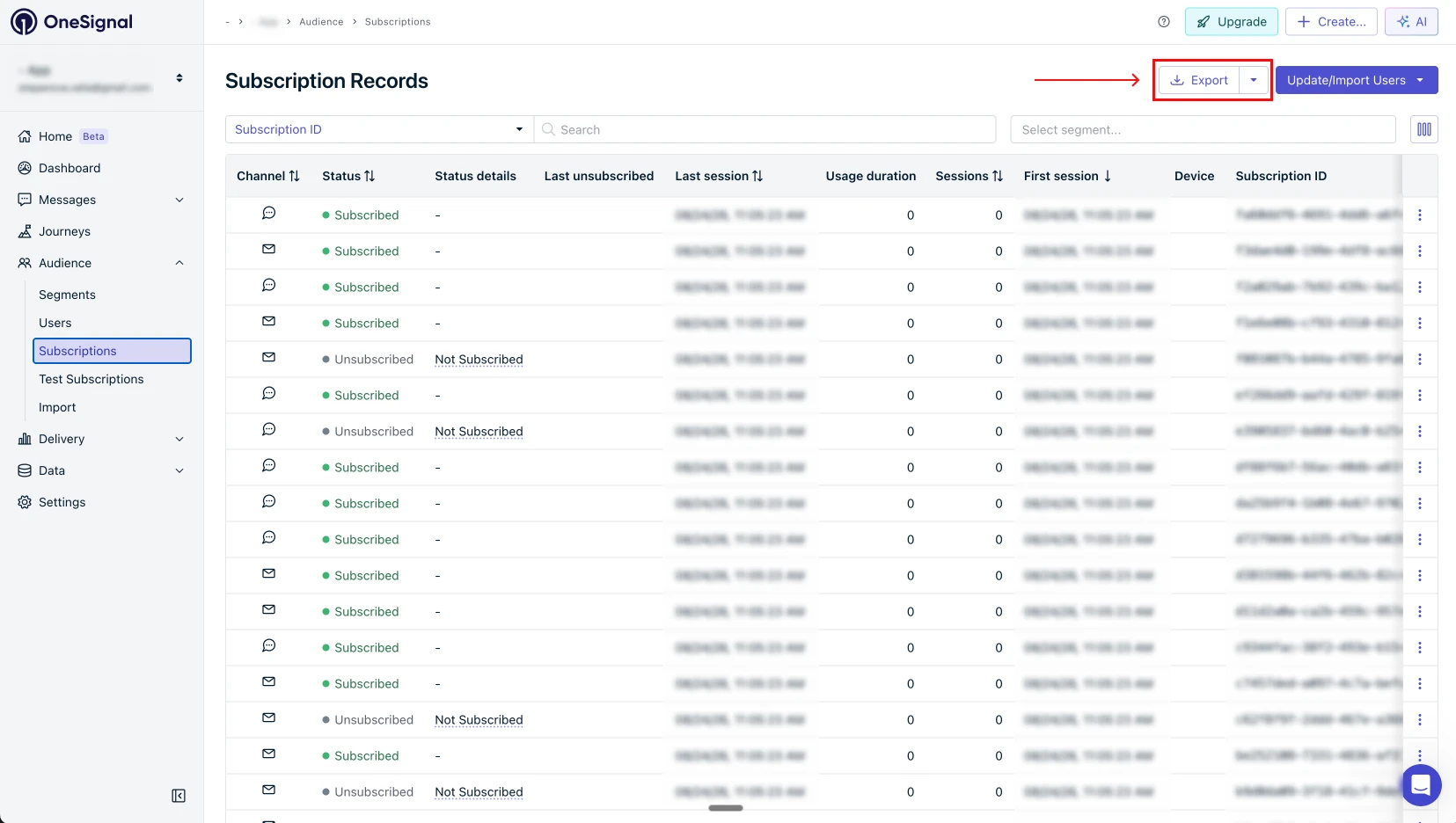
These columns must be in the file. Anything else is optional and we ignore it.
| Column | Why we need it |
|---|---|
identifier | The push token itself. A row without it cannot be migrated. |
id | The OneSignal subscription id. It becomes the device identifier on our side. |
device_type | Tells us the platform: iOS, Android, Huawei, email, SMS. |
invalid_identifier | Marks unsubscribed rows so we skip them. |
tags | Your custom tags. We recreate them in Pushwoosh. |
external_user_id | Your own user id. It becomes your Pushwoosh User ID and keeps a device from being duplicated once our SDK registers it. |
timezone_id | Enables Send by Timezone in Pushwoosh. |
identifieriddevice_typeinvalid_identifiertagsexternal_user_idtimezone_idNote: external_user_id and timezone_id are not part of the default export. Request them explicitly via the extra_fields parameter above, or the column picker in the dashboard.
Tags travel with the export, so there’s no separate step. The CSV already carries your tags and the identifiers they belong to. We build the tag schema in Pushwoosh from this file and assign values to the matching devices in the same pass as the audience import — push tokens, external_user_id (if present) and tags all go in together. There is no tag sheet to review or approve.
- If your app assigns OneSignal’s
external_user_idthrough custom logic, reimplement that logic against the Pushwoosh User ID instead — see how to transition a known user from one ID to another. - If your app doesn’t assign a custom
external_user_idtoday, skip this — nothing to implement, and we won’t set anexternal_user_idvalue as your Pushwoosh User ID during the import.
3. Send us your push credentials
These are the same credentials OneSignal already uses to send on your behalf, so nothing new has to be created. We cannot pull them out of OneSignal ourselves: an uploaded key is never downloadable again, so this step is yours.
| Platform | What we need | Where to get it |
|---|---|---|
| iOS | APNs Auth Key (.p8), Key ID, Team ID, app bundle id | Apple Developer > Certificates, Identifiers & Profiles > Keys. Do not revoke the key OneSignal uses; one key can serve both. |
| Android | Firebase service account JSON (FCM v1) | Firebase Console > Project settings > Service accounts. It must be the same Firebase project your app already uses. |
| Huawei | App ID and App Secret | AppGallery Connect > your project > App information. |
We upload the credentials to your Pushwoosh application before the import starts. This order matters: an import without credentials produces a database full of devices that nothing can deliver to.
4. Review your segments
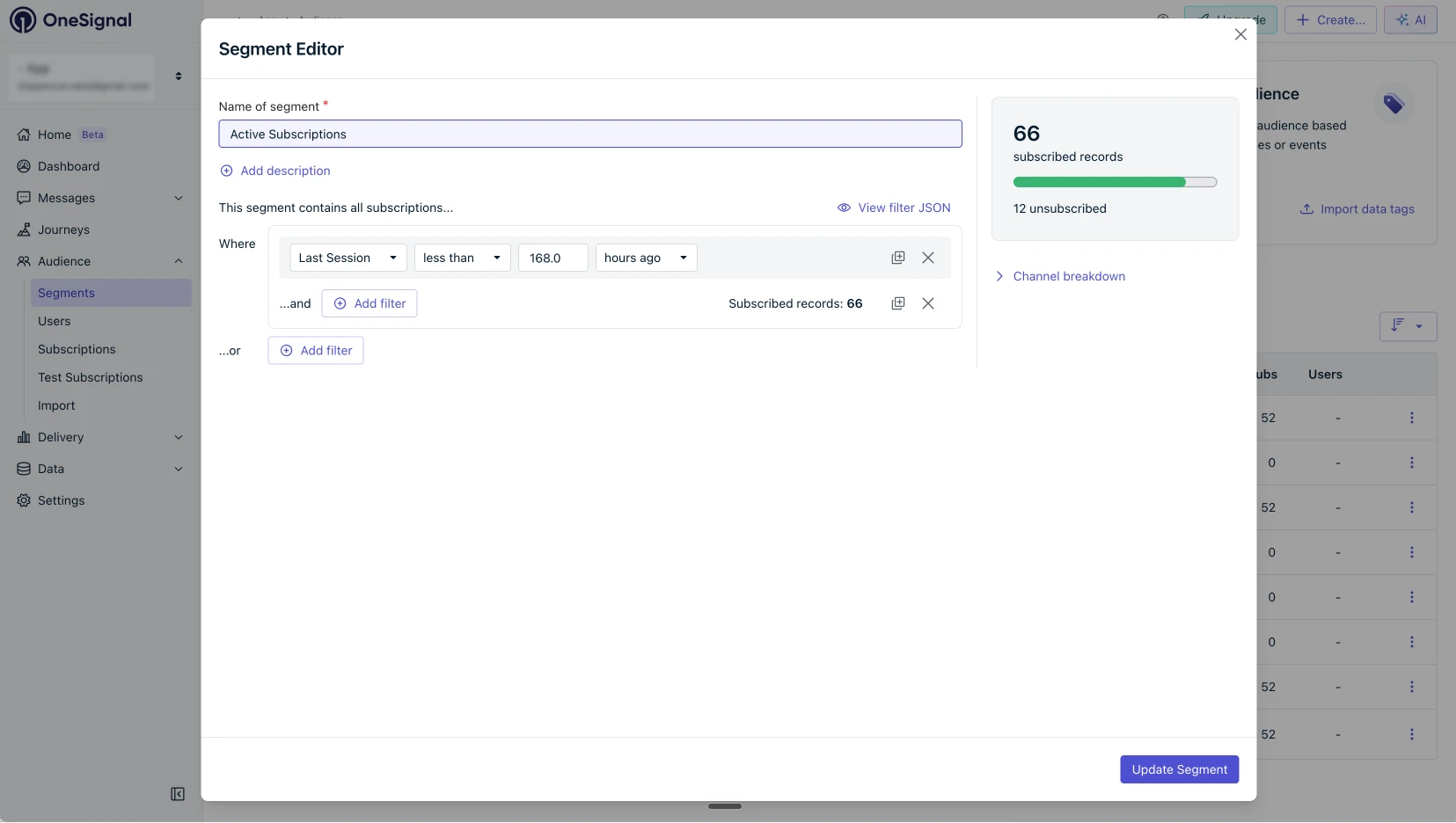
Segments are rebuilt, not imported. OneSignal’s API can filter an export by a segment and list your segment names, but it does not return the filters behind them, so there is nothing to import directly. We do our best to recreate the same logic on our side, but the two segment builders don’t map one-to-one, so some conditions may need to be approximated. Two ways forward:
- Rebuild the conditions (recommended). Send us your segment list with their filters; screenshots are fine. We recreate them over the imported tags. Rebuilt segments are dynamic: they keep updating as your audience changes.
- Freeze the membership. We take one export per segment and stamp each file with a marker tag, for example
os_segment = vip_users. Fast, but the result is a snapshot that does not update itself.
Segments built on OneSignal’s own behavioural data (session counts, playtime, “Active Users”, “Engaged Users”) cannot be reproduced at import time, because that history stays in OneSignal. Their Pushwoosh equivalents start filling up as soon as our SDK ships in your app.
5. What we do on our side
- Create and configure your Pushwoosh application and upload the credentials from step 3.
- Clean the export: drop unsubscribed rows and rows with an empty token, map OneSignal platform codes to ours, convert tags, and map your
external_user_idto your Pushwoosh User ID — the same identifier, just renamed. - Create the tag schema, then import the audience in batches, verifying each batch.
- Send a test push to a small control group and compare the result with what you expect.
- Report back: how many subscriptions were in the file, how many imported, and the reason for every row we skipped.
6. Ship the Pushwoosh SDK in your next app release
The import makes your existing audience reachable immediately, but it is a bridge, not the destination. Only the Pushwoosh SDK inside your app can pick up a new token when the OS rotates it (reinstall, restore, OS upgrade), register users who install after the migration, and report opens, in-app messages and uninstalls.
Remove the OneSignal SDK in the same release. Two push SDKs in one build compete for the same notification callbacks, and we do not test that combination. Keeping OneSignal sending while the new build rolls out is fine and expected; keeping both SDKs inside one build is not. Platform-specific steps are in Versions A to C below.
7. Web push: how your subscribers come back
Web push does not import, and this is a hard technical limit, not a Pushwoosh choice. A web push subscription is signed with the VAPID key pair of whoever created it, and OneSignal’s private key never leaves OneSignal — their own documentation marks the web subscription keys as available to OneSignal SDKs only. No provider can import another provider’s web subscriptions. What works instead is silent re-subscription:
- Remove the OneSignal snippet and explicitly unregister its service worker. Leaving the old worker in place makes two workers compete on the same domain.
- Install the Pushwoosh Web Push SDK, with our service worker at the root of your domain.
- Initialize it with your application code and your device API token (
apiToken), then enable automatic subscription (autoSubscribe: true, or callPushwoosh.subscribe()). Without the token the SDK’s calls come back as 401.
A returning visitor is then re-subscribed silently. The notification permission the browser stores belongs to your domain, not to your previous provider, so no second prompt appears and the user notices nothing. How fast your base recovers depends on how fast people return: most of the audience typically comes back within a week, with a tail over the following month.
Three cases to be aware of:
- Visitors who blocked notifications cannot be re-subscribed. The browser refuses and will not prompt them again. They stay out, which is the correct outcome.
- Visitors who opted out on your site while the browser permission stayed granted would be re-subscribed silently. Technically valid, but it brings back people who deliberately left. If you have a suppression list (by your own user id or email), send it to us and we exclude those users from every campaign. If you don’t, we recommend subscribing on an explicit click (a bell or a prompt) instead of automatically.
- If your web push ran on a subdomain provided by your previous vendor rather than on your own domain, the permission belongs to that subdomain. Those subscribers cannot be recovered and have to opt in again on your site. Check which setup you have before you plan the switch.
8. What to expect after the import
- A device may appear twice for a while. The imported record carries the OneSignal identifier; once our SDK runs on the same device, it registers with its own identifier. The stale record is removed by uninstall tracking or the automatic 90-day inactivity cleanup. Supplying
external_user_id— which becomes your Pushwoosh User ID — keeps both records under one user profile in the meantime. - Dead tokens leave on your first campaign. Apple and Google only reveal that a token is invalid when a message is actually sent, so the first send after the migration also cleans your base.
- Your imported number will be lower than your OneSignal counter. Unsubscribed rows, rows with an empty token and web push rows are excluded by design. Our report tells you exactly how many fell into each group.
9. Where to click
Exact paths for the items on your side, so nobody has to hunt through dashboards.
| Task | Click path |
|---|---|
| OneSignal: export the audience | Audience > Subscriptions > optional segment filter > column picker > Export |
| OneSignal: App ID and API key | Settings > Keys & IDs. Take the App ID and an App API key; the export request sends it as Authorization: Key <App API key> |
| Apple: APNs Auth Key | developer.apple.com > Certificates, Identifiers & Profiles > Keys > + > Apple Push Notification service (APNs) > Continue > Register > Download. The .p8 file downloads only once; the Key ID is on the same screen, and the Team ID sits under Membership details. |
| Firebase: service account JSON | console.firebase.google.com > your project > gear icon > Project settings > Service accounts > Generate new private key |
| Huawei: App ID and App Secret | AppGallery Connect > My projects > your project > your app > Project settings > App information |
| Pushwoosh: application code and device API token | Control Panel > your application > Settings > API Access. The token must have permission for that application. |
| Your website: remove the old worker | Delete OneSignal's service worker files from your site root, and unregister the running worker: navigator.serviceWorker.getRegistrations().then(rs => rs.forEach(r => r.unregister())) |
Authorization: Key <App API key>navigator.serviceWorker.getRegistrations().then(rs => rs.forEach(r => r.unregister()))Pre-October 1 checklist
Keep this open as you go. Nothing here needs a form to download.
- Export sent to us (preferred), or app_id plus an App API key handed over if you’d rather we pull it
- Push credentials sent: APNs key, FCM service account JSON, HMS keys where used
- Email and SMS channels configured with us, if you migrate those subscribers
- Segment filters sent to us (screenshots are fine) for rebuild
- Pushwoosh SDK integrated in a test build, test push received
- Import completed, our imported and skipped report reviewed
- Web push SDK live with the old service worker unregistered, if you use web push
- Test delivery clean on a production build
- Sending switched to Pushwoosh, OneSignal sends stopped
Version A: native iOS and Android
iOS. Add the Pushwoosh iOS SDK, then set two keys in Info.plist: Pushwoosh_APPID with your Pushwoosh application code and PW_API_TOKEN with your device API token. Call registerForPushNotifications() where you currently trigger the OneSignal prompt, and follow the iOS quick start for the exact initialization snippet for your SDK version. Remove the OneSignal SDK and its registration call so the two do not both request tokens.
Android. Add the com.pushwoosh:pushwoosh-firebase dependency, then add two meta-data entries inside the <application> tag of AndroidManifest.xml: com.pushwoosh.appid with your application code and com.pushwoosh.apitoken with your device API token. Call Pushwoosh.getInstance().registerForPushNotifications() from your initialization logic. Your Firebase configuration stays as it is, with google-services.json in the project; the FCM credentials go into the Control Panel under your Android platform configuration.
Set your tags with setTags() and your user identifier with setUserId() at the same points where you called the OneSignal equivalents, so segmentation keeps working after the swap.
Version B: Flutter and FlutterFlow
FlutterFlow wraps the Pushwoosh Flutter SDK, so the migration is mostly configuration rather than code.
- Add the Pushwoosh Flutter package as a custom dependency in your project.
- In a custom action, initialize the SDK with your application code and register for push notifications, following the Flutter quick start for the current initialization API.
- Set the native credentials the way any Flutter app does:
Pushwoosh_APPIDandPW_API_TOKENinInfo.plistfor iOS,com.pushwoosh.appidandcom.pushwoosh.apitokeninAndroidManifest.xmlfor Android. - Remove the OneSignal integration so both SDKs are not registering at once.
- Map tags and user id with
setTags()andsetUserId()in your custom actions.
Version C: React Native
- Install the plugin:
npm install pushwoosh-react-native-plugin --save, thenpod installfor iOS. - Initialize and register in your root component:
import Pushwoosh from 'pushwoosh-react-native-plugin';
Pushwoosh.init({ pw_appid: "YOUR_APPLICATION_CODE" });Pushwoosh.register();- Add the device API token natively:
PW_API_TOKENinInfo.plistfor iOS,com.pushwoosh.apitokenas meta-data inAndroidManifest.xmlfor Android. On Android keepgoogle-services.jsonin the project — the FCM credentials themselves live in the Control Panel. - Remove the OneSignal React Native package and its init call.
- Carry your tags and user id across with
setTags()andsetUserId()from the plugin API.
FAQ
Questions at any point? Email help@pushwoosh.com and our support team will handle it with priority. We would rather answer before the import than reconcile numbers after it.