With Android powering over 80% of the global mobile market, Android push notifications remain one of the most effective ways to reach, engage, and retain users. This guide covers everything marketers and app teams need to know: what Android push notifications are, the six main types, how setup works, the latest permission changes, and best practices that improve opt-in rates and campaign performance.
What are Android push notifications?
Android push notifications are short, real-time messages sent directly to a user’s device to inform, remind, or prompt action — even when the app is not open. They appear on the lock screen, in the notification tray, or as heads-up banners, and are delivered via Firebase Cloud Messaging (FCM), Google’s push notification service.
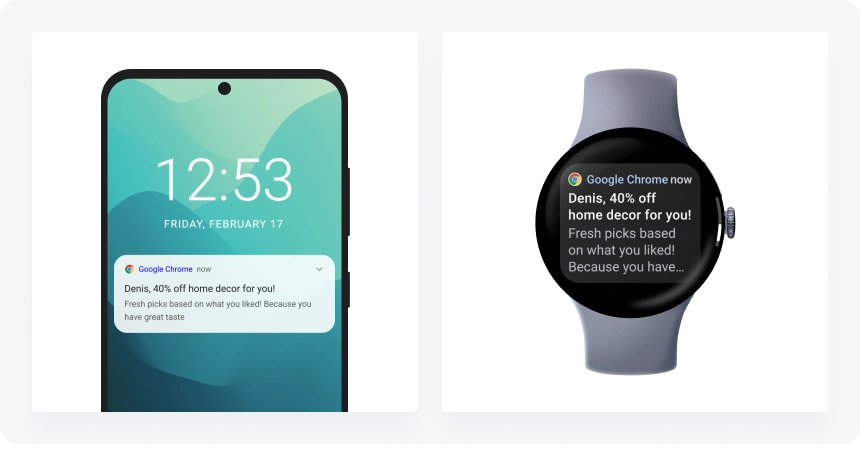
With the right notification strategy, push messages can increase user engagement, boost retention, and drive conversions by reactivating users at key moments in their lifecycle.
Types of Android push notifications
Android supports six distinct notification types, each suited to different marketing and product use cases. Understanding these types helps you choose the right format for each message and configure notification channels accordingly.
1. Standard notifications
The default format: icon, title, and a single line of body text. Standard notifications are used for most day-to-day messages — order updates, reminders, account alerts. They render consistently across all Android versions and OEM skins (Samsung One UI, Xiaomi MIUI, Huawei EMUI).
2. Rich (expanded) notifications
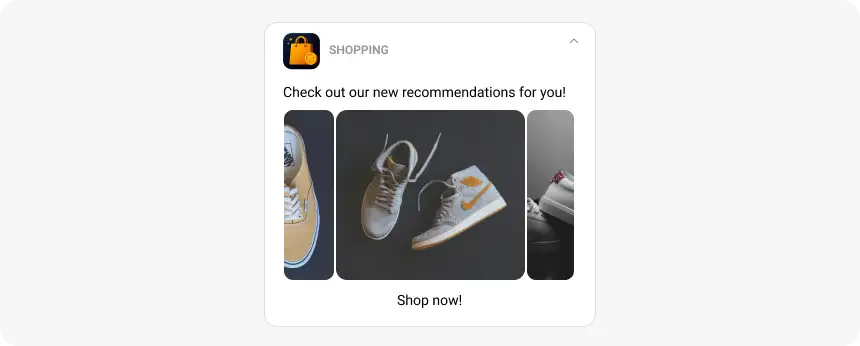
Rich push notifications expand to show a large image, a multi-line text block (BigTextStyle), or an inbox-style list (InboxStyle). Android supports images up to 10 MB and videos up to 50 MB — significantly more generous than iOS (2 MB). Use rich notifications for product showcases, editorial previews, or any message where visual context drives engagement.
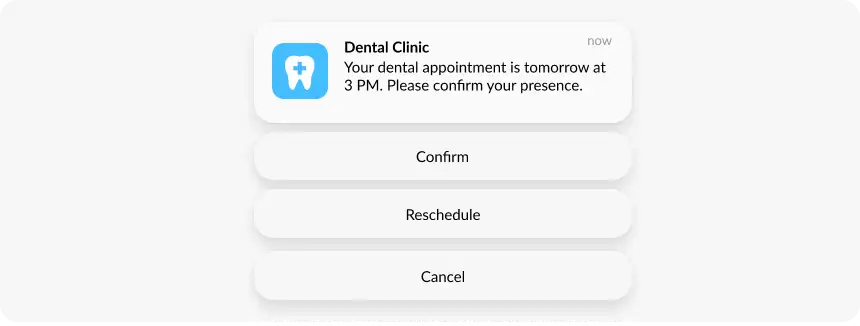
3. Interactive notifications (action buttons)
Android allows up to three action buttons on a single notification — for example, “Shop Now”, “Track Order”, and “Dismiss”. Tapping a button triggers an in-app action without requiring the user to open the app. These are built with NotificationCompat.Action and are among the highest-converting notification formats for e-commerce and delivery apps.
4. Silent (data-only) notifications
Silent push notifications deliver a data payload to the app in the background without showing any visible alert to the user. They are used to refresh app content, sync data, trigger in-app events, or update a user’s local state. Android handles these differently from visible notifications: they bypass notification channels and do not count toward notification importance levels.
5. Geofenced / location-triggered notifications
Location-triggered notifications fire when a user enters or exits a defined geographic boundary (geofence). Common use cases include proximity offers for retail stores, location-specific service alerts for delivery apps, and event reminders tied to venue arrival. These require both notification permission and location permission from the user.
6. Conversation and bubble notifications (Android 11+)
Introduced in Android 11, conversation notifications are a dedicated display format for person-to-person messaging apps. They surface in a separate “Conversations” section at the top of the notification shade and can be promoted to a floating “Bubble” — a persistent overlay that stays visible as users navigate the app. This format is unique to Android and has no direct iOS equivalent.
Android vs iOS push notifications: key differences
Both platforms offer robust push notification systems, but they differ in delivery, display, permission model, and media support. Understanding these differences helps marketers tailor campaigns for maximum reach on each platform.
| Aspect | Android | iOS |
|---|---|---|
| Delivery system | Firebase Cloud Messaging (FCM) | Apple Push Notification service (APNs) |
| Opt-in model | Explicit consent required from Android 13+; automatic before Android 13 | Explicit opt-in required on all versions |
| Avg. opt-in rate | ~75% (Pushwoosh 2025 study) | ~56% (Pushwoosh 2025 study) |
| Avg. CTR | 2.75% | 1.71% |
| Rich media limits | Images up to 10 MB, video up to 50 MB | Images and GIFs up to 2 MB |
| Notification channels | User-level control per channel (Android 8+) | iOS categories; priority by system logic |
| Grouping | Auto-groups by app; customizable | Notification Summary + app-defined groups |
| Live updates | Live Updates API (Android 16) | Live Activities (iOS 16+) |
| Conversation/Bubbles | Yes (Android 11+) | No equivalent |
Key takeaways: Android offers broader reach and higher opt-in rates; iOS drives slightly higher per-message engagement. Android’s richer format options and larger media limits give marketers more creative latitude — use them.
How to send push notifications on Android (setup explained)
Android push notifications are delivered via Firebase Cloud Messaging (FCM). Here is how the full delivery flow works, and what you need to configure before you can send your first message.
How Android push notification delivery works
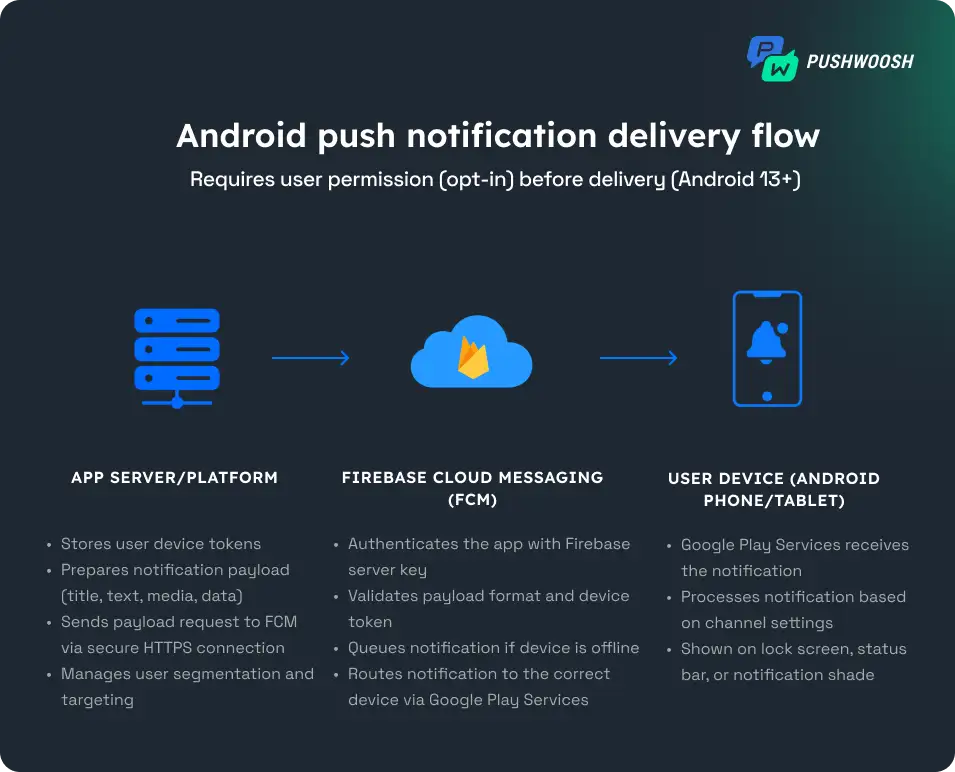
- User grants permission — from Android 13+, the app must request the POST_NOTIFICATIONS runtime permission. Without user opt-in, no push messages can be delivered.
- FCM token generated — once the user allows notifications, the app registers with FCM and receives a unique registration token (FCM token) — a delivery address for that app-device pair.
- Token stored on app server — your backend or engagement platform stores these tokens and builds the notification payload: a JSON object containing the title, body, media, and delivery parameters.
- Payload sent to FCM — the server sends the payload to FCM with authentication credentials. FCM validates it and queues the notification for delivery.
- Delivery via Google Play Services — FCM delivers the notification to the device. It appears on the lock screen, in the status bar, or as a heads-up alert depending on importance level, notification channel, and device settings.
Technical setup checklist
- Create a Firebase project in the Firebase Console.
- Add your Android app to the project; download google-services.json and place it in your app directory.
- Add Firebase SDK dependencies to your build.gradle files and sync.
- Implement FirebaseMessagingService to handle incoming notifications and retrieve the FCM token.
- Create notification channels with createNotificationChannel API (required for Android 8.0+, API 26+) and set appropriate importance levels.
- Declare and request POST_NOTIFICATIONS permission in your manifest and at runtime (required for Android 13+, API 33+).
- Configure your app server to send messages to FCM using your Server Key or service account credentials.
- Test delivery via the Firebase Console.
What’s new in Android notifications (2025)
Android continues to evolve its notification model, giving users more control and requiring marketers to be more precise in how they request permission and deliver messages.
Android 13: POST_NOTIFICATIONS permission
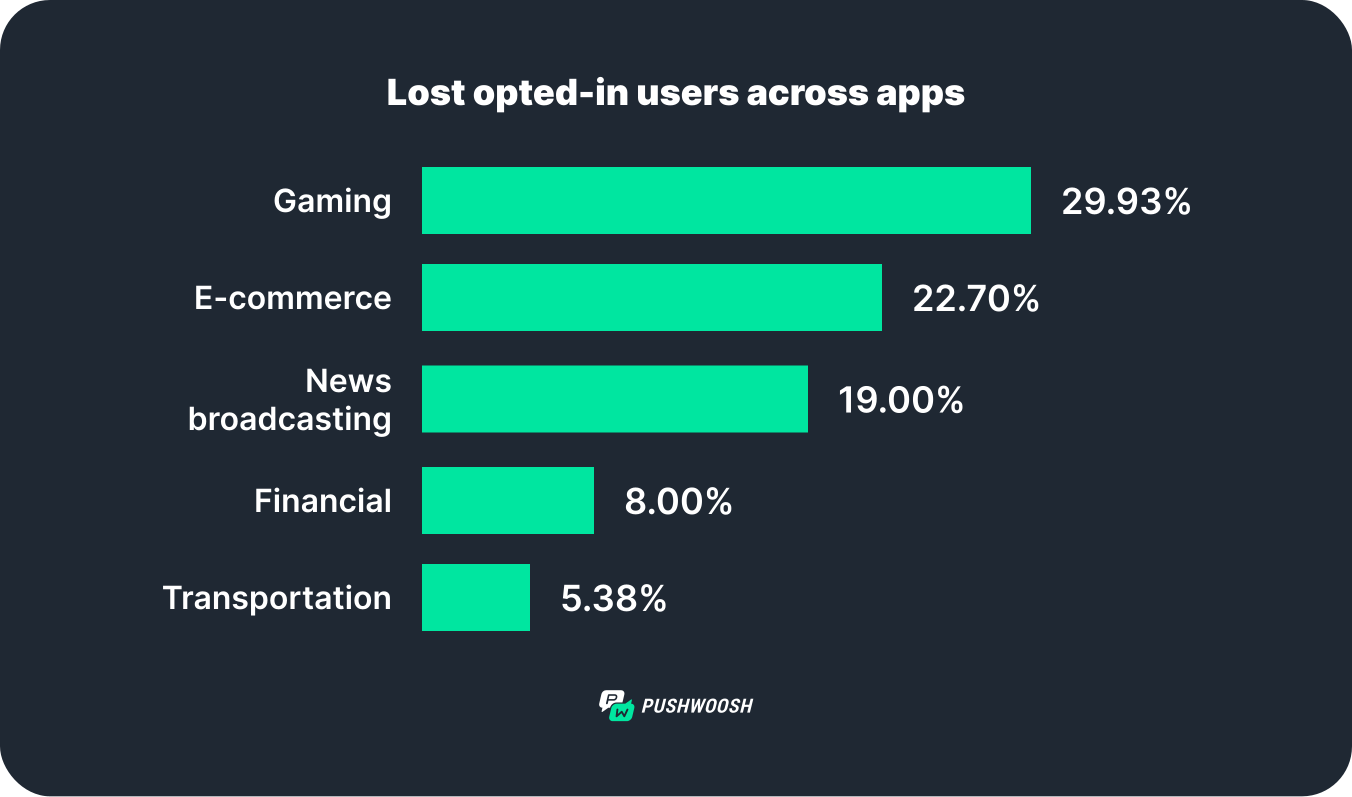
Starting with Android 13 (API 33), apps must explicitly request the POST_NOTIFICATIONS runtime permission before delivering push messages. This permission must be declared in the AndroidManifest.xml and requested at runtime — just like camera or location access.
According to Pushwoosh research, opt-in rates dropped across most app categories after Android 13. Gaming apps lost nearly a third of their opted-in users, while finance and transportation apps saw the smallest decline. Despite the drop, the average Android opt-in rate still outperforms iOS.
Android 14: granular per-channel control
Android 14 expanded user control further. Users can now adjust notification preferences by importance level (High, Default, Silent) and by notification channel type (Promotions, Reminders, Transactional). This means a user can keep your transactional notifications on while muting your promotional channel — without unsubscribing entirely. Design your channel taxonomy accordingly.
Android 15: notification cooldown
Android 15 introduced Notification Cooldown: when an app sends multiple messages within a short window, Android gradually lowers notification volume and vibration intensity for approximately 1–2 minutes before restoring it. This makes burst-sending counterproductive — automation with per-user timing is now the correct approach.
Android 15 also added cross-device notification sync: users see the same notifications across smartphones, tablets, and ChromeOS devices.
Android 16: Live Updates API
Android 16 introduced the Live Updates API — a persistent notification format for real-time progress tracking (delivery status, ride progress, order countdown). This is comparable to Live Activities on iOS and is ideal for logistics, food delivery, and ride-hailing apps.
How to turn on or off push notifications on Android
This section answers the most common end-user question in related searches and People Also Ask: “How do I turn on push notifications on Android?”
How to enable push notifications on Android (Android 13+)
- Open the Settings app on your Android device.
- Tap Apps (or App Management on Samsung / App Info on some OEMs).
- Select the app you want to manage.
- Tap Notifications.
- Toggle Allow notifications to ON.
- Optional: tap individual notification channels (e.g. Promotions, Reminders) to control each type separately.
How to turn off push notifications on Android
- Open Settings and go to Apps.
- Select the app.
- Tap Notifications.
- Toggle Allow notifications to OFF to disable all notifications from that app, or turn off individual channels to mute specific types.
Samsung One UI (Galaxy devices)
Settings > Notifications > App notifications > select app > toggle on or off. On One UI 6+, you can also manage notification categories per app from the same screen.
Xiaomi MIUI / HyperOS
Settings > Notifications & Control Center > App notifications > select app. Important: Xiaomi’s Auto-start management can block notifications even when permission is granted. Enable Auto-start for your app under Settings > Apps > Manage apps > [App name] > Autostart.
Huawei (EMUI / HarmonyOS)
Settings > Notifications > select app > toggle Allow notifications. Note: Huawei devices ship without Google Play Services. If your app targets the Huawei ecosystem, push delivery requires integration with Huawei Mobile Services (HMS) Push Kit in addition to FCM.
Android push notification best practices
Ask for opt-in at the right moment and explain the value
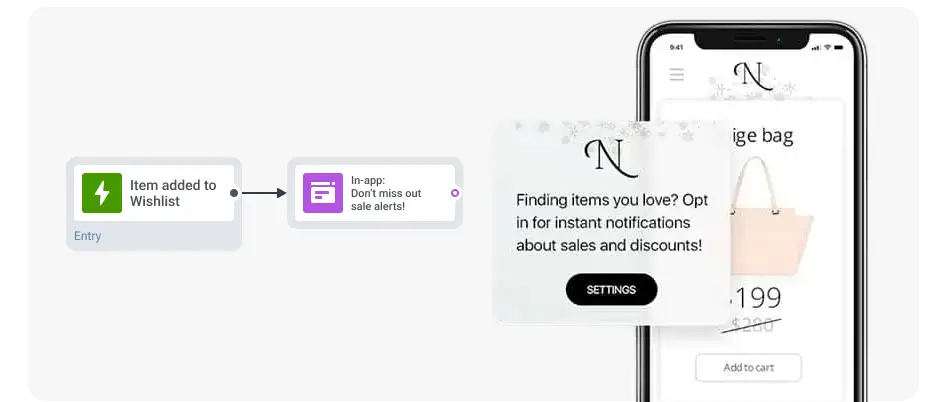
Do not show the POST_NOTIFICATIONS permission prompt immediately after install. Request permission after a meaningful user action — completing onboarding, viewing a product, finishing a game level — and show an in-app priming screen that explains what kind of notifications the user will receive and why they are valuable. This approach consistently improves opt-in rates.
Prioritize relevance and personalize every message
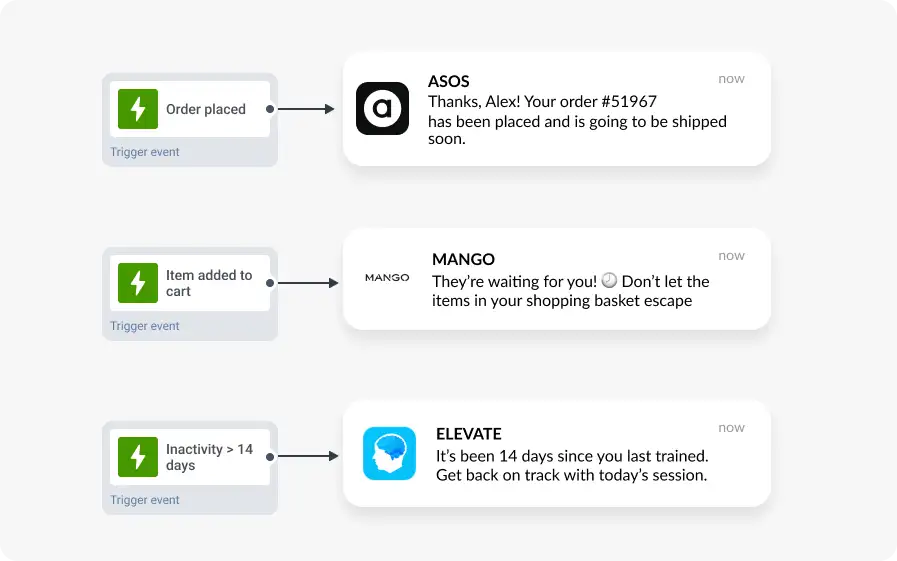
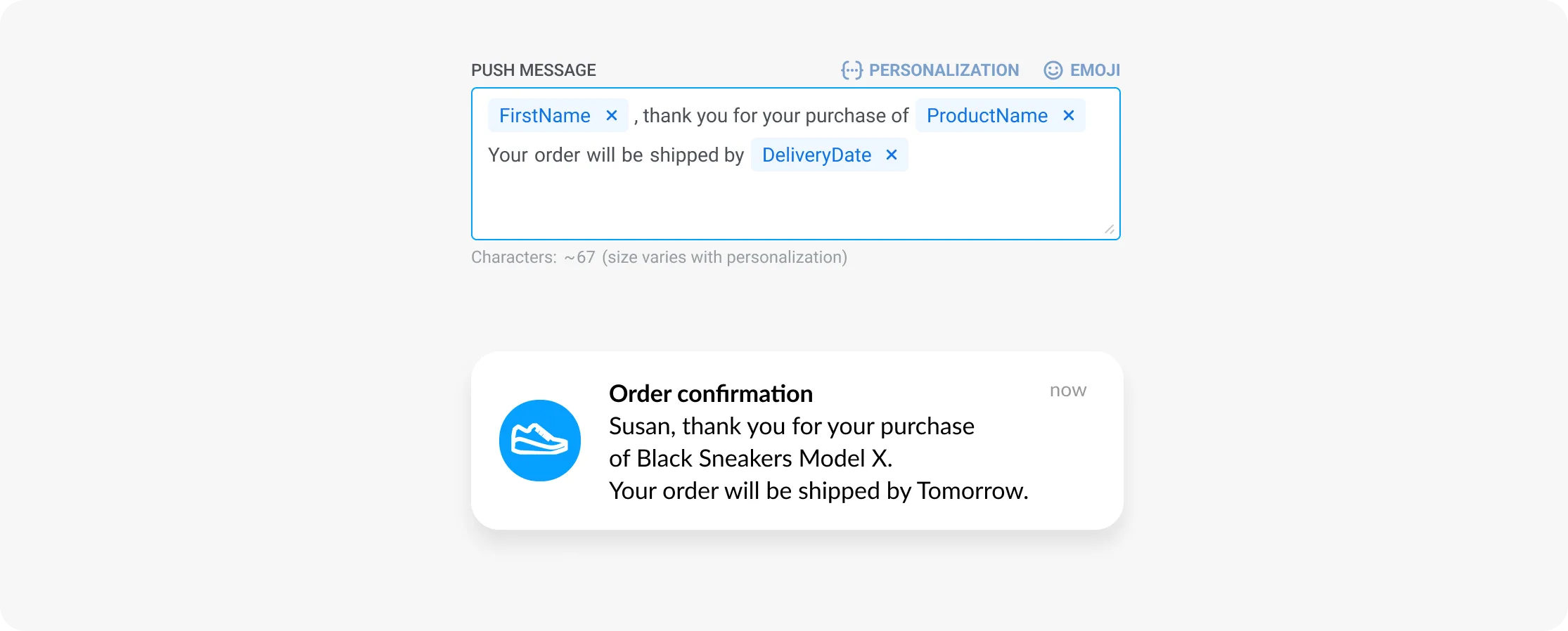
Use event-based triggers to send contextually relevant messages: “Added to cart”, “Order placed”, “App inactivity > 14 days”. Combine triggers with dynamic content to insert the user’s name, product, or location automatically. Personalized messages consistently outperform generic broadcasts in both CTR and retention impact.
Automate delivery at the right time
Avoid single-blast sends to your full user base. Use per-user timing automation: set silence periods to prevent nighttime delivery, and use Pushwoosh’s Best Time to Send feature to deliver each message at the individual user’s peak activity window. Properly timed campaigns see up to 50% higher open rates.
Design notification channels intentionally
Create 3–5 distinct notification channels with clear names (Promotions, Order Updates, Reminders). Set IMPORTANCE_HIGH only for genuinely time-sensitive notifications — transactional alerts, security codes, live order tracking. Use IMPORTANCE_DEFAULT for promotional content. Mis-categorizing channels trains users to silence them.
A/B test and measure
Run A/B tests on title copy, body text, CTA buttons, send time, and rich media. Track opt-in rate, opt-out rate, CTR, and downstream conversions. Small optimizations in notification copy and timing compound into significant performance differences over time.
Android push notification design essentials
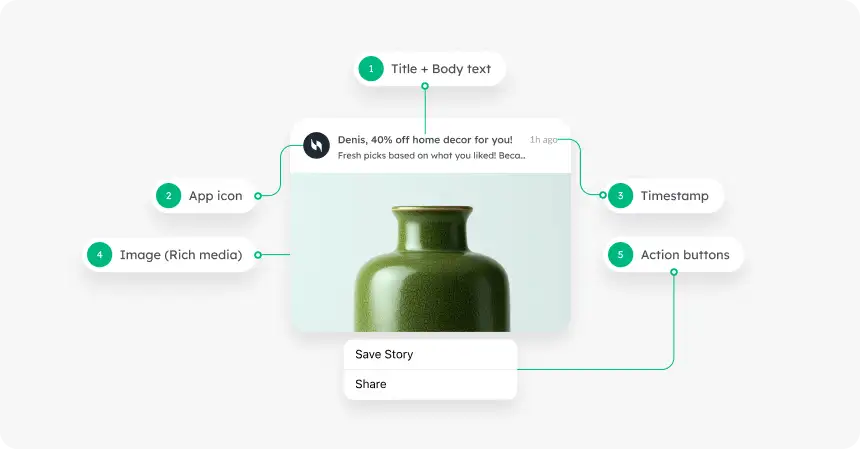
| Element | Recommendation |
|---|---|
| Title | 25–50 characters; keyword at the start |
| Body text | Up to 150 characters; first 40 most visible |
| Rich image | JPEG or PNG, up to 10 MB; 2:1 ratio recommended |
| GIF / video | GIF up to 10 MB, MP4 up to 50 MB |
| Action buttons | Up to 3; 1–2 words each; test on target devices |
| Notification icon | White on transparent background; 24x24 dp |
Android allows more creative flexibility than iOS — larger images, more action buttons, and expandable layouts. Use this to your advantage, but always test on real devices across different OEM skins (Samsung, Xiaomi, Huawei) where rendering can vary.
Troubleshooting: why Android push notifications are not delivering
If your push notifications are not reaching users, one of the following is the most likely cause. This section covers the most common delivery failure reasons on Android — from permission issues to OEM-specific battery killers.
1. POST_NOTIFICATIONS permission not granted
From Android 13+, users must explicitly approve the POST_NOTIFICATIONS permission. If the user denied the prompt or never saw it, the app cannot deliver notifications. Check your opt-in flow: ensure you are requesting the permission and handling the denied state with a re-engagement prompt that directs the user to Settings > Apps > [Your app] > Notifications.
2. Doze mode and App Standby
Android’s Doze mode restricts background processes — including push delivery — when the device has been idle for an extended period. In Doze mode, FCM messages are deferred until the next maintenance window. For time-sensitive notifications, use FCM high-priority messages (priority: high in the payload), which can bypass Doze. Use high priority sparingly — Android will downgrade apps that abuse it.
3. Battery optimization (OEM-specific killers)
This is the most common cause of missed pushes on Samsung, Xiaomi, and Huawei devices. These manufacturers add aggressive battery optimization layers that kill background processes regardless of Doze settings:
- Samsung One UI: Settings > Battery > Background usage limits > Sleeping apps. Ensure your app is not listed.
- Xiaomi MIUI / HyperOS: Settings > Apps > Manage apps > [App] > Battery saver, set to No restrictions. Also enable Auto-start.
- Huawei EMUI: Settings > Battery > App launch > [App], toggle Manage automatically off and enable Run in background.
Consider adding an in-app prompt that guides users through enabling background activity for your app, especially on first launch on these devices.
4. Notification channel deleted or importance set to IMPORTANCE_NONE
If a notification channel has been deleted or its importance set to none by the user, all messages sent to that channel are silently dropped. Audit your channel configuration and never re-create a channel with the same ID after deletion — Android caches the user’s previous choice. Create a new channel with a new ID instead.
5. FCM token expired or not refreshed
FCM tokens can expire, be rotated when a user reinstalls the app, or become invalid after a factory reset. If your app server holds a stale token, FCM will return an UNREGISTERED or INVALID_REGISTRATION error. Implement the onNewToken callback in your FirebaseMessagingService to capture refreshed tokens and sync them to your backend automatically.
6. Incorrect notification channel configuration
Notifications sent to a channel that does not exist on the device are silently dropped (Android 8+). Ensure that createNotificationChannel is called before any notification is sent — typically in Application.onCreate(). Verify channel IDs match exactly in both your notification payload and channel creation code.
7. HMS / Huawei devices without Google Play Services
Huawei devices launched from 2020 onward ship without Google Play Services due to trade restrictions. FCM does not work on these devices. To reach Huawei users, integrate with Huawei Mobile Services (HMS) Push Kit. Pushwoosh supports HMS delivery natively.
Android push notification benchmarks (2025)
Based on Pushwoosh data from 600+ apps across major industries:
| Industry | Opt-in rate | CTR |
|---|---|---|
| E-commerce & retail | 75.28% | 3.78% |
| Fintech | 83.85% | 2.84% |
| Action games | 74.68% | 0.82% |
| Hypercasual games | 69.03% | 1.05% |
| Media & entertainment | 76.68% | 1.69% |
| News | 68.00% | 2.63% |
| All-industries average | 75.24% | 2.75% |
Pushwoosh — Android push notification platform
Improving Android push performance is not about sending more messages. It is about precise targeting, correct timing, and the technical reliability to ensure messages actually arrive. Pushwoosh handles the infrastructure so your team can focus on strategy.
- Omnichannel: Android and iOS push, web push, email, SMS, WhatsApp — from one platform.
- FCM + HMS support: full coverage across Google Play and Huawei devices.
- No-code Journey Builder: build automated, behavior-triggered notification flows without engineering support.
- Advanced segmentation: target by behavior, RFM parameters, tags, or device type.
- Best time to send: per-user timing optimization for up to 50% higher open rates.
- ManyMoney AI: autonomous AI that finds ready-to-buy users and optimizes campaigns for revenue 24/7.