Pause a journey until each user's date arrives
Time Delay is the wait step on the Customer Journey canvas. Hold a user for a fixed span, until a clock time, until a date, on a weekly slot, or until a point counted from a date already stored on their profile. Every user then reaches the next step on their own schedule.
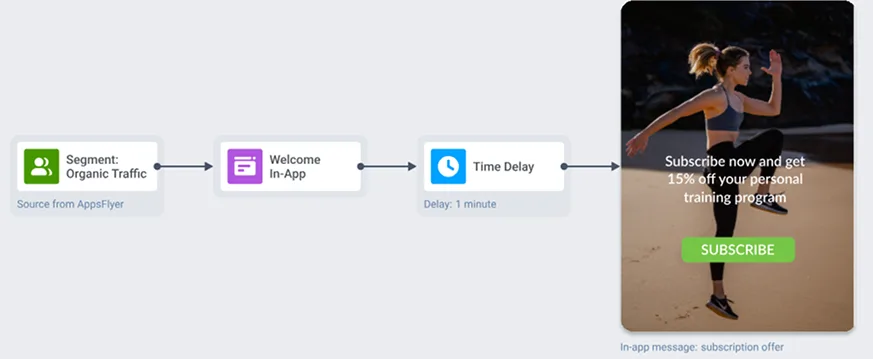
What the time delay element gives you
Fixed duration
Minutes, hours, or days between 2 steps, up to 30 days.
Specific time
Hold until a clock time in the user's local timezone.
One-time date
Wait until a set date and time, then release the user.
Day of week
A weekly pause until the day and time you pick.
Based on user data
Count the wait from a tag, event attribute, or webhook value.
Past-date branch
Send users whose date already passed down a path of their own.
The 5 ways to wait
Drop the element between any 2 steps on the canvas and pick a mode. Each one holds the user and releases them to the next step on its own.
| Mode | How the wait resolves | Typical use |
|---|---|---|
| Fixed duration | A set span in minutes, hours, or days, capped at 30 days | Cooldown between 2 messages |
| Specific time | A clock time in the user's local timezone. A time that already passed today rolls to the same time tomorrow | Morning digests, off-hours holds |
| Date | One future date and time, resolved against the user's timezone | A campaign anchored to a launch or sale date |
| Day of week | A recurring weekly pause until the chosen day and time | Weekly lessons, weekly reports |
| Based on user or event data | A date read from a tag, event attribute, or webhook response, with a Before, After, or On offset applied to it | Renewal, trip, appointment, and refill countdowns |
The first 4 modes cover timing you set once for everyone. The fifth reads a different date for every user, which is where a single journey replaces a stack of hand-scheduled campaigns.
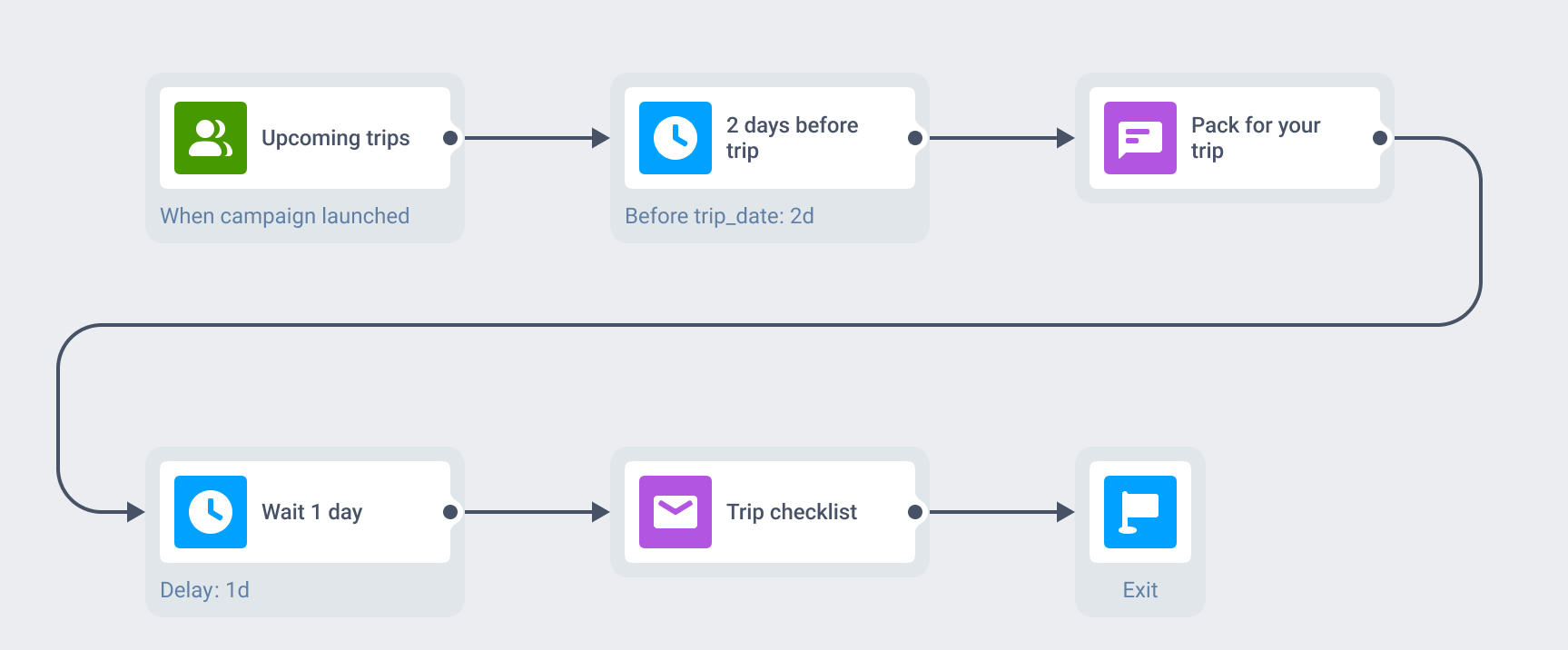
Count down from a date the profile already holds
Point the element at any date on the user profile: a renewal_date tag, an attribute on an event, or a field mapped from a webhook response. Set the offset to 3 days Before, 1 day After, or On that date, and Pushwoosh works out the wait for each user at the moment they reach the step.
One journey then covers your whole base, every user on their own clock. The dates come from the same user profiles and segments that the rest of your campaigns read.
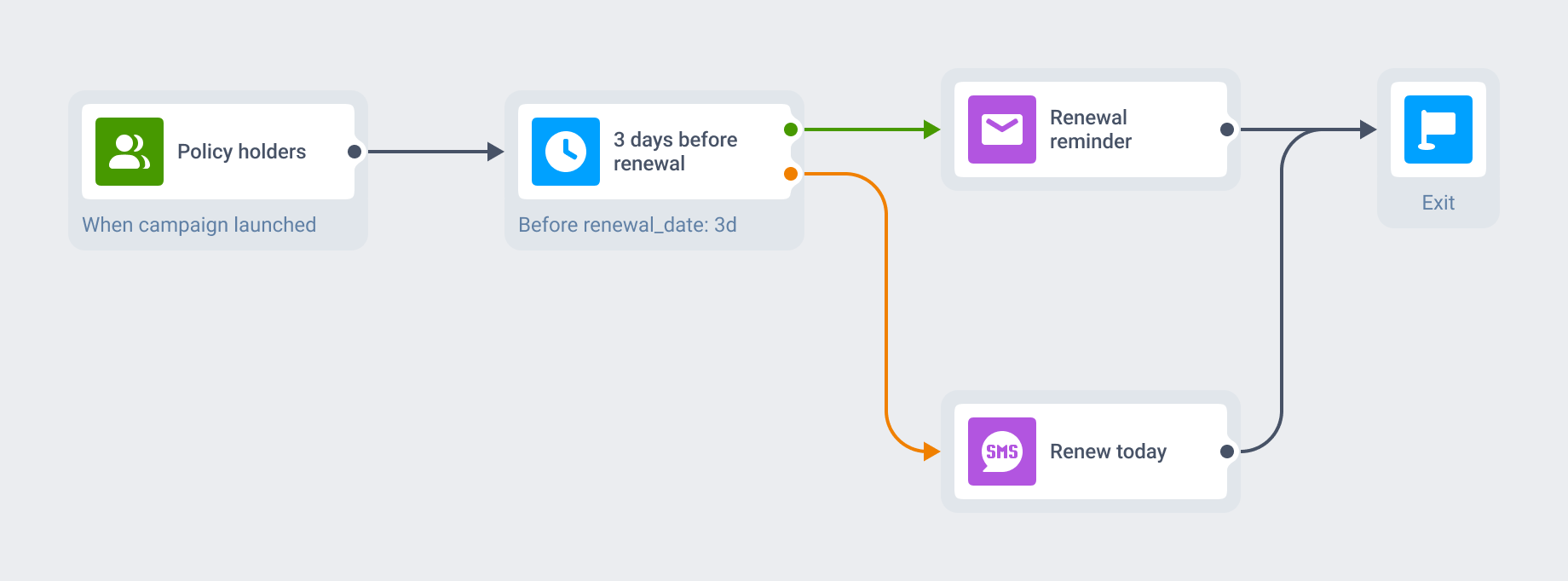
Decide what happens when the date already passed
A user can reach the step after their target date has gone by, and by default that user leaves the journey. Turn on the splitter and the element opens 2 branches instead, In the future and In the past.
Latecomers then get their own path: a shorter message, or a hand-off to another sequence. You keep them in the journey and choose where they land.
What time delay is best for
Date-anchored reminders
Renewals, trips, appointments, refills, and service dates, each timed off the date on that user's profile.
Cooldowns inside a sequence
An hour before the cart reminder, a day before the trial follow-up, a week between onboarding steps.
Wait, then fall back
Give one channel time to land, then escalate to another if the user has not responded.
The element pays off wherever a journey runs past 2 steps, and most of all where users carry real calendar dates worth counting against.
- Fintech
- Insurance
- Travel
- Airlines
- Hotels
- Subscription apps
- E-commerce
- Mobile games
- Telecom
- Healthcare
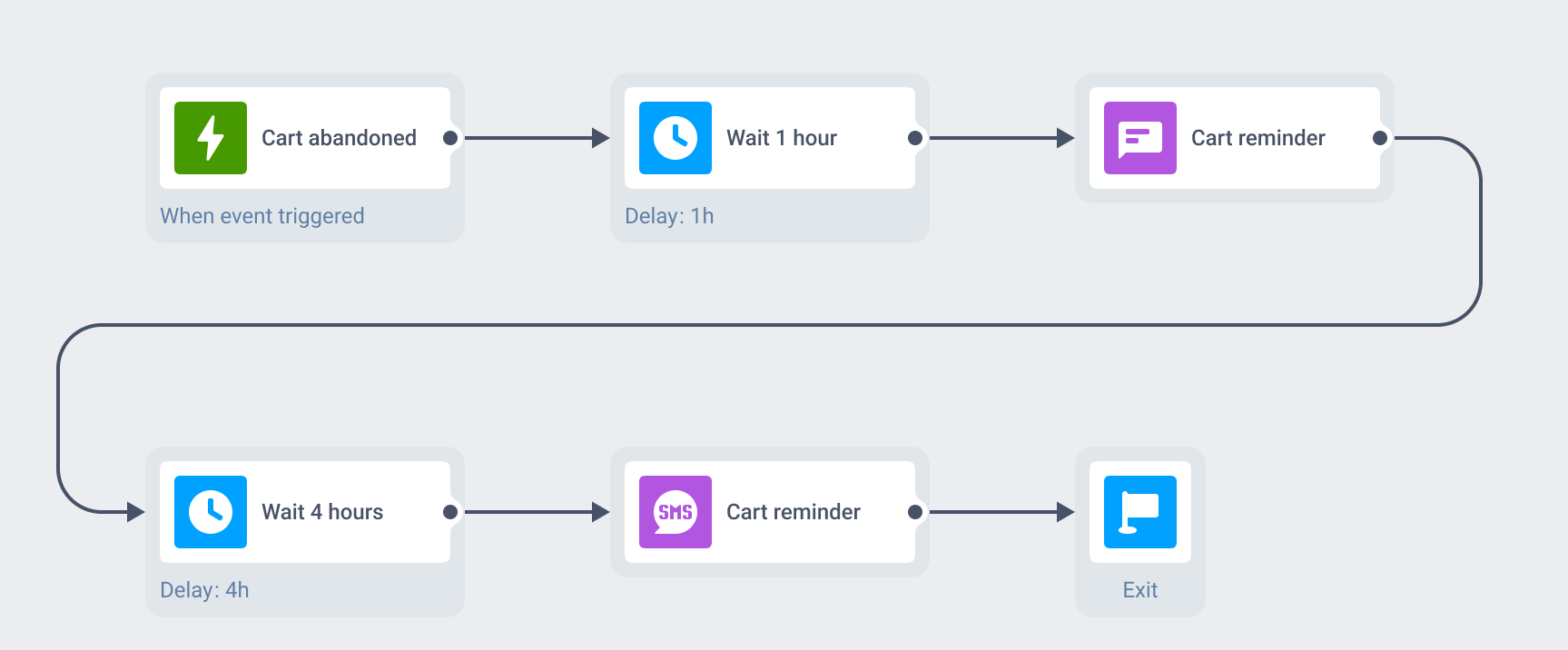
One wait step, any entry point, any channel
The same element behaves identically after an event trigger and after a scheduled entry, and it sits in front of any channel block: mobile push, web push, in-app, email, SMS, WhatsApp.
Pair it with a reachability check and the wait becomes a fallback window. Hold for 4 hours, then route users who did not get the push into SMS, all inside the same omnichannel orchestration.
Profile dates stay on our own hardware
A dynamic delay reads dates off the user profile, so it runs on the same data the rest of the platform holds. Pushwoosh runs on its own hardware in the US and Germany, under GDPR and BDSG. Full detail sits on the data safety page.






How it works
-
Drop the element on the canvas
Open a journey in Customer Journey Builder and place Time Delay between the 2 steps you want to separate.
-
Pick the mode
Set a fixed span, a clock time, a date, a day of the week, or point the element at a tag, event attribute, or webhook field and choose a Before, After, or On offset.
-
Handle the users who arrive late
Turn on the past and future split so anyone whose target date has gone by follows a branch you built for them, rather than leaving the journey.
FAQ
Explore related products
Best time to send calculates a personal delivery window for each push or email step, from that person's own history of opens, and falls back to a marketer-set default when there isn't enough history yet.
Map out and streamline your campaigns with one visual tool. Communicate, engage, retain, convert, segment, and experiment using Pushwoosh Customer Journey Builder.
Drive engagement with event-based triggers. Automatically launch campaigns when customers take actions, capturing perfect moments for conversion and retention.
Unify customer experiences with multi-channel orchestration. Coordinate messaging across email, SMS, push, and more for seamless, personalized journeys.
Transform abandoned carts into revenue with cart recovery automation. Send timely reminders, personalized offers, and incentives that drive conversions.
Drive on-time payments with bill payment reminders. Send strategic notifications, easy payment links, and personalized messages that reduce delinquency.