A wallet gift card is a gift card the recipient keeps in Apple Wallet or Google Wallet, with the balance on the card and updated after every purchase. For the business, it keeps stored value in sight, and stored value in sight is what brings the holder back to spend it.
In Pushwoosh, wallet passes sit next to push and email on 1 profile, so you can issue wallet gift cards for retail and follow up in the same journey.
Why gift cards belong in the wallet
Gift cards fail quietly. The buyer pays, the recipient forgets, and the balance sits there. A card in the wallet stays 1 swipe away, next to the customer’s boarding passes and loyalty cards.
The live balance is the second reason. A recipient who sees “$12.40 left” has a reason to come back. A plastic card can’t tell them anything.
Apple vs Google: only 1 has a gift card type
The 2 platforms handle gift cards differently, and your setup follows from that.
| Apple Wallet | Google Wallet | |
|---|---|---|
| Pass type | Store Card (Apple has no gift card style) | Gift card |
| Balance field | Custom field on the store card | Balance on the gift card pass |
| Alert on balance change | Yes, if the field has a change message | Only a custom notification sent with the API update |
| Barcodes | QR, PDF417, Aztec, Code128 | Same, plus EAN-13 |
On Apple, build the gift card as a Store Card and put the balance in a header field, so it stays visible when passes are stacked. On Google, use the Gift card type. Either way, the type is locked at creation.
How balance updates work
The balance lives in your system, not in the pass. Your POS, ecommerce platform or gift card ledger knows the real number. The pass just shows it.
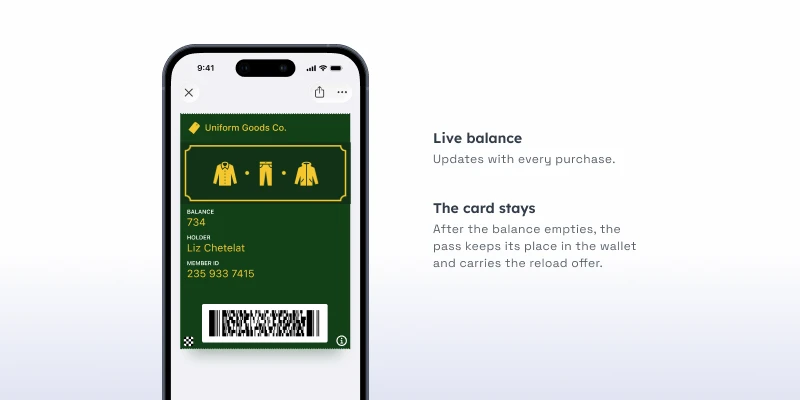
After each purchase, your system sends the new balance through the API, and the platform refreshes the card on every device where it’s saved. On Apple, add a change message to the balance field (“Your balance is now %@”) if you want a lock-screen alert after each spend. On Google, gift cards get no automatic change alert, but the API update can carry a custom notification text.
Be clear about the split when you plan the project. Pushwoosh issues and updates the card. Your systems calculate the balance and validate the card at the till.
Issuing the card: buyer, recipient, delivery
Most gift card flows involve 2 people, so decide who gets which link.
-
Purchase
The buyer pays online or in store.
-
Delivery
The recipient gets an email or SMS with Add to Apple Wallet and Add to Google Wallet buttons. Each pass is issued to a User ID, so the recipient becomes a known profile.
-
First visit
The cashier scans the barcode and your POS checks the balance.
-
Updates
Every purchase updates the balance on the card.
That second step is the quiet win. The recipient may be someone who has never bought from you. Now they’re a profile you can reach.
Re-engagement at zero balance
At zero balance, the card stops giving the holder a reason to open it.
2 moves help. First, update the card to show its final state, so it doesn’t sit in the wallet with a stale number. Then follow up by push, email or SMS: a welcome offer, an invitation to your loyalty program, or a prompt to reload.
Keep the offer off the gift card pass itself. Apple and Google only allow notifications that relate to the pass, and a promotion pushed through a gift card breaks their guidelines. The pass reports the balance. Your other channels make the pitch.
Setup checklist
- An Apple Pass Type ID certificate and an Apple Developer account ($99 a year).
- A Google Issuer ID and a Google Cloud service account key, once per app.
- An API connection from your gift card ledger or POS to update balances.
- A barcode format your scanners read.
- A journey that issues the card on purchase and follows up at zero balance.
Platform setup steps are in the Wallet passes docs.
Bring gift card holders back with Pushwoosh
Pushwoosh issues native Apple and Google Wallet passes for gift cards, updates the balance through the API, and follows up by push, email or SMS from the same journey. Every card is tied to a User ID, so the recipient turns into a customer you can reach again.
Getting gift cards spent has little to do with card design. It’s about keeping the balance in view until the next visit.